Overview
You are able to complete a Vehicle Stocktake from the Stock+ App.
Summary
To complete a stocktake on the Stock+ app click the Stocktake tab from the main menu:
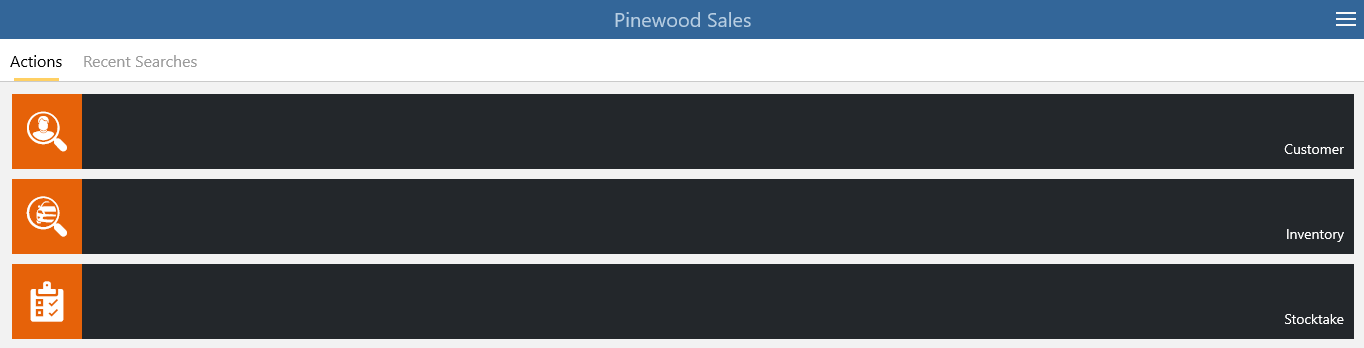 You are able to search the relevant registration number or VIN of the Vehicle:

There is also the option to select the ‘Scan’ button, which allows you to scan the VIN of the car whilst
completing the Stocktake.

Once the relevant record has been searched/scanned:

Select the record and it will display as below:
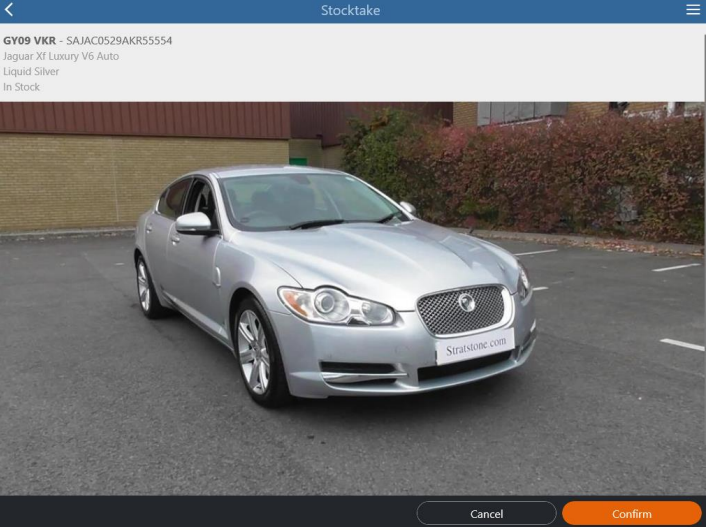
The image displayed pulls from the image loaded against the stock card within the DMS.
To mark the vehicle as in stock, select Confirm.

The above message will then appear to mark this as checked.
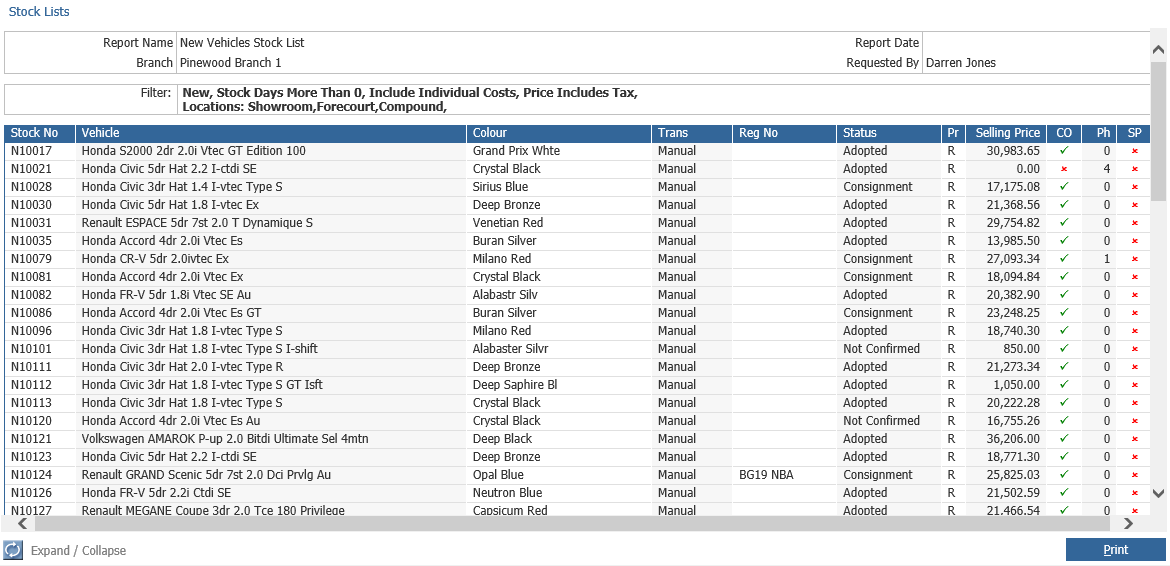
Once done you are able to view vehicles that have had a stock take completed against it within Pinnacle
by going to: Vehicles > Reporting > Stock Lists > Stock List – Click view. You can then click export to view this as an Excel document.