
Question
How do you allocate payment against invoice?
Answer
Navigate to Accounts > Cash Book > Receipts. Select the branch in the company structure that you would like to work in. Once selected you would see the following screen:
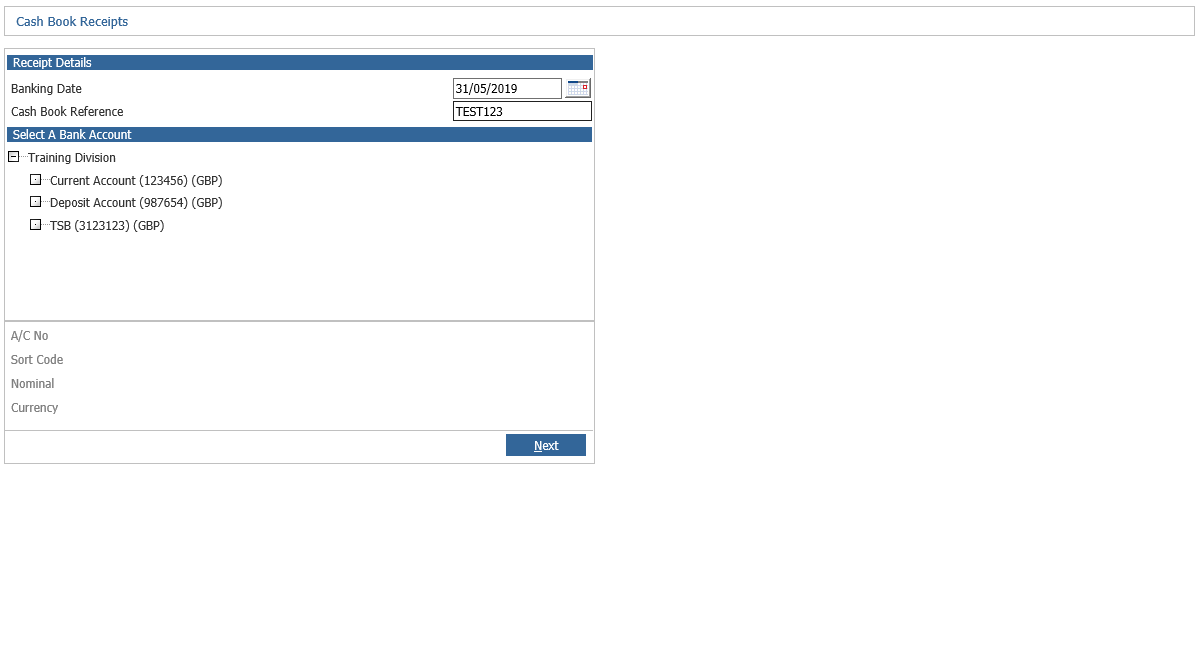
To allocate the payments against invoices, select the account you would like to process your payments in (e.g. Current Account), the banking date and the cash book reference used, that should be something you expect to see on your statements. Once the required information is entered, press Next.
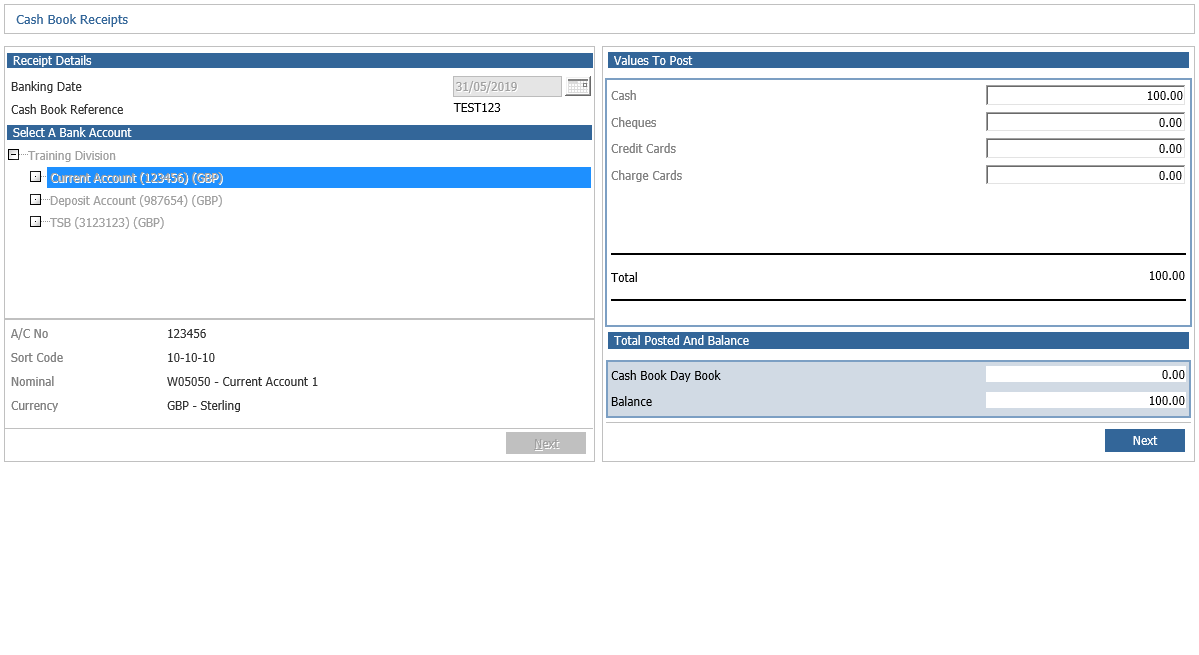 You would see another box appearing on the top right hand side of the screen. It shows you the cash breakdown where you enter the total value of cash and cheques you would like to bank into the account. Leave the Credit Cards line BLANK as it is processed separately. Once information is entered, press Next.
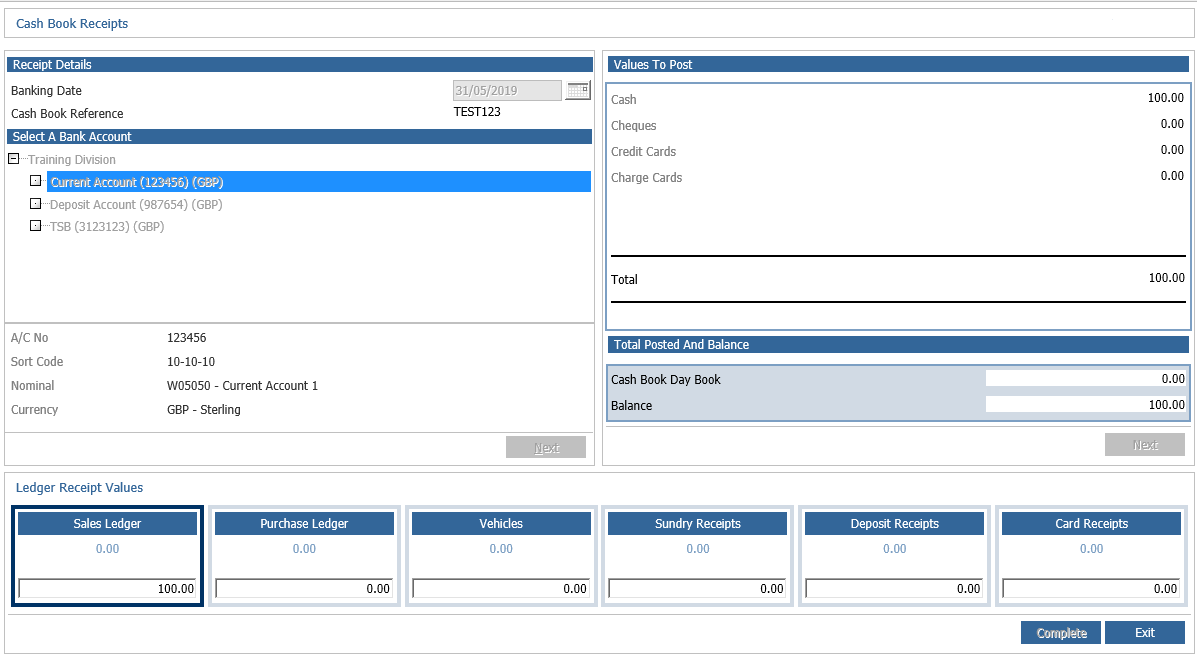
It then takes you to the breakdown of how you are going to receipt that cash on the bottom of the screen. To begin with, enter the value you would like to bank on the Sales Ledger and then click the Sales Ledger box. It will bring you to the screen to search for the account you would like to post this cash value to. Enter the 5-digit account number or the account name and press Search. It takes you straight to the screen where you confirm it is the right account to use. Press Accept.
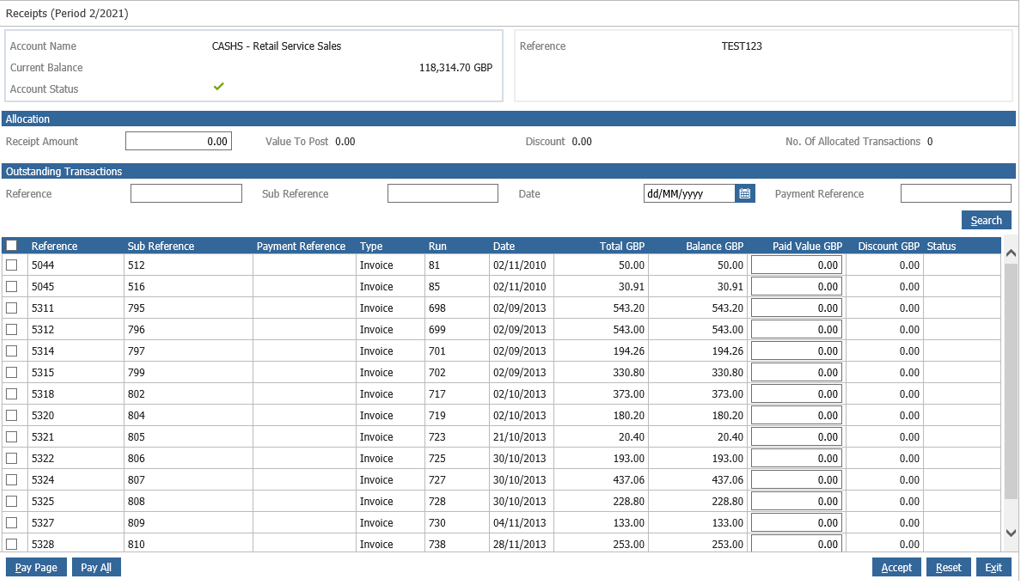
On the following screen, enter the amount of the receipt. Once entered the remainder of that can be allocated. The outstanding transactions box on the bottom of the screen shows all the postings available to be allocated. Find the invoice that you would like to allocate the payment to and select the Pay line. If another value was already assigned to that invoice, then you will get the window asking if you would like to cancel that transaction. You can cancel that and then proceed with the new payment value. If you would like to part pay some of the invoices, then select the Part Value line and enter the part-pay amount. Click Pay Now and then enter the narrative to the allocation for a debt chasing.
Once you have allocated all the payments, you have a few options on the bottom of the screen. You can either select Pay All to pay the entire account. Please note, that if you are entering the receipt equal to the account balance, then it will prompt you if you wish to pay off the entire account. You also have the Pay Page option which allows you to allocate all the invoices on the page and pick up the credit notes. Once the process is done, press Accept. If you would like to complete the day book, press Yes. You will then see the window on the screen that asks you to enter the Statement and Sheet References. If you have already received the bank statements to match the values then enter the information in the window, otherwise leave it BLANK and press Accept.