
Question
How do you create a VAT only invoice to post in Purchase Ledger?
Answer
You need to go to: Accounts > Purchase Ledger > Processing > Post Invoice > Type the account code and you will see the following page:
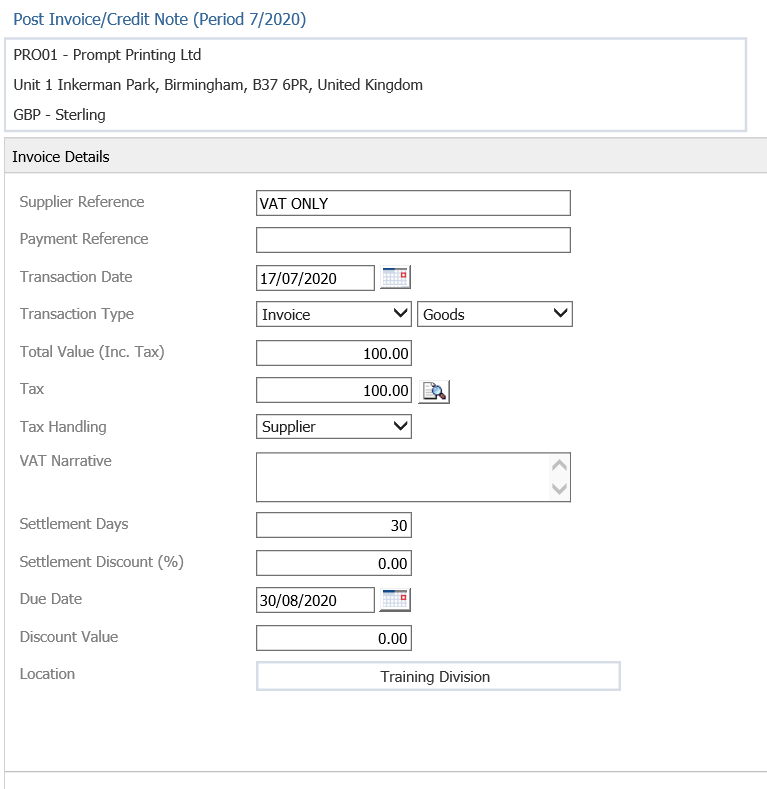
You will need to then fill all the required information on the right side of the screen. The Invoice value will need to be the same as the Tax Value.
When you enter the Tax Value in, you may be asked to check the tax value as it might be incorrect. However, if this is the correct value, simply press OK.
Then hit Next and you will see your invoice with a value of 0 when you do not need to enter any nominal code.
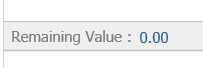
You then press Next. Mark the transaction as Approved and click Complete.
Now go to Accounts > Purchase Ledger > Enquiry and search the account you have just posted the VAT only invoice to.
Find the transaction in the Enquiry screen:
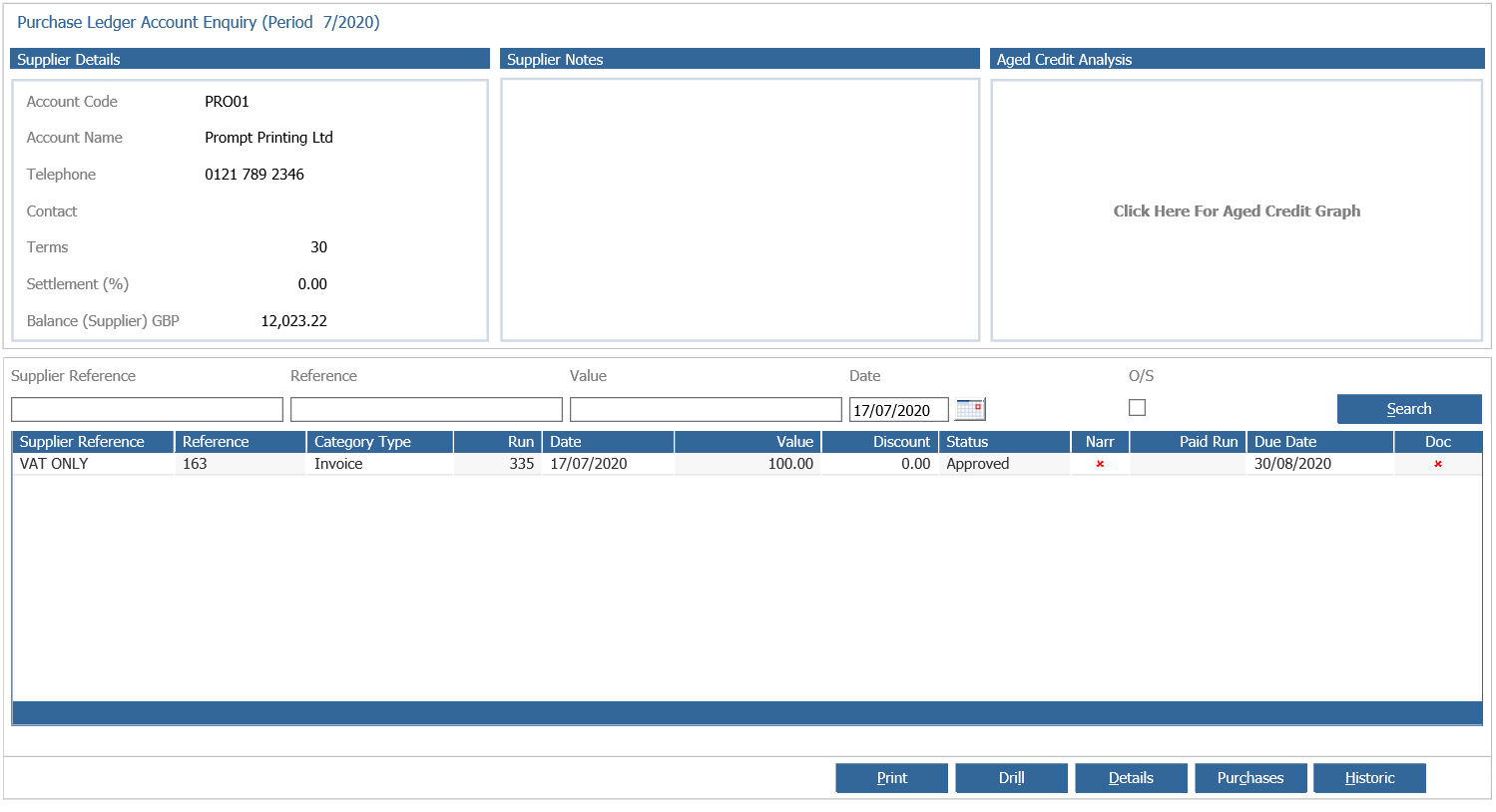
Single click and then click the Drill button
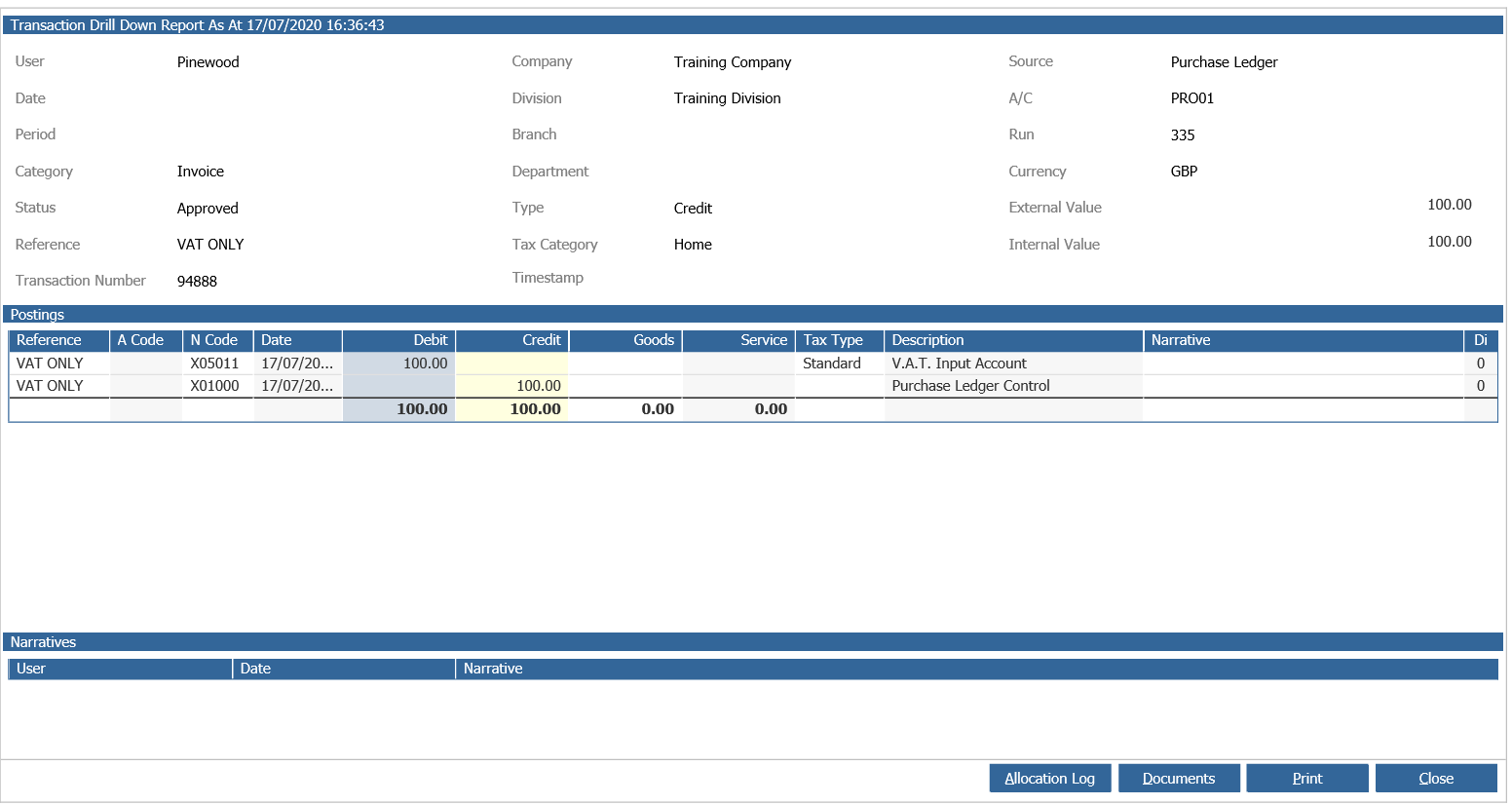
The transaction posted has only posted to the VAT Input Account nominal code and the Purchase Ledger Control nominal code.