
Workshop – Menu Pricing – Raise Estimate.
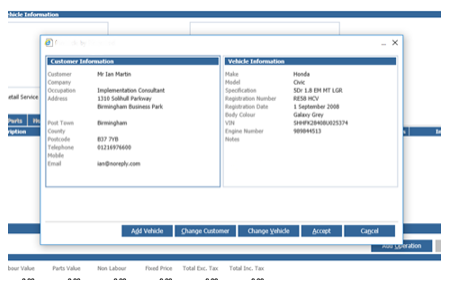
Drill into the customer and vehicle section at the top of the screen and search for your customer from the CRM database (if your customer is not already in the database then hit new customer to add the record). When you are happy then hit accept.
At the bottom of the screen hit the ‘Add Job’ button, this will bring up the Select Job Type pop up;
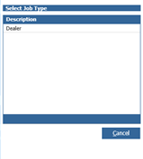
Note: if you also have manufacturer menu pricing set up in your system this will also appear here, if you wish to find out more about manufacturer specific menu pricing please refer to the manufacturer guide.
Drill into deal and you will have the option to then drill down through the Menu Pricing Structure that you have set up in the maintenance screen. First of all, select the vehicle make and then the model, select the appropriate group and then sub group and then select your item – double click to add the Menu Pricing Item to the estimate;
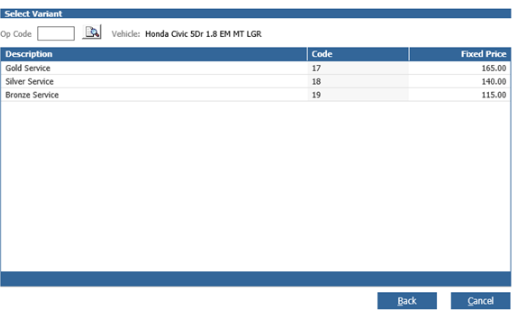
Once you have selected the item it will then populate the job with the description of the work, the load hours, invoice hours, pricing and any associated parts. The screen will look like this;

If you had associated a parts explosion to this item when setting up the Menu Pricing Structure, then you will be able to see these parts on to the job by selecting the parts tab from the centre of the screen;

If you wish to add further pre-defined operations, then the ‘Add Job’ button can be used multiple times. Alternatively, if you wish to add a new Ad-Hoc operation line to the estimate then use the ‘Add Operation’ button at the centre of the screen where you will be given a pop up to add the information in;

If you do need to add parts to the operation just added, then select the parts tab and search for the individual parts needed to add. Please note, only parts already created within the system will be available from here.
You then have the option to use the below option to add any relevant documents or conversational notes, once the job is invoiced then these will be in the service history.

Once the estimate is built you have the option to book the vehicle into the workshop diary for a future date for the customer to return or receive the work as an open workshop job if the work is to be carried out now.
Alternatively, you can use the Print button and provide the customer with a copy of the estimate details that will include the estimate number for later recall and the estimate text that was specified in the parameters screen along with details of the work entered.

If the customer does not wish to go ahead with the booking right away and go away to think about it then you can simply leave the Raise estimate screen and it will save the estimate for the specified number of days in the parameters screen for later use.
Recall Estimate
You can recall an estimate at any time during the days specified in the parameters by using the search filters at the top of the Recall Estimate screen, Workshop – Menu Pricing Recall Estimate.
If you leave all the search fields blank and hit search, then it will provide you with a list of all available estimates.

Once you have found the estimate you are looking for double click to open the estimate screen. At this point you can add any additional repairs or work, book the job into the diary, receive the job into the workshop, print the estimate or close out the screen.