
You can access the loan car diary from the diary screen, Workshop – Booking – Diary and then selecting the Loan Car tab;
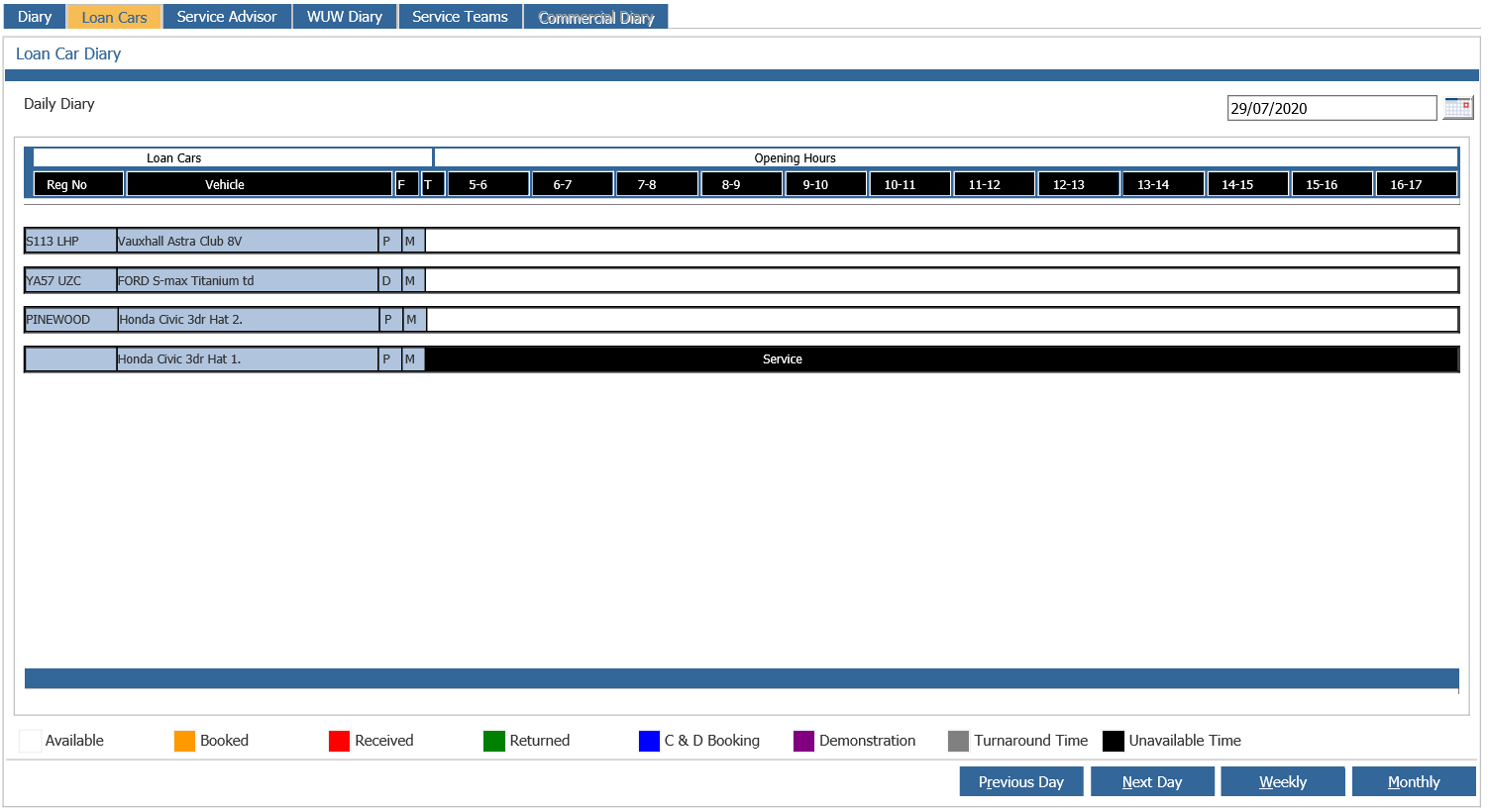
You will see that the screen defaults to a daily diary with the current date showing. You can use the calendar icon to navigate to a desired date or the buttons at the bottom of the screen to navigate to the Previous Day and the Next Day.
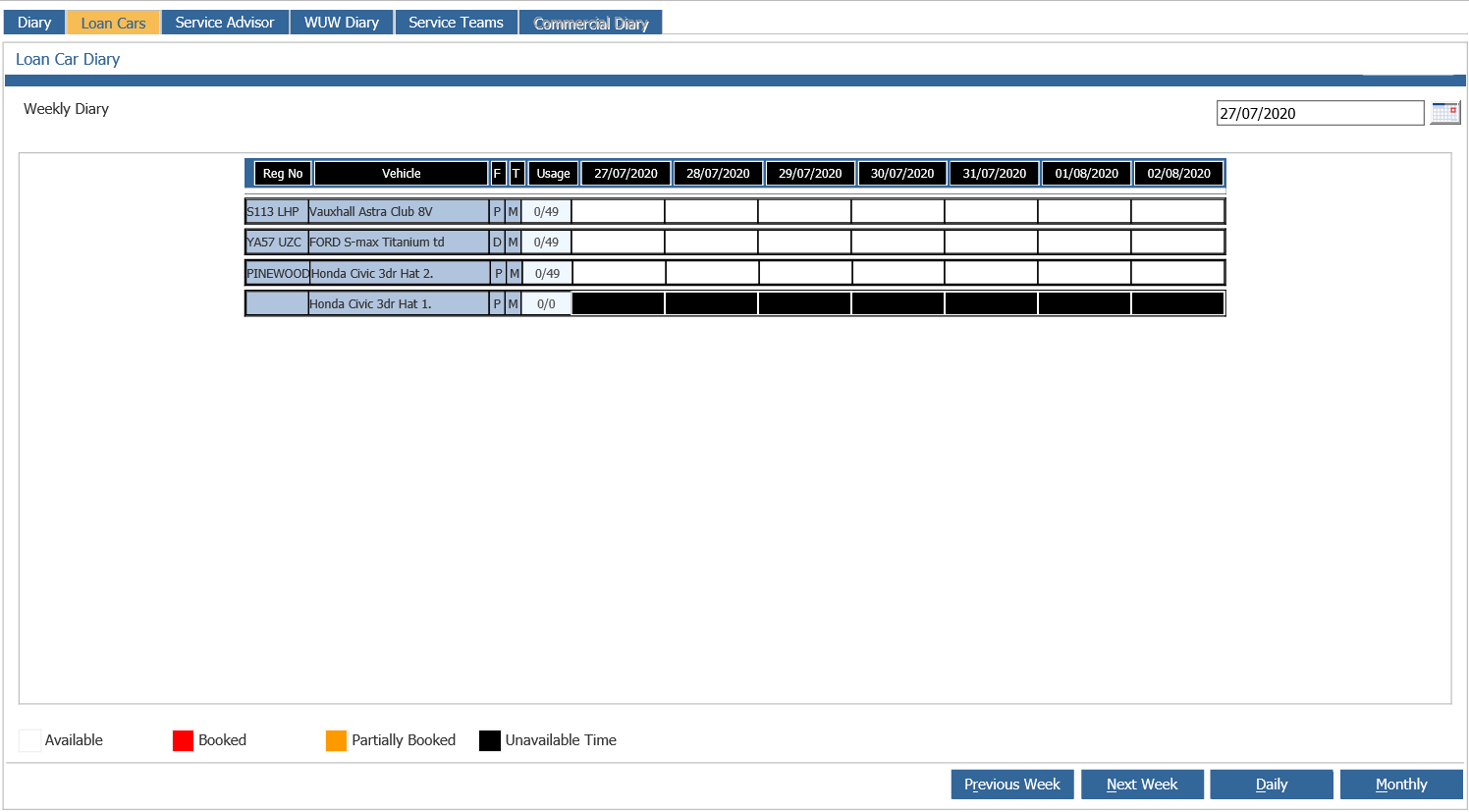
There are also buttons at the bottom of the screen that will show you the diary in a Weekly View;
Or a monthly view;
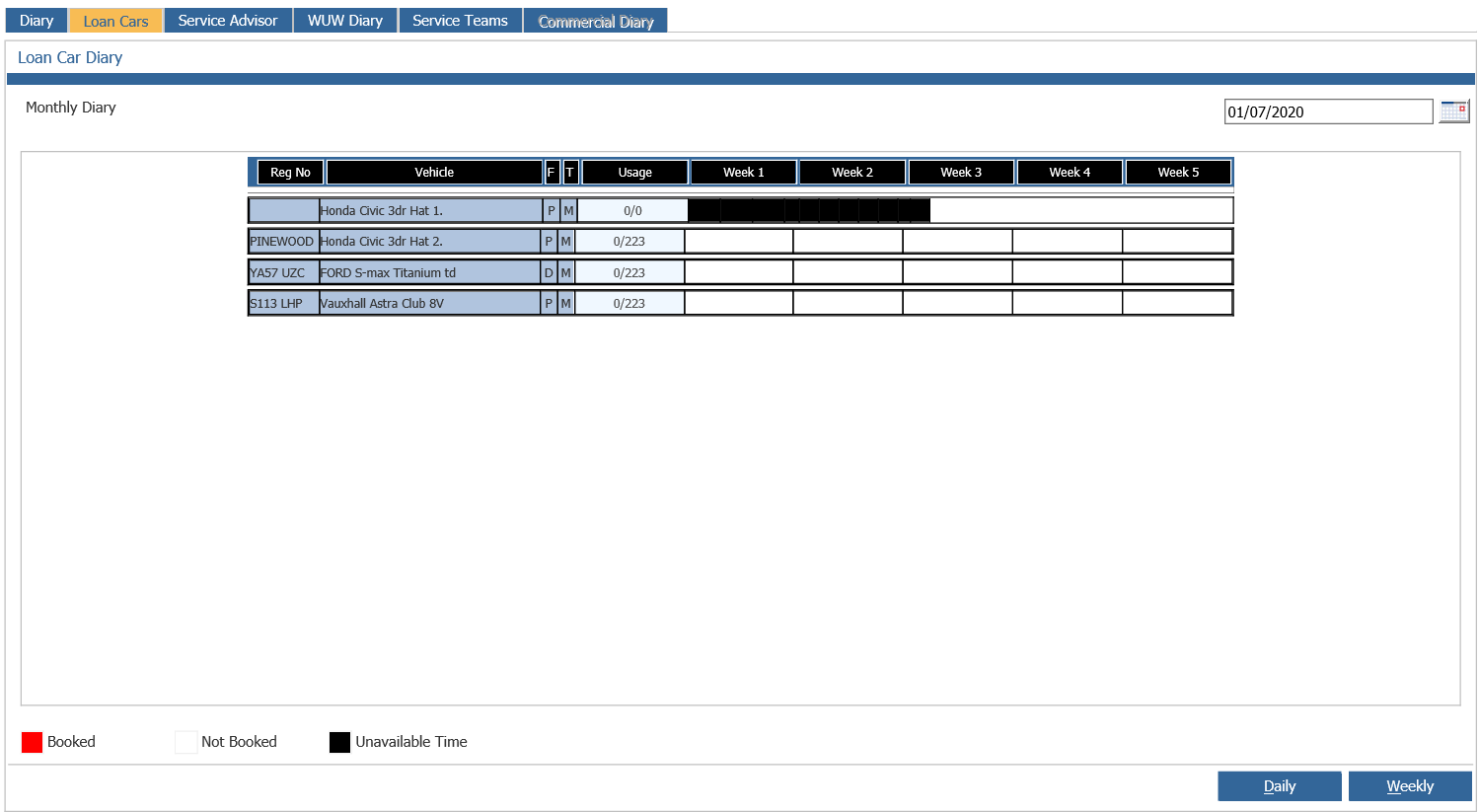
The weekly and monthly view have a usage column that indicated how much availability the loan car has remaining for that period.
To book a vehicle out to a workshop job you will do this in the booking screen on creation or at any point during amendment. You can select the loan car checkbox on the job details screen to flag this booking as having a loan car against it, you will note it currently states not allocated and the WUW selection is now greyed out as the two are mutually exclusive.
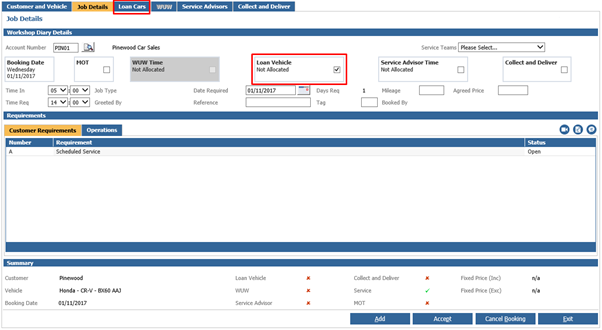
Select the loan car tab to allocate a vehicle to this booking
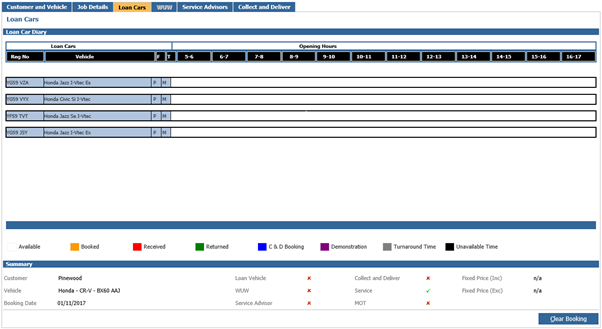
In this screen you will see the same lay out as the diary page but without the option to amend the dates.
The colour key at the bottom will allow you to view any bookings on vehicles that are unavailable/already booked.
Double click on the vehicle reg or description of the desired vehicle you wish to book. You will be asked if you would like to book a full day booking, if you hit yes then the vehicle will be booked out for the whole day, if you hit no then you will be presented with the following pop up to book the vehicle for a partial day.
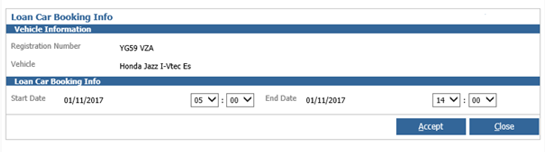
The dates and time populating the screen already are from the date of booking and the date required set (you cannot amend these) and the times are pulled from the Time in and Time required that is set on the job but this can be amend if required. When you are happy hit accept to add the booking in.
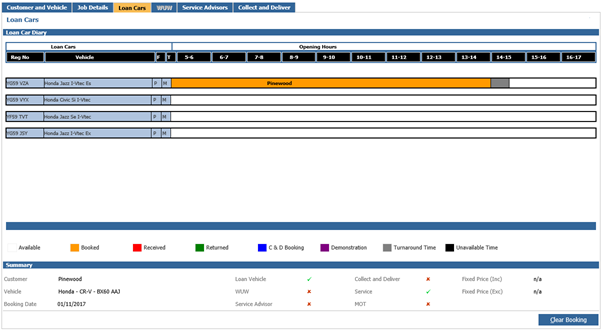
In the loan car tab on the booking screen you can see the vehicle is booked in for the time of the booking. According to the key this will turn red once the job is received and the customer takes the loan vehicle and once you flag the vehicle as arrived back in the workshop it will turn green. If you wish to remove the booking, then use the clear booking button at the bottom of the screen you can then re book a different vehicle or add a while you wait or collect and delivery time if required.
Once a booking has been made into this diary if you go back into this through Workshop – Booking – Diary screen and selecting the loan car tab;
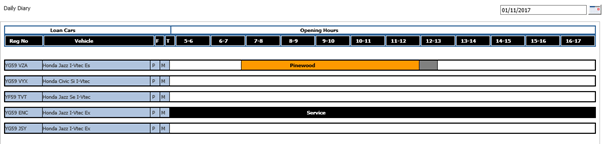
You will see the customer name in the booking. The block is currently yellow to signify this has been booked. They grey at the end of the booking signifies turnaround time (you specify in the loan car set up a certain amount of time in minutes it will take for a vehicle to be readied for the next booking). From the Daily view you can drill into a booking to see details of the booking and upload any documents and view previously uploaded documents.
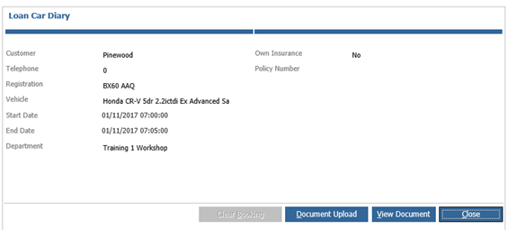
Once the booking is received the block will turn red to signify the loan vehicle has been taken away;
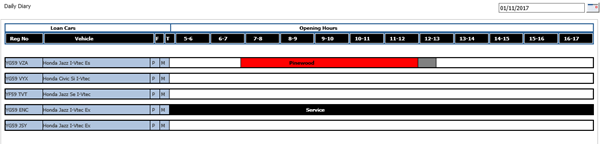
And then once the work is completed and ready to be invoiced you will need to flag the loan car as returned. Go to Workshop – Invoicing – Loan Car Returns;
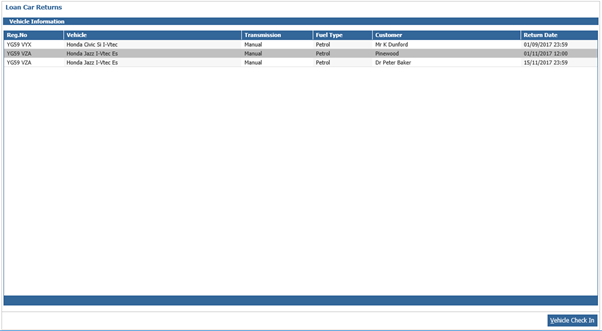
Here you will see a list of all vehicles that have been loaned out with details, customer name and the return date. Find the vehicle you wish to return and single click the line. This will activate the ‘Vehicle Check In’ button, if you click this you will get a pop up where you will need to enter the following information;
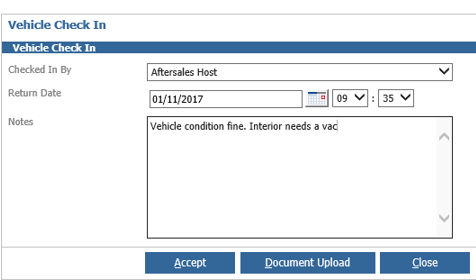
Checked in By
From the dropdown menu select the user that is accepting the vehicle back in
Return Date
This will default to the current date and time, but if you are doing this after the fact you can amend these
Notes
Here you can add any relevant notes (perhaps regarding the condition of the car or if it was returned late)
Document upload
Here you can upload any relevant documents to this booking
Once you are happy then hit accept and this will flag the vehicle as returned and remove it from this list. If you go back to the loan car diary view you can see the booking has turned green (it will also shorten or lengthen the booking on the diary screen if the time returned is earlier or later than expected)