The ‘Customer Orders’ report allows the Service Department to keep track of all parts that are ordered either via the booking process or through the workshop routine.
Select Workshop > Reporting > Customer Orders from the side menu.
A number of tabs are available within this screen.
Display Orders: Shows whether any parts that are placed on order have been actioned by the parts department.
A number of headings are available within display orders.
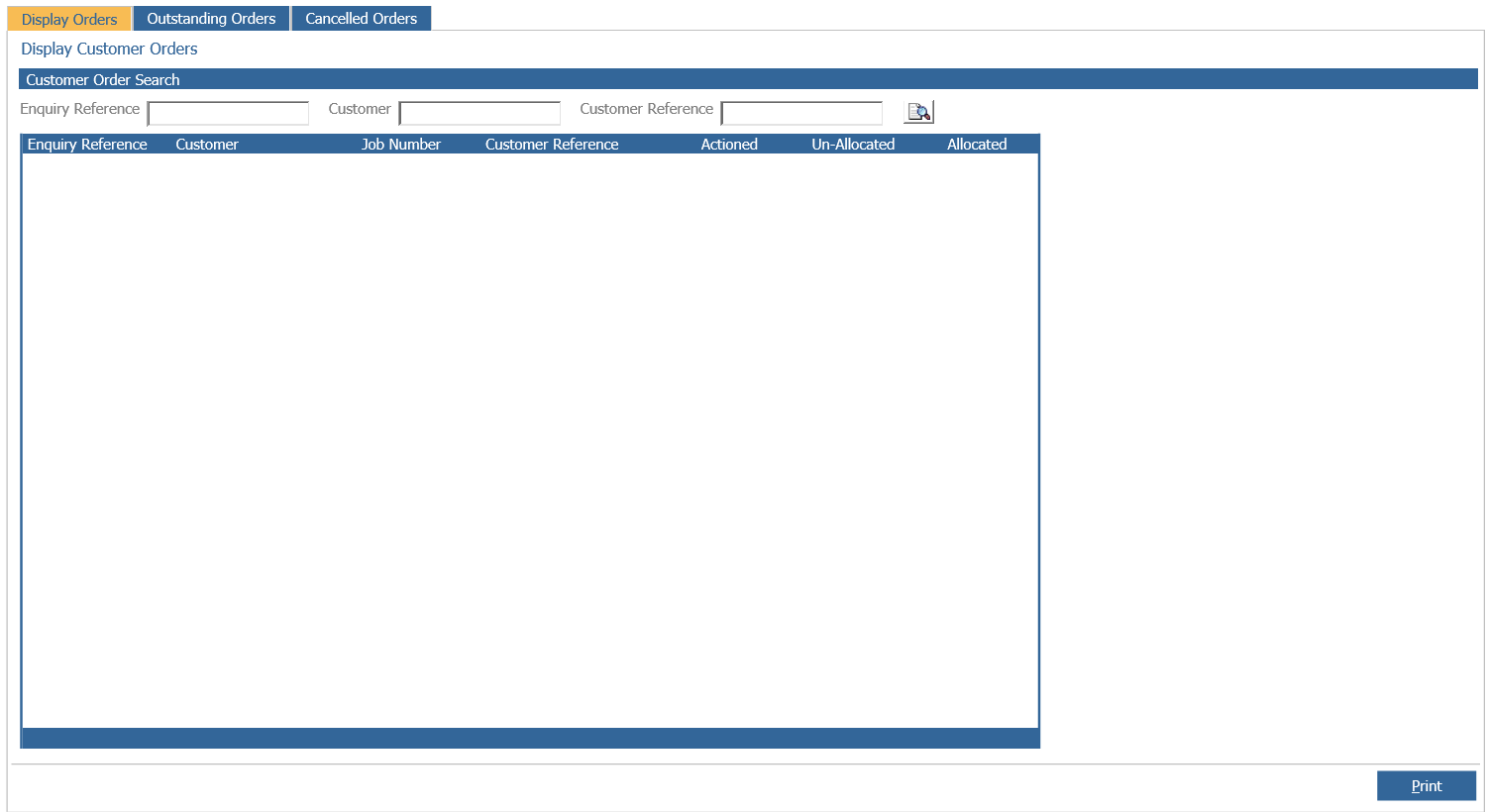
• Enquiry Reference: The enquiry reference number is generated automatically by the system.
• Customer: Displays the Customer or Business name.
• Job number: Only populated if the job is received into the department.
• Customer Reference: Populated manually by the Parts Department during the parts ordering process. (This is not a mandatory field).
• Actioned: A  shows the enquiry has been actioned. A ‘x’ shows the parts department still have to deal with the enquiry.
• Un-Allocated: A  shows the enquiry has been allocated to a supplier and subsequently remove from that supplier. A ‘x’ shows the enquiry has never been removed from a supplier.
• Allocated: A  shows the parts department have associated the enquiry to a supplier. A ‘x’ shows the enquiry is still to be allocated.
Outstanding Orders Tab: Displays the status of current customer orders.
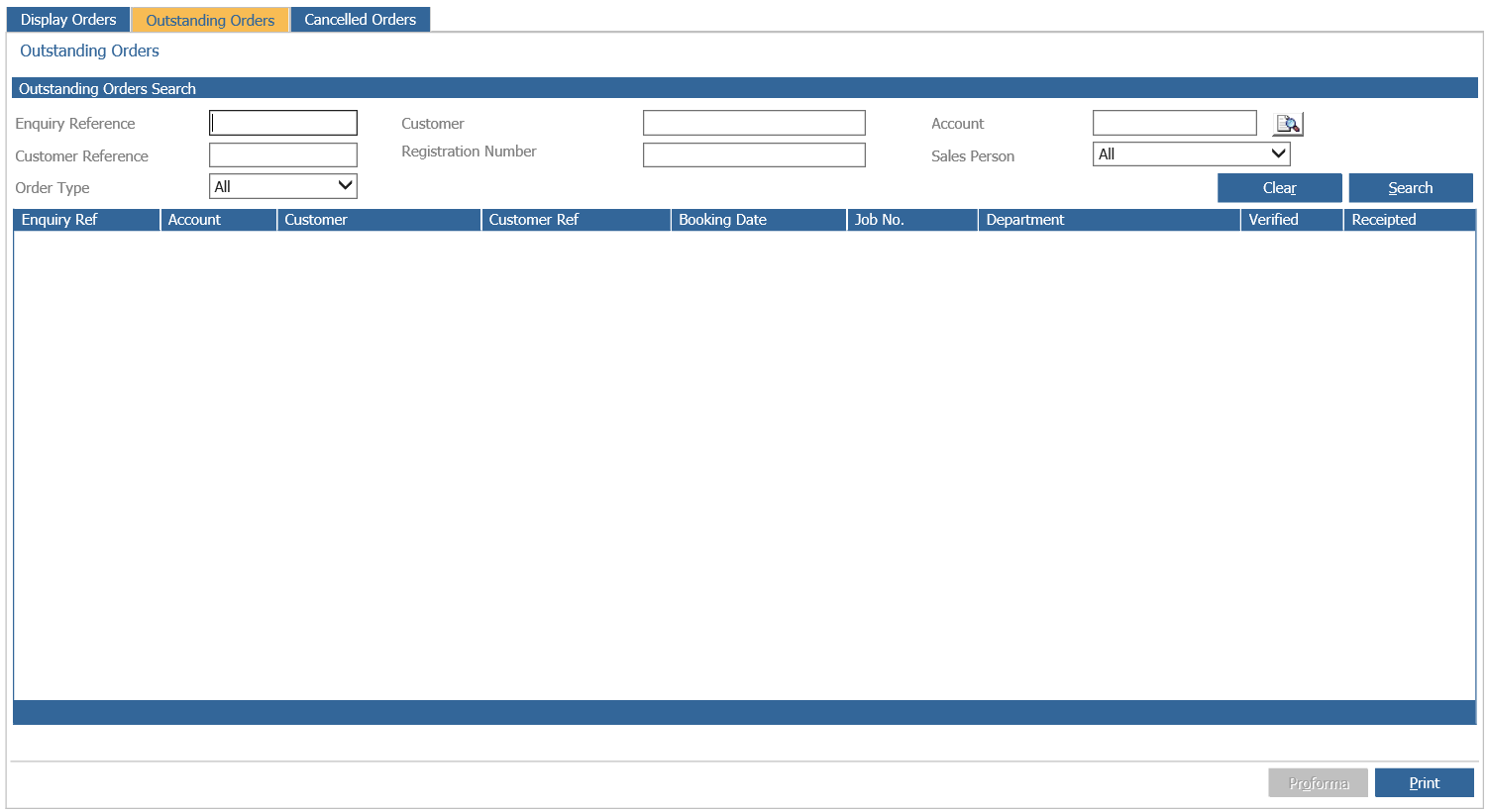
Located at the top of the screen are the search criteria fields.
• Enquiry Reference: Search on the system generated reference number.
• Customer: Search on the customer/business name.
• Customer Reference: Search on the parts department generated reference number.
A further number of headings are available within this screen.
• Enquiry Reference: Generated automatically by the system.
• Customer: Displays the Customer or Business name.
• Customer Reference: Manually completed by the Parts Department during the parts ordering process. (This is not a mandatory field).
• Booking Date: Date that the vehicle is booked into the workshop diary.
• Job number: Only populated if the job is received into the department
• Department: Shows which service department the vehicle is booked into.
• Receipt Status: There are three statuses that are shown in this field.
• Blank: If the ‘Receipt Status’ appears blank this may indicate that the parts on the enquiry have yet to arrive from the supplier.
• Partial: A partial receipt status indicates that part of the order has been fulfilled.
• Full: A full status indicates that the order has been completed.
To check an enquiry further double click on a customer order to open the ‘Customer Order Details’ window.
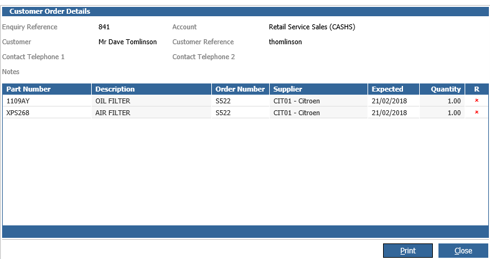
The customer details are located in the upper section. The lower section of the window displays the following information.
• Part Number
• Part Description
• Order Number (Supplier Order)
• Supplier
• Expected Delivery Date
• Quantity of parts on order
• Receipt. A indicates the part has been received and an ‘x’ indicates the part is still outstanding
Note: If a ‘Receipt Status’ is indicated as ‘Full’ and when displaying the ‘Customer Order Details’ screen the ‘Quantity’ field displays zero, this indicates that the order has been fulfilled from stock.
Cancelled Orders
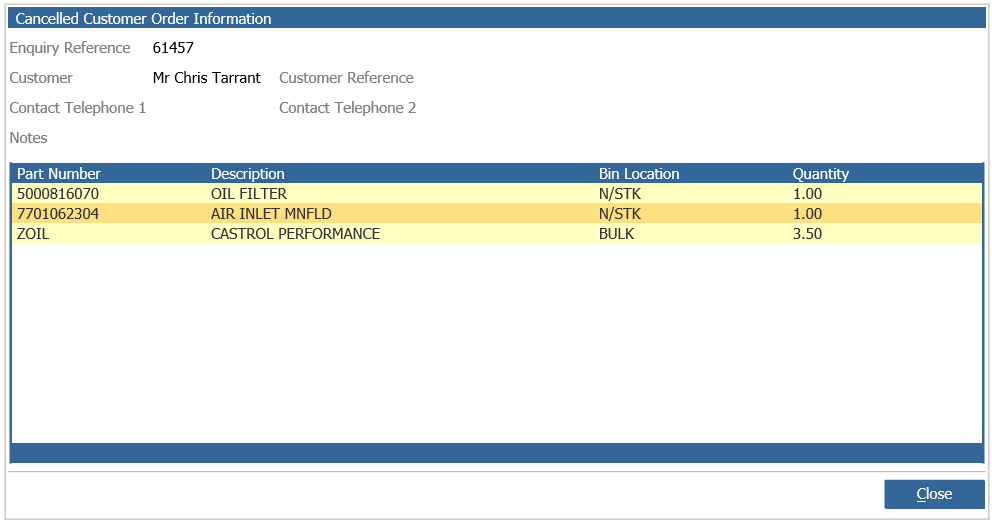
This page will display any orders that have been cancelled. 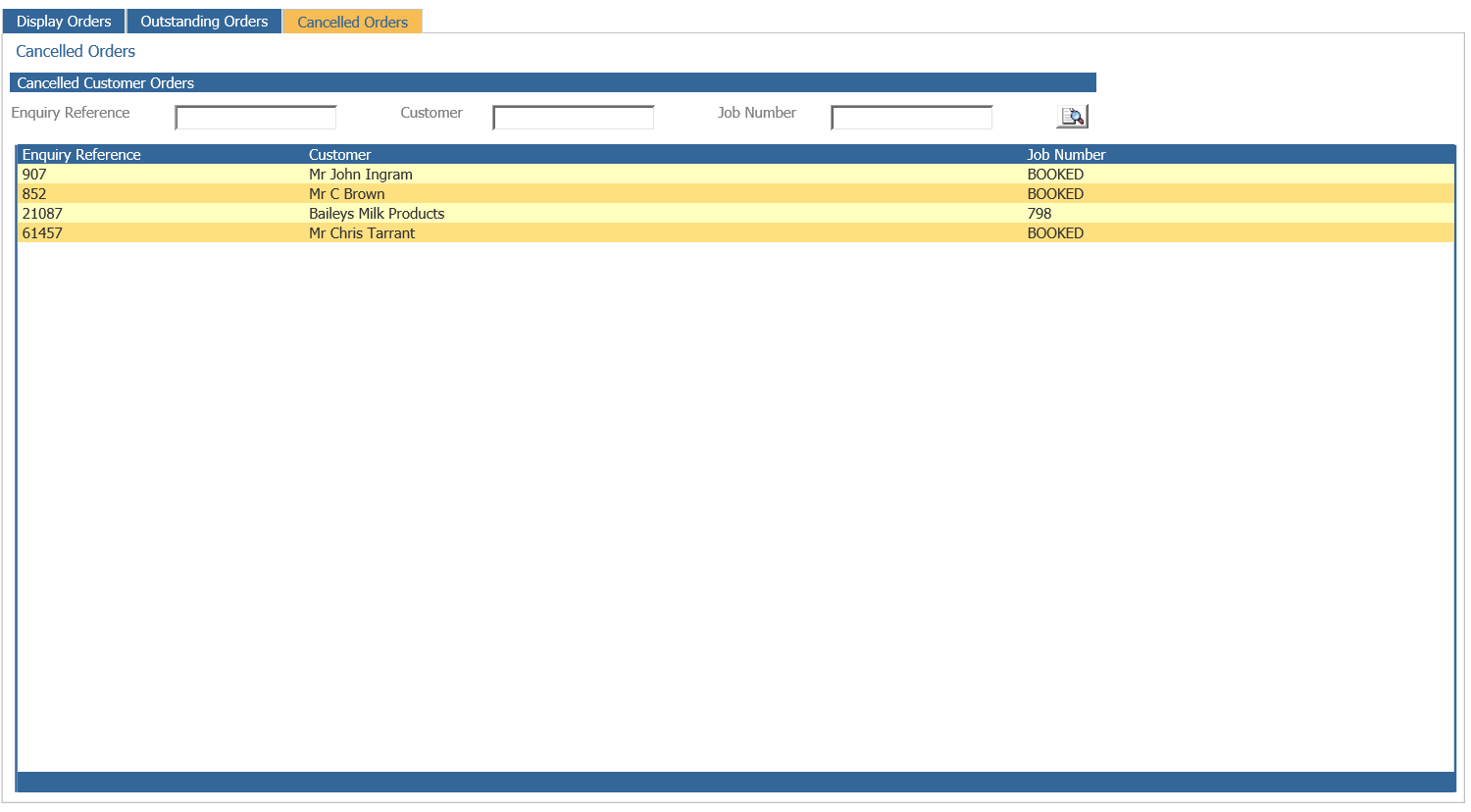
Once an order has been cancelled, you will need to re-create this if it is needed. You cannot reverse this process. You can view the details of the order that was cancelled by double clicking onto it: