
There are various messages you can send from the workshop throughout different stages of the workshop booking process.
These can all be set up in Workshop - Parameters - Parameters and in the messages tab:
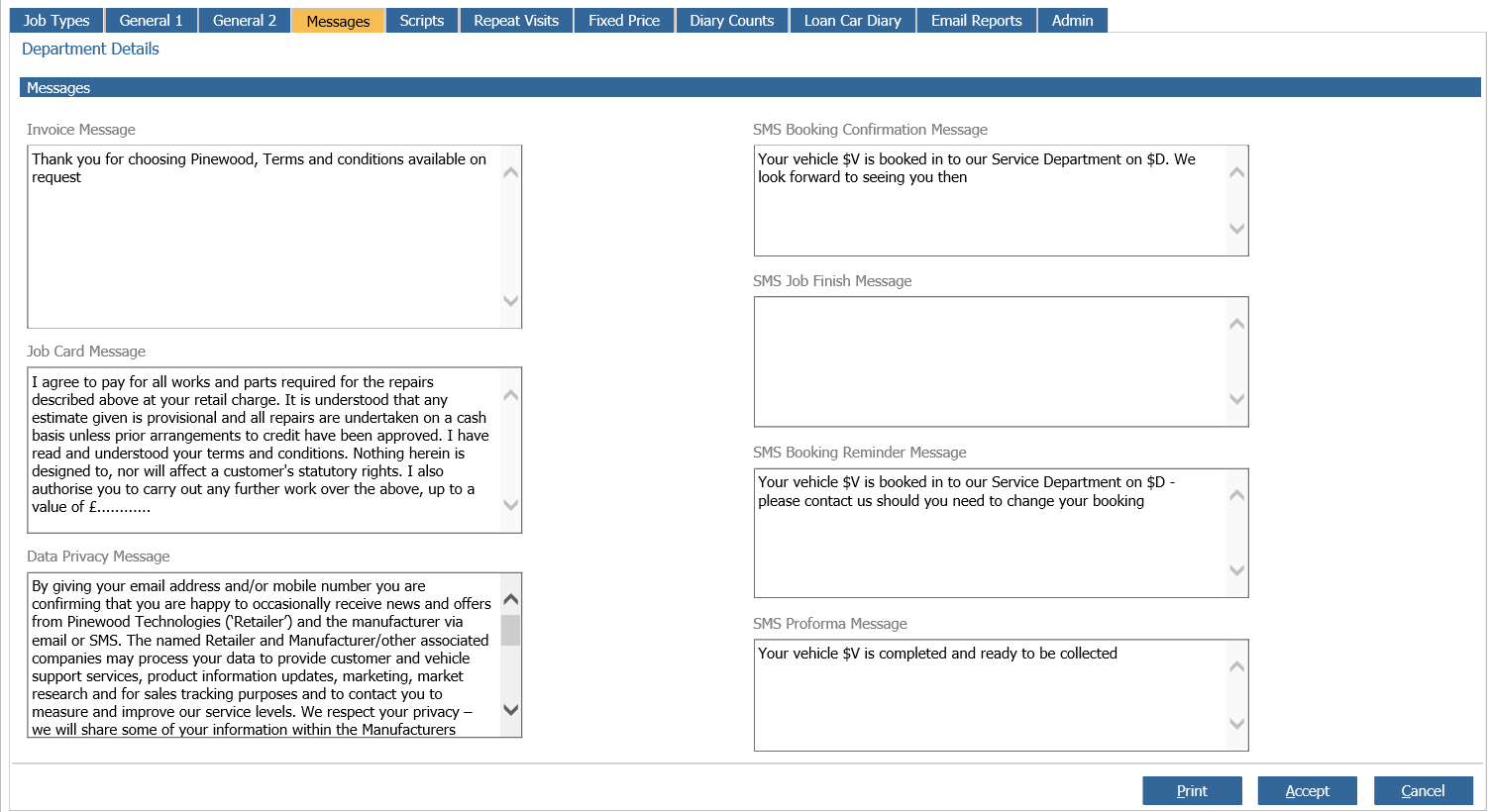
Invoice Message: This is the message that will appear at the bottom of a workshop invoice.
Job Card Message: Same as invoice message although this prints at the bottom of the job card. Some customers use this to print brief terms and conditions of the work.
Data Privacy Message: This is the message that will display on job card style 5.
SMS Proforma Message: After a print out of a proforma invoice you will get a popup with the text in here pre-populated that you can send in an SMS to the customer. For instance to let them know it is ready to collect.
SMS Booking Confirmation Message: On creation of a workshop booking, you will get a pop-up with the message in here defaulted. You will not get this when directly creating a new job, only booking.
SMS job finish message: This is the message that will send when a technician completes a workshop job, providing the reason that they select is also set up to send an SMS. To ensure that the reason is setup to send an SMS go to: Workshop - Parameters - Time Management, select 'Finish' from the drop down. This will show you all your finish reasons and whether they are set to send SMS.
SMS Booking Reminder Message: By setting this message, you can automatically send an SMS to your customer X many days before they are booked in. To determine how many days before a booking this gets sent out, move across to the General 2 tab and there is a field called 'SMS Booking Reminder Lead Time'. It is important to note that for this to send, these have to be bookings and not received into jobs; for instance if you have the lead time set to one day, but you receive your job cards in 2 days before, this SMS wont send.