
The Work In Progress reports contain the details of all jobs that are received into the Service Department and have not been invoiced in full.
Select Workshop > Reporting > Work In Progress from the side menu.
There are four tabs within the Work in Progress screen
• Summary
• Parts Issued
• Total Hours / Parts
• Aged Total Hours / Parts
The ‘Summary’ tab is selected by default
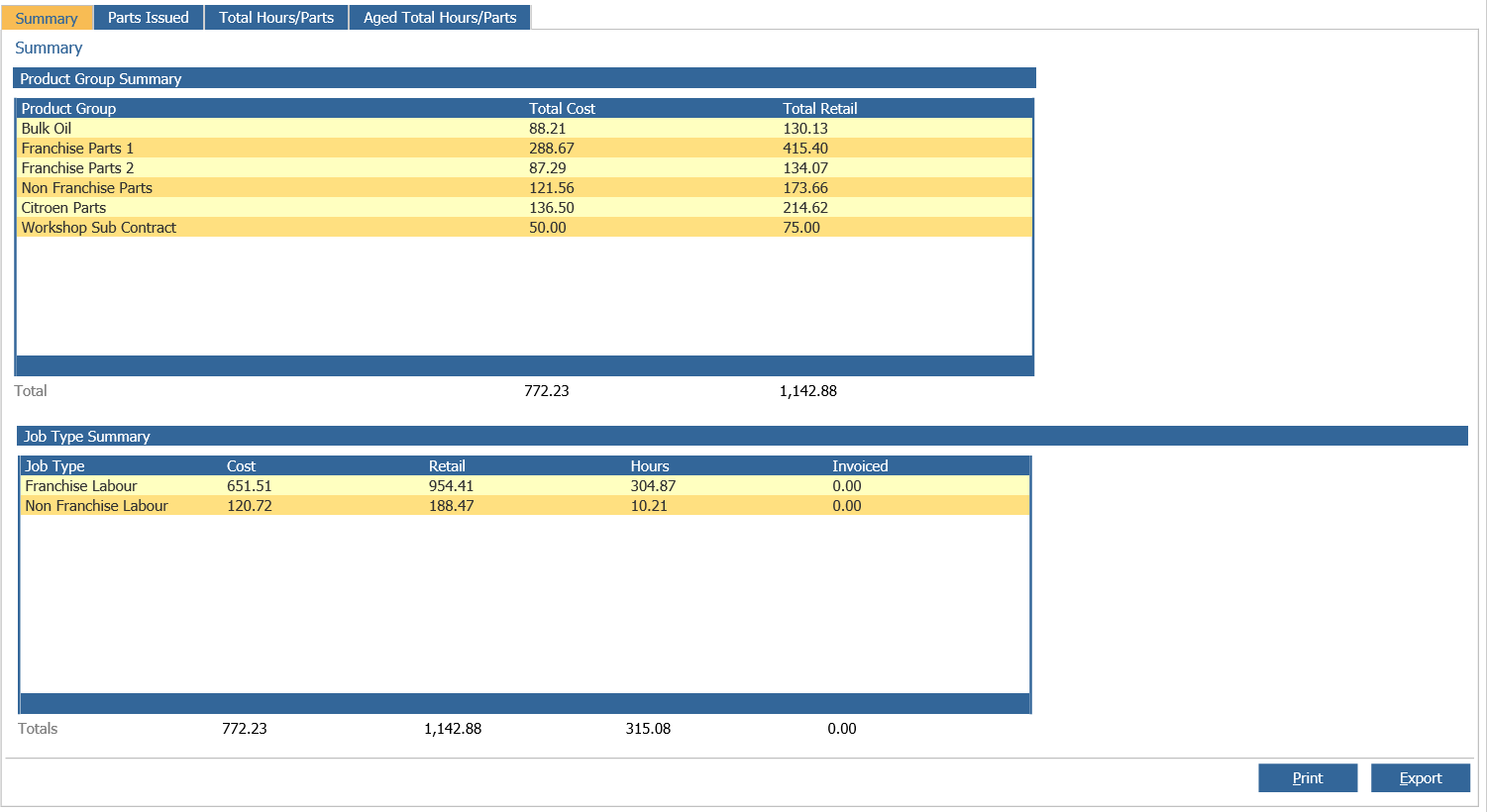
The Summary window is split into two sections ‘Product Group Summary’ and ‘Job Type Summary’.
The ‘Product Group Summary’ is made up of three columns.
• Product Group: Displays which product groups have parts booked on to the WIP.
• Total Cost: Total cost price of parts per product group of the parts booked on to the WIP.
• Total Retail: Total retail price of parts per product group of the parts booked on to the WIP.
The ‘Job Type Summary’ is made up of five columns.
• Job Type: Display which have open jobs on the WIP.
• Cost: The total cost price of parts per job type.
• Retail: The total retail price of part per job type
• Hours: The number of clocked hours in progress per job type.
• Invoiced: Displays hours where a split invoice has been produced and part of the job is left open on the WIP i.e. a job with two operations has been clocked on for a total of four hours. Three of those hours were for retail work and one hour was for a warranty repair. The retail operation has been invoiced and the warranty operation has been left open. The ‘Invoiced’ field will be populated with the three hours.
The ‘Summary’ report can be printed by selecting the ‘Print’ option and can be exported using the 'Export' option.
Parts Issued
The Parts Issued tab displays all jobs on the 'Work In Progress Report' that have parts booked out. The oldest job is located at the top of the screen
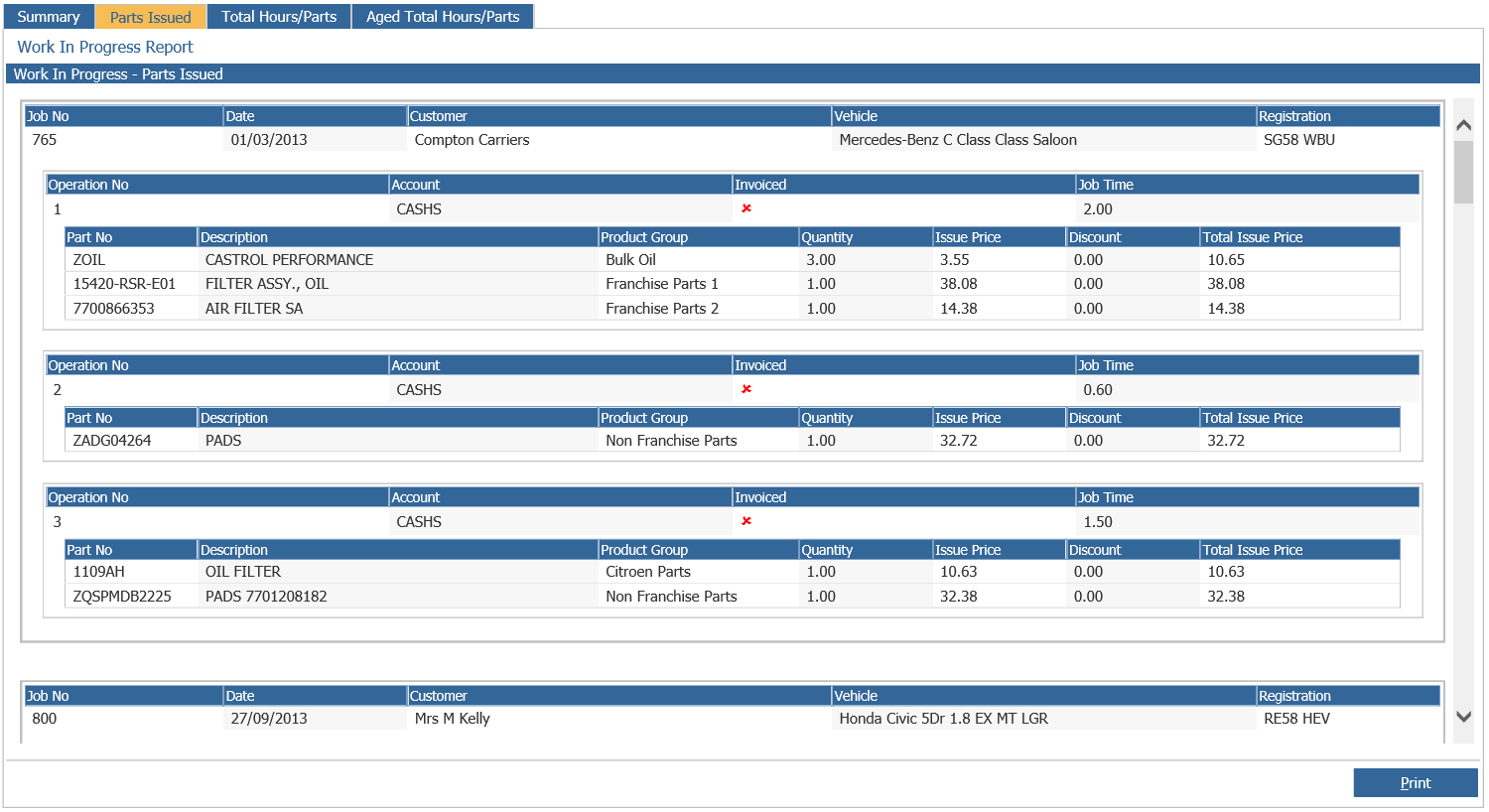
Select ‘Print’ to print the ‘Parts issued’ report.
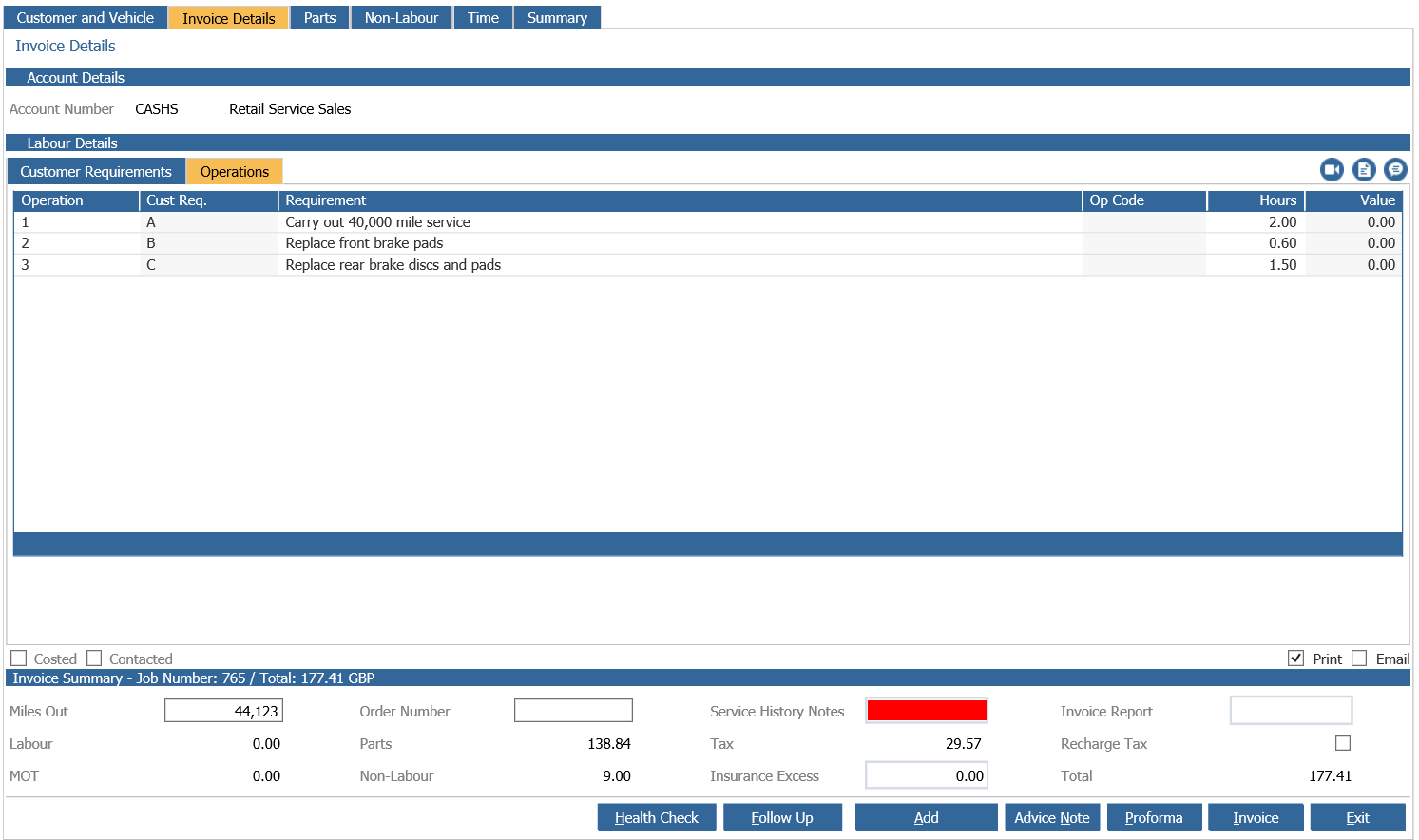
Double click into a job to display the invoice screen.
Total Hours/Parts
Located in the upper section of the screen are a number of filters enabling reporting on specific segments within the WIP.

• All: Leaving the filters set to ‘All’ every job on the WIP is displayed.
• Job Type: Can be split per job type. i.e. Franchise Labour and Non-Franchise labour.
• Service Advisor Teams: If service advisor teams are set up within parameters the report can be broken down to a specific team.
• Customer Type: Customer types are set against sales ledger accounts. Using the filter the report can display for example only warranty repairs.
• Service Advisor: Used in conjunction with the ‘Service Advisor Teams’ filter the report can be broken down further to a specific advisor.
• Service Teams: If Service Teams has been enabled for technicians the report can be broken down per team.
Note: A combination of filters can also be applied.
When the appropriate filters are applied select ‘Accept’ to generate the report.
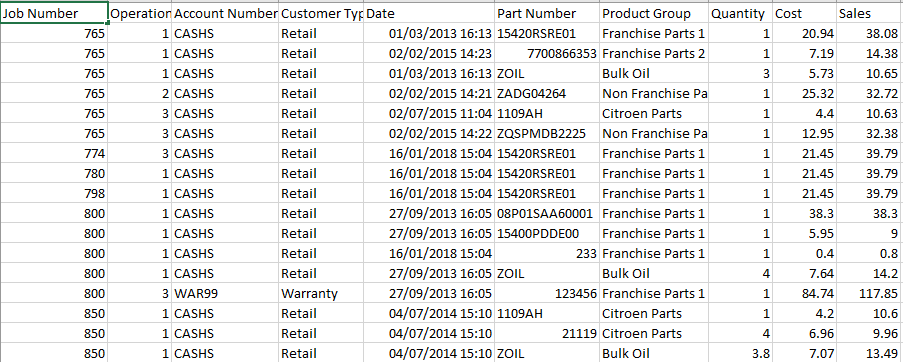
The ‘Total Hours/Aged’ report is printed by selecting the ‘Print’ option. Select the ‘Parts Export’ button to open the following window
The report lists all parts booked out on the WIP broken down by Job Number, Operation Number, Sales Ledger Account, Customer Type, Date and Time parts were issued, The issued parts number, product group associated to the booked parts, the booked quantity and cost / sales values display too.
Aged Total Hours/Parts

• All: Leaving the filters set to ‘All’ every job on the WIP will display.
• Job Type: Can be split per job type. i.e. Franchise Labour and Non-Franchise labour.
• Service Advisor Teams: If set up within parameters the report can be broken down to a specific team.
• Customer Type: Customer types are set against sales ledger accounts. Using the filter the report can be set to display for example only warranty repairs.
• Service Advisor: Used in conjunction with the ‘Service Advisor Teams’ filter the report can be broken down further to a specific advisor.
• Service Teams: If Service Teams are enabled for technicians the report can be broken down per team.
• Interval Between Dates: Groups the WIP totals by the number of days entered into this field.
Note: A combination of filters can also be applied as well
When the appropriate filters are applied, select ‘Accept’ to generate the report.
The report can be printed by selecting the ‘Print’ option.