
The Repair Order Register displays all invoices and credit notes produced by the Service Department.
Select Workshop > Reporting > Reporting Repair Order Register from the side menu. 
A variety of search filters are available in this report, by selecting a filter the report is narrowed down to specific detail.
Alternatively select just the ‘Search’ option to display all invoices and credit notes ever produced. The ‘Export’ option allows the report to be viewed in Microsoft Excel and the ‘Clear’ function resets the search fields.
Copy Invoice
To obtain a reprint of a credit note or an invoice search for the document and double click on the returned result. 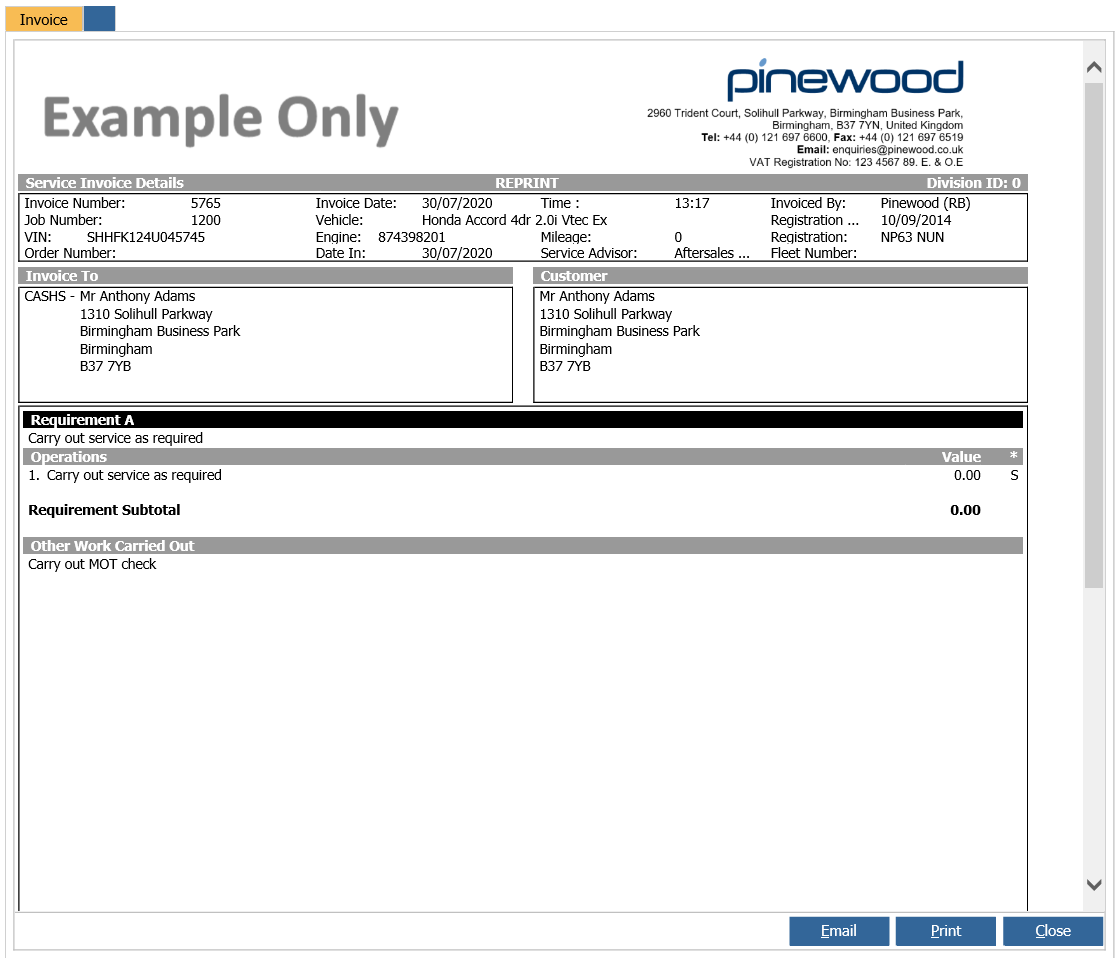
Scroll to the bottom of the document to reveal the ‘Email’, ‘Print’ and ‘Close’ options.
Selecting ‘Close’ returns the user to the ‘Repair Order Register’, selecting the ‘Print’ option enables a printed copy to be produced and selecting the ‘Email’ option opens the ‘E-Mail’ Address’ window where the customers email address, a subject and content can be entered
Export
The ‘Export’ function allows the selected criteria to be viewed and or saved in Microsoft Excel.
Enter the date range to be exported, select search and export.
Note: A maximum of thirty one days can be exported at a time. When the ‘Export’ option is selected a download link is displayed, select the link do export the file.
Select ‘Open’ to view the report in Excel, ‘Save’ to save the report to the local PC or ‘Cancel’ to return to the download link.
The following fields are available within the export:
Invoice Date: The date that the invoice was produced.
Invoice User: Which user generated the invoice.
Booked By User: Which user generated the booking.
Booking Created Date: Date and time of when the booking was made.
Received By User: Which user received the booking ad raised the job card.
Explained By User: Which user handed the vehicle over.
Invoice Number. As title.
Job Number: As title.
Customer: Customer details
Account Number: Account to which the operation was invoiced too.
Customer Type: Displays the customer type based on the sales ledger account.
Labour: Total charge for labour.
Hours Sold: Total number of invoiced hours.
Hours Awarded: Total number of hours given to the technician for the job.
Hours Worked: Total time take to complete the repair.
Parts: Value of parts on the invoice.
Non-Labour Lines: Value of individual non-labour lines. These will be titles as what you have set up as Non Labour lines within your parameters.
MOT: Value of MOT sales.
Total Sales: Total of labour, parts, non-labour and MOT where necessary.
Parts Cost: Total cost price of parts booked onto the job.
Labour Cost: This figure is generated from the hours worked multiplied by the average cost per hour within the technician parameters.
Sub Con Cost: Total cost price of any sub contract repairs carried out.
Total Cost: Total of parts cost, labour cost and sub contract cost.
Workshop Write Off: Total labour variance when a fixed price is applied.
Parts Write Off: Total parts variance when a fixed price is applied.
Profit: Is total sales minus total cost.
Registration Number: Vehicle Reg.
VIN: Vehicles Seventeen digit vehicle identification number.
Service Team: Workshop service team.
Work Required Notes: This will be populated from deferred work in through the vehicle health check routine of by manually adding a follow up during the invoice process.
Parts Awaited Date: This is populated manually during the invoice process if parts have been ordered.
Parts awaited Notes: This is populated manually during the invoice process if parts have been ordered.
CSI Follow Up Date: This is populated manually during the invoice process if a customer follow up is required.
CSI Follow Up Notes: This is populated manually during the invoice process if a customer follow up is required.
Labour Type: Displays the labour type selected when raising the job card.
MOT: A Y/N flag to identify if an MOT has been carried out.
Service: A Y/N flag to identify if a Service has been carried out.
Make: Vehicle make.
Model: Vehicle model.
Specification: Vehicle spec.
Registration Date: Vehicle reg date.
Invoice Type: This identifies whether the document raised was a credit of invoice.
Vehicle Arrival Date: Date & Time when the Vehicle Arrival process was run.
Mileage: Recorded mileage at the point the invoice was produced.
VHC: Y / N indicating whether a health check was completed
Note: To report on the Technician hourly costs the average cost per hour and the payroll control nominal have to be set up.