
If you find that a technician’s hours are going into overtime instead of attended and attended standard hours this will be because the technician will not have any attended hours set up.
This can be found within;
Workshop > Parameters > Technician Details > Details
Search for your technician by using the drop down box;

Once you have done this it will then display as below;

The Attended Standard Hours against the technician is used to calculate technician’s overtime. If a technician’s actual attended hours exceed the figure in this field the difference will be written to the overtime column on the Time Analysis Report. However, if there are no figures added in this field all hours will go to overtime and not attended hours
You can correct this by double clicking on the line of attended hours.
This will then open up a pop up screen to enter the required hours;
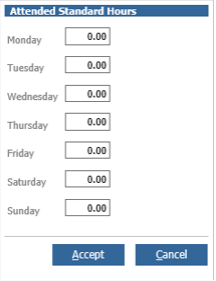
You can then enter the desired hours and then click accept.
Next time the technician works on a job and is awarded the hours, these will display against the Attended hours. Any time that is worked over the set attended hours will display within the Overtime column of the time analysis export.