
The VAT Analysis is designed to allow easy extraction of the information required to complete a VAT return, as per government requirements. The VAT Analysis section of the system is the area that enables access to this information. This section covers the setting up of the system parameters in each module that enable this functionality on a module-by-module basis, before finally delivering instructions on how to generate the VAT Analysis reports.
Overview
Pinewood DMS contains a number of parameters that need to be set up correctly to enable accurate VAT reporting. These are located within the Nominal Ledger Parameters, Vehicle Parameters, Sales and Purchase Ledger Account Maintenance and finally the Parts Parameters. This section is intended to assist with system set up only – for more information on VAT and how it applies to individual businesses, visit http://www.hmrc.gov.uk.
Set Up
The main area of parameter set up is carried out within the nominal ledger parameters. These parameters need to be completed prior to going live on the system as these categories drive the VAT Reporting. There are three main areas to be completed within the nominal ledger parameters; these are the Tax Types and Tax Categories (both within Tax Maintenance) and finally the company tax number which is entered within the company structure. The Tax Categories must be completed using the balance sheet nominal codes for Input and Output VAT as well as the Total VAT and Control nominals.
Tax Maintenance
There are two sets of parameters to complete within tax maintenance – these are the tax types and tax categories. See Nominal Ledger Parameters section for more information
The relationship between Tax Types and Tax Categories is as follows: -
The tax categories will combine with the tax types to ensure that postings made are accurate – for example, a posting with a tax type of standard and a tax category of Home will place debit and credit entries into the nominal ledger codes specified by the category, at a rate dictated by the tax type.
Company Tax Number
Set Up A company VAT registration number is required to be entered into the Company Structure at the Company Level. This part of the system should have been set up during the pre-live period, but can be accessed via Administration - Company Structure. Once the screen has opened up, click on the ‘Company Structure’ tab to enable access the part of the system that is needed. The image below demonstrates a simplified company structure showing the different levels contained. The company level is highlighted.
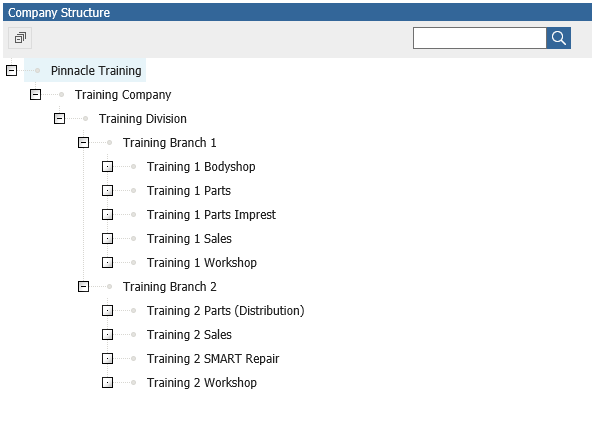
Double click on the company level of the structure to open up the right hand side of the screen, providing a number of fields that can be amended once the ‘Edit’ button is pressed. The VAT Registration number of the company is entered into the following field. The system will automatically remove any letter (e.g. GB) and any spaces in the VAT number when comparing entries to this parameter from elsewhere in the system.

Click on ‘Save’ to confirm the changes made.
Do the same on the Division level of the company structure.
Tax Maintenance in Sales Ledger Account Set Up
Tax categories will need to be selected when setting up Transaction level Sales Ledger Accounts. See the Sales Ledger Account Maintenance section for further information.
Selecting the Tax Category required on each Sales Ledger account will ensure that VAT is being charged correctly to each account whenever a Workshop or Parts invoice is raised as the system will apply the rate automatically without anyone needing to calculate the value to be applied.
Tax Maintenance in Purchase Ledger Account Set Up
Tax categories will need to be selected when setting up Transaction level Purchase Ledger Accounts. See the Purchase Ledger Account Maintenance section for further information.
Selecting the Tax Category required on each Purchase Ledger account will ask us to apply VAT when processing an invoice onto the Purchase Ledger. The system will calculate the VAT due on the invoice via the Tax Category assigned, and thus highlight potential errors when VAT is entered.
Tax Maintenance in Vehicle Management Set Up
The Vehicle Management module is the area of the system that deals with all issues relating to the purchasing, preparing and selling of vehicles, including vehicle debtors and creditors, input, output and special scheme VAT. This section will show how to set the parameters that relate specifically to VAT within the Vehicle Management module.
Vehicle Parameters – General Tab
To access the Vehicle Parameters, select Vehicles, Parameters, Parameters from the left hand menu.
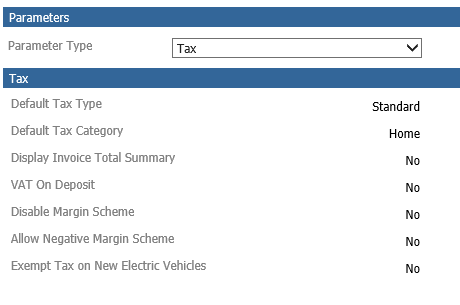
When the vehicle parameter screen first loads, it will default to the ‘General’ tab. Click on the drop-down and select the ‘Tax’ option. The screen displays as per below. Click on the drop down menus to display the Tax Categories and Tax Types that were previously created within the nominal ledger parameters.
The population of these fields set the standard tax type that the system will automatically apply to both the sale and purchase of new and used vehicles that qualify for VAT.
Vehicle Parameters – Suppliers
Select the ‘Suppliers’ option from the Vehicle Parameters side menu. This screen enables the entry of the details of companies or individuals that will supply the business with new and used vehicles. The entry of these suppliers is essential to the running of the Vehicle Management module – although the entry of the VAT numbers of the suppliers is useful for a slightly different purpose, although this purpose can be highly site specific and is explained in further detail below.
A VAT number can be added against a Supplier either at the point of creating the supplier in the first instance, or at any time in the future by amending the supplier. To amend a supplier, first select whether the supplier is for new or used vehicles, and then double click on the supplier that you wish to amend. The screen will display as follows:
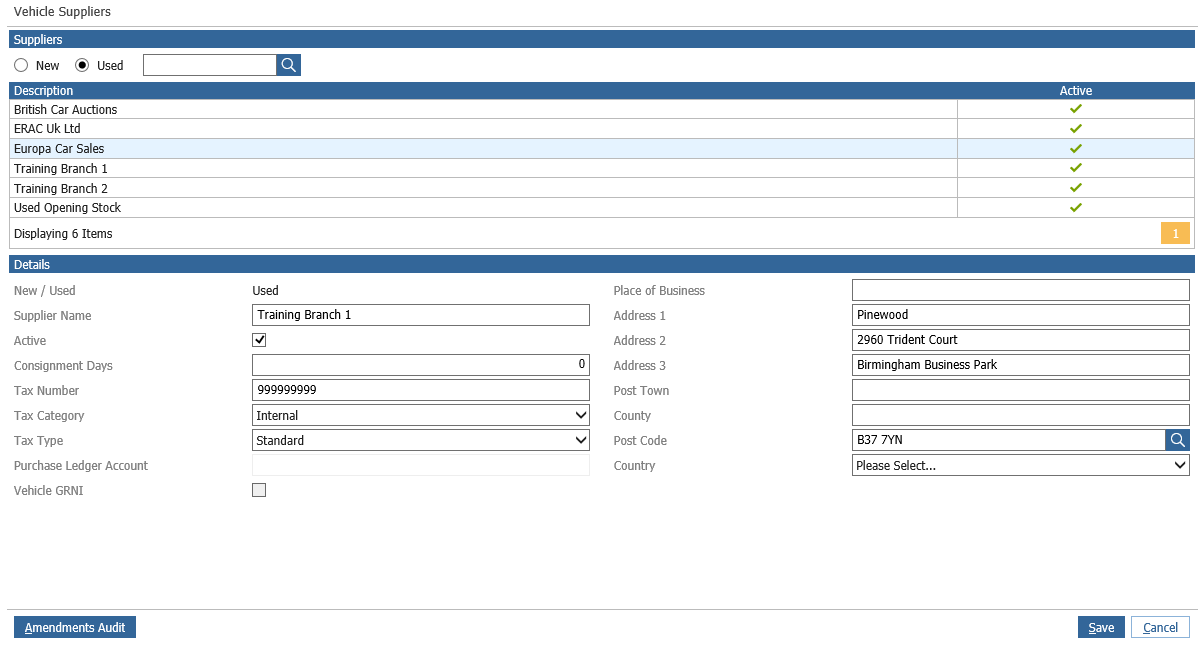
The tax number, Tax Category and Tax Type fields can be amended or completed to reflect the VAT details of the supplier. Click ‘Save’ to confirm the changes.
Completion of the tax number field against the relevant suppliers will default the VAT number appearing on the page used to bring vehicles into stock rather than an administrator needing to enter it manually for each purchase. This is particularly useful when purchasing VAT Qualifying used vehicles.
In dealer groups with multiple divisions and branches, setting the VAT number of suppliers can be used to suppress Input VAT on purchases from within the group. In this scenario, each division is set up as a supplier within all of the others with the corresponding VAT number set against it. When a vehicle is brought into stock from a supplier that holds the same VAT number as the system holds in the nominal ledger parameters, Input VAT will automatically be suppressed. The internal purchase of a margin vehicle will prompt the system to ask for the original group costs – this value will be used for the bottom end of the Special Scheme VAT calculation upon the sale of the vehicle. If the internal transfer process is used, this value will be completed automatically. VAT postings of zero will still be made, and can be reported on via VAT Analysis reporting.
Vehicle Parameters – Nominal Codes Tab
The next tab to be completed within the Vehicle Parameters relates to the nominal codes tab. By clicking on the ‘Nominal Codes’ tab, the system will display the screen in which these parameters are set.

The codes relating to VAT elements of transactions within the Vehicle Management module are shown above. Different balance sheet nominal codes will need to be selected to deal with Input, Output, Special Scheme and Consignment Suspense VAT. Clicking on the ‘Amend’ button will enable these parameters to be entered into the system. It is important to ensure that the correct balance sheet codes are used within these parameters, with particular reference to the field for the Special Scheme VAT code - the nominal codes that are entered into these parameters are the ones that will be updated via the purchase and sale of Vehicles through the Vehicle Management module. They should be the same codes that we applied to the Tax Categories previously
Vehicle Parameters – Type of Sale Tab
The ‘Type of Sale’ tab can be selected within Vehicle Parameters to specify whether (or not) VAT should be excluded on different types of sale for vehicles and which Tax Category should apply. The page will display as below once a Type of Sale Group and a Type of Sale have been selected via double clicking on them in the top section of the screen:
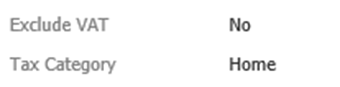
Clicking on ‘Amend’ will enable the relevant parameter to be completed.
Setting the Exclude VAT parameter on each type of sale will cause the system to automatically exclude VAT on the customer order screen for the vehicle if set to ‘yes’ and the type of sale affected is selected.
Vehicle Parameters – Product Categories Tab
The final section of parameter set up takes place within the ‘Product Categories’ tab. The parameter to be completed in this area of the system is similar to the one on the types of sale tab dealt with previously and relates to the invoicing of Product Categories for vehicles via the Vehicle Management module. Once the tab has been selected, individual Product Categories that are set up in the system will display in the top section of the screen – double clicking on the one to be amended will cause the screen to open up and display as follows:

The specific parameter on this screen is the ‘Type’ field. This field can set to be either a Pre VAT Cost or a Post VAT Cost. Click on the ‘Amend’ button to enable the relevant type to be selected from a drop down menu.
The purpose of this parameter becomes clear once Customer Orders are being set up for vehicles – miscellaneous costs set with a type of Pre VAT Cost will appear above the VAT calculation line on the customer order; whilst those set with a type of Post VAT Cost appears below the VAT line. For this reason, Product Categories for items like Supaguard (on which VAT is chargeable) are usually set as a Pre VAT Cost, whilst items on which IPT is payable (such as GAP or some types of warranty) are generally set to be Post VAT Costs.
Tax Maintenance in Parts Set Up
From the left hand menu, select Parts Parameters Department Details.
Tax Code information is located across the bottom of the page.

Click on the ‘Amend’ button to open up the drop down boxes to select the Tax Types to be applied to the different postage and carriage options available when parts are being invoiced to customers. Click on ‘Save’ to confirm the changes.