
Contras may be used to post matching debit and credit values into the four ledgers, i.e.; Sales Ledger, Purchase Ledger, Vehicle Ledger and Nominal Ledger. The two ledgers to be used within each contra must be open in the accounting period that the contra is to be processed in.
The contra is split into four sections.
The 1st section is the contra details.
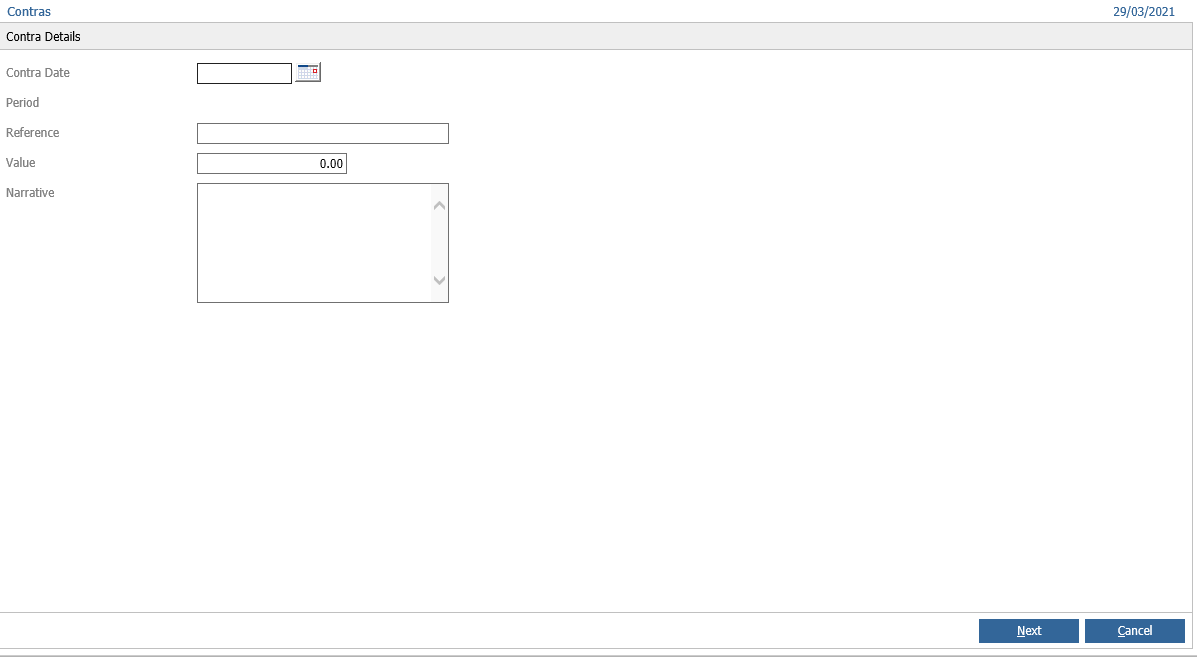
Enter the transaction date and the accounting period for that date, which will appear as long as the accounting period is still open. Enter a reference, a narrative for further information and the value of the contra. Click ‘Next’ to continue.
The 2nd section is where the ledgers to be affected by the contra are selected.
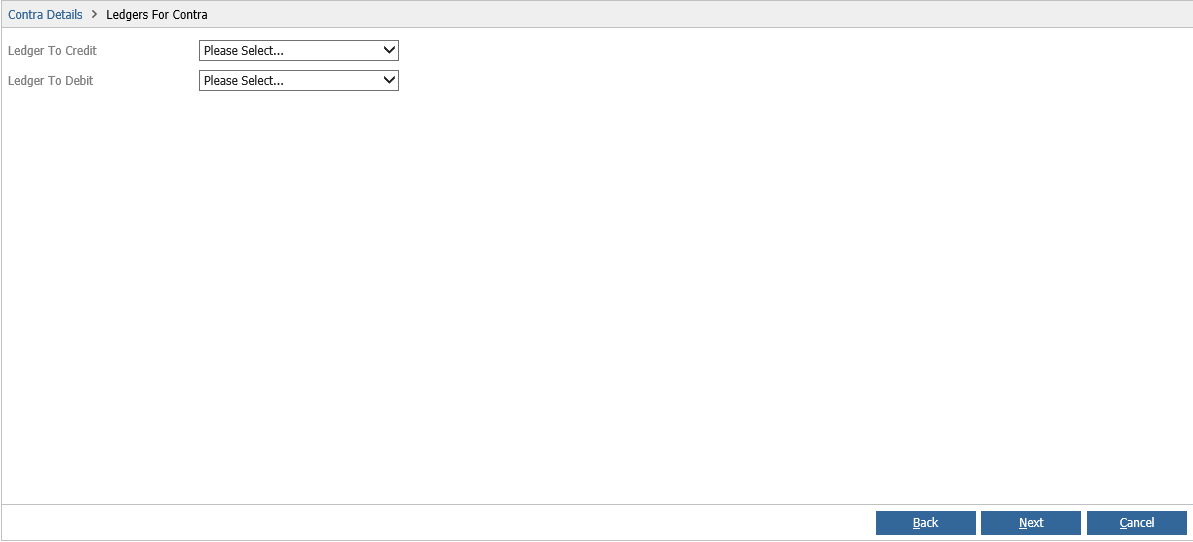
From the dropdown boxes, select the ledger to be credited and the ledger to be debited. Click ‘Next’ to continue.
Enter the nominal code, value and narrative to be posted and click ‘Add’ at the end of the posting line. Repeat this until the total value has been analysed then click ‘Accept’. The tax category can be selected and a VAT value entered at the bottom if required. On the main screen click ‘Next’ and a journal print will appear as a preview. This can be printed. A reprint is available if required.
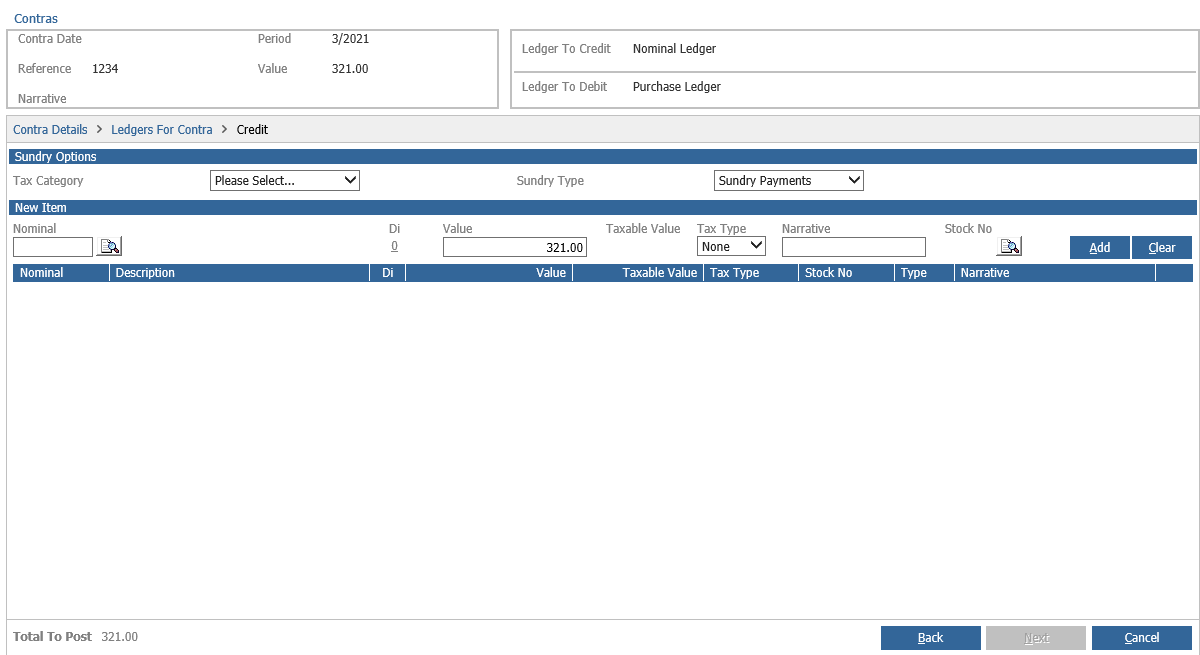
This dictates input or output VAT, if VAT is not included then no value will be entered and either can be selected.
If the Vehicle Management Ledger is selected, a different window will appear.
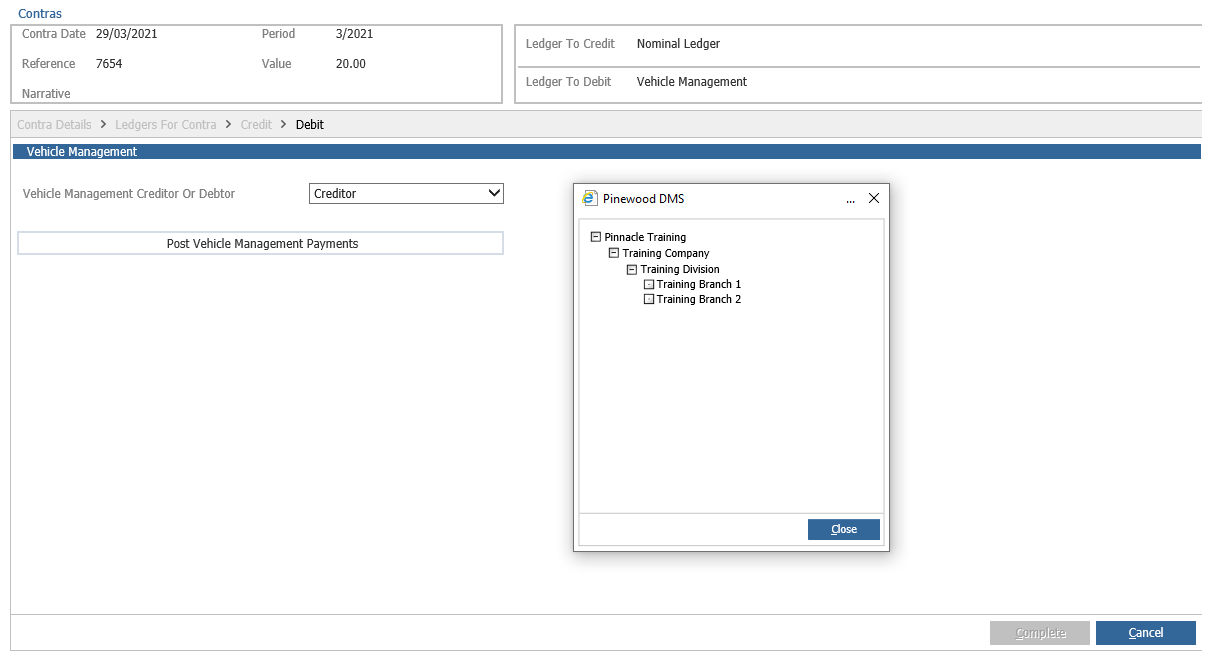
Select the required option depending on whether you want this debit posting to appear on the Vehicle Creditor or Vehicle Debtor.
After clicking 'Post Vehicle management Payments', you will select the correct Branch from the Company Structure before searching for a vehicle to post to. Following this, You will post the vehicle payment.
Search for the required vehicle using the Customer Name, Stock Number, Reg Number, Order Number or Vin Number.
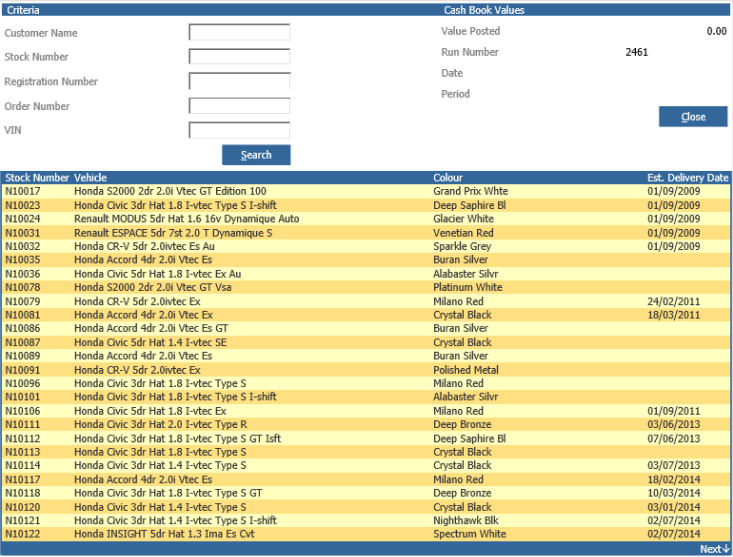
Double click on the required vehicle and depending on whether Receipts or Payments were chosen the vehicle debtor or creditor page for that vehicle appears.
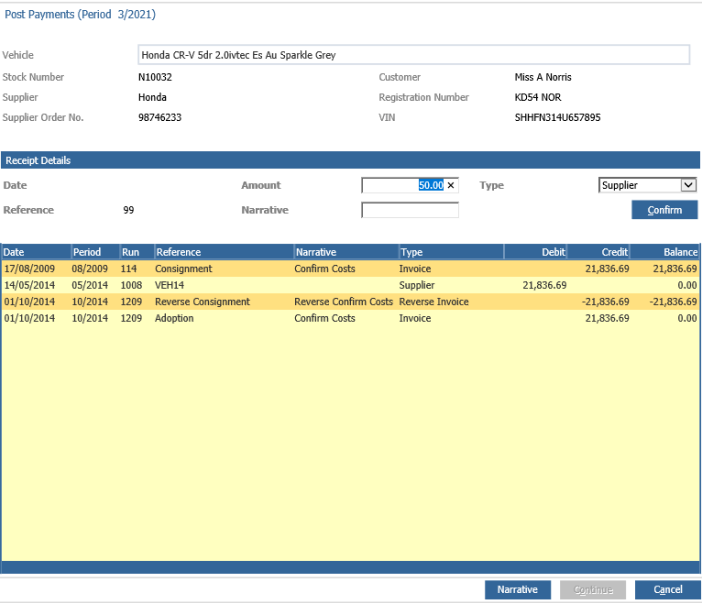
Click ‘Confirm’ to post the value to the bottom of the screen and affect the total balance and click continue.
Note: If a Credit to Vehicle Management Creditors is selected, the posting screen will display as a Type – Refund in the right hand side of the screen and will display the Vehicle Debtor page but when ‘confirm’ is clicked, will correctly post to the Vehicle Creditor page which is in the background and not displayed.
If a Debit to Vehicle Management Debtors is selected, the posting screen will display as a Type – Customer Refund in the right hand side of the screen and will display the Vehicle Creditor page but when clicking ‘confirm’, will post correctly to the Vehicle Debtor page which is in the background and not displayed.
Click ‘Next’ to complete the contra and a vehicle daybook prompt appears. This daybook may be printed if required.
If a sales ledger or purchase ledger has been chosen to be credited or debited instead of Vehicle Management or Nominal Ledgers, click in the ‘Account Code’ box to enter or search for the required account.
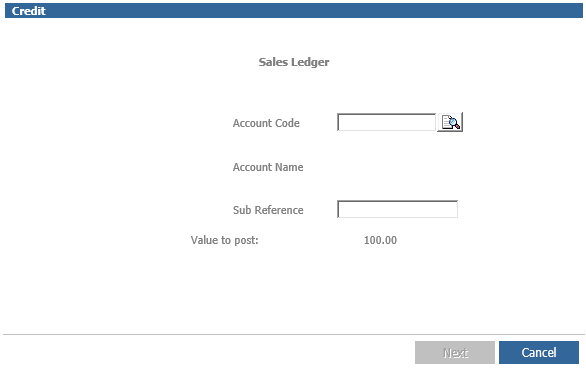
Click ‘Next’ to continue. A daybook may be printed if required.
IMPORTANT: - If the ‘Cancel’ option is taken halfway through the posting; the contra nominal code should be checked as only one side of the contra may have completed with the other side posting to Contra Suspense nominal code. This will need to be journalled or contra’d out of this code and posted to the correct account, as this should be a zero balance account.