
The intercompany journals are created in a similar way to standard journals.
Select Accounts > Nominal Ledger > Journal Entry > Intercompany Journal from the menu.
The initial screen is the same as a standard journal. Ensure that the correct period is being displayed on the right hand side and enter the date and the posting reference.
Click ‘Accept’ at the bottom of the screen to continue with the journal. This will display a screen similar to a standard journal screen but with some slight changes. The first stage is to select the division to journal from. The new Division field will display all Divisions that have a control code assigned in the parameters.
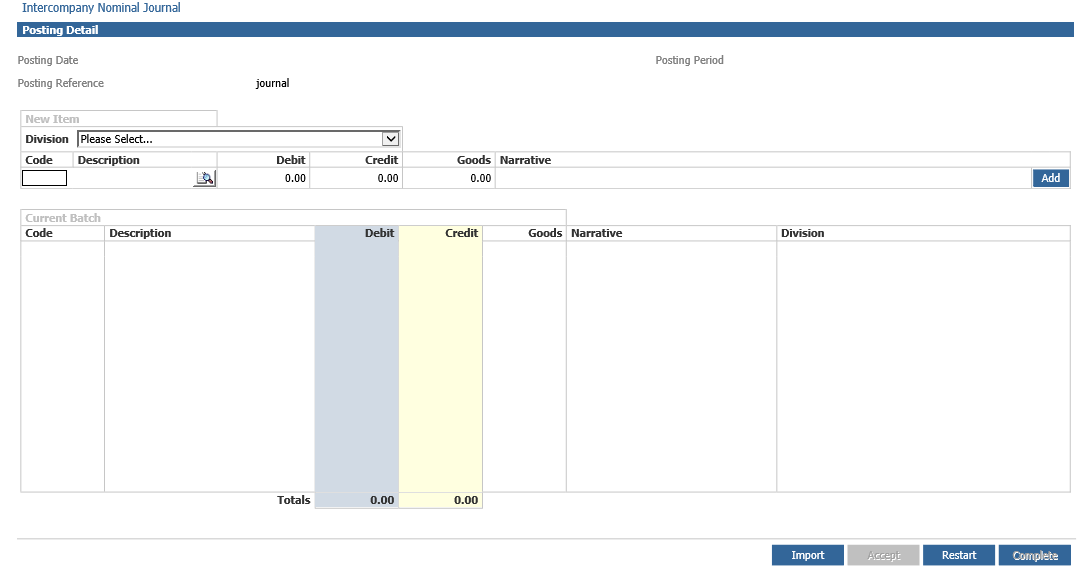
If the control codes have not been correctly allocated and activated in the divisions, a message advising this will be displayed. Check the set up within Nominal Ledger Parameters.
Once the correct division is showing, add the code, Debit/Credit and Narrative for the posting. For the division that is currently being worked in, ALL nominal codes are available, not just the ones specified on the Intercompany Journal Codes parameters. Complete all the information and ‘Add’ the line.
Then choose the division that the journal is going to. If the division to be journalled to does not have the current period open, a message will be displayed and the journal cannot continue.
Once the correct division is showing, add the code and Narrative for the posting. The only codes that are available in this section are the ranges added in the Intercompany Journal Codes parameters for the person posting the journal.
The completed journal will need to balance and the new screen displays the Divisions in which the journals have taken place
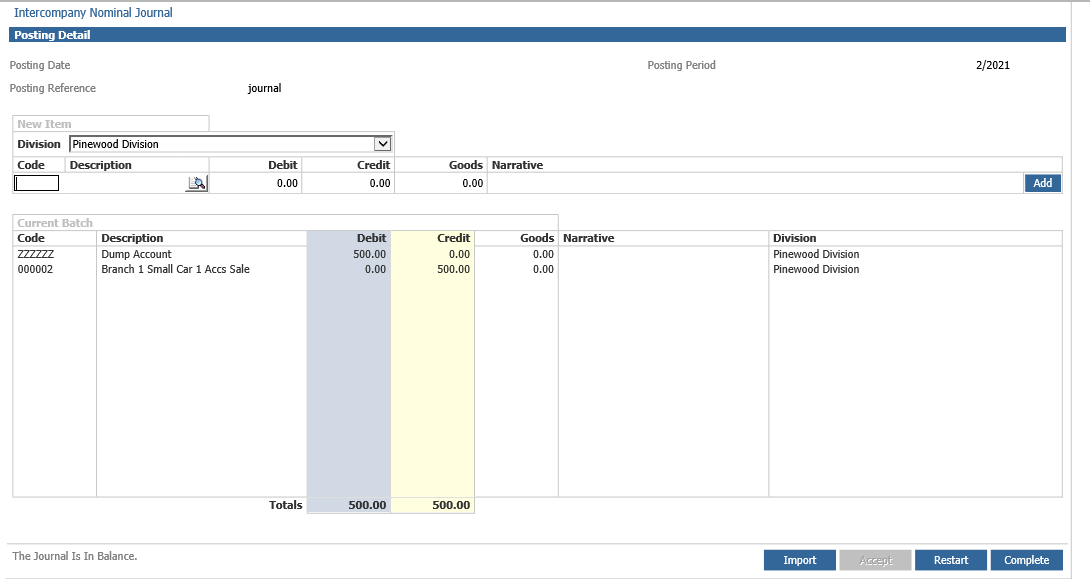
Once all the journal postings are finished (multiple transactions can be completed to different Divisions in the same Journal, if required), click the ‘Complete’ button to complete the journal. The system produces an Intercompany Nominal Journal Day Book outlining all the transactions completed in the journal. Where the journal screen only shows the items manually added, the Day Book will show the double-entry transaction including the control codes.
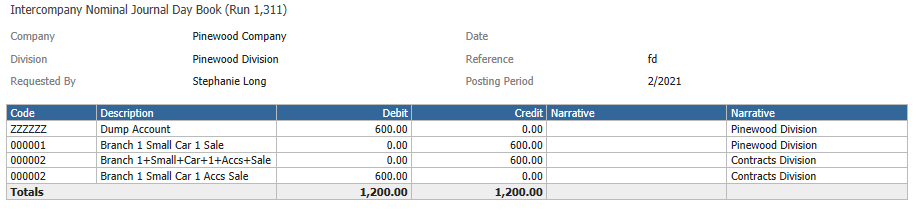
This process will leave a balance on both the control nominals for the originating Division and the destination Division that will need to be dealt with accordingly.
Notes:
- Open Item and Fixed Asset nominal codes cannot be selected.
- Divisions without a control code will not be available for intercompany journals.
- The current period being worked in must be open in each division the user is journaling to.
- All codes can be selected in the division the user is working in (except fixed asset or open item codes), for other divisions, only the codes set in the Intercompany Journal Codes screen can be used