
Once work has been identified as part of a VHC it will now appear in Workshop > Jobs > Additional Work – Awaiting Approval.
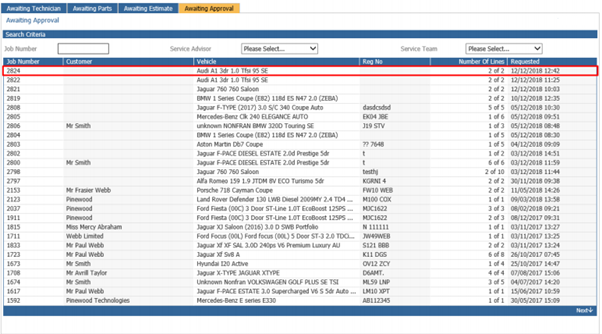
Double click into the job. Within here you will need to ensure the account associated is the INTVM account to make sure the prices are correct.
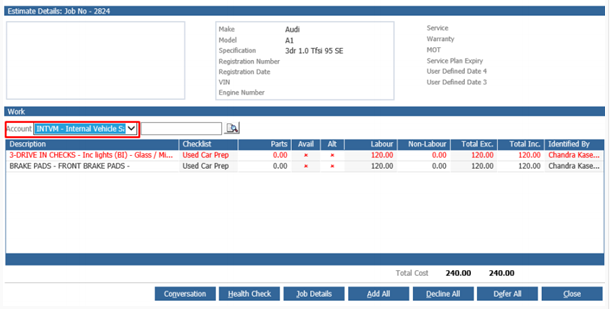
Once this is done, click on the health check button at the bottom.
This then displays the health check where you have an option to send the health check to the sales team.
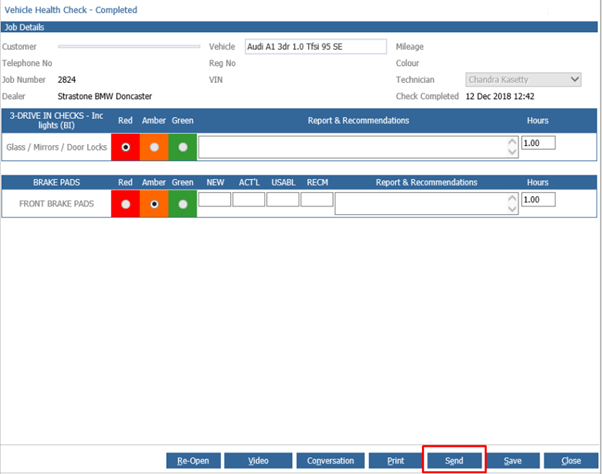
By clicking on the send button you are displayed with the following pop up where you can enter the recipient's email address:
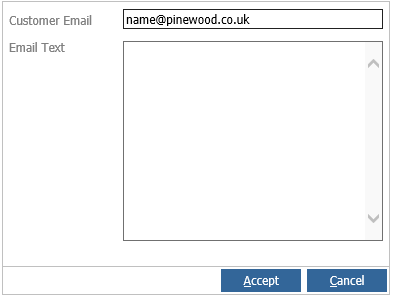
The email will then allow the sales team to view and authorise the work by clicking on the link:
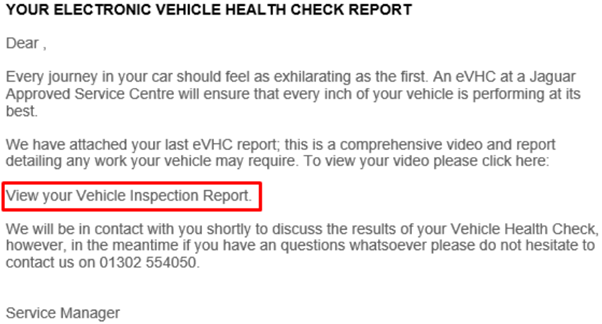
The link generates the following page:
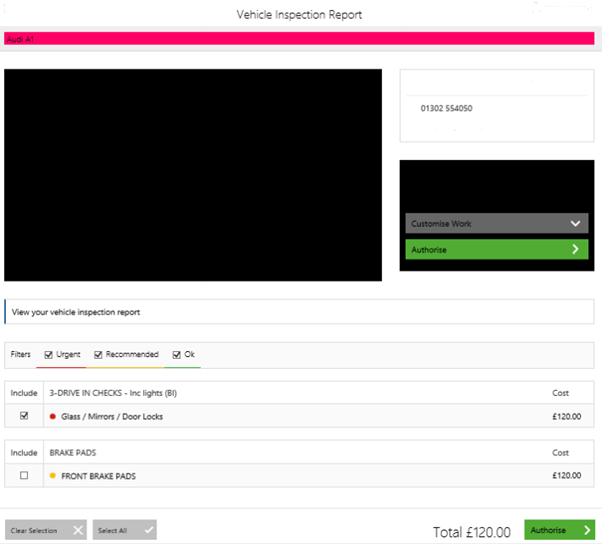
The sales team will review the video attached and determine what work should be authorised to be carried out.
When estimated prep is turned on the sales team will update the agreed price to include the extra work identified during the health check process.
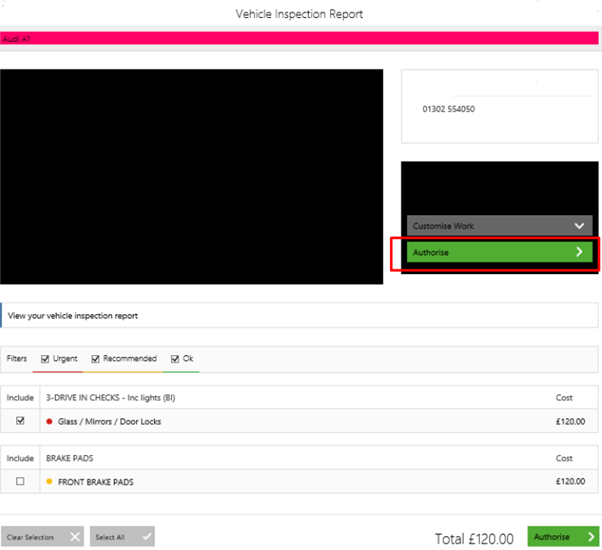
To authorise the work, click on the ‘Authorise’ button.
Once the work has been authorised, the service team receives an email confirming the work that has been authorised to be carried out:
Within the job in Workshop > Jobs > Amend Job, double click into the VHC lines:
The service team will now add the authorised work creating operations for the technicians to carry out repairs.
Related to