
The Loan Cars parameters allow for loan cars to be created that are then available for selection from the diary when creating a booking. It is also possible to make vehicles unavailable for selected periods.
To view these parameters go to: Workshop > Parameters > Loan Cars
Vehicle Information
Upon selecting the 'Vehicle Information' option from the side menu you will see the following screen:
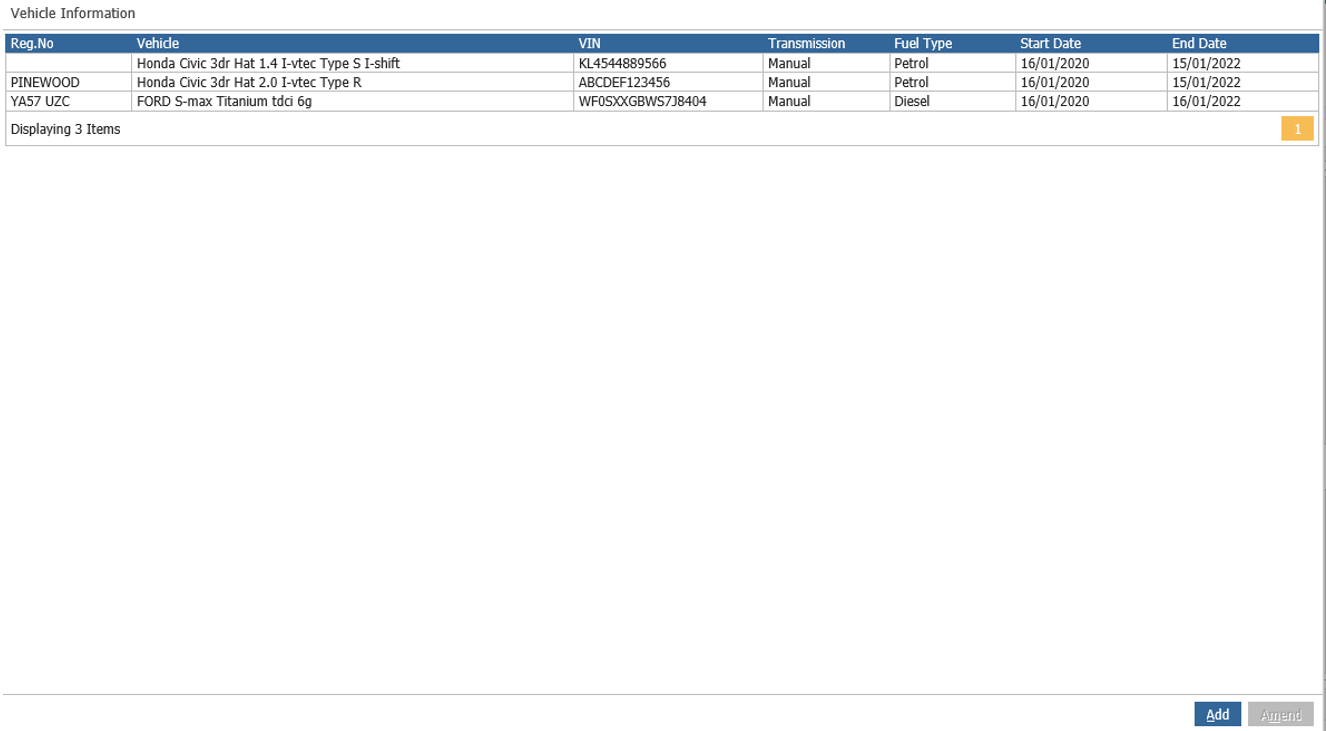
Within this screen you will be able to search for a vehicle to add it in as a loan car using the 'Add' button at the bottom which will display the following screen:
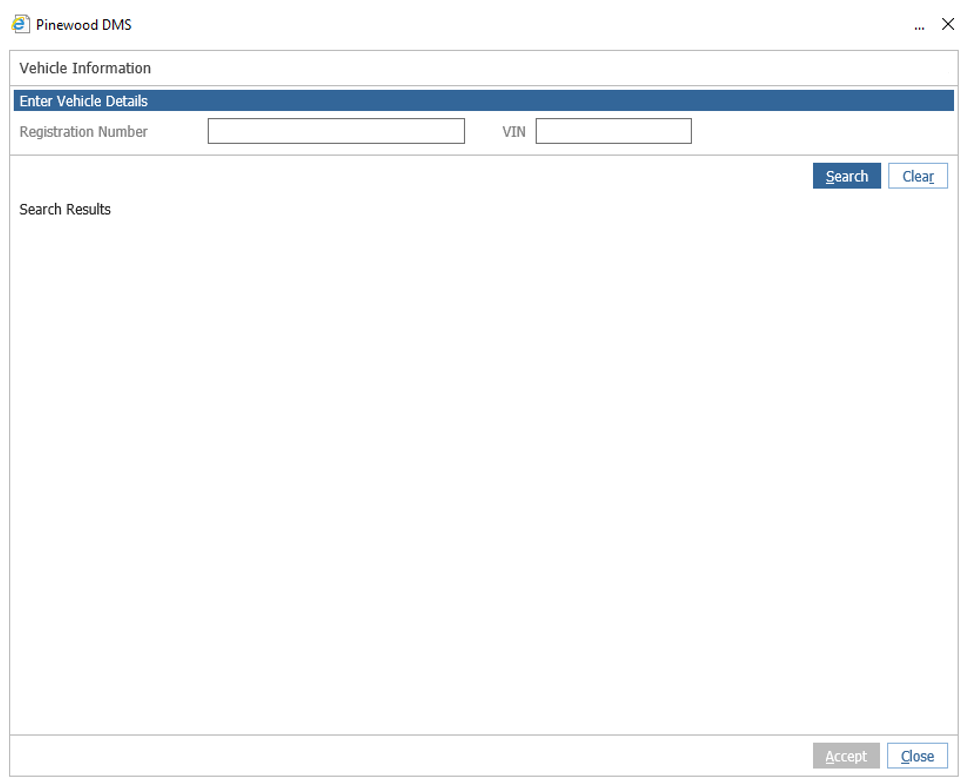
You can search for a vehicle by entering in the vehicle registration or VIN.
Please Note: A vehicle must have a CRM record for it to be populated in this screen.
Once you have double clicked on the vehicle you want, you will be able to enter in a start and end date to reflect the duration the vehicle will be available as a loan car:
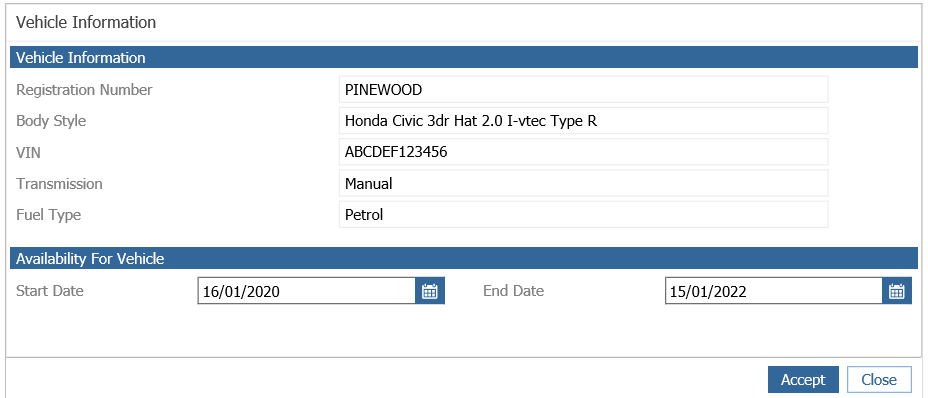
Once you have filled out the relevant details, select 'Accept' to save the details and the loan car will now be available for selection via the diary for the period defined.
The 'Amend' functionality can be used to alter the availability dates.
Validation is applied to check whether any bookings are live for the vehicle outside the new date range. If there are bookings, these will need to be altered before the loan car availability can be changed. Validation is also applied to prevent selecting a vehicle that is already setup as a loan car within the enterprise.
Unavailable Dates
The following screen is used to record the periods that a loan car is unavailable:
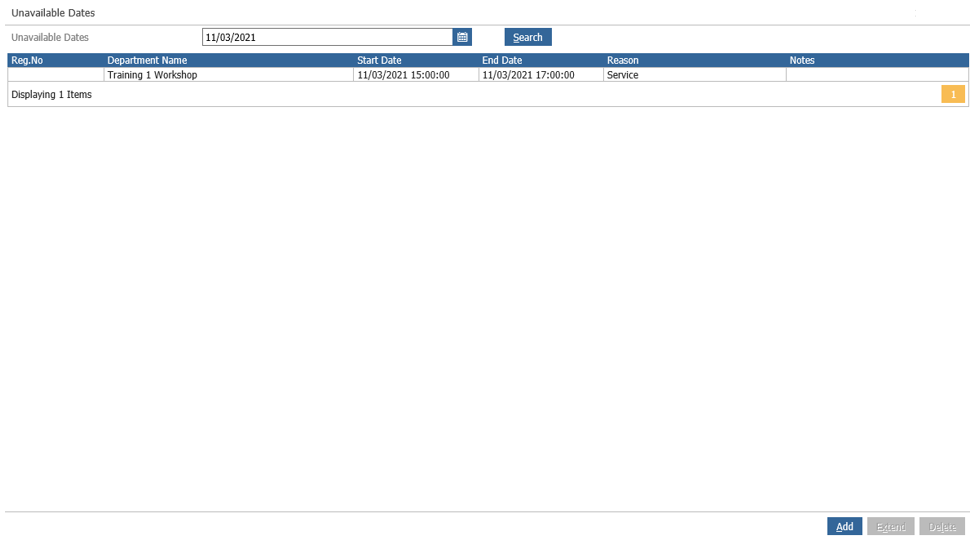
To add a period of unavailability for a vehicle, select the 'Add' button and choose a vehicle from the list presented:
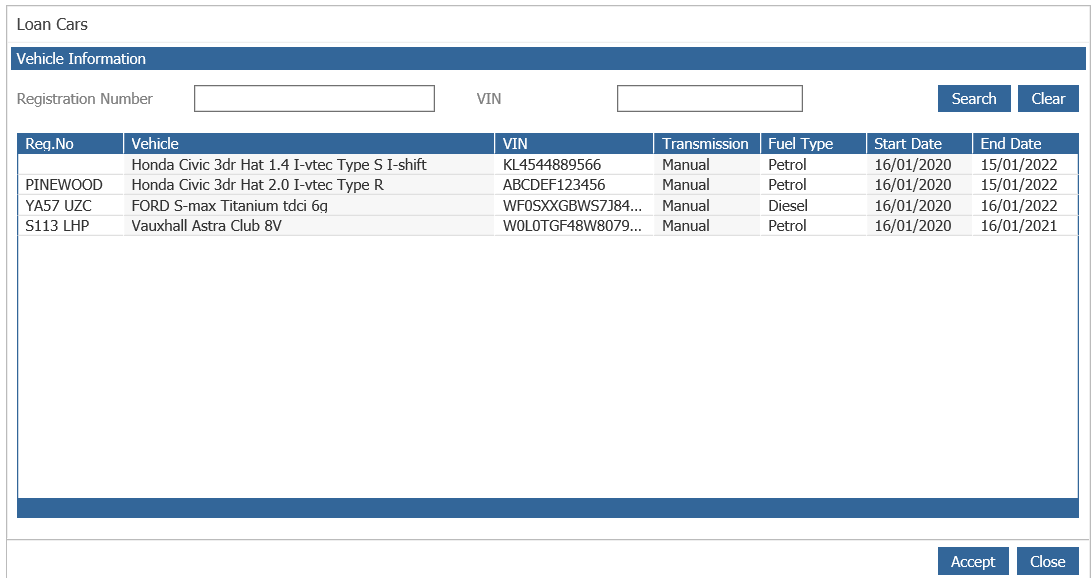
Once you have selected the vehicle, enter in a date and time range, a reason and some notes and then select 'Accept' to add to update the diary:
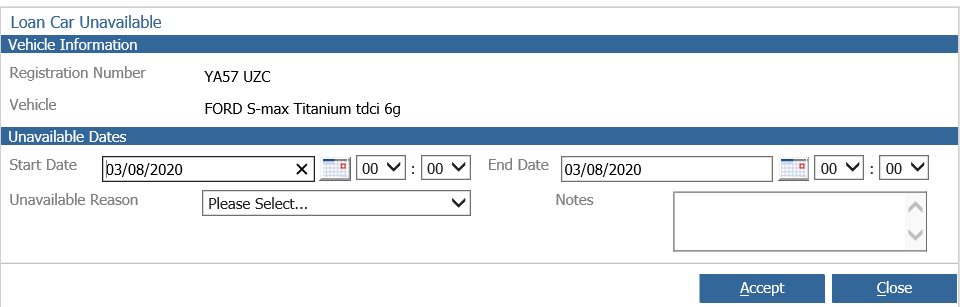
Note: To mark a vehicle as unavailable for a day, set the start and end times to the opening and closing hours as per the parameters.
Validation is applied to check whether the loan car is booked during the unavailability period. If it is, the booking(s) must be amended before the loan car can be made unavailable.
The 'Extended' function on the initial screen is used to extend the period for which the loan car is unavailable. The same validation is applied to ensure that there are no bookings during the period for the loan car.
A 'Delete' function is also available to cancel periods of unavailability.
Documents
This option allows for the creation of a loan car declaration form that is used when a loan car is supplied to the customer.
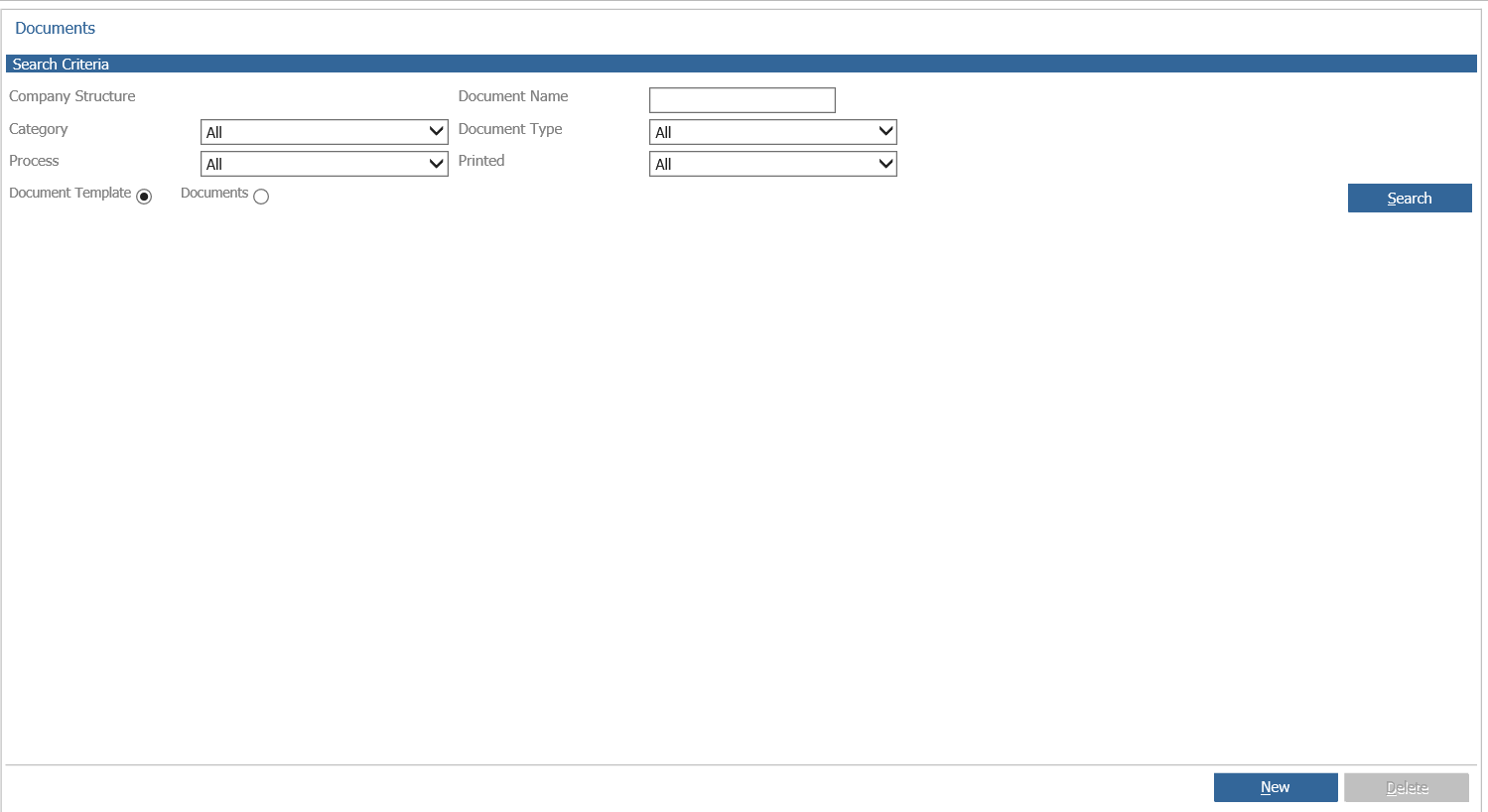
Please Note: Microsoft Word version 2003 or later is required to create the document. To view or print the document at least Word viewer will need to be installed.
Selecting the 'New' button the following window will be opened:
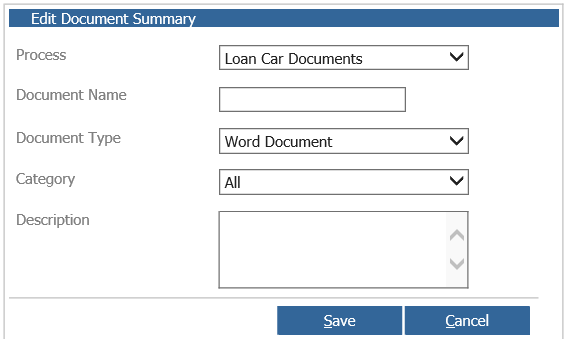
This window displays the following fields:
- Process: Select Loan Car Document
- Document Name: Enter the name of the document
- Document Type: This is set as Word Document
- Category: Set as All
- Description: Enter in a brief description of the document content
Once the above fields are complete select 'Save' and the following window will now be displayed:
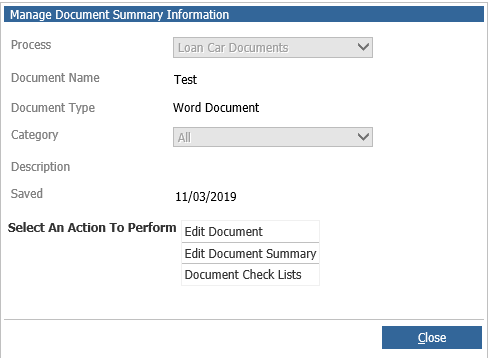
Within the above screen, the following options are available:
- Edit Document: This allows the document to be edited or viewed
- Edit Document Summary: This option re-opens the document summary screen where the name or description can be updated
- Document Check List: Shows the list of documents
To create a new document select 'Edit Document' which will open Microsoft Word where you can enter in the required narrative in to the document and select the 'Insert Merge Field' button to display the fields taken from the system. The document can also include branding and images if required.
Once the document has been saved, the 'Manage Document Summary' window (shown above) will be displayed above.
If more than one document is created then the system will use the most recent version. The loan car form will now be available when the customer's vehicle is received in to the workshop and the job card is printed. The loan car form will print on the default printer for the PC if the workshop parameter has been set to use the default printer.
If a job is amended there will be a prompt to reprint the loan car form.