
Service Advisors
Prior to using the 'Service Advisor Diary' the respective parameter will need to be activated within the General 2 tab located in the parameters screen.
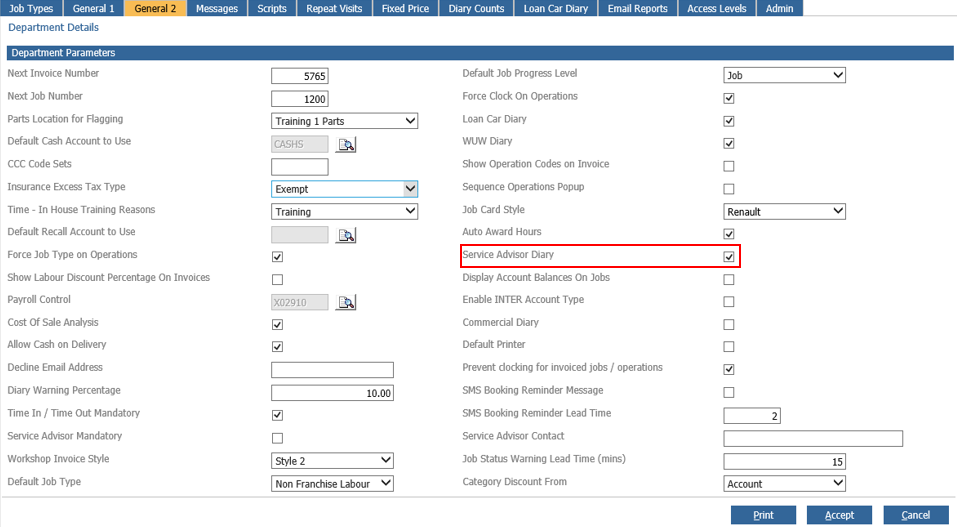
For the Service Advisors parameters go to: Workshop > Parameters > Service Advisors.
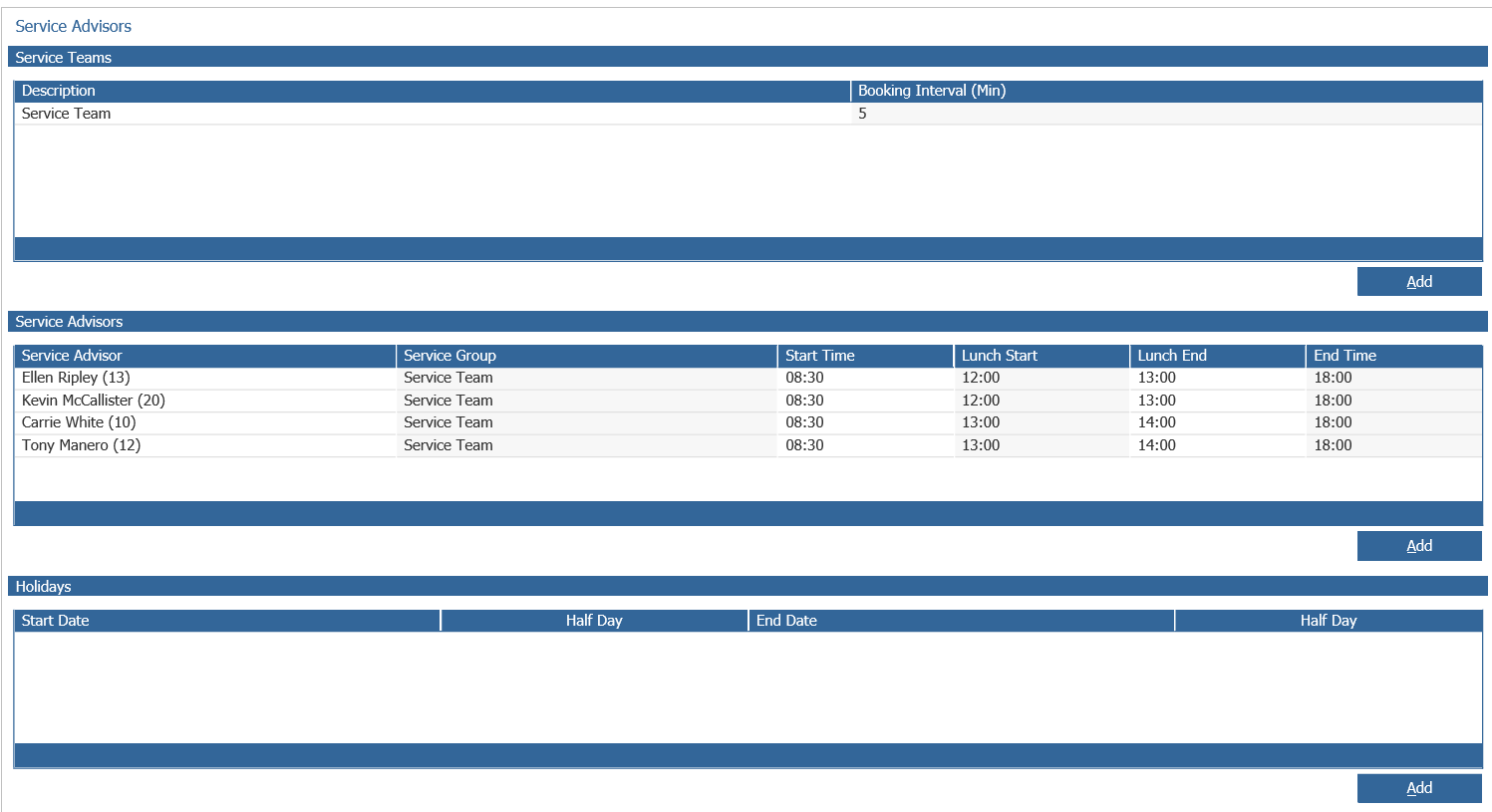
As you can see in the image above, the 'Service Advisor' screen consists of three sections:
- Service Teams: This section contains details of each service team and the number of minutes allocated per booking
- Service Advisor: This includes details of individual service advisors, which service team they are associated to and the advisors working hours
- Holidays: Service advisor holiday dates are retained within this section
To create a service team select the 'Add' button located at the bottom right of the 'Service Teams' section to open the 'Edit' window:
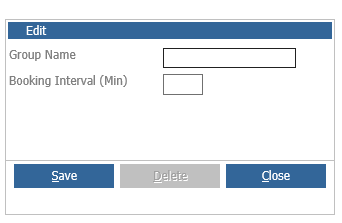
Within this screen, enter a name for the Service Team and the number of minutes to allocate each booking slot and click 'Save'.
To amend of delete a team double click on the required team and the 'Edit' window will open.
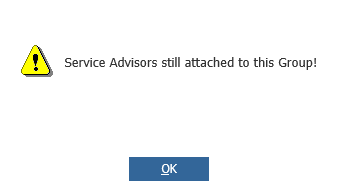
Please Note: If advisors are associated with a team to be deleted the following message will be displayed:
To associate Service Advisors to a team select the 'Add' button located to the bottom right of the 'Service Advisors' section, where the 'Edit' window will be displayed:
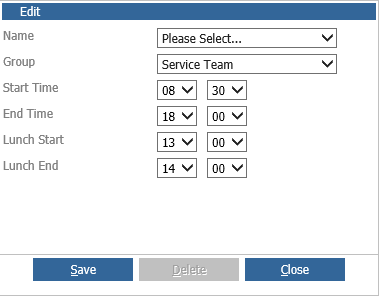
Select the required Service Advisor from the 'Name' drop down menu.
Select the team that the advisor is to be associated to from the 'Group' drop down menu.
Enter the advisors Start, End and Lunch times and select 'Save' to update the 'Service Advisors' section.
To update a 'Service Advisors' holiday, highlight the required advisor and select the 'Add' button located in the bottom right hand corner of the 'Holidays' section:
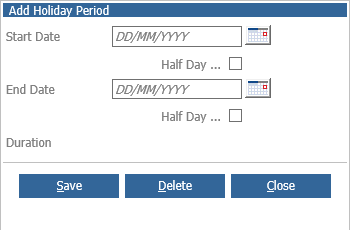
Enter the start and end dates as required.
The duration field will be populated with the number of days selected. Select 'Save' to update the 'Holidays' section.
Please Note: Half days can be selected by placing a tick in the applicable AM or PM fields.
To amend or delete a holiday, highlight the respective 'Service Advisor' and double click the holiday entry to be amended or deleted.