
Capacity Display
Once the technicians are shown on the workshop planner you can see how utilised each team/technician is by looking at the green bar above each team or at the technician themselves:
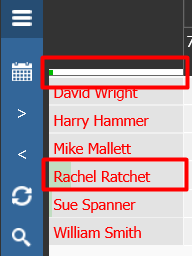
This is calculated either from the technician’s rota’d hours if using the commercial diary or the technician's start and end times that are set in technician details this will drive the amount of time that is available on the planner.
Warning Displays
When viewing the workshop planner if you notice any of the technician’s names are in red this will indicate there is a problem with that technician. When you hover over that technician's name it will display a warning to show what the concern is.
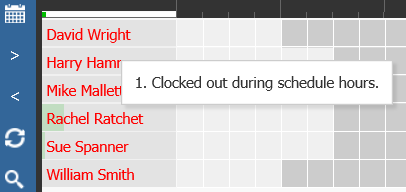
These can be if the technician is clocked onto an incorrect job, if they are on non-allowed idle, it will show if a technician has work allocated to them when they’re unavailable either through Holiday, Sickness or Training and will also show if a technician is due to have started and hasn’t arrived/clocked in.
Job/Operation Status Display
When looking at the planner the statuses are shown on the left and the jobs are colour coded accordingly.
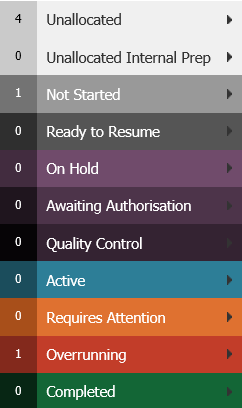
Not started – Indicated the work has been allocated to a technician but is not yet being worked on.
Active – Once a technician has started on a job you can then click onto that job and it will give you a breakdown of the operations on that job to see which operation is being worked on.
Quality Control – As the technician continues to work on the job and completes operations or jobs it then changes the operations to show in quality control. Once all operations are on the same status it changes the whole job to show the same status. Once a vehicle has been through quality control you can simply select the operation and click on change status.
Completed - At that stage you can then set the operation to Job complete. This will then mark the job as complete and show the vehicle ready for collection.
Required Attention – This uses the lead time parameter from within the Workshop – Parameters – General 2 – if this is set to 15 minutes for example the jobs will turn orange 15 minutes before the end repair was due to be completed the line would turn orange to warn it's approaching the planned completion time.
Overrunning – if a job has overrun the agreed completion time the job will turn red to warn that the work is now overdue, which allows work to be re-allocated to another technician or to allow you to notify the customer if their vehicle may not be ready at the agreed time.
Please Note: the side menu colours are separate from the Technician slot colours on the main screen of the planner and therefore there are different rules surrounding what is displayed in this side menu.
The Status in the Planner Side Menu is based on the Job Required Date and Time. If the current date and time + the Job Status Warning Lead Time Parameter in minutes is before the date time it will fall into the 'Requires Attention', if the date is in the past it will move to 'Overrunning'.
The Technician Slot colours on the main screen will show a status based on the time they are allocated in the planner, if the end time is before now + Job Status Warning Lead Time Parameter in minutes time, it will fall into 'Requires Attention', if it is in the past then it will go into 'Overrunning'.
The Job Status Warning Lead Time Parameter can be found in Workshop > Parameters > General 2 Tab.
Resource Display
When viewing the Workshop Planner, it will always open with the date range selected at the start with a 1, 2 or 3-day view. However, there may be times when you want to see all outstanding jobs that may have been placed on hold several days ago as you may have been waiting for parts that now need planning to be worked on again.
To view all jobs, click the filter option in the top left and untick the current date range only and click update.
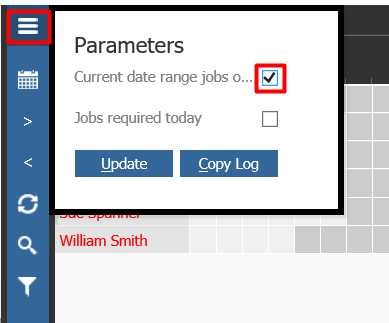
This will then show all jobs that are still open that have been previously planned on the planner that hasn’t been completed in the unallocated section.
When viewing all unallocated jobs, it will also show resource icons next to any jobs that need additional resources, like a loan car if a job is while you wait or it the job is collect and deliver.
The Jobs Required Today tick filter allows you to narrow all the unallocated jobs to only jobs required on the day that you have selected to view when launching the planner originally.