
Select Workshop > Parameters > Customer Declines from the side menu.
There are two further options within the customer declines menu ‘Decline Parameters’ and
‘Decline Mapping’.
Select Decline Parameters from the side menu.
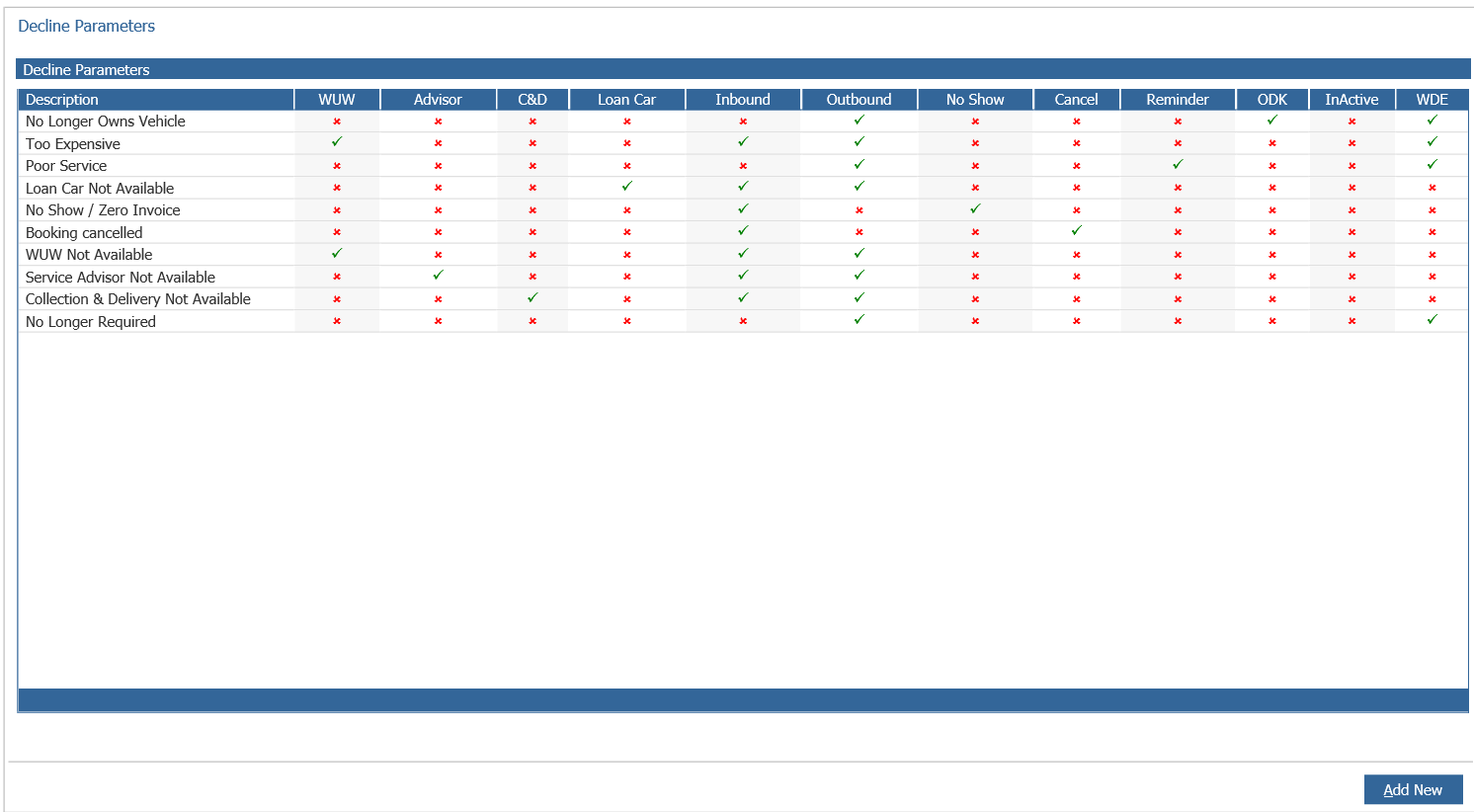
To create the decline reasons select the ‘Add New’ button.
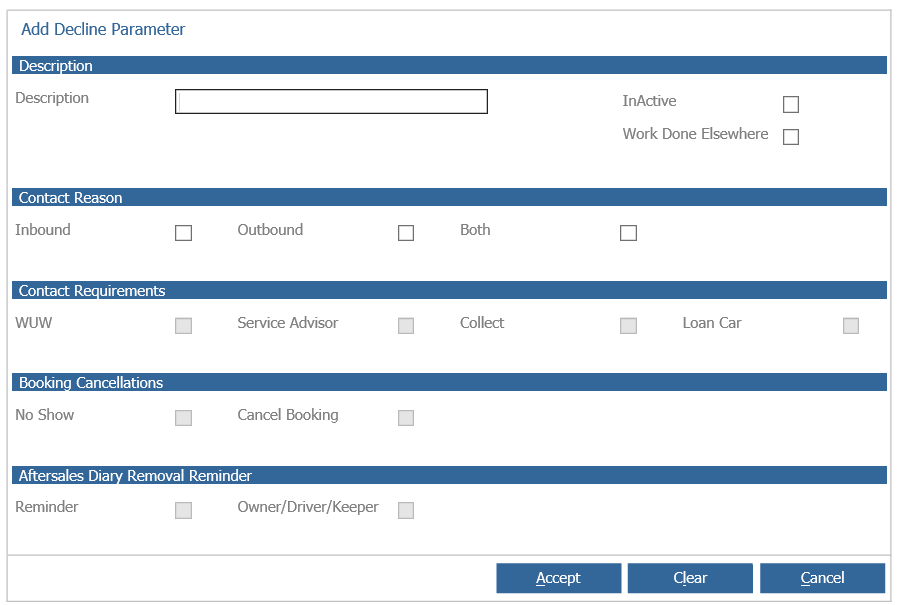
Within the ‘Add Decline Parameter’ window a number of headings are available.
• Description :
• Description: Enter the name for the decline reason.
• Inactive: Placing a tick in this field make the reason inactive.
• Contact Reason:
• Inbound: Selecting this field marks the reason as inbound to the department.
i.e. workshop booking / amend job
• Outbound: Selecting this field marks the reason as outbound to the
department. i.e. aftersales diary
• Contact Requirements: The fields located within this section relate directly to the
‘Workshop Diary Details’ section of the booking / amend job / invoice screens.
When a booking is created with one of the below fields selected and then cancelled
the system will make available the decline reason relating to the selected contact
requirement.
For example if a booking is made for a future date and the while you wait option is
selected, if that booking is cancelled before being confirmed selecting the customer
declines a pop up window will appear prompting for a decline reason to be selected.
The decline reason that was set up as a WUW will be available in the drop down
menu.
• WUW:
• Service Advisor:
• Collect:
• Loan Car:
• Booking Cancellations: The fields within this section are utilised when a job is
cancelled, a zero value invoice is created or a confirmed booking is cancelled.
No Show: If this option is selected when creating decline reason, when a job
is cancelled or a zero value invoice is created this will be the default lost sale
reason
• Cancel Booking: If this option is selected when creating a decline reason, at the
point of cancelling a confirmed booking this will become the default lost sale
reason. This only applies if the booking is in the future. If the booking is cancelled on Today's date or within the past, it will use the 'No Show' decline reason.
• Aftersales Diary Removal Reminder: The below options become available when
processing contacts via the Aftersales Diary.
• Reminder: When processing a contact and selecting the customer declines
option this decline reason will appear in the drop down menu, if this option is
selected the system will prompt to set the service reminders to ‘No’
• Owner / Driver / Keeper: When processing a contact and the vehicle no
longer belongs to a customer the link between vehicle and customer can be
removed. When this option is selected the customer retention report will be
updated.
Select Decline Mapping from the side menu and complete as follows.
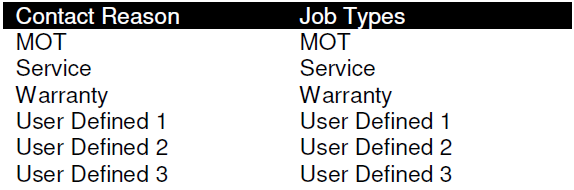
Once completed select ‘Accept’ to save the changes.