
Question
How to process a Purchase Ledger Invoice with Invoice Authorisation Routes enabled?
Answer
When raising a Purchase Ledger Invoice via Accounts > Purchase Ledger > Processing > Post Invoice, if Authorisation Routes are enabled on your system, upon clicking the Log button in the below screen, a route will need to be selected.
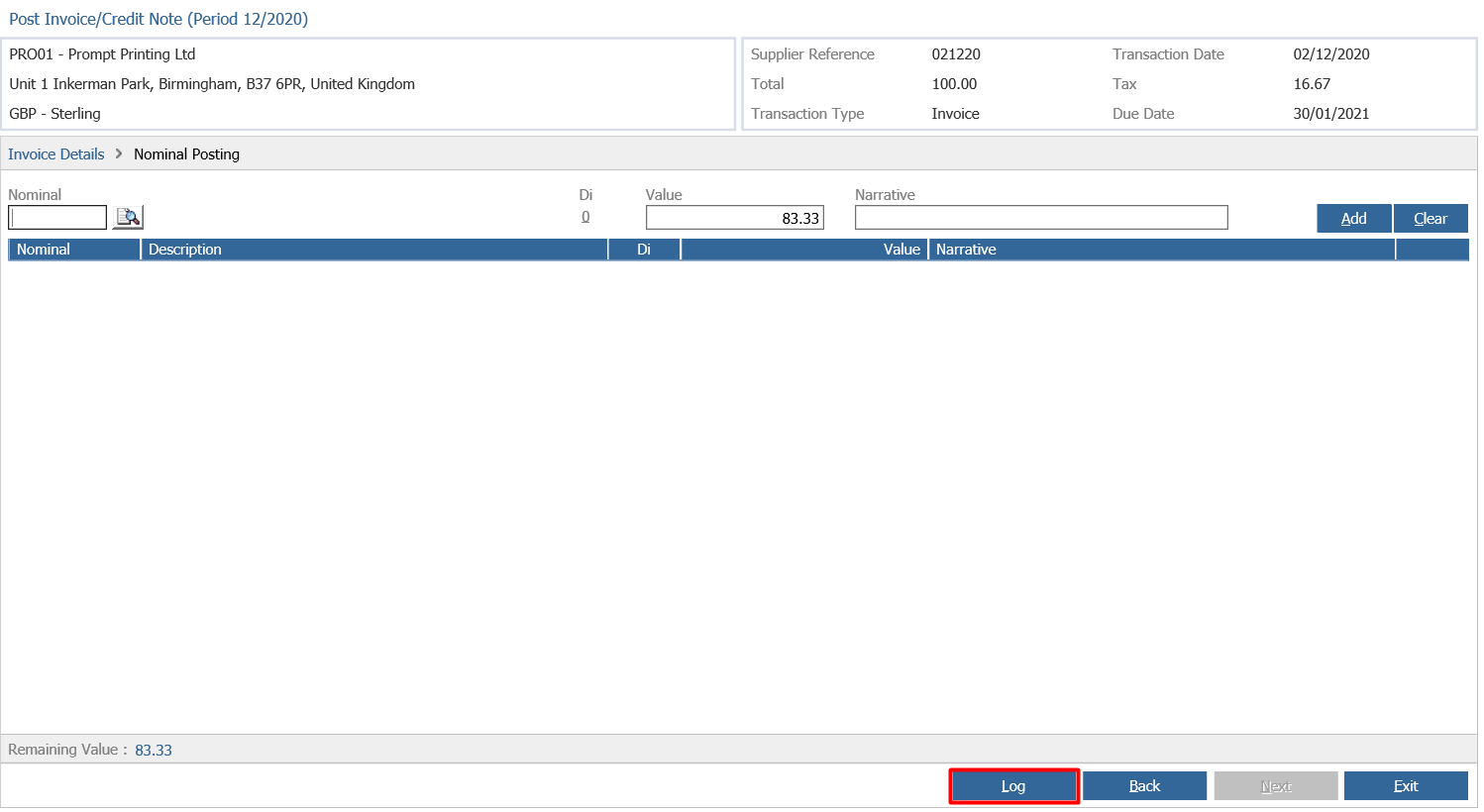
After clicking Log, the below screen will appear to select an Authorisation Route:
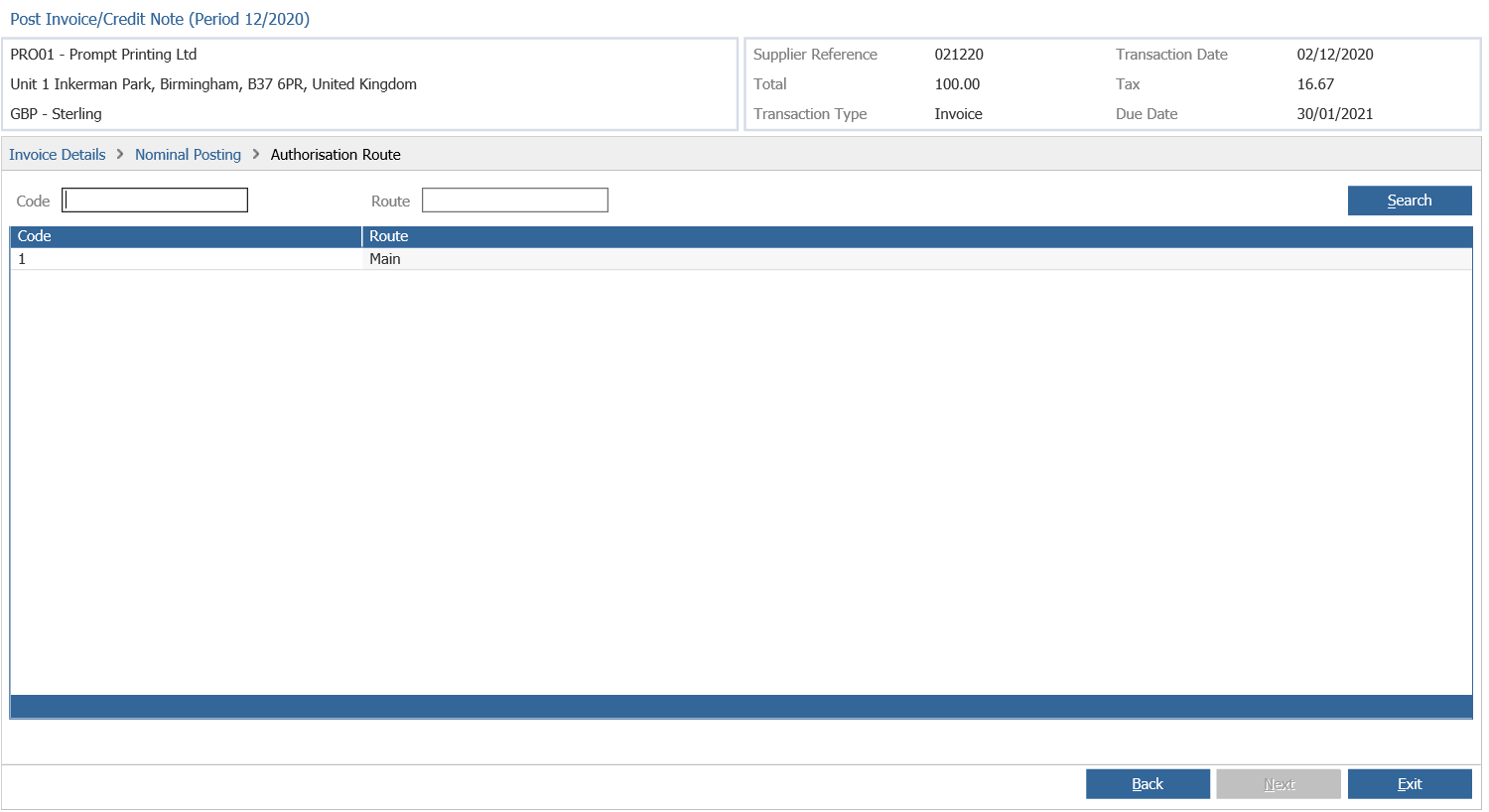
To select a route, single click the desired one and then click Next. A Narrative will then need to be entered:
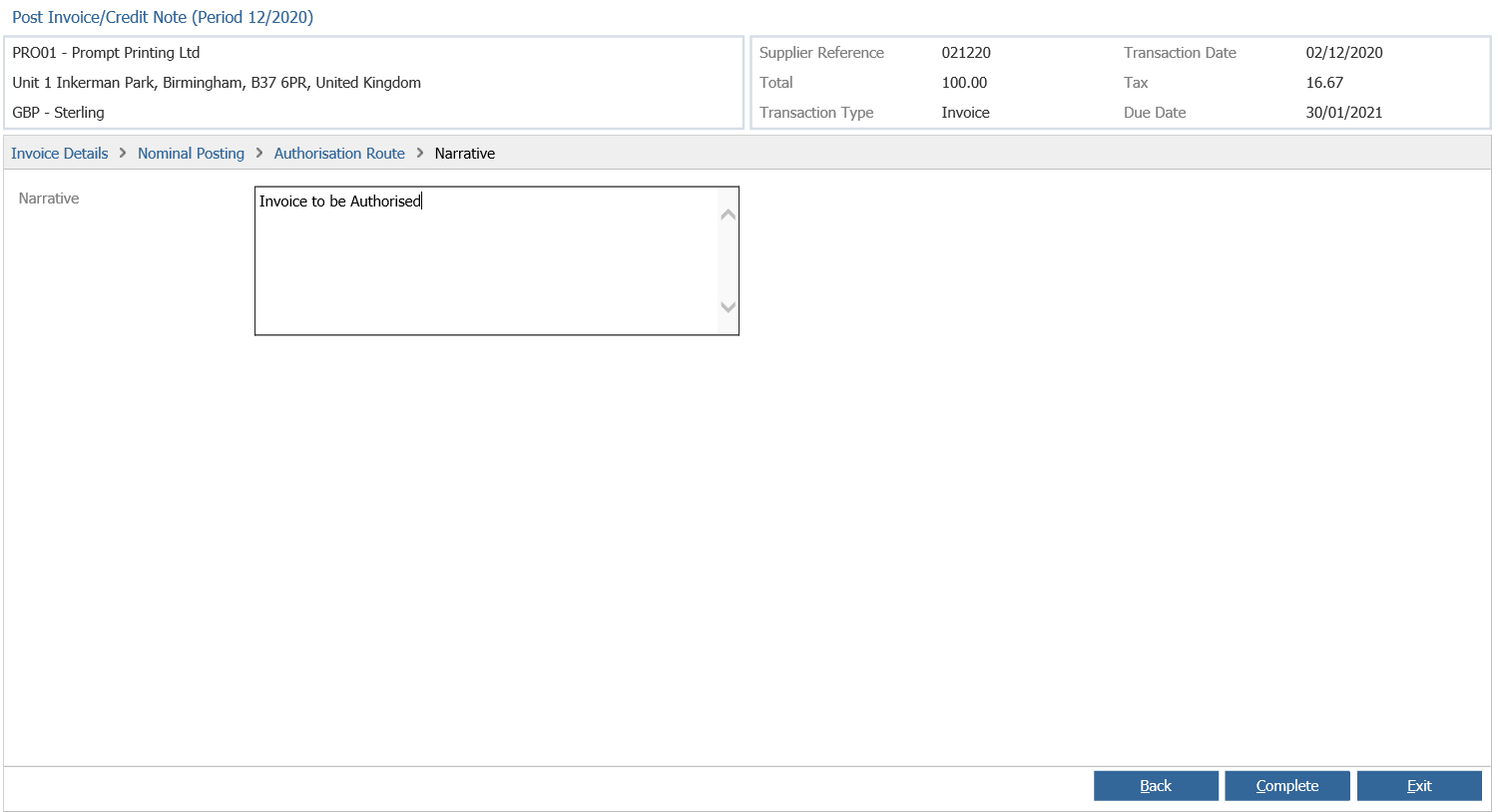
Now click Complete.
The invoice will then go through the Authorisation Route set up within your system and any users within this will receive a notification email to alert them of this invoice at this point.
The Authoring User will then need to go to Accounts > Purchase Ledger > Processing > Invoice Management.
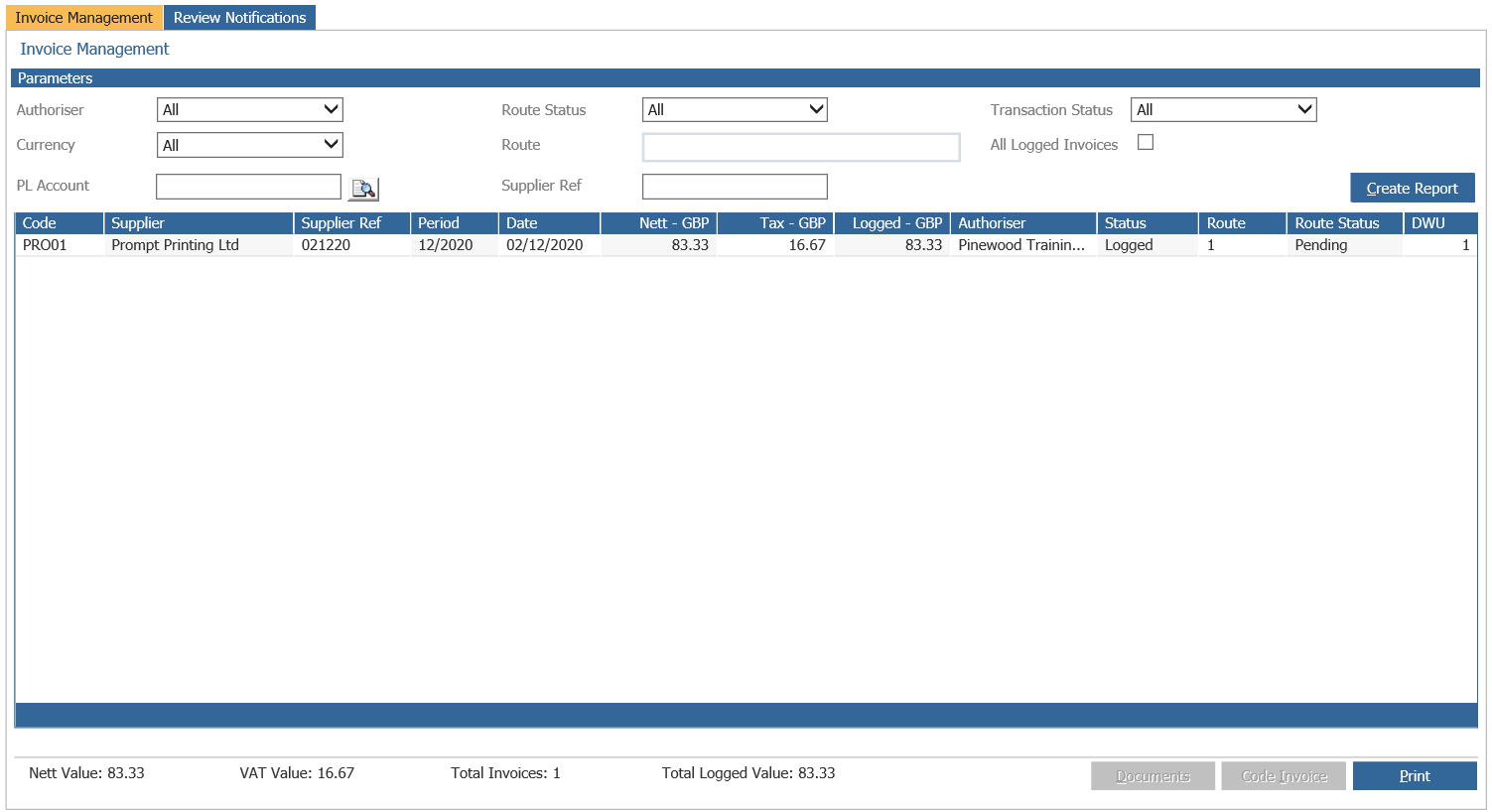
In here, double click the relevant invoice and the detail will then display as below:
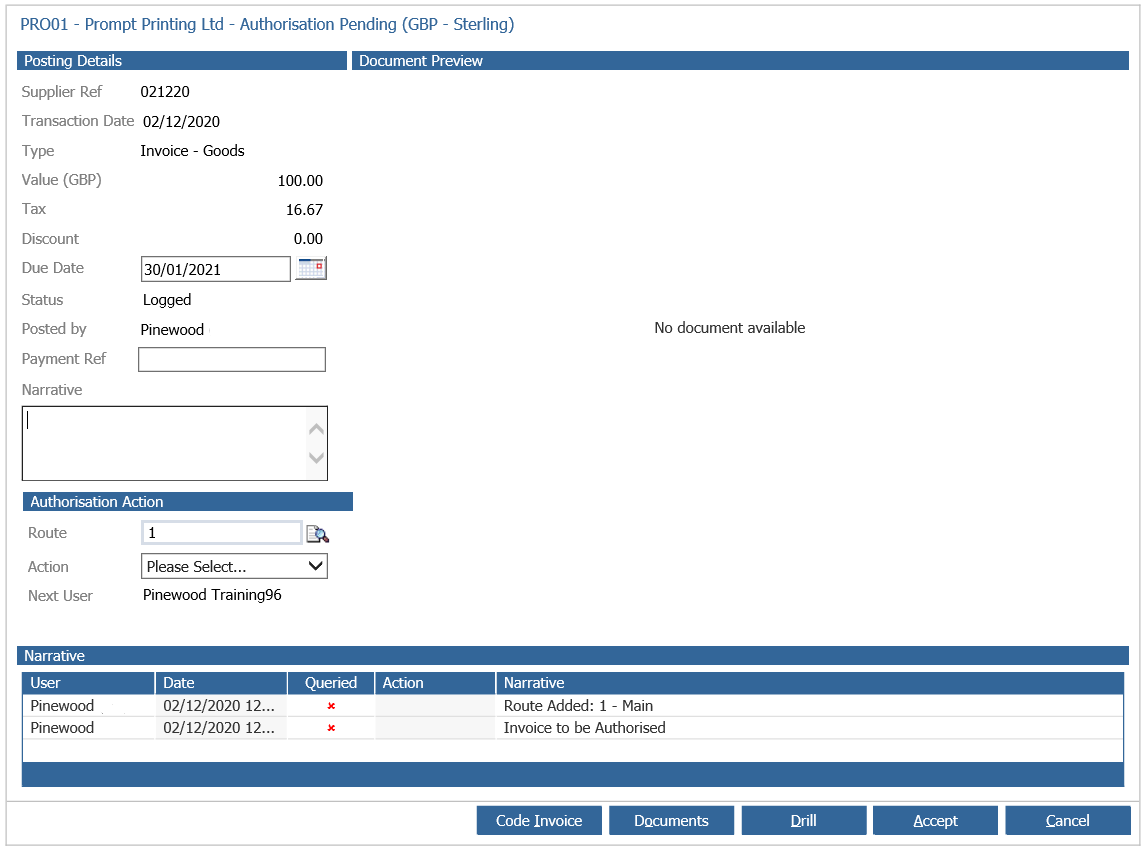
To Authorise the Invoice, a narrative will need to be entered and an Action selected:
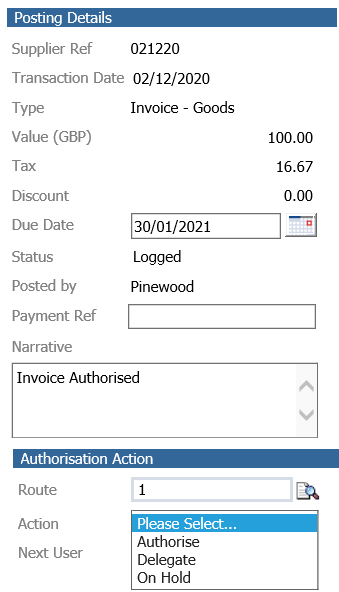
Users will need to select the action of Authorise. Once this action is selected the Authorisation Route will be complete.
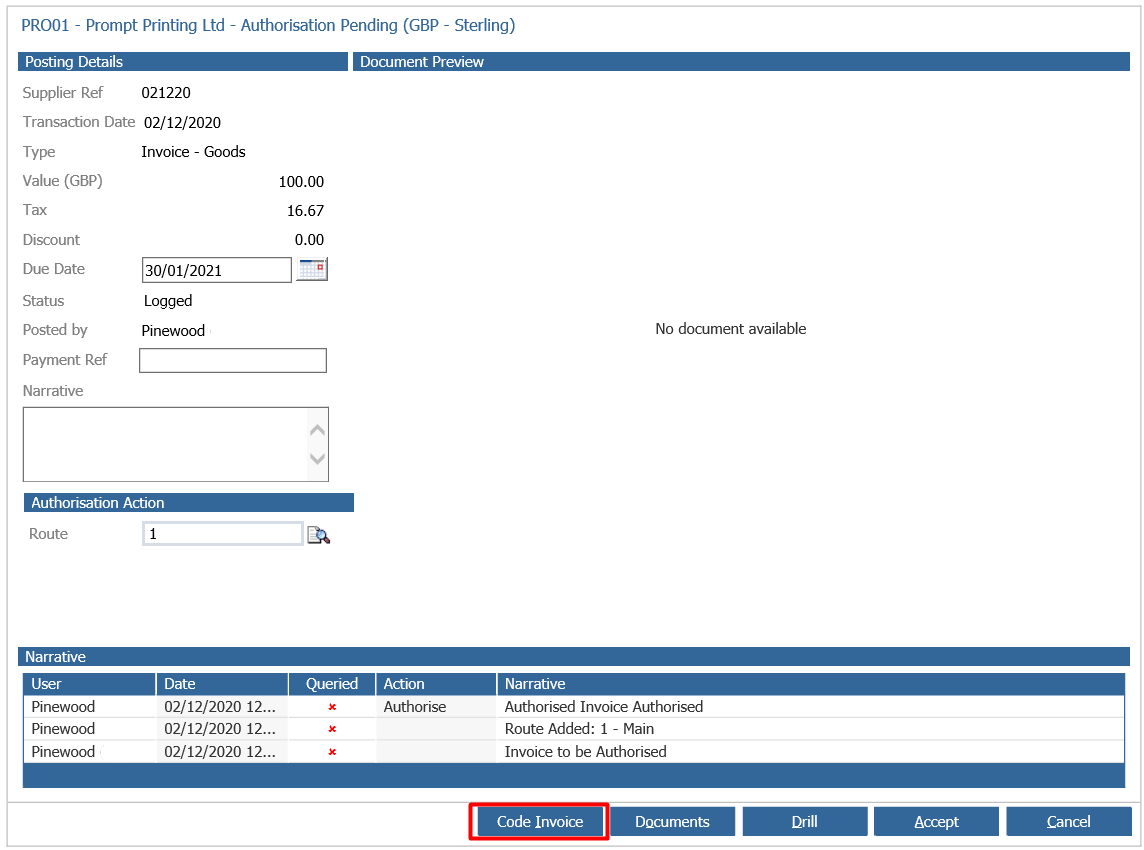
Users will then need to code the invoice to clear it from the Invoice Management screen.
This is done by selecting the 'Code Invoice' button within the details:
This will then allow the user to process the invoice by coding the invoice to a Nominal Code and completing the Transaction:
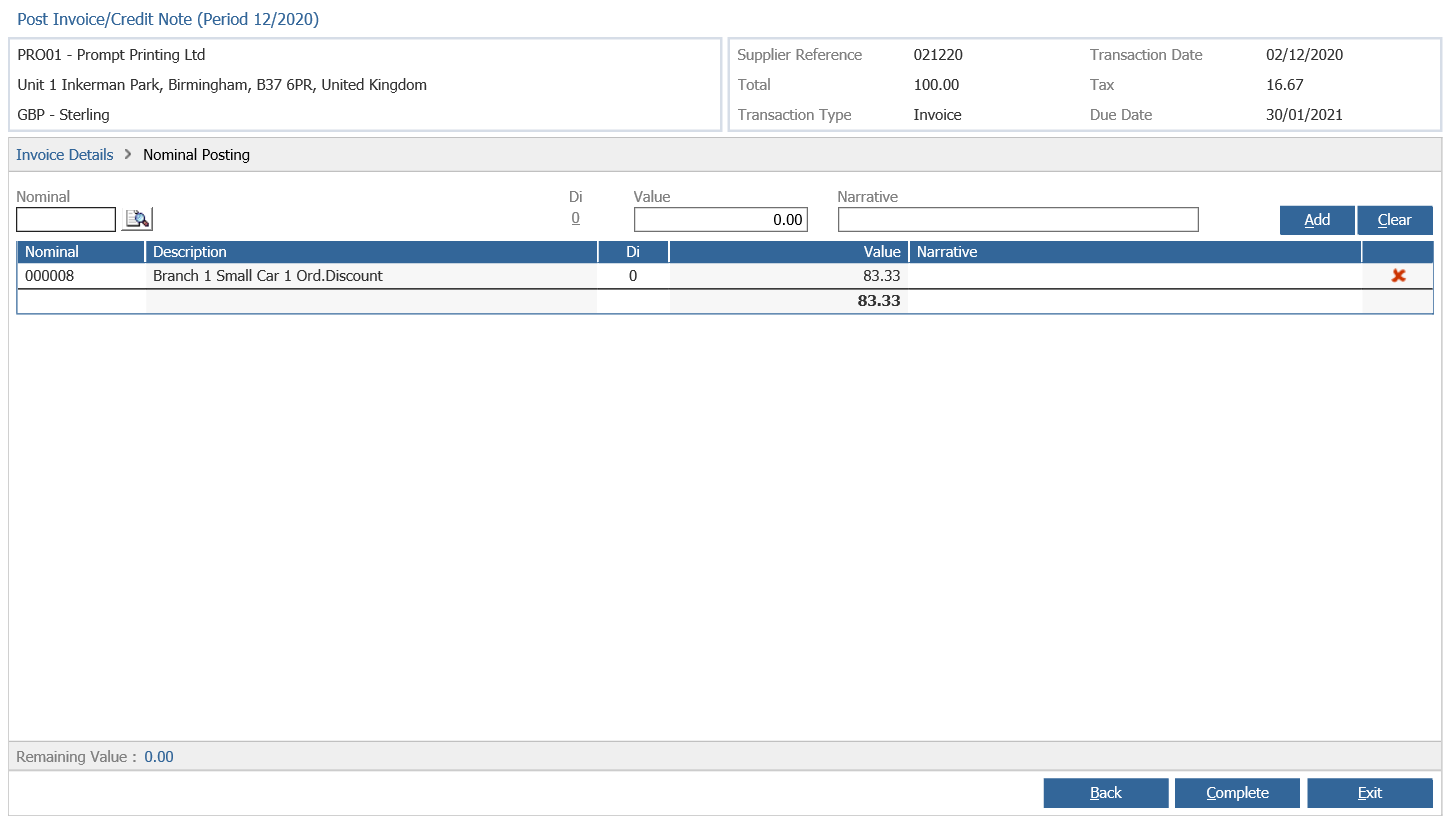
Once completed, the transaction will then be cleared from the Invoice Management list and the Authorisation process will be complete.