
In the event an invoice goes to a Pending Invoice status, we need to see what caused this to occur. If the invoice is being produced to the INTVM account, one screen to check at the point of Invoice is the Nominal Charges Box.
If the box is blank as illustrated below, there are no Nominals to charge to. This will cause the invoice to change to Pending status.

The cause of this stems from the Vehicle Parameters.
Firstly, you will need to ascertain the type of sale of the vehicle.
From workshop you can view this by looking within the Vehicle record, on the Vehicles Tab select the vehicle icon next to the new/used stock number;

This will take you to the stock card of the vehicle, select the Sale tab and view the Type of Sale Group and Type of Sale;

Alternatively this can be checked directly from the vehicle Stock Card.
Once you have acquired this information, you will need to look within: Vehicles > Parameters > Parameters > Product Categories
Select a Description i.e. Preparation.
Look within the box named Product Categories Nominal Codes - Type Of Sale.
Select the Type of Sale of the Vehicle. If the Sales and COS Account fields are blank, these will need to be filled for these to appear as a charge.
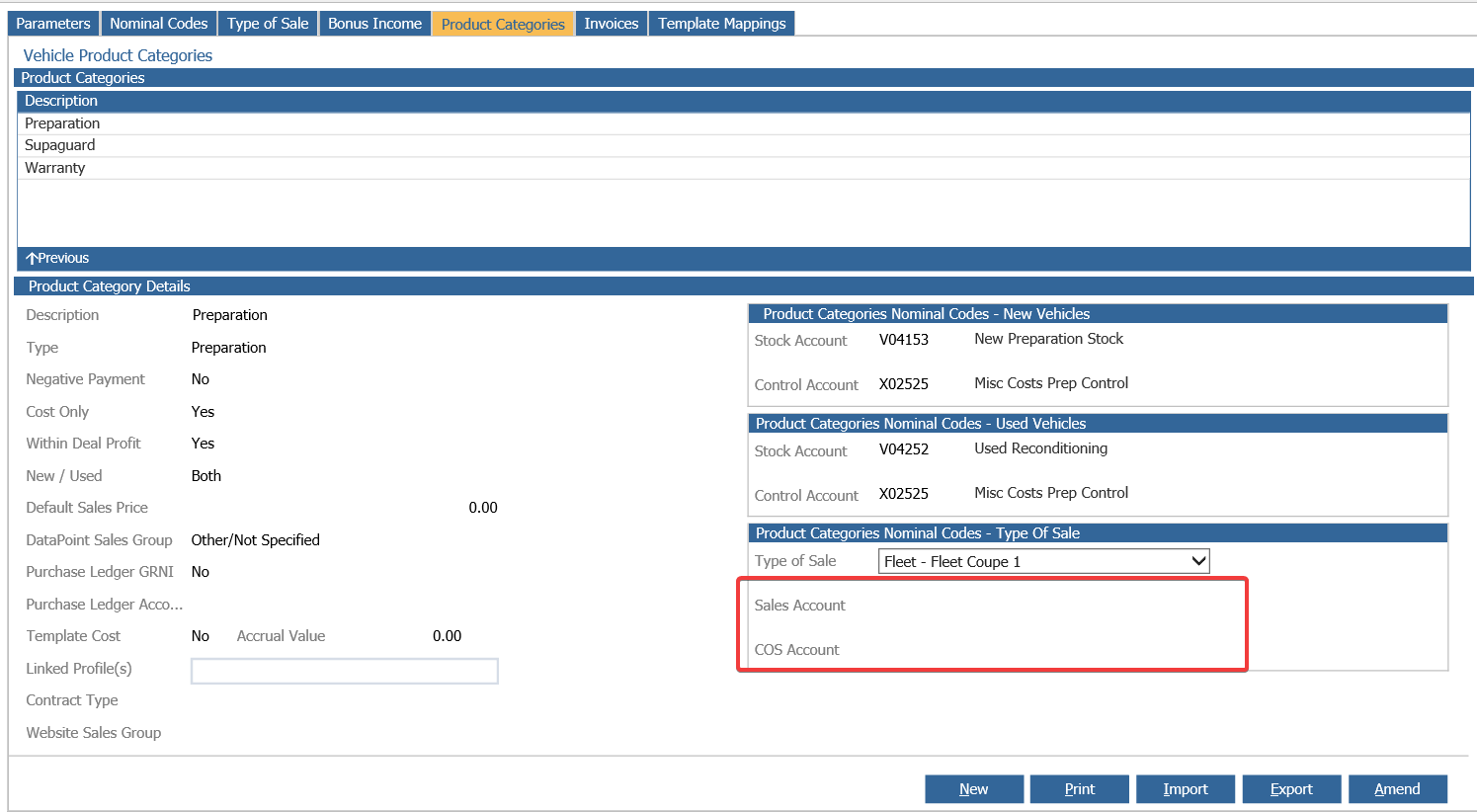
Select Amend to add the Nominal Codes you would like the values to post to. Once complete go back to the Produce Invoice screen within Workshop.
You will see when selecting Invoice that the Nominal Charges table now has description and nominals.

Add the value to the correct Nominal and complete the Invoice.
Please Note: Once an invoice has been set to Pending Status, no changes can be made. You will not be able to edit any of these fields. You will need to complete the invoice at this point. If you do have to make any changes, then this will need to be credited back and re-invoiced.
Please Note: If you need to credit an INTVM invoice, you will have to credit this to the INTER account as INTVM is not searchable within Workshop.