
Question
How can I set up Franchise Parts for my department?
Answer
**If you require a Parts franchise enabling please email and this can be arranged.**
Once enabled, the below advises of the set up within Pinewood DMS so that your Parts Franchise will appear.
If you begin within:
Parts > Parameters > Department Details
Click the Department Details 2 tab
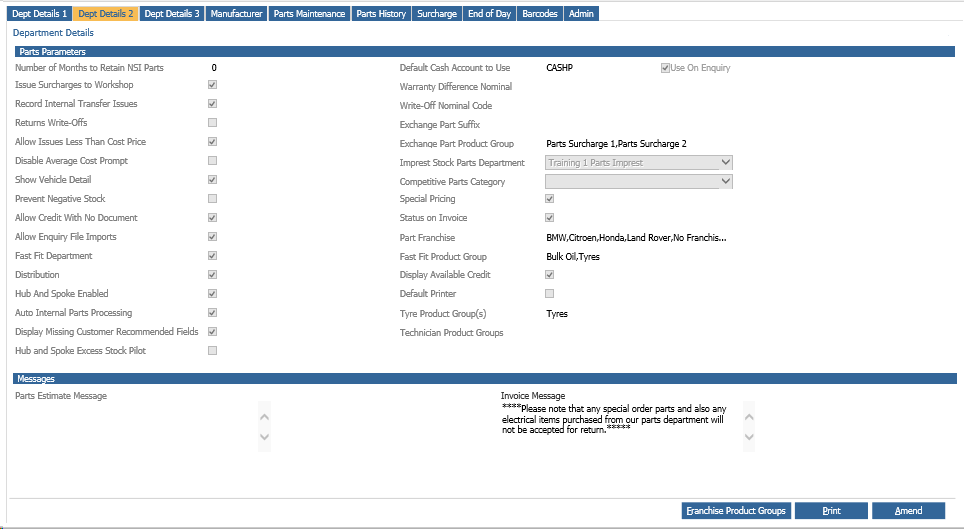
Click Amend (close the Invoice Header pop-up) and drill into the Part Franchise box
Here, the franchise you have enabled will need to be marked as ‘Active’
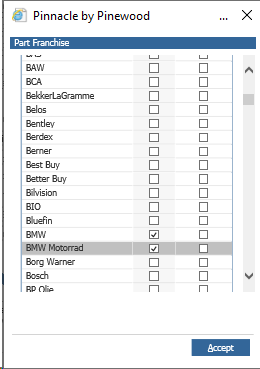
Once this is confirmed, the final thing a site will need is a default supplier.
This will require a purchase ledger transaction account having been set up for the Supplier within the Accounts department and then mapped into Supplier Maintenance via;
Parts > Maintenance > Supplier Maintenance
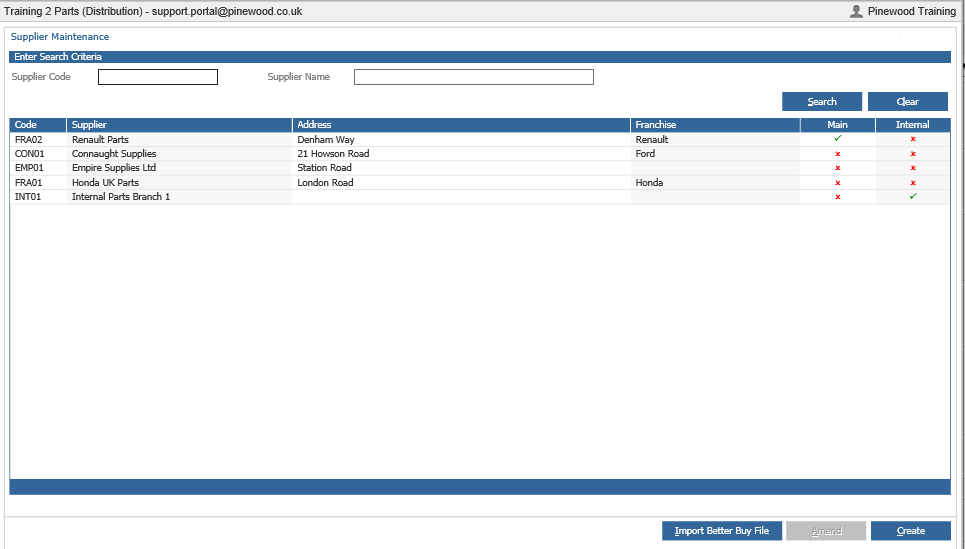
Here you can click Create
Search your Purchase Account within the Purchase Account box and drill into the correct option, set the stock order frequency days, lead times and movement bands relevant to the supplier for the automatic order process.
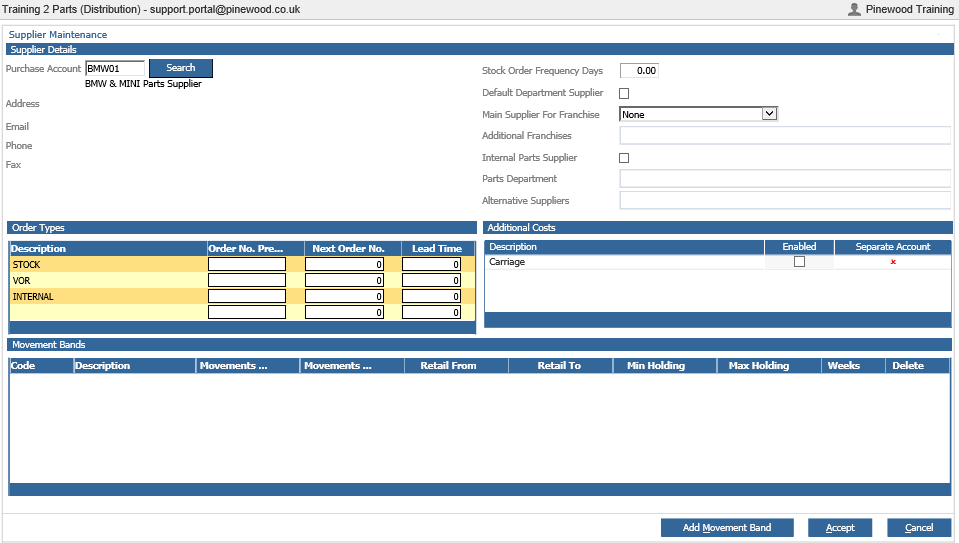
Finally, within the ‘Main Supplier for Franchise’ drop down, you will need to map this supplier to the franchise you wish to have appear within your parts creation screen.
Click Accept and the system will prompt you to confirm you want this to be the main supplier for this franchise. You can then go to;
Parts > Maintenance > Create/Amend
Enter the part number you wish to create. Click the Search icon.
Click Create Part (if this is recognised in the system, it will suggest that the part already exists in the system)
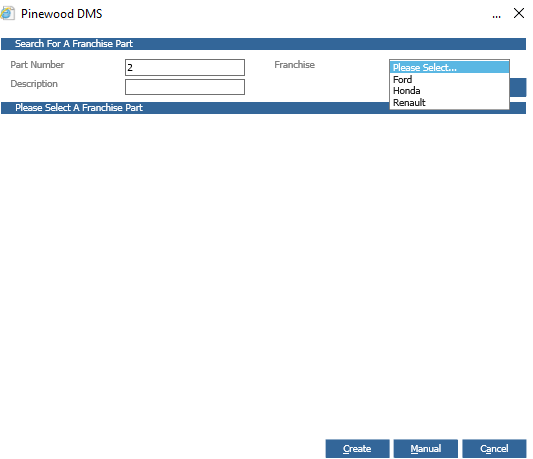
On the right hand side, the franchise will then appear if you have completed all the above steps for you to map new parts against.
Related to