
Question
How can I create a report to identify parts that could be made inactive?
Answer
Usually before a stock take, users should create a selection should be created in order to identify any parts with zero stock holding and no movements for a period of time – this report will identify any parts that the department should be setting as ‘inactive’.
These parts will still be held within the parts file, retaining all sales history and can be reactivated during the stock take if found.
The selection can be created via;
Parts > Selections > Search
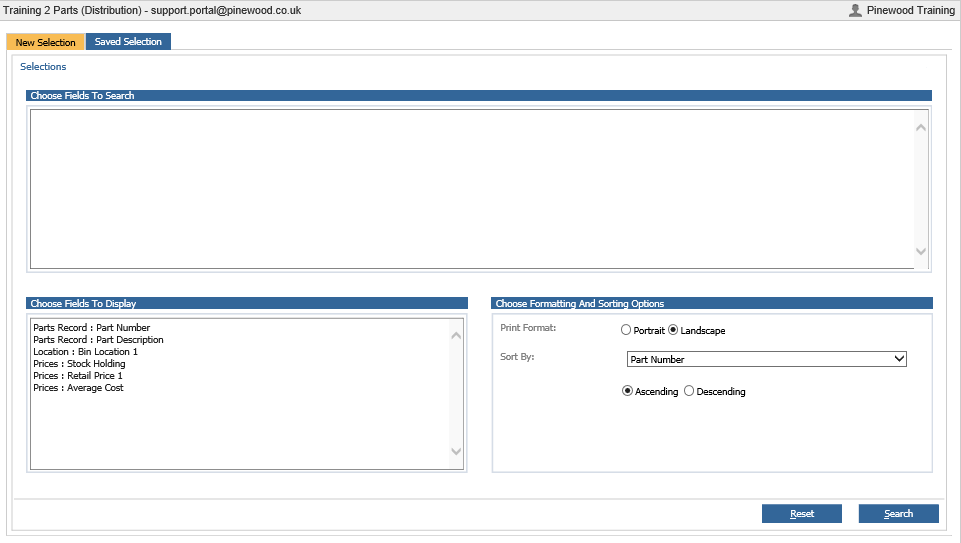
Drill into the top box marked ‘Chose Fields to Search’
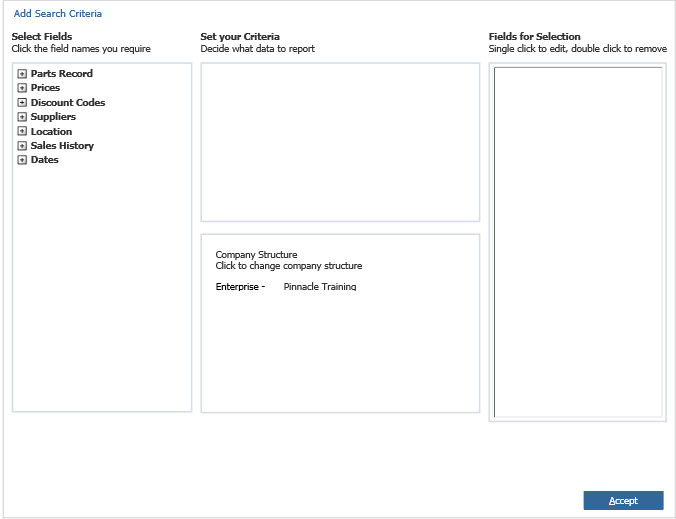
From the Left Hand Side select;
Prices – Stock Holding
In the Middle column then select this to ‘Equal To’ from the drop down
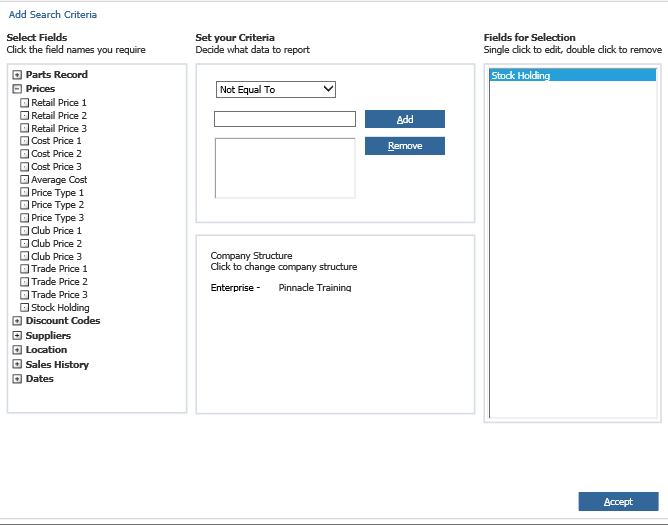
Set the figure as 0
Click Add
From the Left Hand Side select;
Dates – Last Issued
In the Middle column then select this to ‘Less Than’ from the drop down
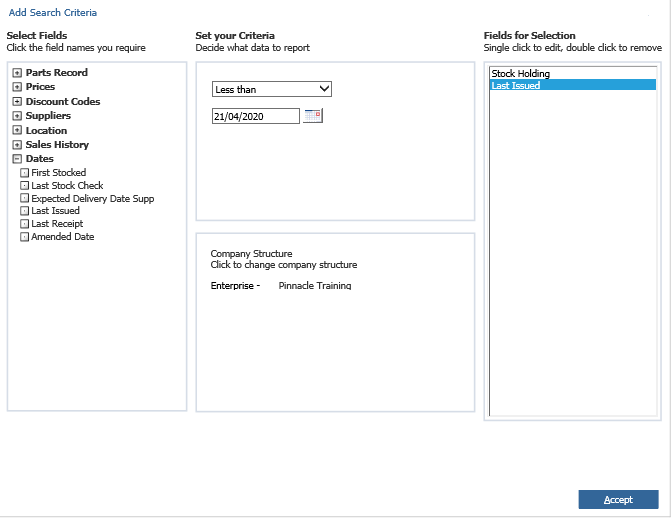
Set the figure as something you deem an appropriate amount of time
For example – most sites would use the date either 12 months or 18 months previous to the Stock Take they are running.
Lastly, you will need to define the Parts Department you wish to complete this selection search on.
This can be done in the lower middle box.
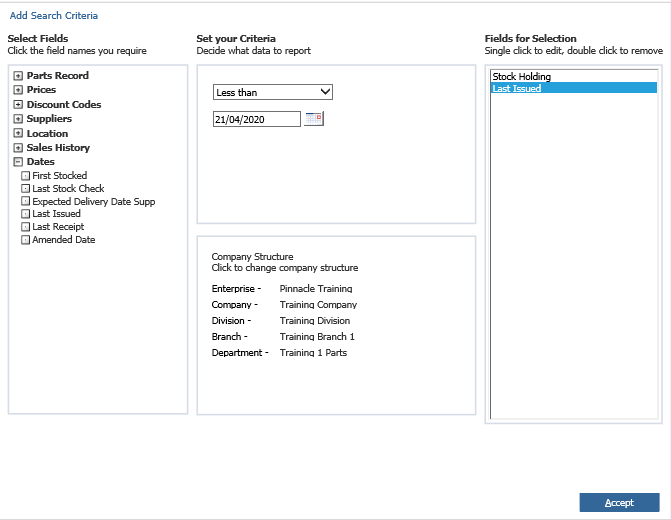
Simply drill into the Company structure and select which department.
Once this is done.
Click Accept.
Click Search
The individual part records that appear on this report can then be de-activated on a one by one basis.
This can be done via;
Parts > Maintenance > Create/Amend
Enter the Part Number you wish to Deactivate
Click Search
On the Part Record.
Click Deactivate
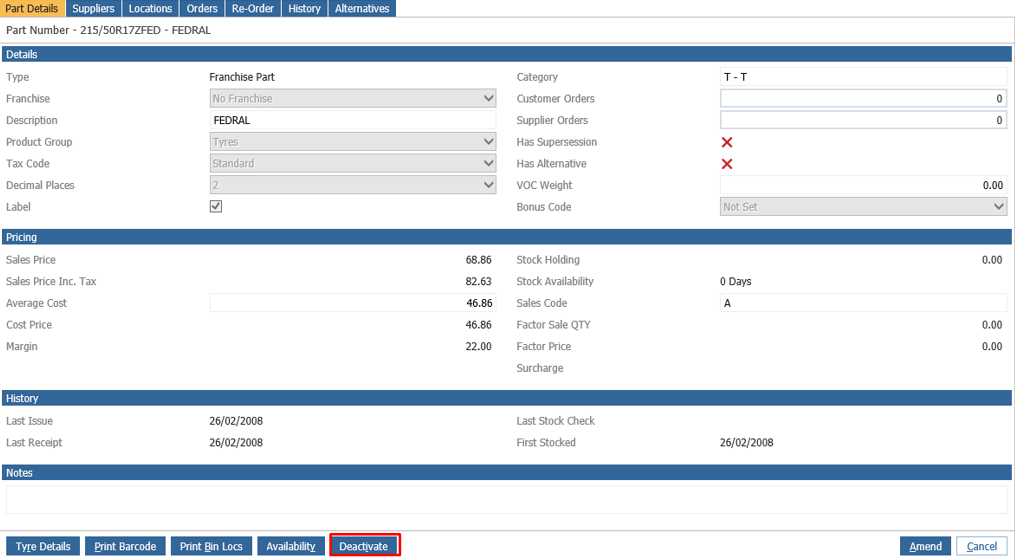
This will De-Activate the Part.