
Question
How do I view all of my Parts customer orders that require action?
Answer
Parts > Customer Orders > Customer Orders > Outstanding
The outstanding orders screen shows all orders that are outstanding, including parts that have been placed on order with a supplier and parts that have been reserved.
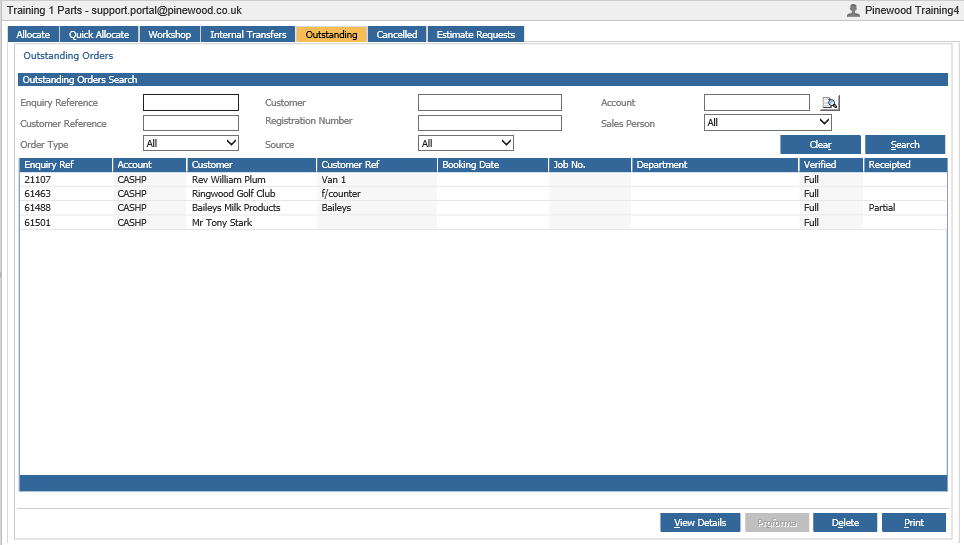
The screen can be filtered if required. Also the source can be filtered to either show orders placed to the workshop or just parts orders.
The receipted column shows the current status of the parts required.
Single click the order and press ‘View Details’ will show more detail of the order.
Orders can be deleted by single clicking the order and selecting ‘Delete’.
To invoice an outstanding order, double click the order line.
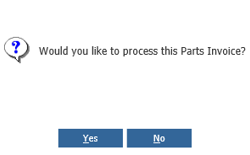
Selecting ‘Yes’ will process the order into the invoice screen where the invoice can be generated.
Note: Workshop orders can only be processed if the Job has been received into the workshop and a jobcard created.
Note: When distribution and pick control have been activated, only orders that have been verified can be processed from the outstanding orders page. When distribution and delivery have been activated, orders that have been allocated for delivery cannot be processed from the outstanding orders page. Please refer to Distribution, Pick Control.
Deposits (Final Invoice)
When processing an outstanding order to invoice and a deposit has been taken, the final invoice must be generated.
When processing an outstanding order to invoice and a full deposit has been taken, a final zero value invoice must be generated. To invoice an outstanding order, double click the order line.
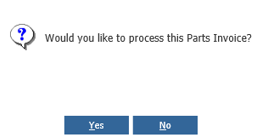
After selecting ‘Yes’ the invoice screen will be displayed. The ‘Invoice’ button can then be selected. An example of the invoice total window for a partial deposit is shown below.
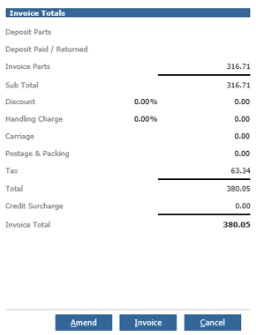
When a partial deposit has been taken the Invoice Totals window will display the deposit value originally taken as the Deposit Paid / Returned value at the top.
The value of the parts being invoiced is displayed as the Invoice Parts value underneath the deposit.
This example will result in the difference being invoiced. Please refer to Cash Sale Invoice.
It is at the point of invoice the part movement is recorded.
An example of the invoice total window for a full deposit is shown below.
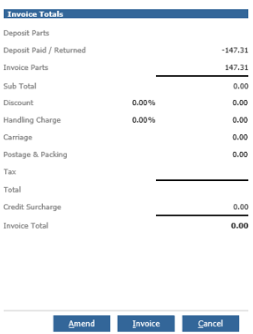
When a full deposit has been taken the Invoice Totals window will display the deposit value originally taken as the Deposit Paid / Returned value at the top.
The value of the parts being invoiced is displayed as the Invoice Parts value underneath the deposit.
This example will result in a zero invoice being generated. Please refer to Cash Sale Invoice.
It is at the point of invoice the part movement is recorded.