Question
How do I receipt non-ordered parts into stock on the system?
Answer
Parts > Purchase > Receipts > Non-Ordered
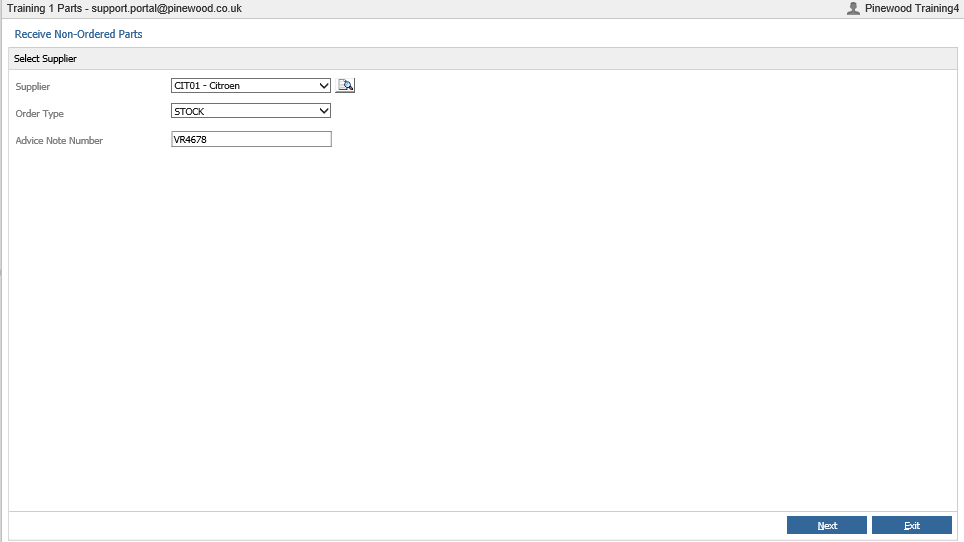
After selecting a supplier, the order type must be chosen and an advice note number entered. Once completed click 'next'.
Part numbers and quantity along with retail and cost prices can be added by selecting the Add Part Button.
For parts that need to be created please see Create/Amend.
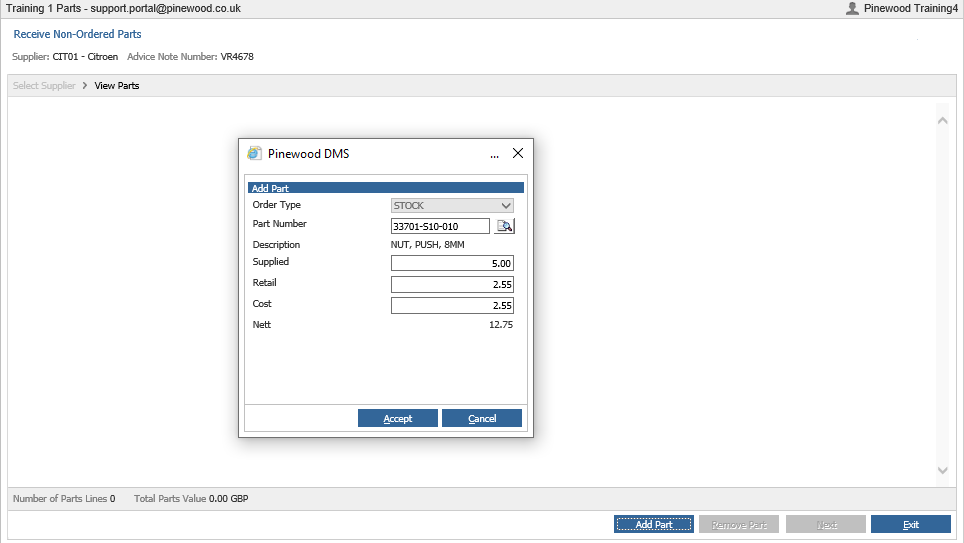
To remove a part single click it and press ‘Remove Part’.
When all parts to be received have been added the ‘Next’ button can be selected.
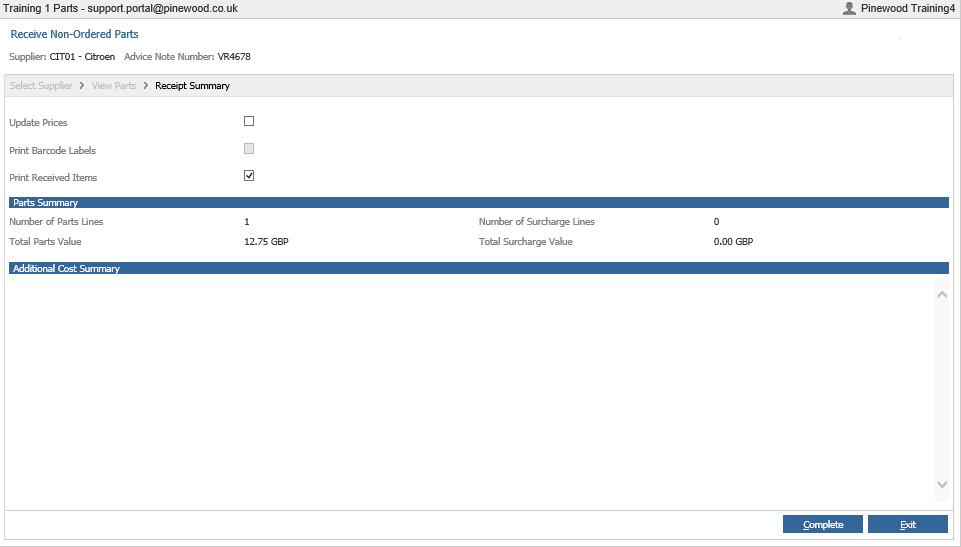
The tick boxes in the top left hand corner give the option to 'Update Prices', 'Print Barcode Labels' (if this feature is set up) and 'Print Received Items'. These can be ticked or left blank.
When ready click 'Complete' which will receive the parts into stock.
**Please Note: If you do not click complete the parts will not be receipted into stock.**
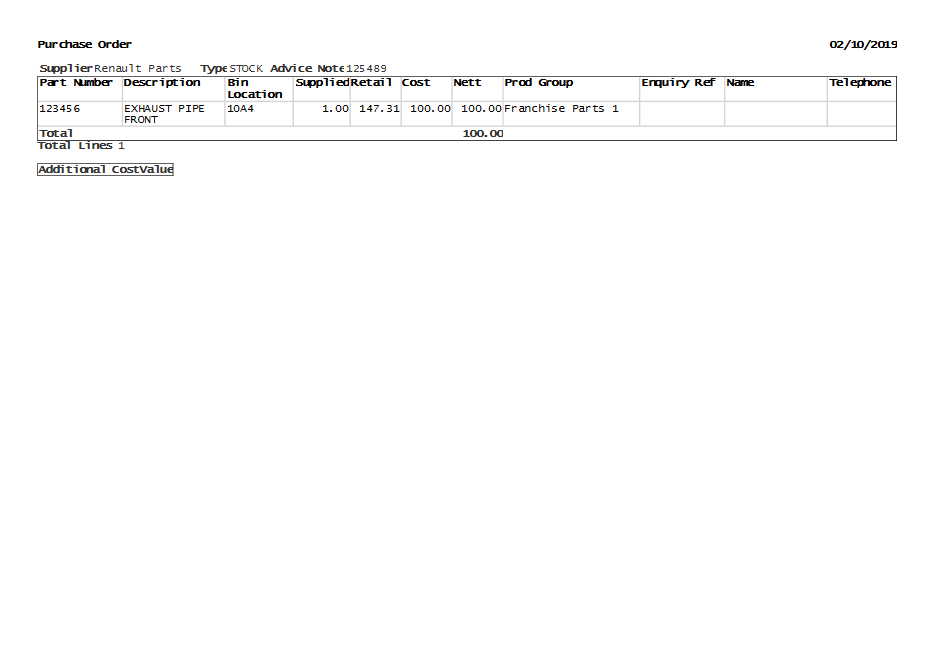
If ticked a print of the received items is then available