
Question
How do I set up consolidation invoice emails?
Answer
Consolidating invoices need a few areas to be set up in order to be successful, if we wish to email them.
We need to set up the HTML email first with in.
CRM > Parameters > Communications > Parts
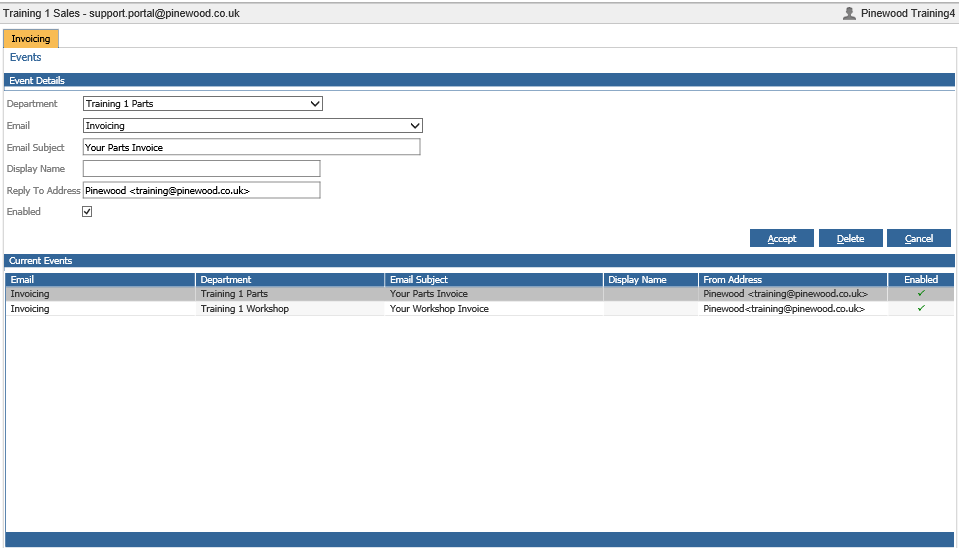
There are a few boxes in here that we must fill in.
Department: This is the department that we are working in for the parts consolidation invoice.
Email: This is the reason for email so select invoicing.
Email subject: This is why we want this set, so we can call this consolidating invoicing if we like.
Reply to address: This needs to be entered in order to send the email, this can be an email of your choice.
Enabled: This simple tick box needs to ticked when ready to turn on.
Once this has been done select the accept button.
We now need to set the account we wish to use for all our consolidating invoices.
To do this go to:
Parts > Distribution > Consolidation > Parameters
(note this will need to be a transaction account set up in within accounts)
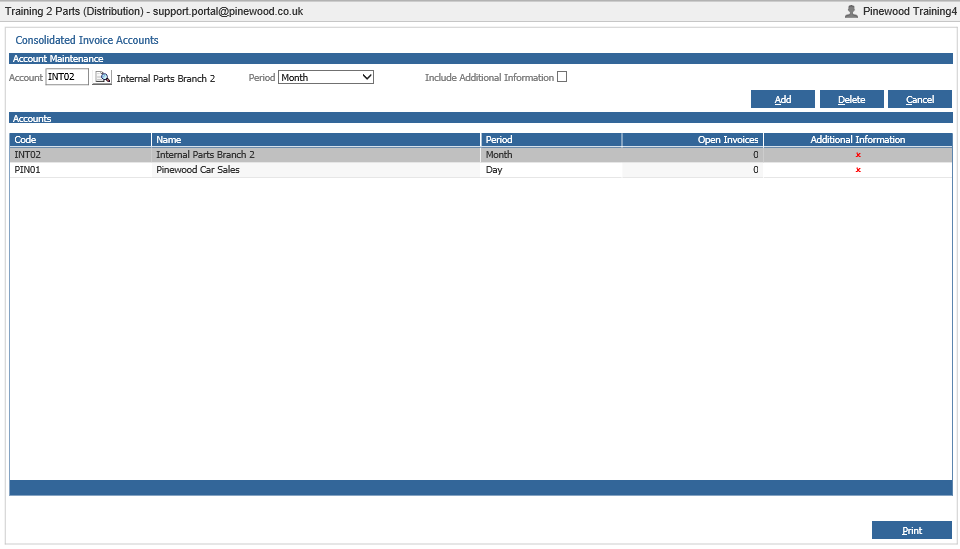
Search for the account and add this to section. You can also delete old ones set.
The drop down will determine when you need to process the invoices. We have the choice of day , week or month.
We now need to check the account selected is set up to email via:
Accounts > Sales Ledger > Transaction Accounts
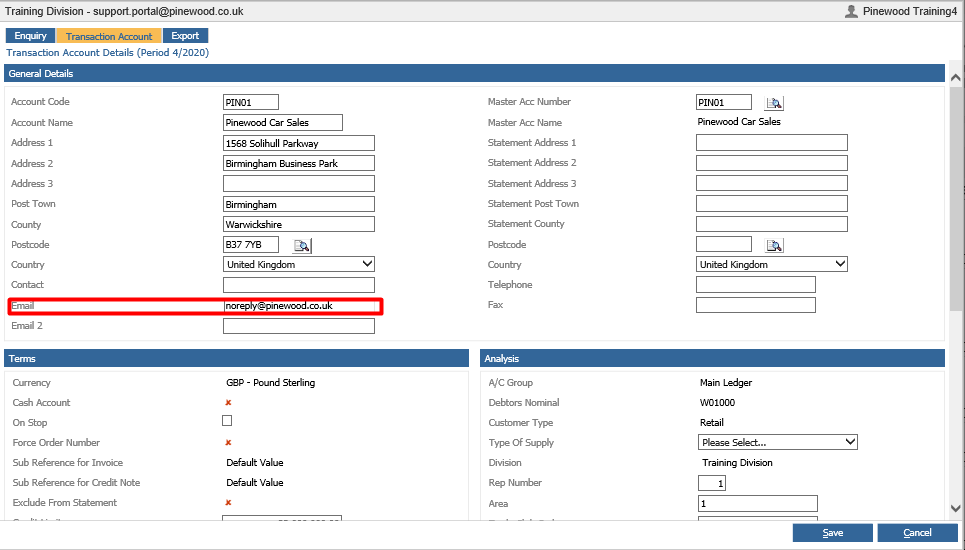
Search for the account desired, select amend under the general details and then we need an email set up in here.
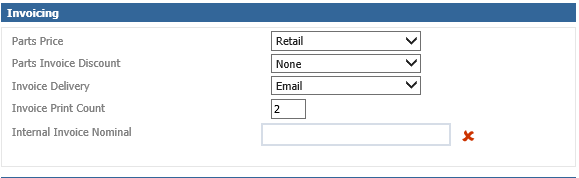
We also need to set up how we what to invoice. To do this go under invoicing, we need the invoice delivery option set, we have the preference as email , print or both
We are now ready to create the invoice,
To do this
Parts > Sales > Invoice
Build your invoice as you would do normally. You will need to choose the account you have set for the consolidation invoice.
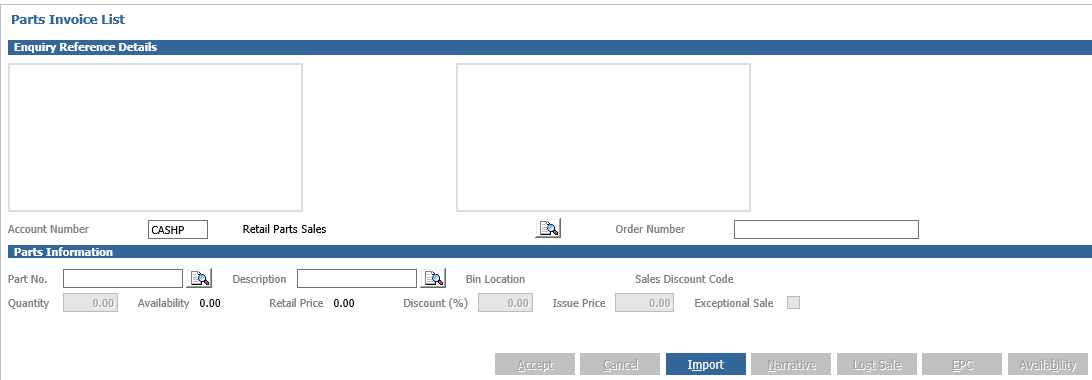
Process the order as you would do normally within customer orders.
When you are ready to invoice select advice note.
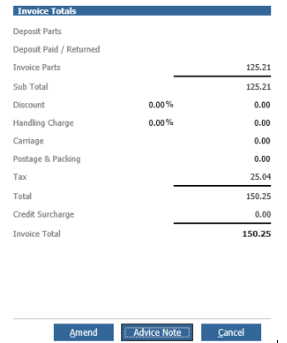
This will then be ready to process within:
Parts > Distribution > Consolidation > Invoicing
Depending on the period set up you can now process this.
Choose the invoice you wish to process by putting a tick in the box and select consolidate.

Depending on the preference set against the account this will either email, print or both.
You can then check if this has gone through by going to the history tab.
This will then also successfully send to the email.