
The Contact Tab contains the contact history for the CRM record, and can be used to view or add to the existing contact history entries as well as flagging records for future contact required.
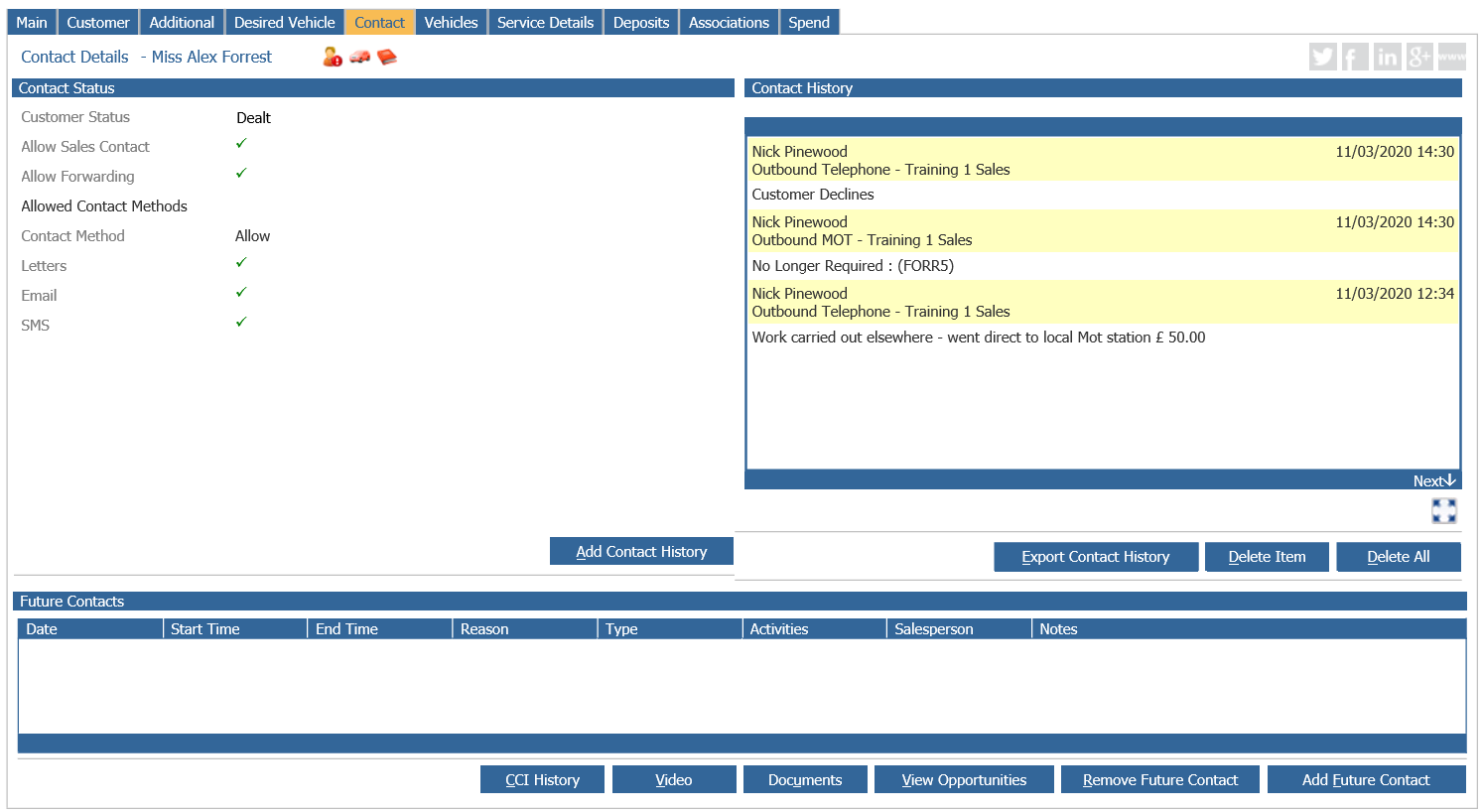
The current customer status and the Allowed Contact Types are displayed on the left hand side of the screen, and can be amended at the point that contact history is added to the CRM record.
Existing Contact History items are visible in the box on the top right hand side of the screen. Items saved here can only be deleted by users with sufficient access to the CRM module. Certain contacts will automatically generate entries within the contact history, these include:
- Taking a deposit for a vehicle
- Sending an SMS message
- Completing a Workshop booking
Selecting the “Export Contact History” button will export all contact history for the selected customer to a CSV file.
By clicking on the icon below the contact history field will display a pop up, which contains all the contact history for the selected customer. This is displayed in a scrollable view and includes the full text for each contact history item.
The opened history entry reveals details of the contact reason. CSI rating, Sale Activities completed, whether the contact was inbound or outbound, the enquiry source recorded along with the customer status and whether the interest is in a new or used vehicle.
The ‘Future Contacts’ section of the screen displays contacts due for the customers that have not yet been updated. Overdue contacts display in red. Users with sufficient access to the CRM module can remove future contacts from a CRM record using the “Remove Future Contact” option at the bottom of the screen (this requires a marketing access level of 60 and is hardcoded).
To upload a document against a CRM record, select the “Documents” option from the bottom of the screen.
To view a video uploaded via the Host+ app, click the "Video" button at the bottom of the screen to view this.
The CCI History button will only show for users with an Open CCI, this shows all CCI history for the customer.