
This screen is used to display all vehicles owned by a selected customer, if there are multiple vehicles the user must select the vehicle they wish to see further details on, then you’ll have a summary of the specification for the selected vehicle.
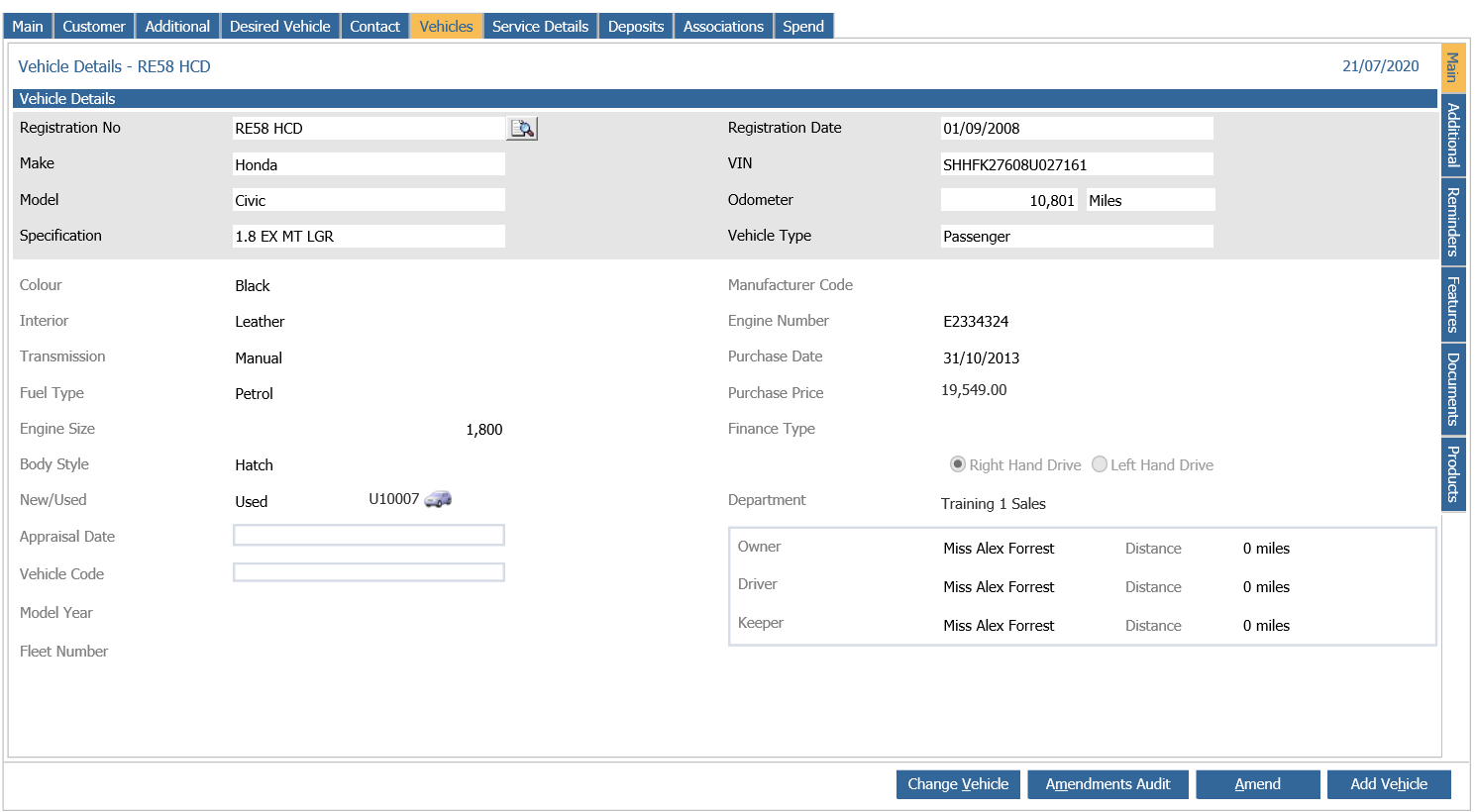
From this screen you are displayed with the physical details relating to the vehicle, including;
- Registration No, Registration Date
- Make, Model, Specification
- VIN, Odometer
- Vehicle Type
- Colour, Interior, Transmission, Fuel Type, Engine Size, Body Style, Engine Number
- New/Used
Other details found within the Tab is Purchase information on the vehicle, the Department in which the vehicle can be found within, as well as the Owner/Driver/Keeper details.
If required a user can Add a new vehicle to this screen by clicking Add Vehicle at the bottom of the screen, Amend the details on the vehicle currently being viewed or look at the amendments audit for said vehicle.
When adding or amending a vehicle it is possible to you the vehicle lookup facility can be utilised if activated, this can be used by entering a Registration of a vehicle in the Registration Number field then by clicking the magnifying icon you’ll be able to perform a vehicle lookup and import the results into Pinewood DMS.
Because the registration number of a vehicle acts as a unique identifier, Pinewood DMS has been designed to prevent duplicate CRM records for the same vehicle registration number to be created.
In the event that a search is undertaken for a vehicle that already exists as a record within the system, users are offered the opportunity to either transfer the vehicle from the CRM record to which it is currently attached, transfer the details to the new record, or to cancel the process. – Due to this duplicate vehicles are suppressed from the system.
In the case of records for vehicles that have been invoiced via Pinewood DMS, Purchase date, Purchase, price, Stock number and New/Used information are automatically populated at the point of an invoice being raised.
Owner/Driver/Keeper: Pinewood DMS has been designed to allow multiple customer records to be attached to an individual vehicle record to enable users to target different mailings to customer records with different relationships with the vehicle. It is worth bearing in mind that Aftersales letters sent through the system will automatically be addressed to the Driver of the vehicle, whilst Sales letters sent will automatically be addressed to the Owner of the vehicle.
Once the “Amend” option has been selected at the bottom of the screen, details contained within the Owner/Driver/Keeper link can be removed or amended.
Department, a department is specified to enable the vehicle record to be located using the selections area of the system, allowing for vehicles from specific locations to be returned separately if required – it is also this department in which the Vehicle will flag in the Aftersales Diary for events.
Within the CRM Vehicle tab a field called ‘Appraisal Date’ is available. Clicking on the blue hyperlink box for the new field will load the Part Exchange Appraisal popup, here a user can complete and save an appraisal form of the vehicle which will be retained if require in the future.
Other details such as Manufacturer Code, Fleet Number, CAP Code and Model Year can be completed if the details are known, details such as the Finance Type pull from the options which are set within the CRM Dealer Parameters.
Down the left hand side of the Vehicles tab are several other tab, these list as the following:
- Additional: here the user can complete User Definable Vehicle fields against the vehicle, this UDF fields are set up under the Dealer Parameters and consist of fields such as Radio and Key Code.
- Reminders: with in this screen you’ll be able to see of the vehicle events which this vehicle has as well as the date at which these events are due.
- Features: It is possible to add features against the vehicle in question here, common examples here are Interior and Exterior features.
- Documents: If require a user can upload relevant documents against the vehicle, this will just be documents relevant for the vehicle.
- Products: Any product groups that may have been sold to the customer when the vehicle was sold to the customer will be recorded within this screen, it is possible to add optional products as well as remove them within this screen.