
Question
Pinewood DMS screen is freezing when invoicing a vehicle, how can I resolve this?
Answer
Step 1 - Re-Confirm The Vehicle Costs
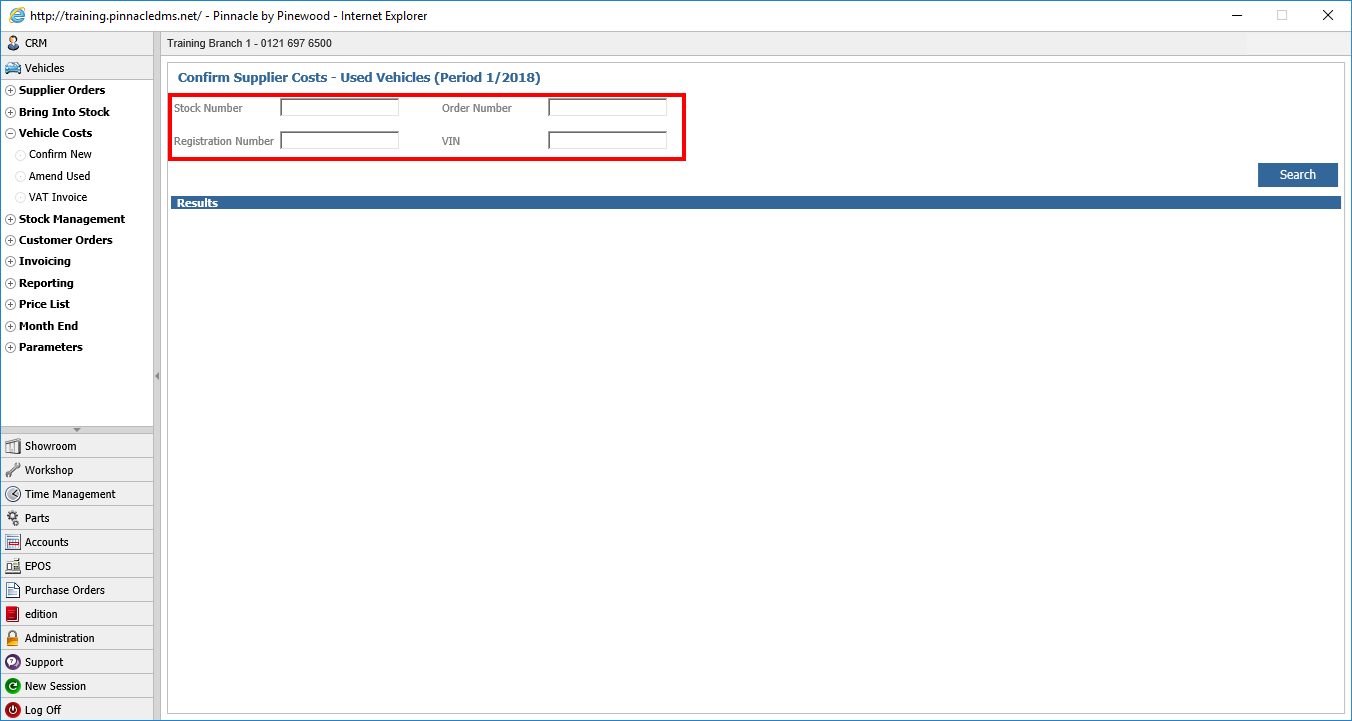
Used Vehicles
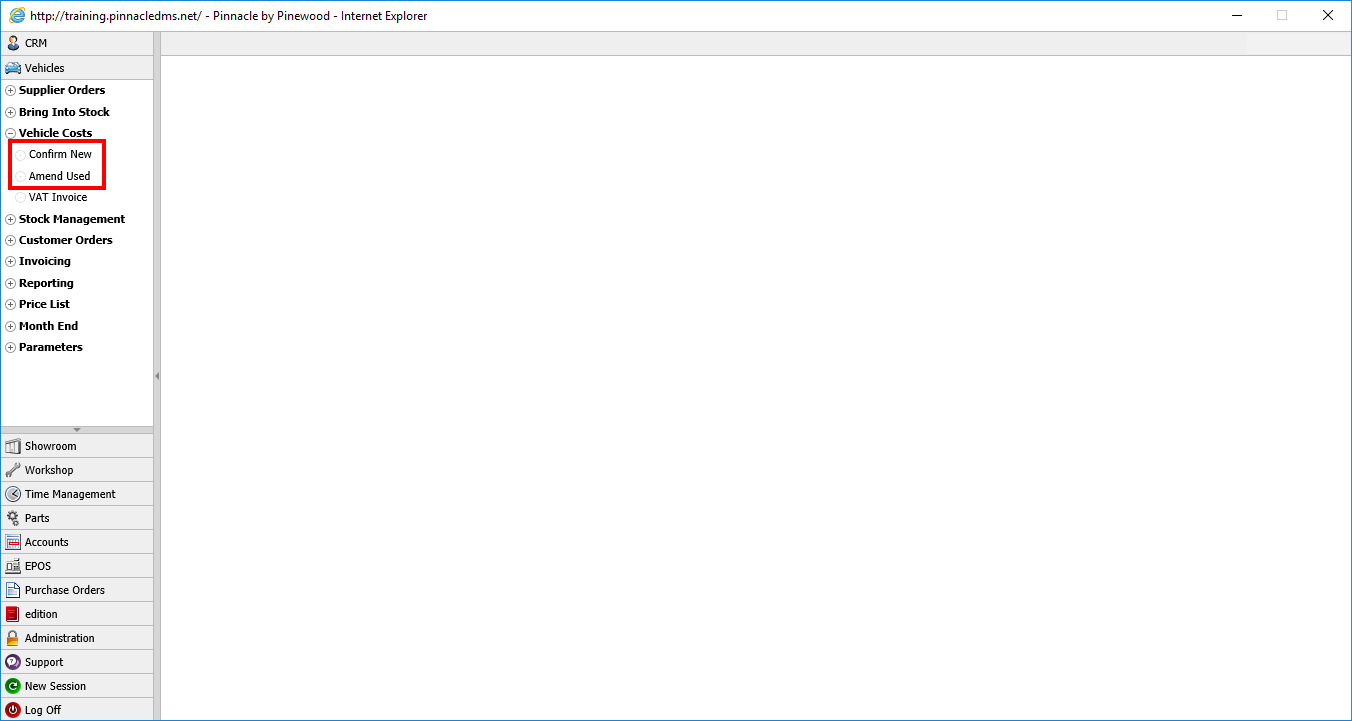
Vehicles - Vehicle Costs - Amend Used
Enter one of the vehicle references
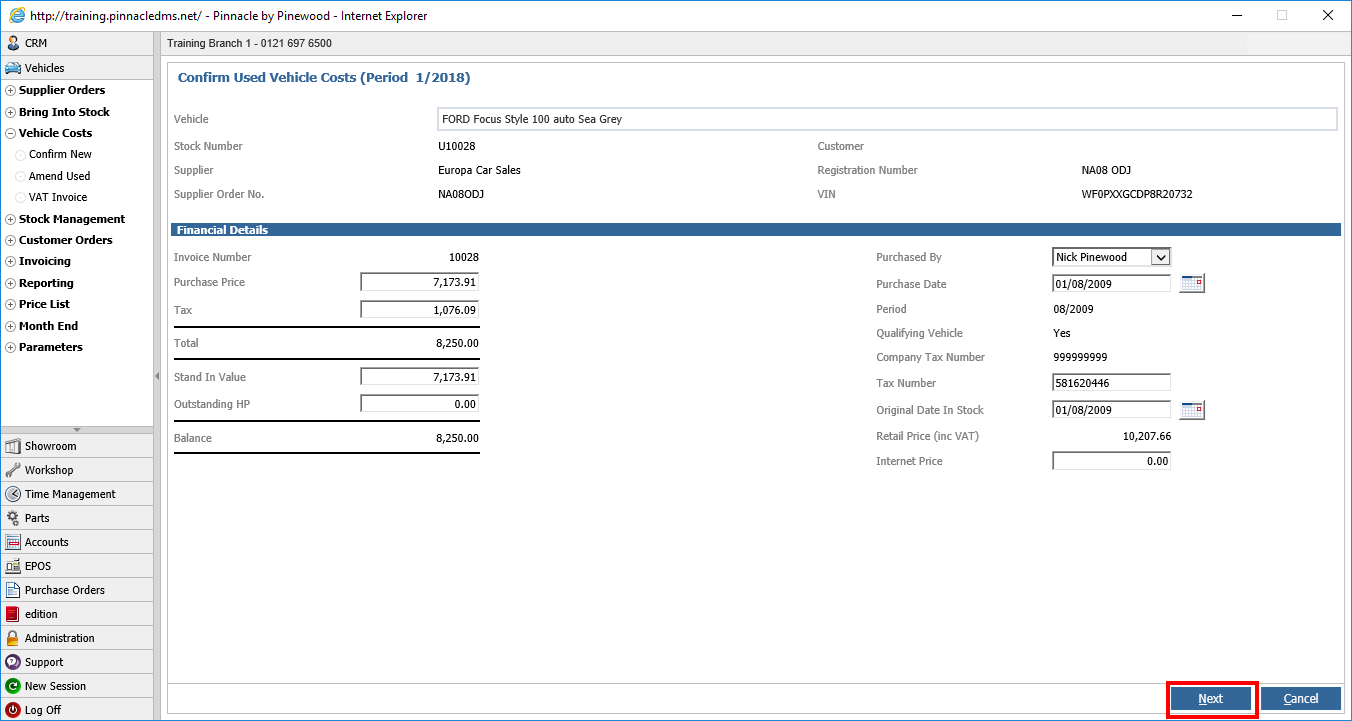
On the vehicle cost screen you need to re-confirm these by pressing Next / Accept
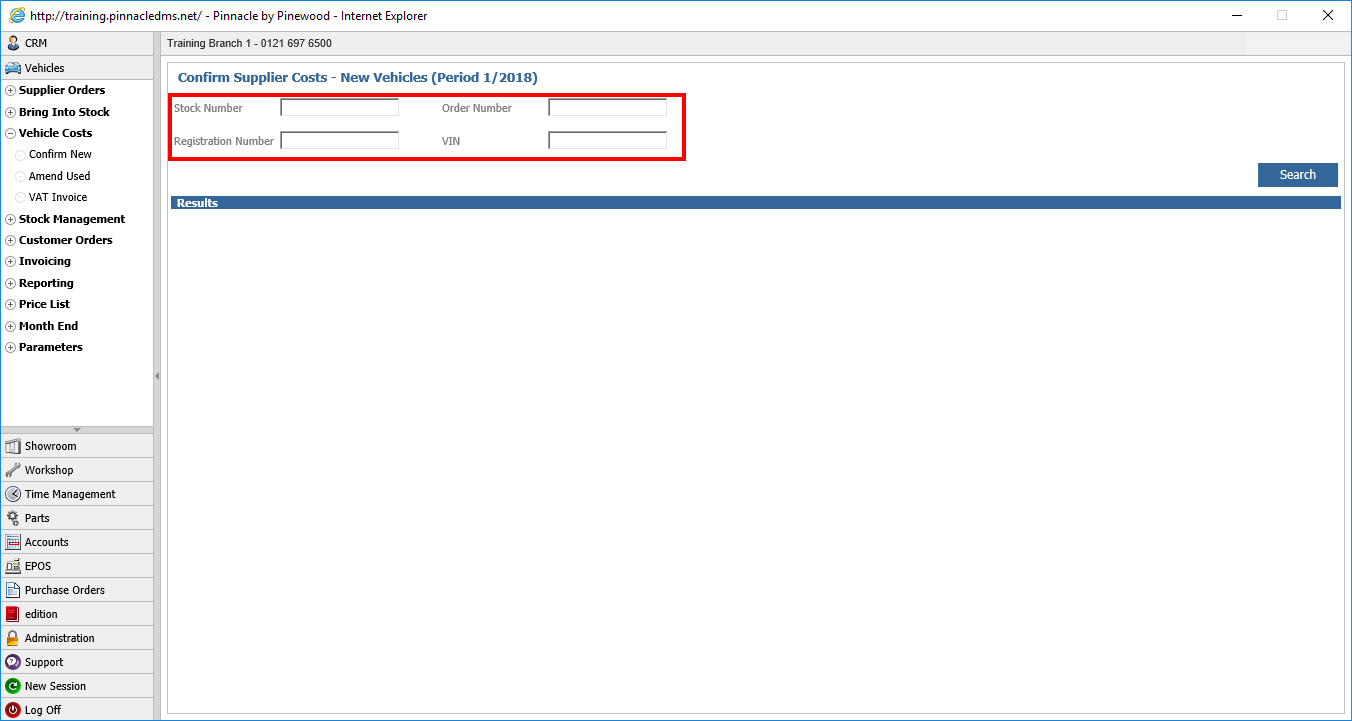
New Vehicles
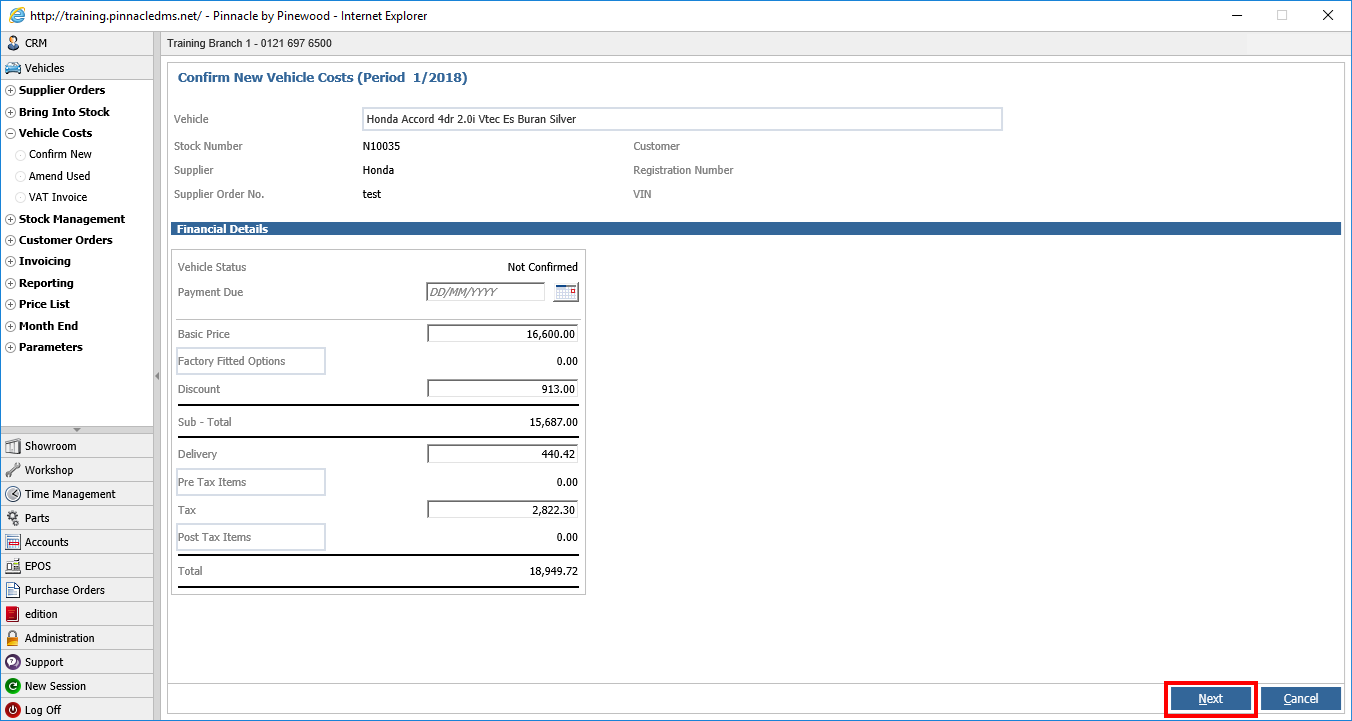
Vehicles - Vehicle Costs - Confirm New
Enter one of the vehicle references
On the vehicle cost screen you need to re-confirm these by pressing Next / Accept
-------------------------
Try to invoice the vehicle, it should now invoice correctly.
If this still freezes, try Step 2.
Step 2 - Remove & Re-Enter Vehicle Basic Price
Vehicles - Customer Orders - Amend
Enter one of the vehicle references
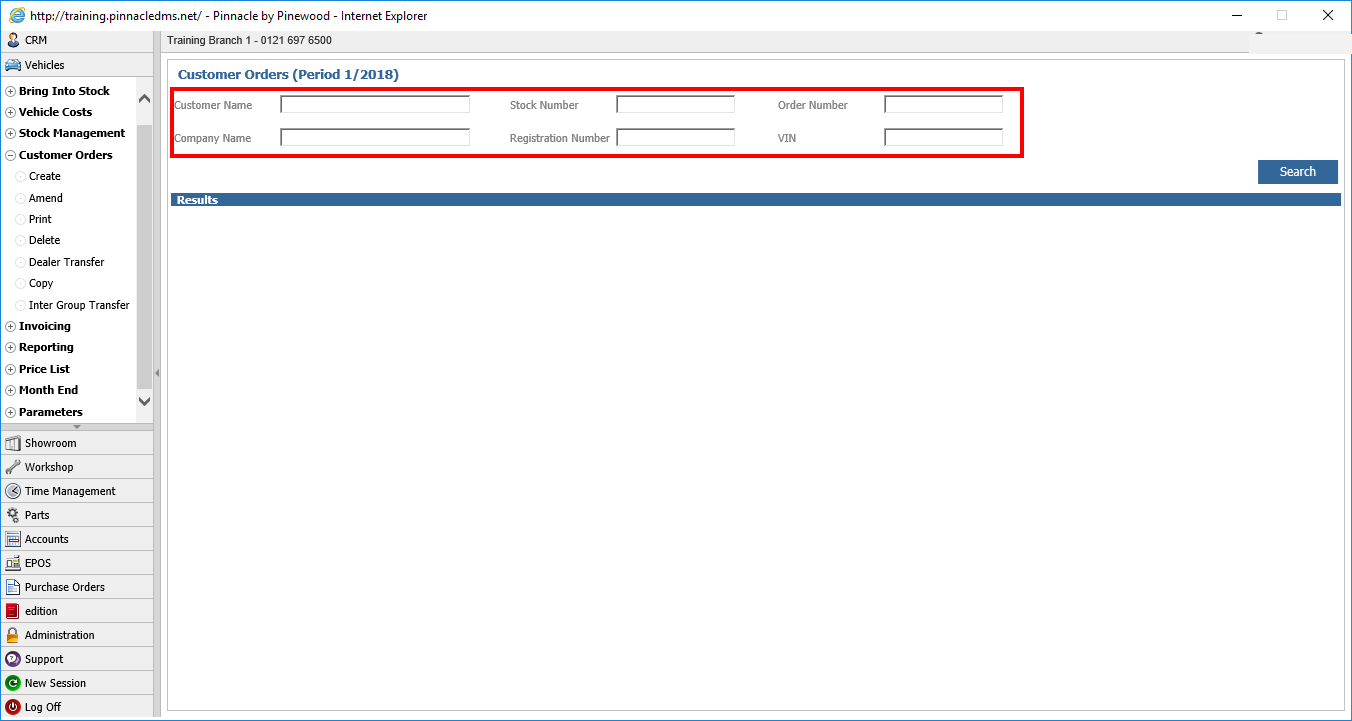
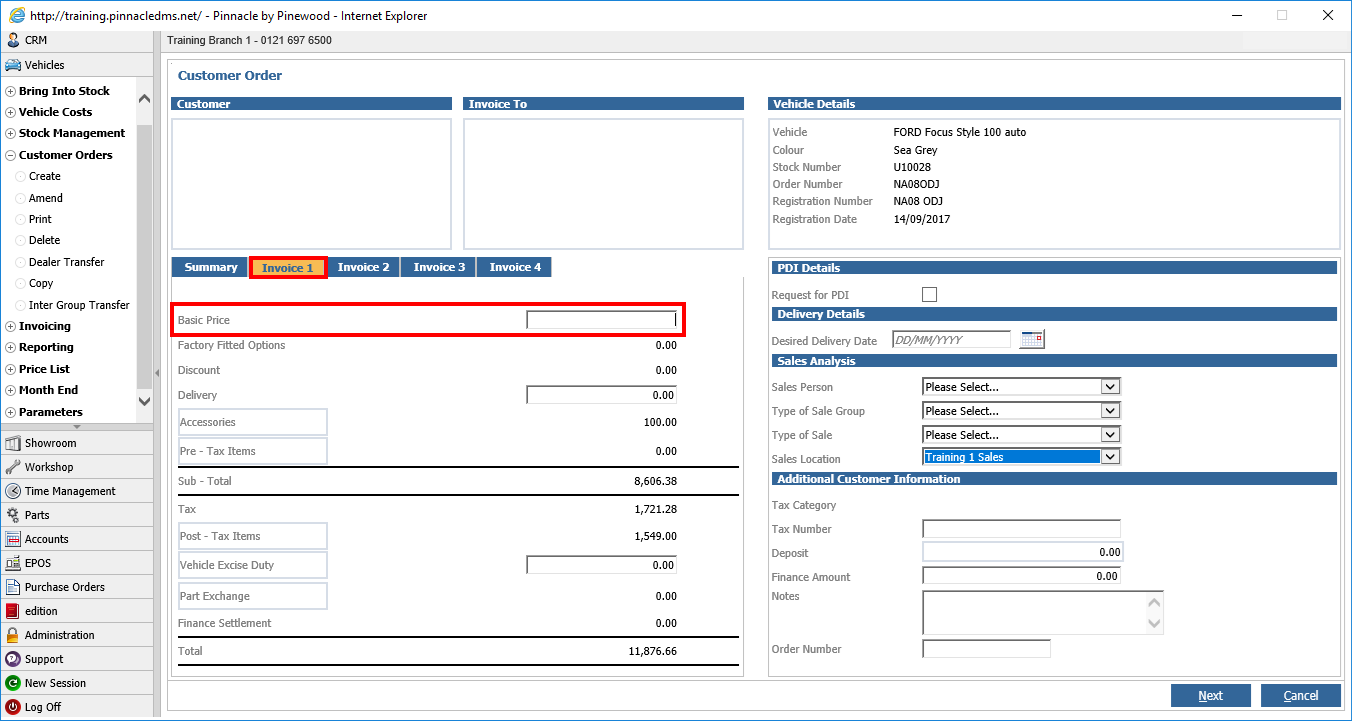
Click onto 'Invoice 1' within the customer order.
Make a note of the 'Basic Price', then delete this price out, then click into a blank area on the pinnacle screen, this make it so the system will recalculate the whole order.
Next re-enter the correct basic price and save the customer order.
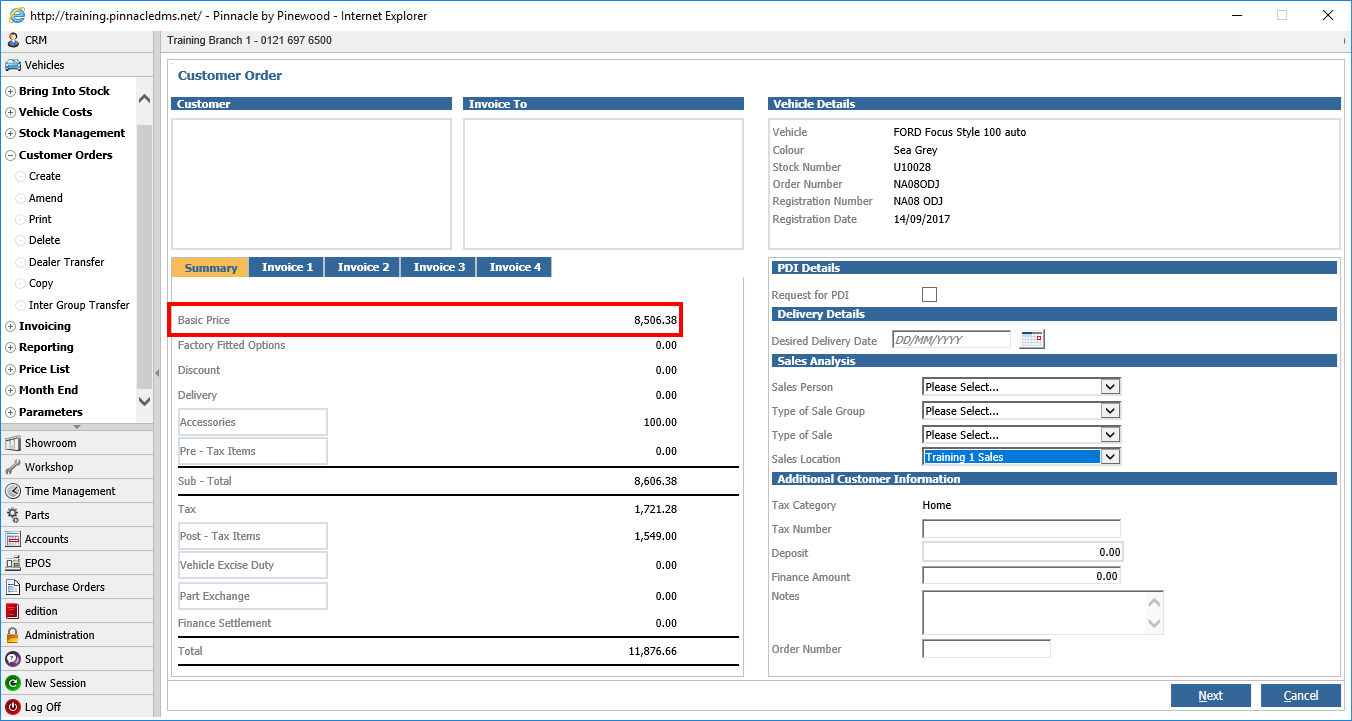
Try to invoice the vehicle, it should now invoice correctly.
If this still freezes, try Step 3.
Step 3 - Remove & Re-Enter Accessories/Pre-Tax Items Price
Vehicles - Customer Orders - Amend
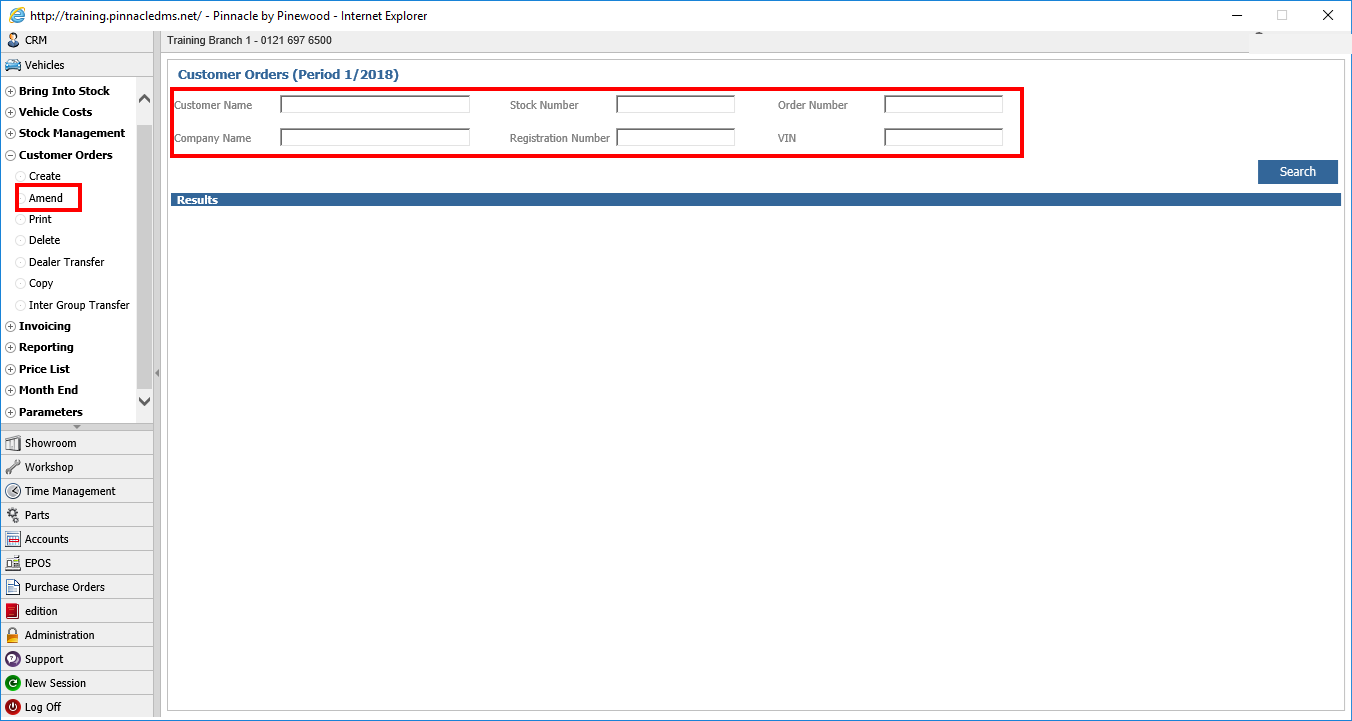
The vehicle may have either Accessories or Pre-Tax Items added to it (or both).
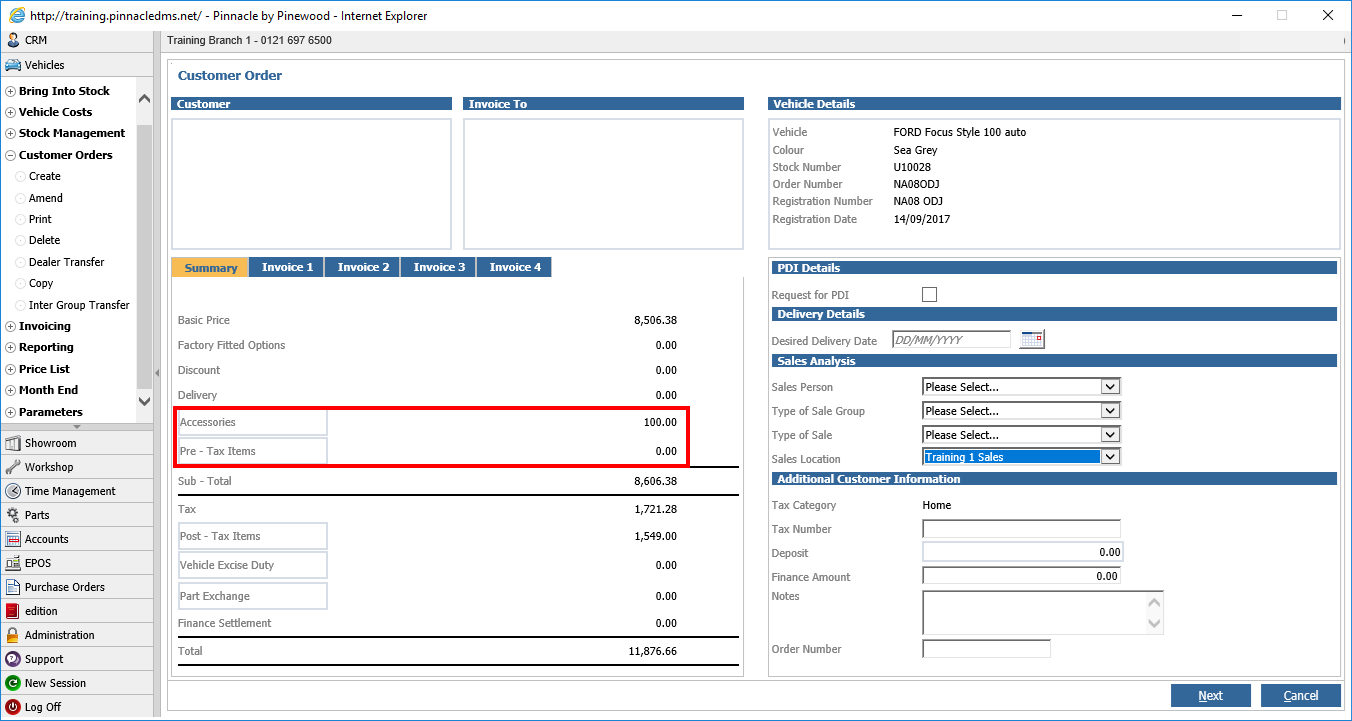
Click into the 'Accessories' tab and make a note of any accessories added, the invoice they are attached to and the price.
Remove the tick next to these and click Next / Accept.
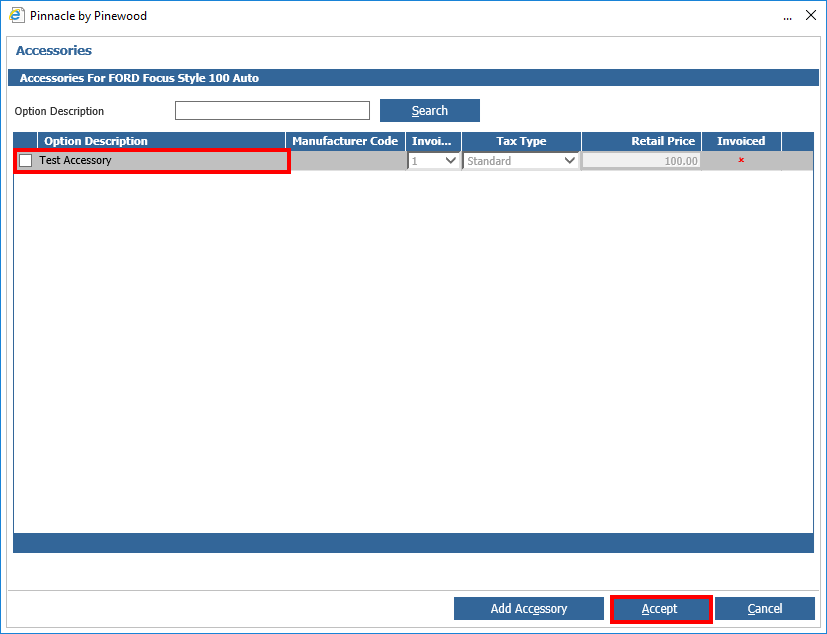
Repeat the above for any Pre-Tax Items, then save the customer order.
Go back into the customer order and re-enter the details for any accessories or pre-tax items.
Once this is done, save the customer order again.
Try to invoice the vehicle, it should now invoice correctly.
If you are still experiencing issues please contact Support.