Pinewood Technologies PLC Help Centre home page
Sign in
  1. Pinewood Technologies PLC
  2. Product Information
  3. Vehicles

Search

πŸ“ Reserved Vehicle Information

Permanently deleted user
  • Updated 06 August 2024 11:13

This article will show you how to find out information on a vehicle showing as β€˜reserved’.

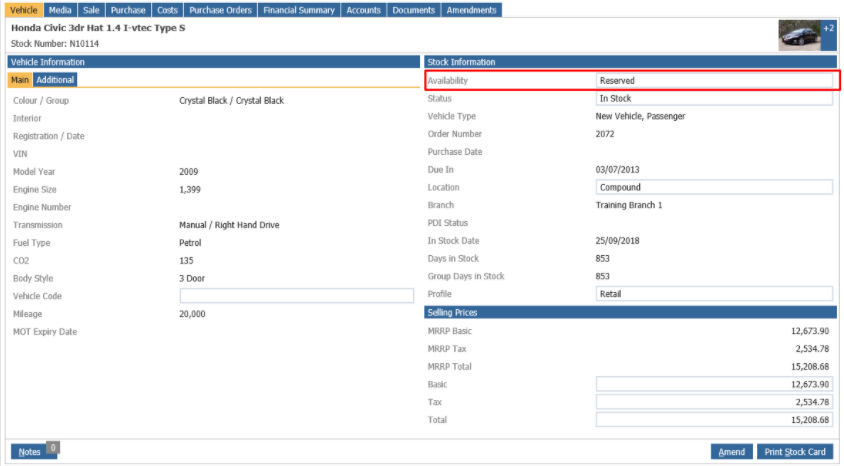
If you go to Vehicles > Reporting > Stock Cards - drill into the stock card:
mceclip0.png

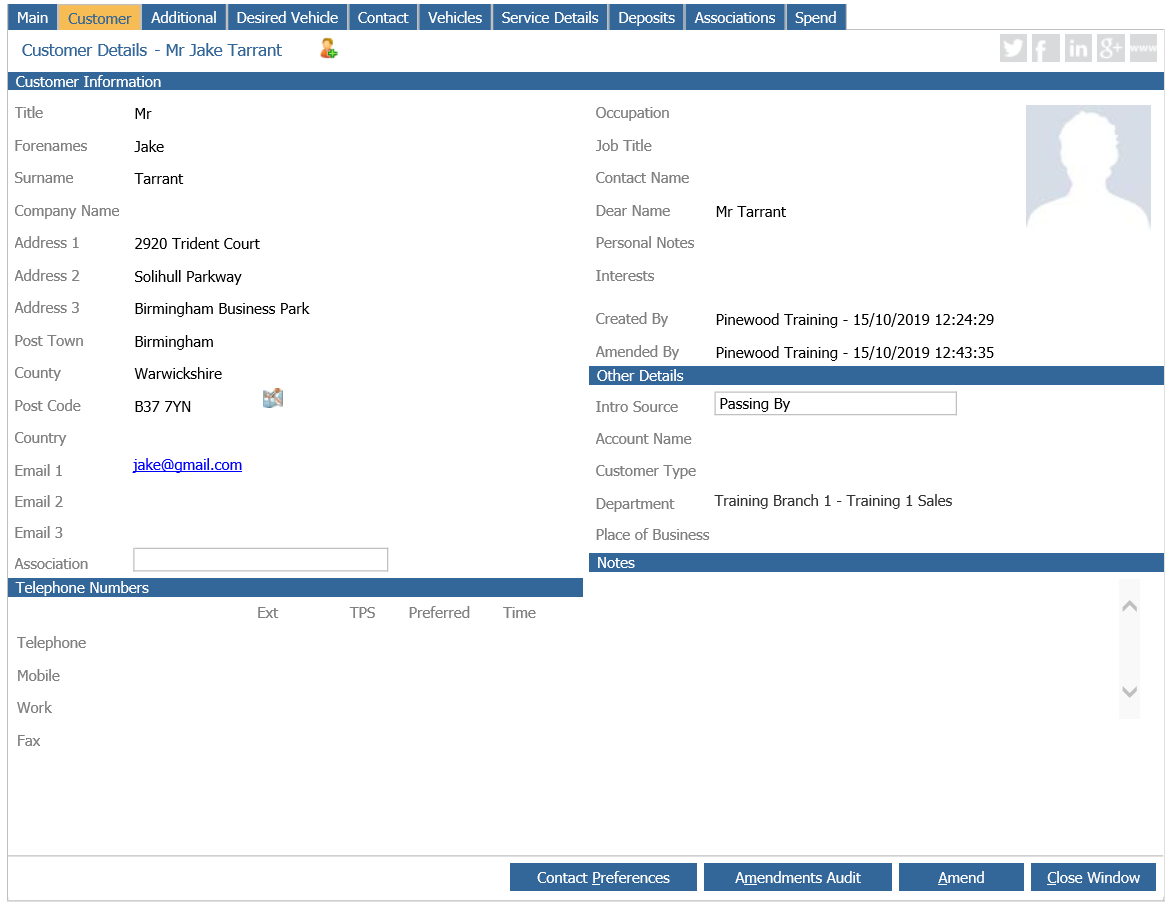
Click the Reserved box highlighted this will then bring up the customer record which has the reserve deposit on:
mceclip1.png


Related articles

  • πŸ“ A Vehicle is saying it is Reserved - how can I clear this?
  • πŸ“ Can Vehicles with a status of Finalised be Reversed?
  • πŸ“ Dealer Transfer Routine
  • πŸ“ How to Bring a Used Vehicle Into Stock
  • πŸ“ GDPR Processes

Articles in this section

  • πŸ“ Vehicle Postings Table
  • 909665 - Ireland VRT Handling
  • πŸ“ Second Hand Motor Vehicle Payment Scheme
  • πŸ“ Vehicle Parameters Duties
  • πŸ“ Vehicle Online Deposits Payment – Barclays ePDQ
  • πŸ“ Deposit Categories
  • πŸ“ Draft Vehicle Purchase Orders
  • πŸ“ Vehicles GRNI Report
  • πŸ“ Update of CRM Vehicle Location at Vehicle Invoice
  • πŸ“ VAT on Used Vehicle Supplier Orders is Automatically Calculating

See all 79 articles

Β© 2025 All rights reserved. by Pinewood Technologies PLC