There is functionality within the system to draft Vehicle Purchase Orders at quote stage, so that when the offer is converted to an order, the purchase orders can easily be raised without having to re-key any details.
While capturing the estimated costs you are still able to enter a Purchase Order(s) value if you do not wish to create a draft.
Creating a Draft during Quote/Offer
From the Vehicle Quotation screen select the Capture Button and then click Draft. The draft Purchase Order popup will appear:
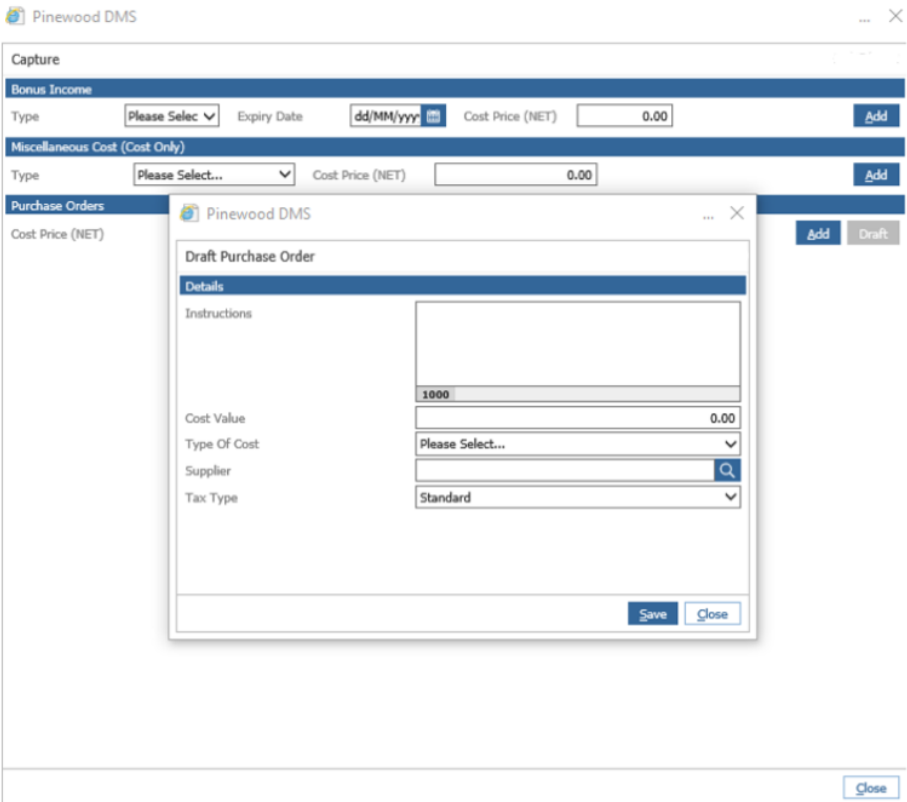
Instructions, Cost Value, Type of Cost, Supplier and Tax Type are all mandatory fields. Fill in each field
with the correct information and select Save. The drafted Purchase Order will now appear in the tale.
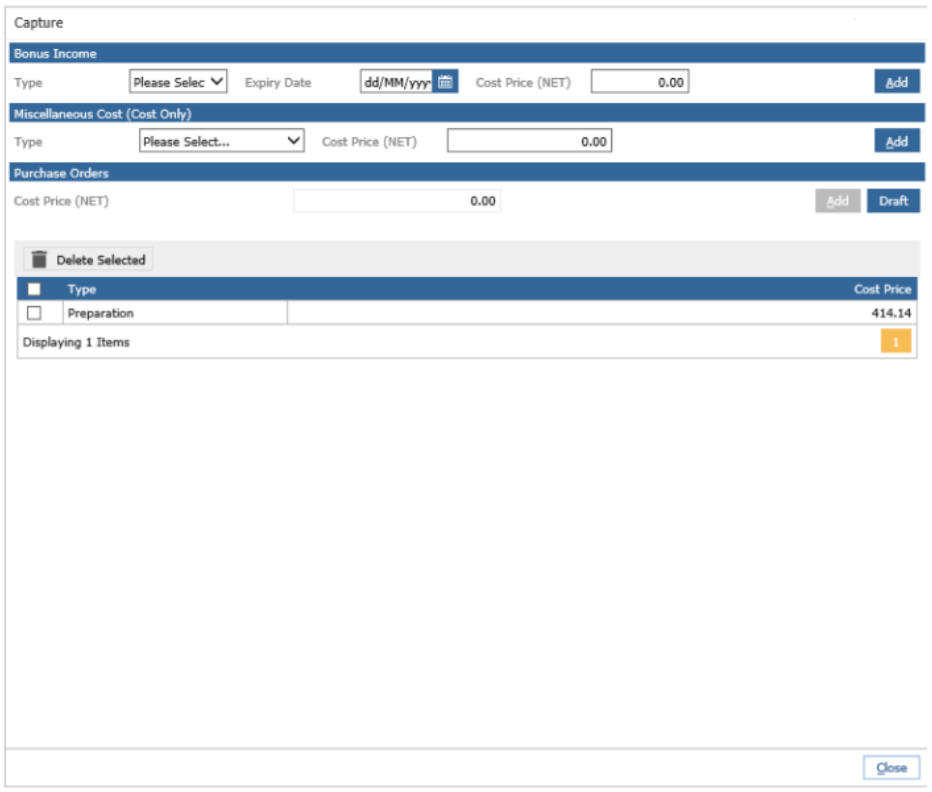
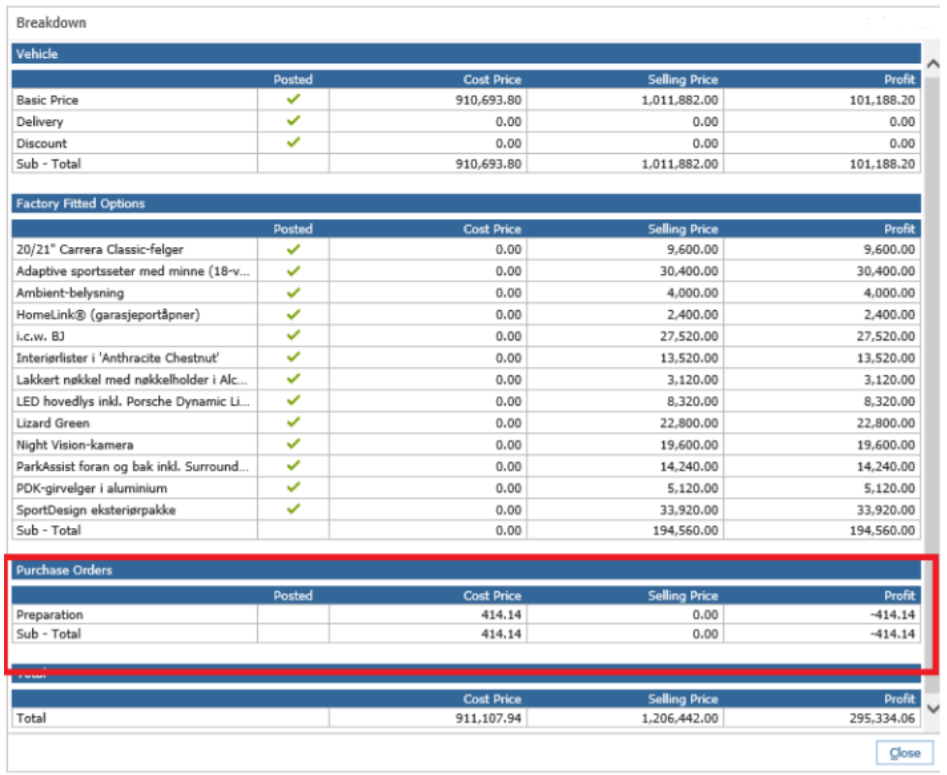
Drafted Purchase Orders will also appear in the Purchase Orders section of the Offer Breakdown.
When a quote is cloned, any drafts created on the original quote will appear within the new one.
Purchase Order costs can still be captured by simply entering a value and clicking the Add button. But
the Add and Draft functions cannot both be used at the same time on the same Quote. Once one is
used, the other will be disabled.
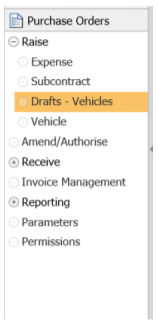
Drafts can be raised once a quote containing drafts has been converted to an order. The drafts can be
found within Purchase Orders > Raise> Drafts:
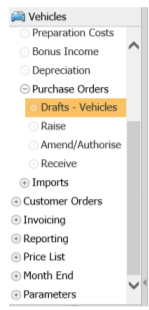
Or within Vehicles > Stock Management > Purchase Orders > Drafts – Vehicles:
In order to create drafts the user does not need purchase order permissions.
Raising a Purchase Order from a Draft
While the vehicle is on Customer Order, the Purchase Orders drafted during quote creation can be
raised through the side menu. Users will need the appropriate Purchase Order Permissions to raise
purchase orders.
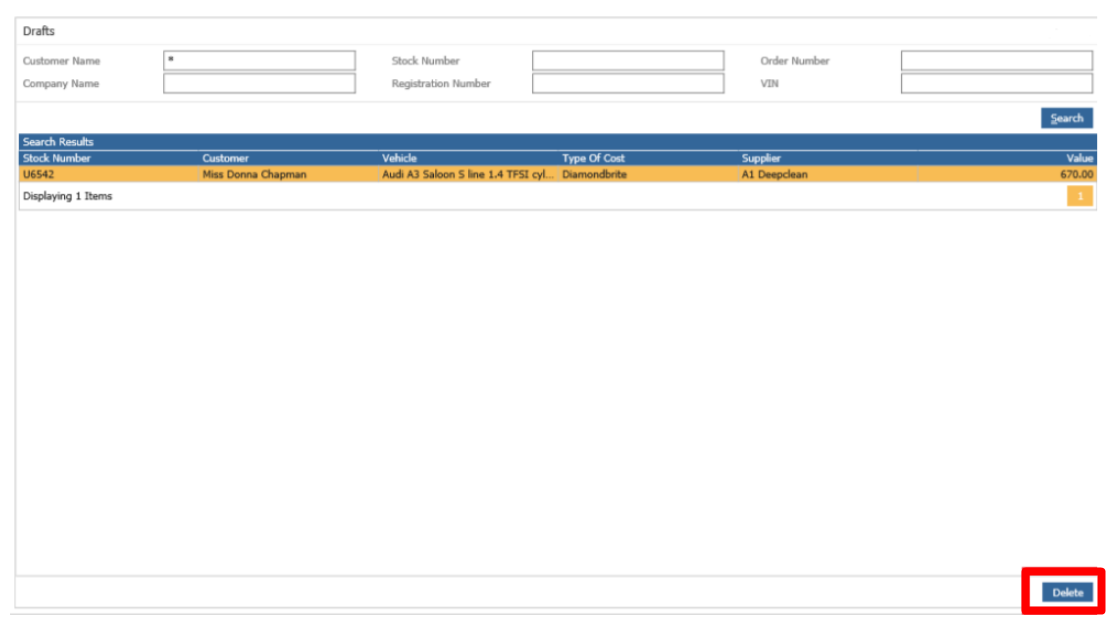
When navigating to either Purchase Orders > Raise> Drafts or Vehicles > Stock Management >
Purchase Orders > Drafts – Vehicles and enter relevant search criteria. Results will then appear in a
table below the search fields.
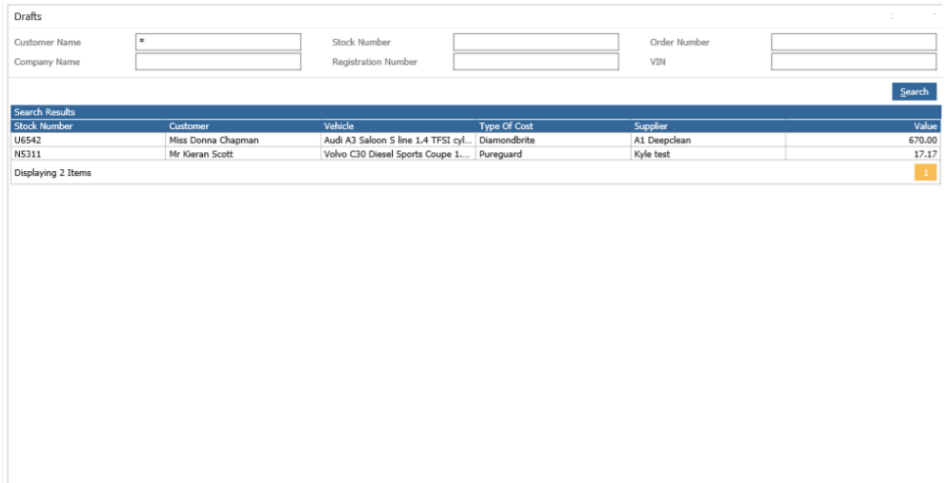
Outstanding Drafts will display here for vehicles that are on Customer Order and will remain until the
vehicle is Finalised.
Drilling into a draft line to begin the Raise Order process. The standard Raise Purchase Order screen
appears with the information that was captured at draft phase now pre-populated.
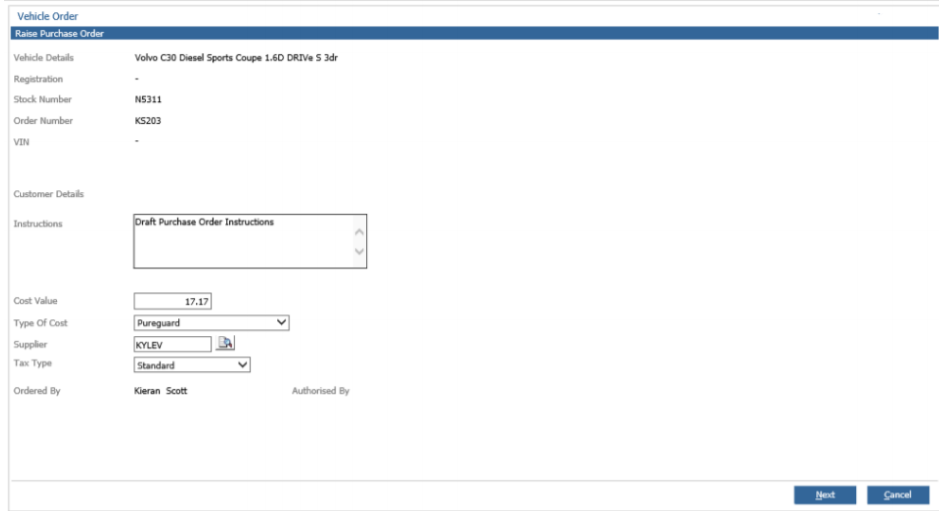
At this stage, you can review the purchase order details and make any changes if necessary. Select
the Next button to either complete Purchase Order creation or to request authorisation.
Once the Purchase Order has been raised the Draft will no longer show within the Draft – Vehicles
search results.
Deleting a Draft
To delete a Draft, select the draft and then the ‘Delete’ button. The draft will be removed and will no
longer be able to be used to create a Purchase Order.
The Offer Breakdown will still reflect the values of any deleted Drafts. This is to reflect the true value at
the time of its creation.