
Question
How do I Create Parts Supplier Order?
Answer
Parts > Purchase > Supplier Orders
This screen allows the creation of supplier purchase orders.
Also carrying on the customer order process, the order that was created in Allocate Orders will be waiting here to be processed.
After selecting a supplier, any outstanding orders for that supplier will populate the top right of the screen.
Double clicking an order will show its contents.
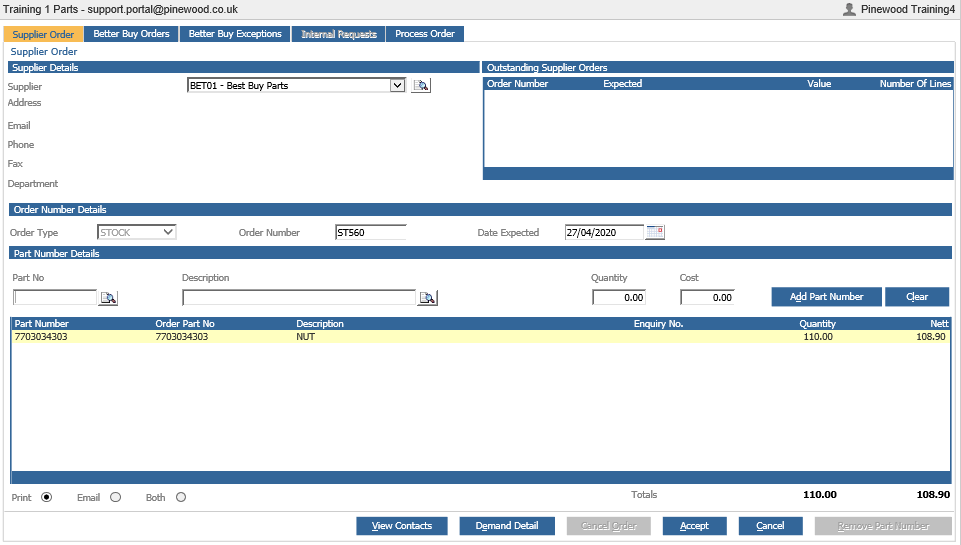
Part numbers, quantity and price information are displayed. If any parts are linked to a customer order they will also have an enquiry number.
The order number and date expected will have been automatically generated, but can be amended at this stage.
Parts can also be added in the Part Number Details area of the screen. Once a part number has been entered and a quantity chosen press ‘Add Part Number’.

To amend a part, double click it, the part will move up into the Part Number Details area of the screen, quantity and cost price can be amended and then select ‘Add Part Number’ to update.
The ‘Demand Detail’ button will display the Demand Detail report.

This report can be printed or individual quantities amended. After saving any amendments the supplier order will be updated.
The ‘Cancel Order’ button will delete the order in full. Any customer orders attached will return to the Allocate Orders Page.
The 'View Contacts' button allows you to view the contacts that have been associated to the supplier at that department, and the division level. (For more on this, see the Parts Purchase, Supplier Orders - View Contacts guide.)
The 'Cancel' button will close the order and return it to the outstanding supplier orders in the top right hand corner of the screen to be processed when ready.
Emailing / Printing Supplier Orders, you will see the option at the bottom to Print, Email or Both, if you so wish. (For more on this please see Parts Purchase, Supplier Orders - View Contacts guide.)
To remove a part click it once and then select ‘Remove Part Number’.
When any order amendments have been made or the order is ready to be submitted to the supplier the ‘Accept’ can be selected.
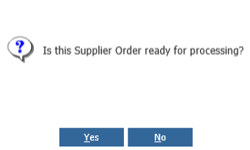
Selecting ‘Yes’ will finalise the order. The order will then be available for transmission to a supplier if applicable.
Selecting ‘No’ will save any changes that have been made and it will stay as outstanding.
At this point a print of the order is available. The print preview will be displayed on screen and a printer can then be chosen.
Once an order has been finalised it is available in Receipts.
If the supplier chosen is an internal supplier, the order will be sent automatically and will not be available in receipts until processed by the supplier.
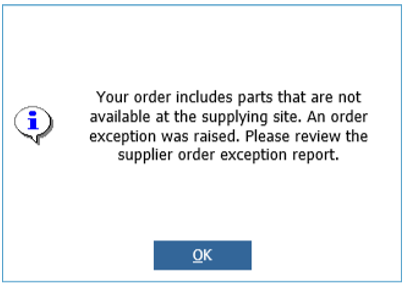
** Please Note: When raising an internal supplier order from the supplier order screen and distribution enabled, if a part record on the order generates a supplier order exception a warning to review the exception report will be displayed.**
Parts > Distribution > Order Exceptions > Supplier Orders