
The ASD Prioritisation tab is used to control the order of information entering the Aftersales
Diary, as well as setting different methods of display or update for different users as required
by the individual business. To access the ASD Prioritisation Tab, make the selection from the
top of the screen:
Overdue Contacts
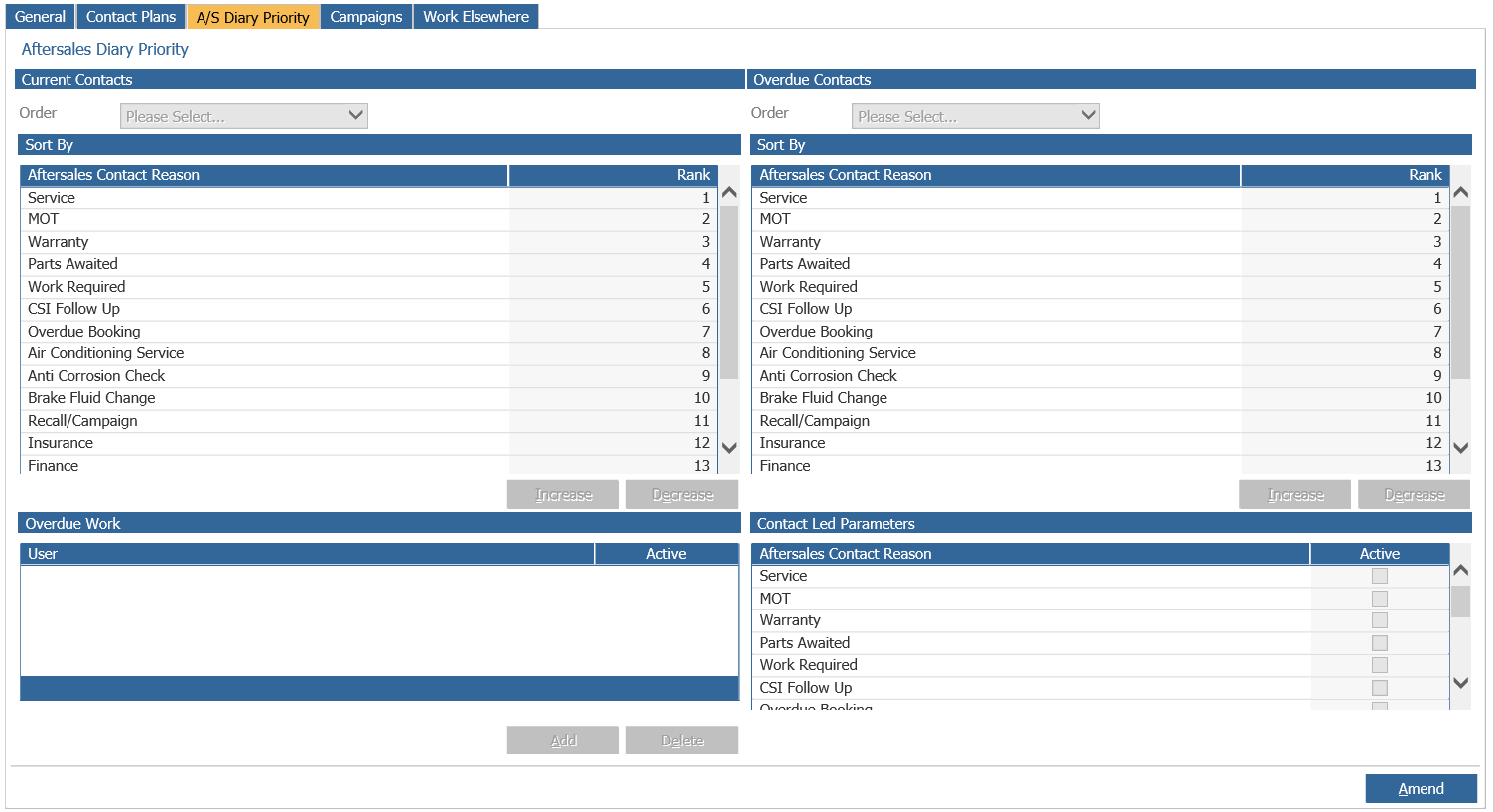
The section on the right hand side is used to control Overdue contacts (contacts where bookings
have not successfully been made) and will be considered first.
The Contact Type and rank are displayed – the rank governs the order of importance assigned
to the contact type by the system. Rank and Order for each contact type can be amended once
the “Amend” option has been selected from the bottom right hand side of the screen.
Once the screen can be amended, the order of the contacts can be adjusted using the ‘Order’ drop
down field at the top of the grid.
Contacts can be set to be displayed in a number of different orders within the Aftersales Diary
– by Date, by Type, or by combinations of both. Set the order as required by selecting one of
the options
The rank (or importance) of each contact can also be adjusted.
To adjust the rank of a contact, select the item from the grid by clicking on it. Once this selection
has been made, the ‘Increase’ and ‘Decrease’ buttons can be used to adjust the rank assigned
to the contact.
Overdue Work
To enable a specific user to only deal with overdue work Use the “Add” option at the bottom of
the window to select the user(s) who are to be responsible for the maintaining of overdue
system contacts.
Search for the user and double click on the line once located. Once this process has been
completed, the users specified will only be able to view and update overdue contacts within the
Aftersales Diary. Select “Save” to store these parameters.
Current Contacts
The section on the left hand side is used to control current contacts. The order in which these
appear in the ASD are governed by the same criteria as the overdue contacts.
Contact Led
Contact Led Parameters when ticked will override normal ASD by listing specific types of
contact to be dealt with. For example if just service and MOT follow ups are to be actioned by
ticking the box next to service and MOT the diary will only display service/MOT contacts. With
Contact led enabled a “Start Contacts” button is available at the top of the report. By clicking
start contacts each contact will be displayed showing the customer details and a list of the
contacts to be made. As shown below. When completing the contact the next contact is then
displayed.