
The vehicle enquiry is used to search for stock using different criteria that can be specified by
a user – this enables the search to be narrowed down substantially as required. In the case of
a business operating with vehicle stock held against different branches within the system, users
are able to search for stock against their own branch, another specific branch or all branches
within the dealer group.
Upon selecting the Vehicle Enquiry option from the left hand menu, the screen displays as
follows:
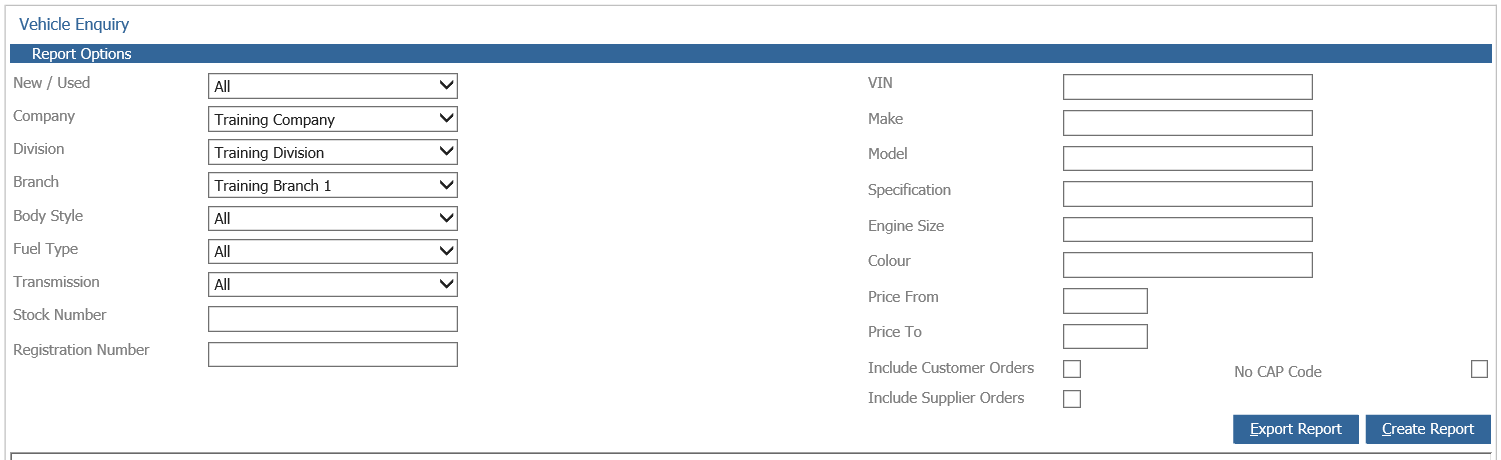
As with all of the vehicle reports available from the Vehicles module, set the criteria for display in the Report Options at the top of the screen – then select ‘Create Report’ to display the results returned in the bottom half of the screen.
The results displayed by the vehicle enquiry can be set using any combination of the fields
displayed in the image above.
Once the report has been generated, the results are displayed in the bottom half of the screen.
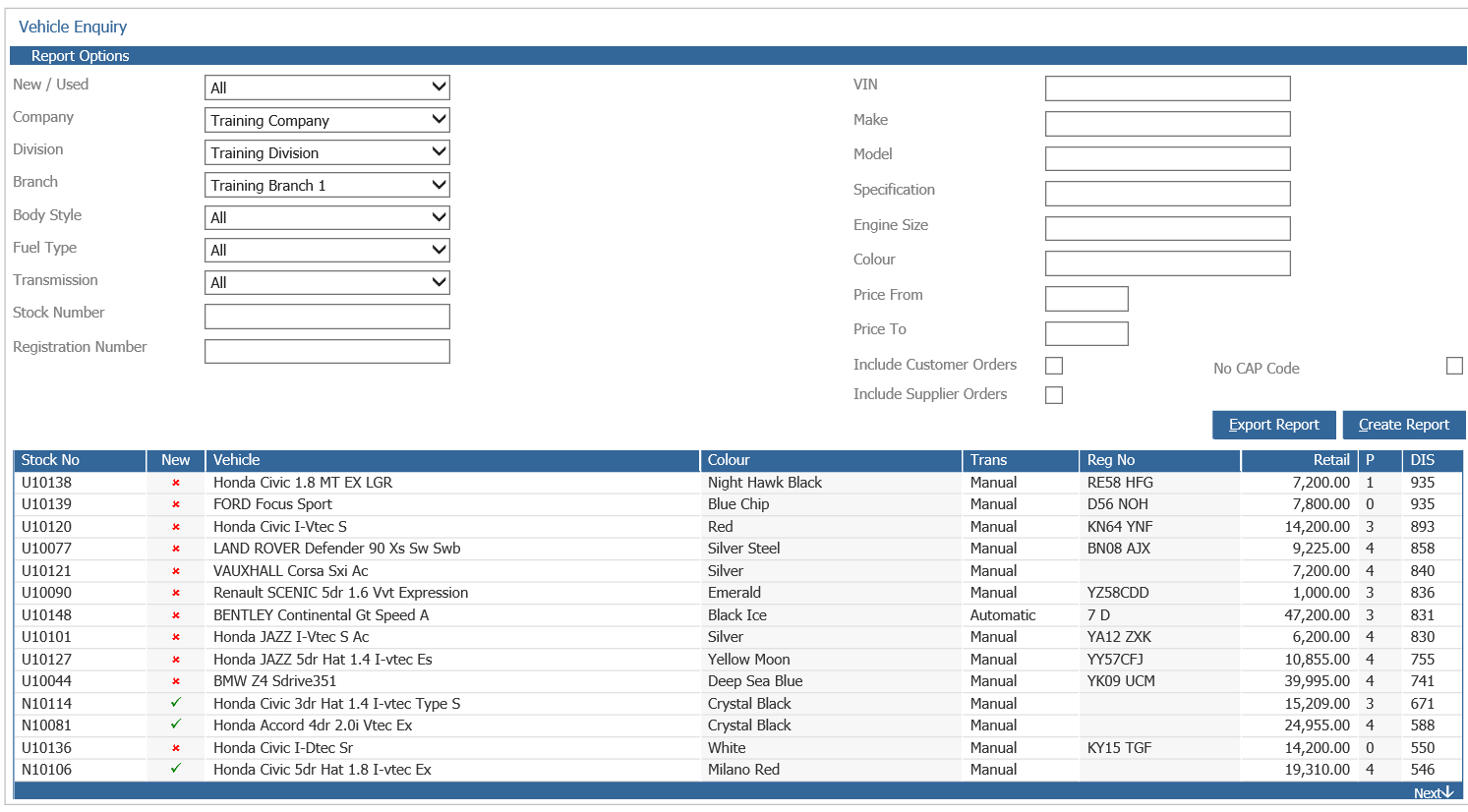
Double click on the line for any of the vehicles returned to access the vehicle stock card, from
which the normal tabs can be viewed. This report can also be printed or exported to Excel via
the buttons at the bottom of the screen.