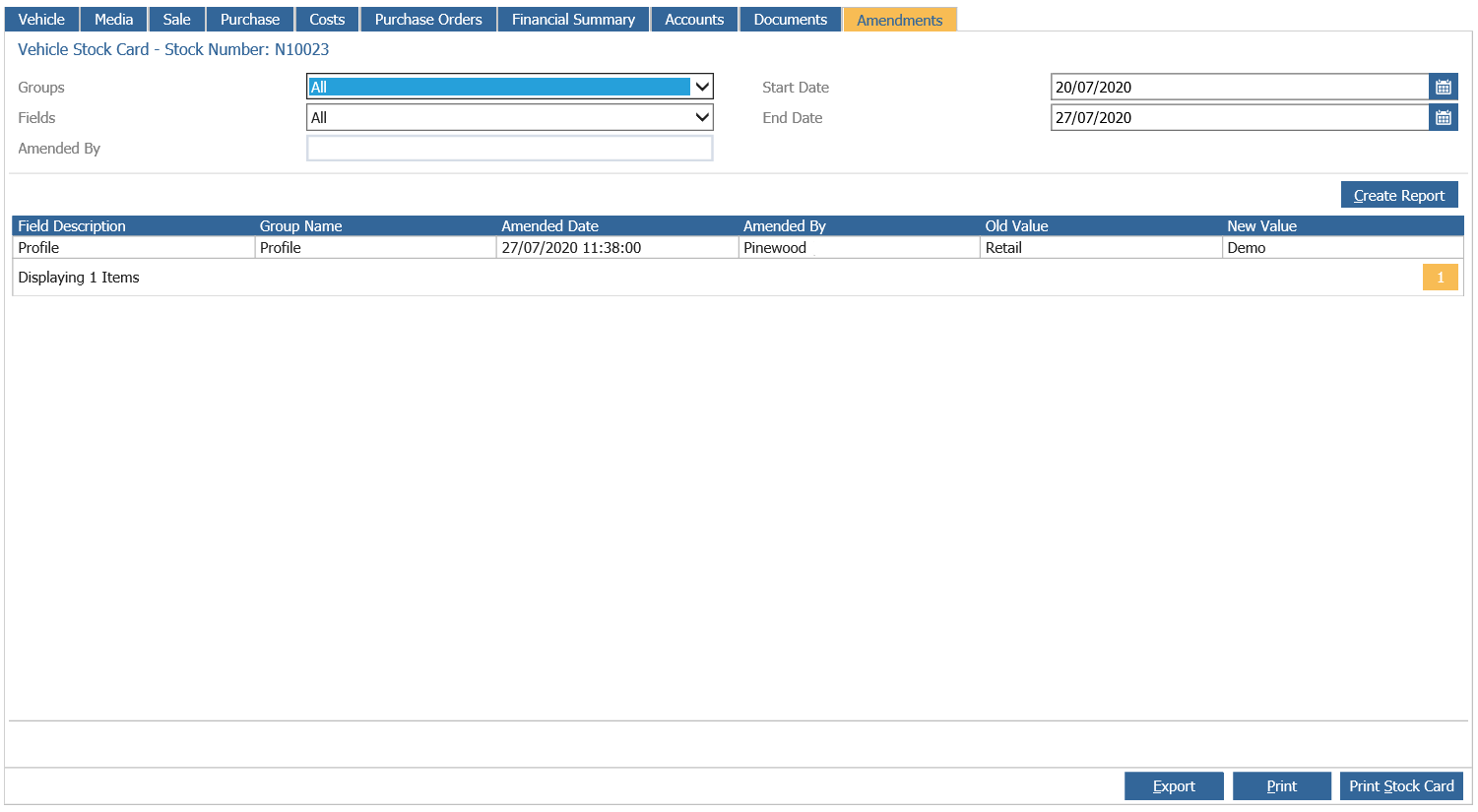
Within Vehicles > Reporting > Stock Cards, this area of the system can be accessed to view individual vehicle stock records.
A vehicle is allocated a stock card at the point of a supplier order being created, and the stock card is updated as system processes are completed that impact upon it. Once the final payment has been received following the sale of the vehicle, the stock card is archived for future reference.
The stock card acts as a single point of reference for sales admin within Pinewood DMS. Selecting Stock Cards from the left hand menu opens a search screen allowing users to search for a specific vehicle.

A partial VIN can be searched on by first entering a ‘wildcard’ character followed by the last section of the VIN – for example, searching on *23456 will return all vehicle records with a chassis containing the consecutive numbers 23456 as the * acts as the wildcard. Once the fields have been completed as required, select ‘Search’ to display the records located as normal. Double clicking on the line for the vehicle required will open the vehicle stock card.
Vehicle Tab
The Vehicle Tab is split into 3 sections and provides a basic overview of the vehicle.
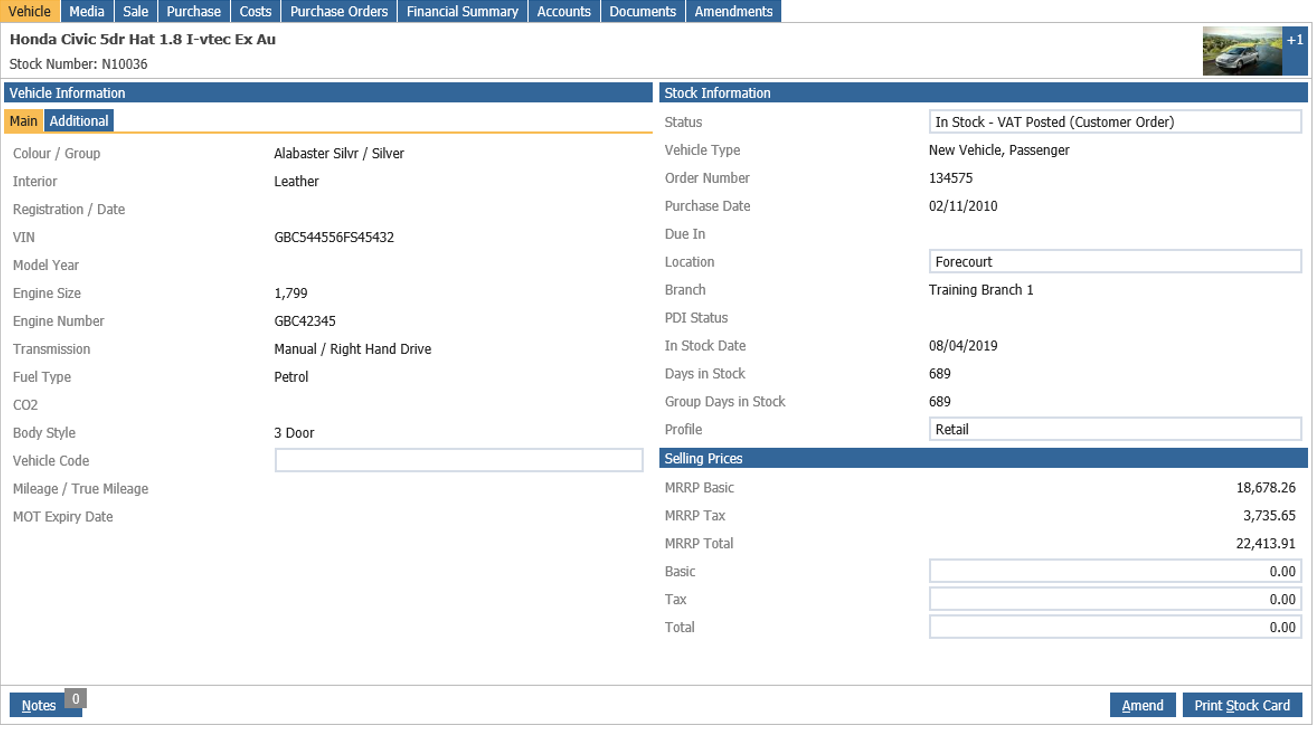
Vehicle Information Section – This contains some basic information on the vehicle, selecting this
area will display, if one exists, the CRM record for the vehicle.
Stock Information Section – Contains information such as purchase date and days in stock.
Selling Prices Section – Contains information such as MRRP Basic and MRRP Total. This section is also where the retail price of a used vehicle is maintained.
A Vehicle Stock Card can be amended up until the vehicle is invoiced. Once Amend is
selected the Stock Card opens to allow changes to be made to fields within the record.
Parameter access levels restrict the available fields allowed to be changed.
Within the Vehicle Details section of the amended stock card, an Experian or HPI search via
the registration number field can be carried out by clicking the search icon next to the field.
This facility is only available to customers with the Experian or HPI integration switched on
within Pinewood DMS.
Once all amendments have been made to the Stock Card, click ‘Save’.
The ‘Print Stock Card’ option allows a one page summary of the Stock Card to be printed to display the Vehicle details, Sales details, Purchase details, VAT Analysis and Financial Summary.
The Vehicle stock card is divided into ten key areas that can be navigated using the tabs
across the top of the screen:

Media Tab
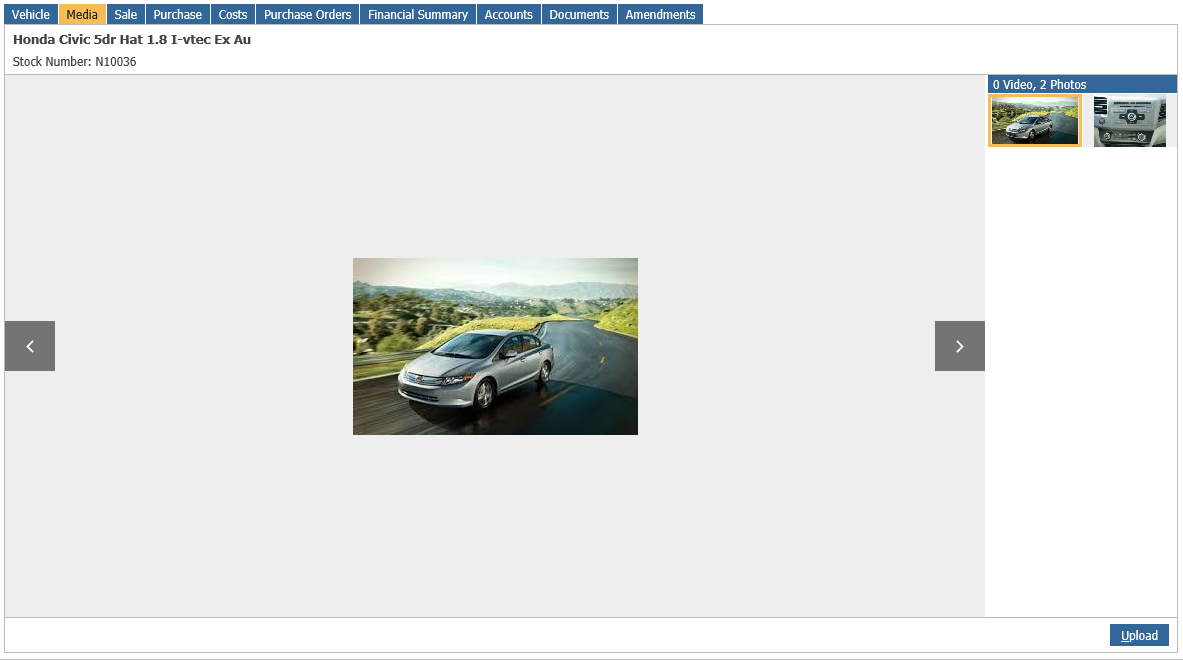
Any media uploaded to the Vehicle via the Stock+ App will be displayed here. This can be fed directly to a dealer's website using the Stock API.
Sale Tab
The Sale tab contains detail relating to the sale of the vehicle – if a customer order has been
set up against the vehicle or an invoice raised, the Customer and Invoice To fields will be
populated with the detail specified on the Customer Order.
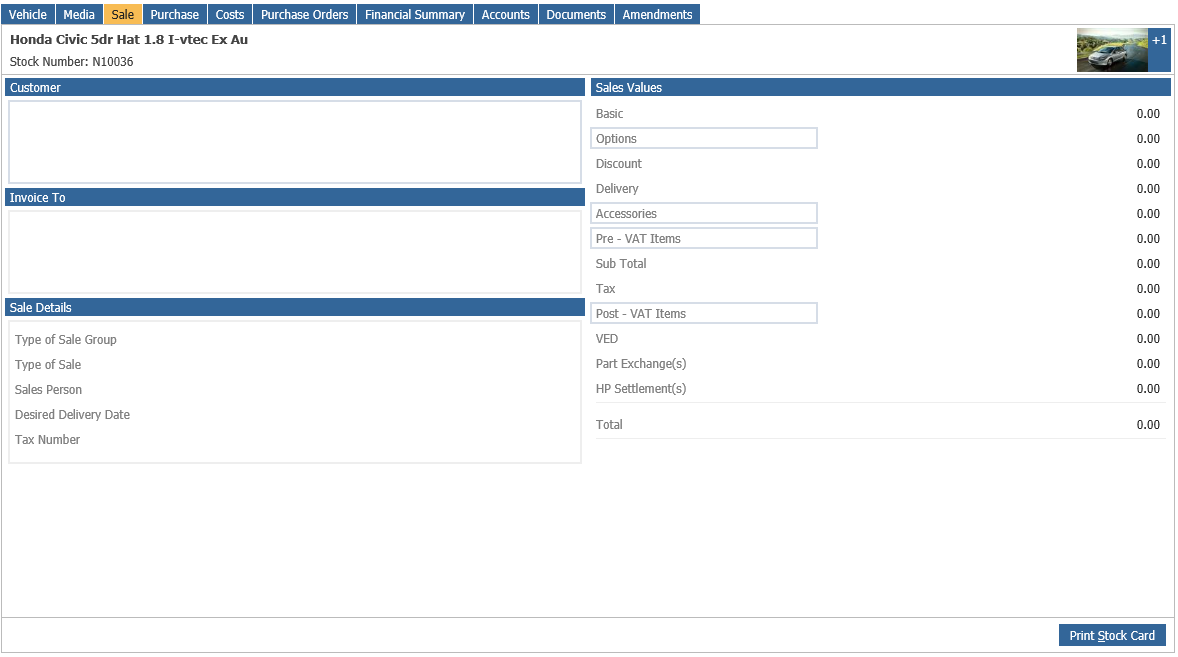
The Sale Details field is populated with invoice information, including invoice number and
invoice date. Once the vehicle invoice is raised, users can click in this box to print or email a
duplicate sales invoice – if this option is available, the box will display as a link field.
If the system is set to produce credit notes, and a vehicle invoice has been cancelled, this box
will we populated with credit note details – again the field will be a link field which can be clicked
to re-print or email the credit note.
Details of part exchange vehicles that constitute part of the sale are displayed on the bottom
left hand side of the screen, along with a link field that allows the user to access the stock card
for the part exchange when selected. Part exchange stock numbers, Purchase prices and any
HP Settlement or Overallowance applied are also displayed.
The right hand side of the screen is dominated by the Sales Values section – displaying the detail
from the customer order (if placed against the vehicle) or invoice (if invoiced). If the vehicle is
a stock vehicle that is available for sale, the information here will default from the Vehicle Price List in the case of new vehicles or the retail price information entered when the vehicle was
purchased in the case of used vehicles.
Sale details cannot be amended from this page – customer orders must be amended via the
Customer Orders Amendment routine.
Purchase Tab
When this tab is selected, the screen displays the purchase information for the vehicle:
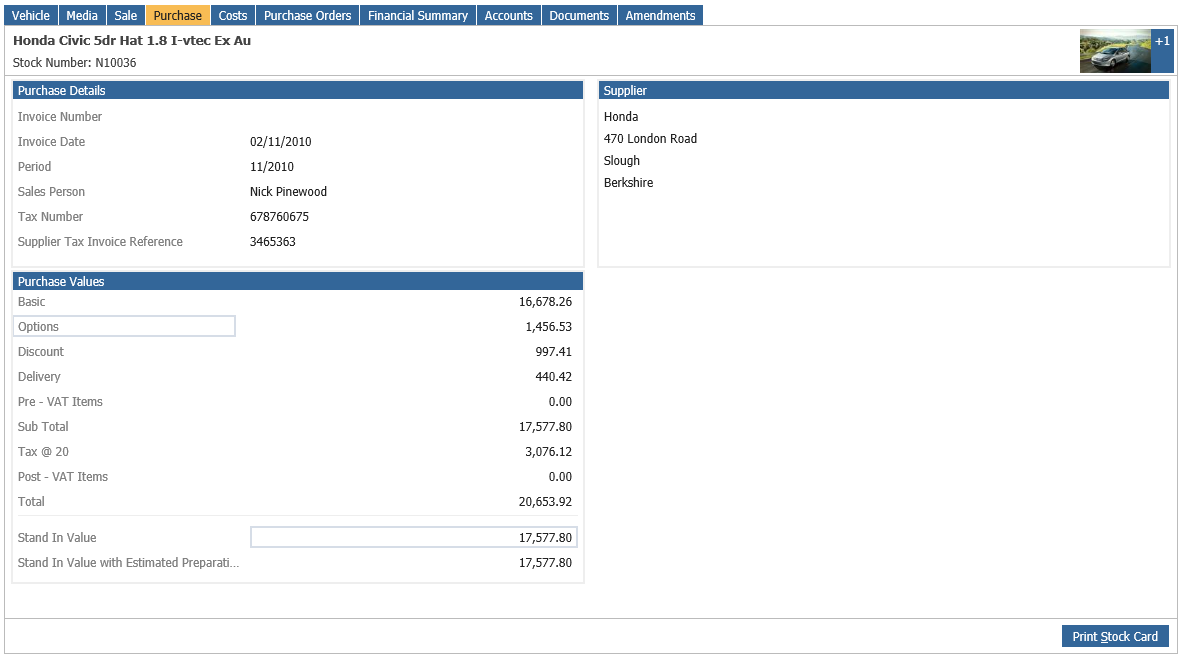
The purchase details, including the system generated purchase invoice number and date,
system period, sales person and supplier tax number are displayed in the Purchase Details
field on the top left of the screen – the top right of the screen displays the details of the Vehicle
Supplier – this information is generated when the vehicle is purchased from a supplier created
within the vehicle parameters.
The Purchase Values displayed are driven by the costs being confirmed for the vehicle. The
overall Stand In Value (excluding VAT) for the vehicle is displayed at the bottom of the
screen, and is automatically calculated by the system as miscellaneous costs, bonuses and
depreciation are accrued against the stock card.
Costs Tab
The costs tab is used to view details of any miscellaneous costs, bonuses or depreciation
accrued against the vehicle stock card.
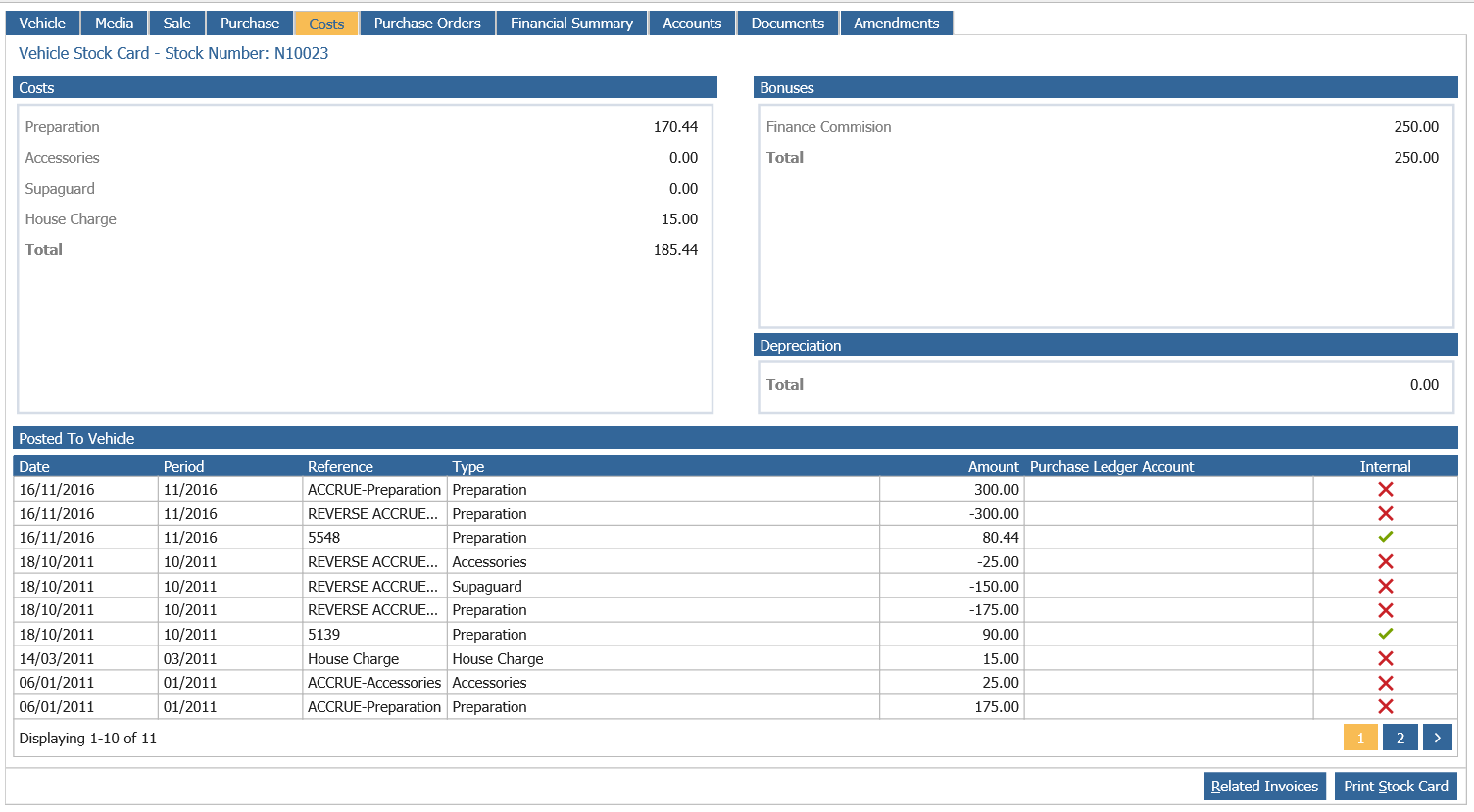
Costs are displayed on the top left hand side of the screen – clicking in this link field will display the detail of the postings in the ‘Posted To Vehicle’ section at the bottom of the screen as shown above.
This line displays the date of the posting and the system period used, a reference number and
a cost type as well as a value. If purchase ledger GRNI has been enabled for miscellaneous
cost postings, a purchase ledger account will also be displayed.
The ‘Internal’ flag denotes whether the cost has been accrued as a result of actions by the
workshop department or from an external source. Costs accrued internally display as below,
carrying a green tick in the ‘Internal’ column:
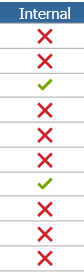
Double click on this line to view the internal invoice raised by the workshop for this job. From
here the invoice can then be either re-printed or emailed to a recipient.
For information on how the internal prep accruals will post please click here to view a detailed description of this.
Bonuses and Depreciation posted against the vehicle stock card can be displayed in the
same way by clicking in the relevant link field. In the case of bonuses linked to Sales Ledger
accounts, double clicking on the bonus line takes the user to the transaction account enquiry
screen for the relevant sales ledger account and shows only transactions related to that vehicle.
Purchase Orders Tab
All purchase orders associated to the vehicle can be viewed within the Purchase Orders tab.
A user with sufficient Purchase Order permissions would also be able to drill into an order to
view the order details, as well as receive any outstanding orders that have not yet been
received.
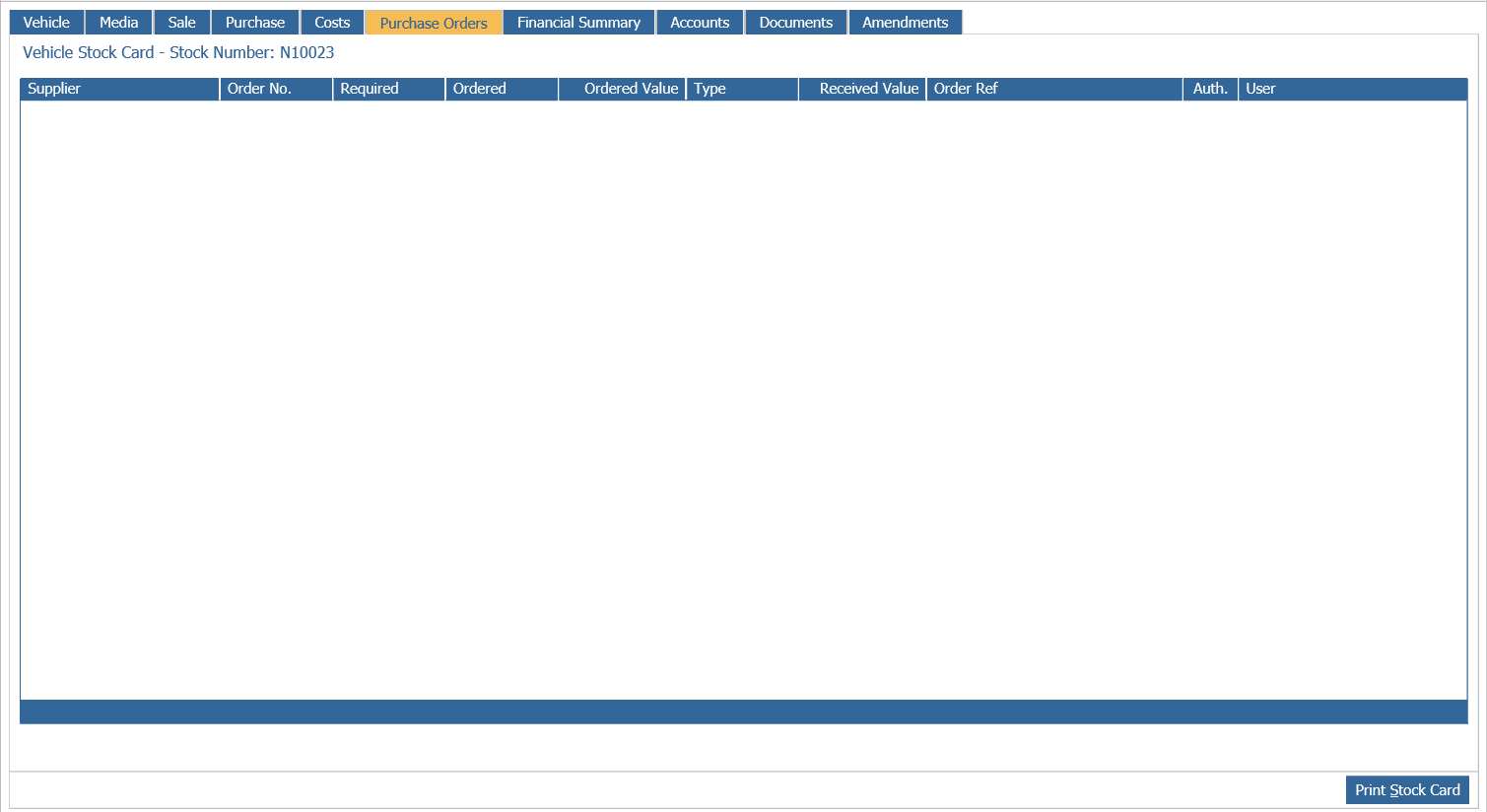
To view or receive an outstanding Purchase Order, double click the appropriate order. For
more information on Purchase Order processing please see the Purchase Ordering section
within Stock Management.
Financial Summary Tab
The financial summary acts as a profit and loss report for the individual vehicle stock card, and
presents financial information in a format that allows the system to calculate profit. This page is
updated automatically as costs, bonuses or depreciation are accrued, or as costs are confirmed
or sale invoices raised.
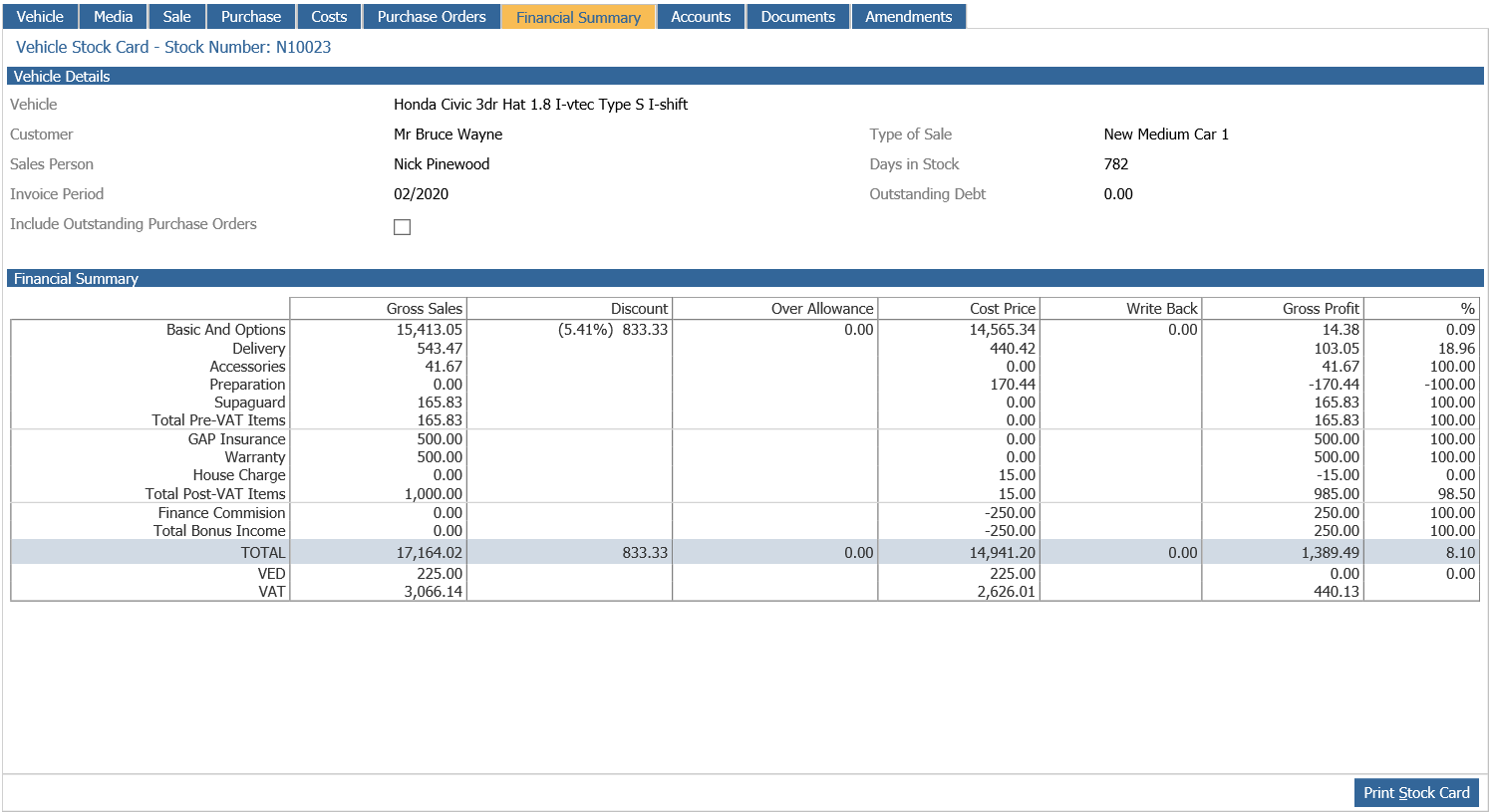
Gross sale values are displayed for the vehicle along with any preparation or accessories, RFL,
pre or post VAT item sales, adding up to a total. You can view single values for pre-Vat, post
Vat and bonus items should there be more than one item that makes up the total. The next
column displays any discount given on the vehicle sale, and any overallowance given on a part
exchange is also displayed. Cost prices and write back are also shown, allowing the system to
calculate Gross Profit – this is displayed as both a financial value and as a percentage of the
total sale. This page is used to populate the Deal Book, if a report type of Profit By Deal is
specified.
If the Include Outstanding Purchase Orders filter is selected at the top of the screen, the page
will refresh to include the cost of any Purchase Orders that have been raised but not yet
received, i.e. the cost of the Purchase Order is yet to be posted.
Vehicle Late Adjustments functionality is available in Pinewood DMS which allows costs to be posted
against a vehicle with a status of Finalised or Archived via the Parts and Workshop modules
using the INTER account and via the Sales Ledger Sundry Posting function. If a vehicle has
had any late adjustments they will also be displayed on the Financial Summary page, as show
below.
Accounts Tab
The accounts tab holds all of the accounting information relating to the vehicle – including
debtors, creditors, a complete breakdown of all nominal movements and finally any deposits
received from a customer that have been attached to the vehicle via a customer order being
raised.
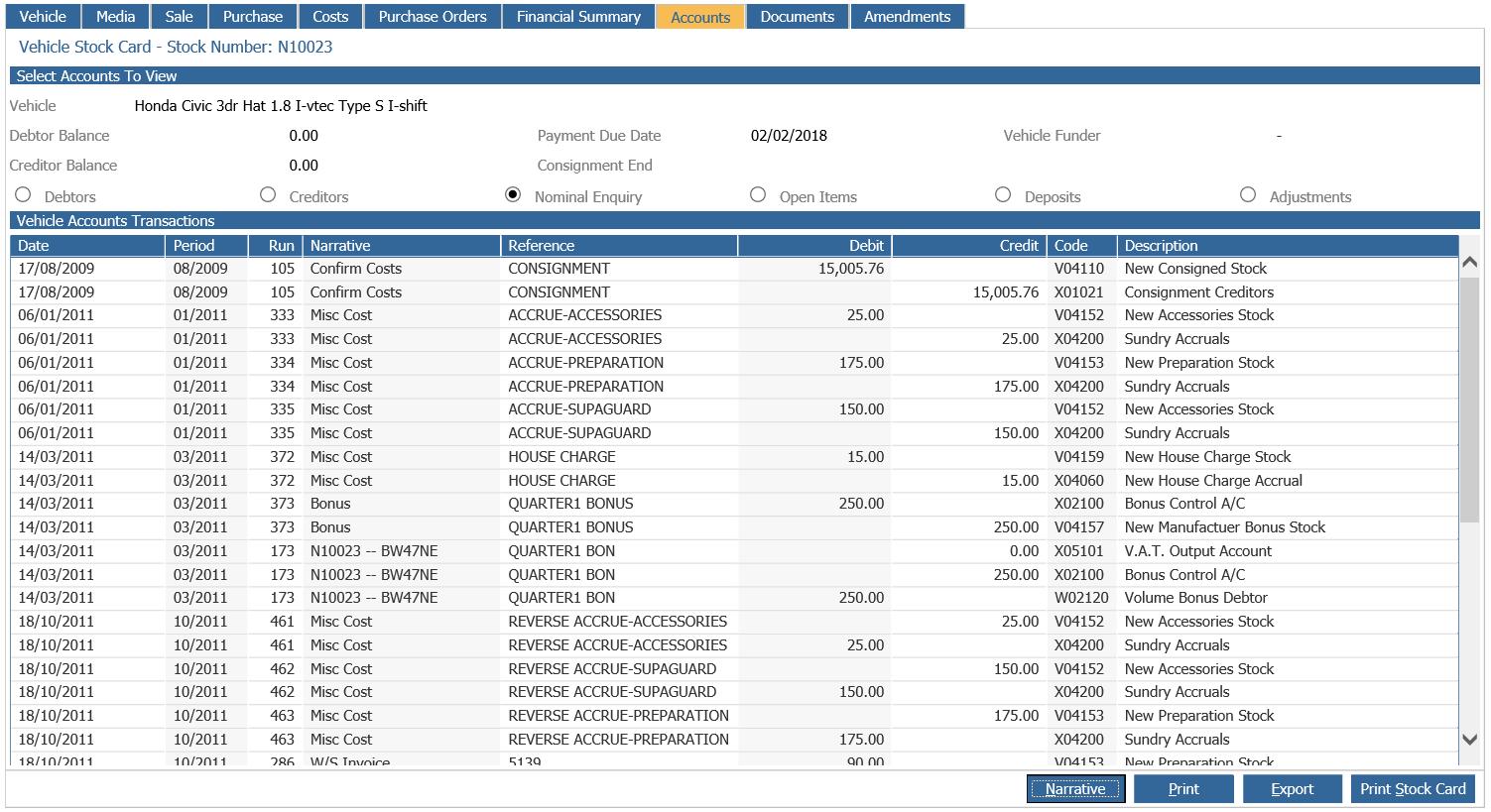
The option to view Debtors, Creditors, Nominal Enquiry, Open Items, Deposits or Adjustments
is taken by placing a circle into the radio buttons at the top of the screen.
The detail displayed includes the date of the posting, the system period used, the run number
(which can be used within the Nominal Enquiry section of the nominal ledger – please refer to
the Pinewood DMS Accounts Guide for more details), narratives and references, posting types. The
system also shows the value of the debit and credit postings and in the case of debtors and
creditors the remaining balance outstanding. Narrative can be added to vehicle debtor entries
by selecting the ‘Debt Narrative’ option.
It is possible to drill into a nominal ledger transaction drill down report from within the Nominal
Enquiry screen. Select the transaction and double click, the following report will appear:
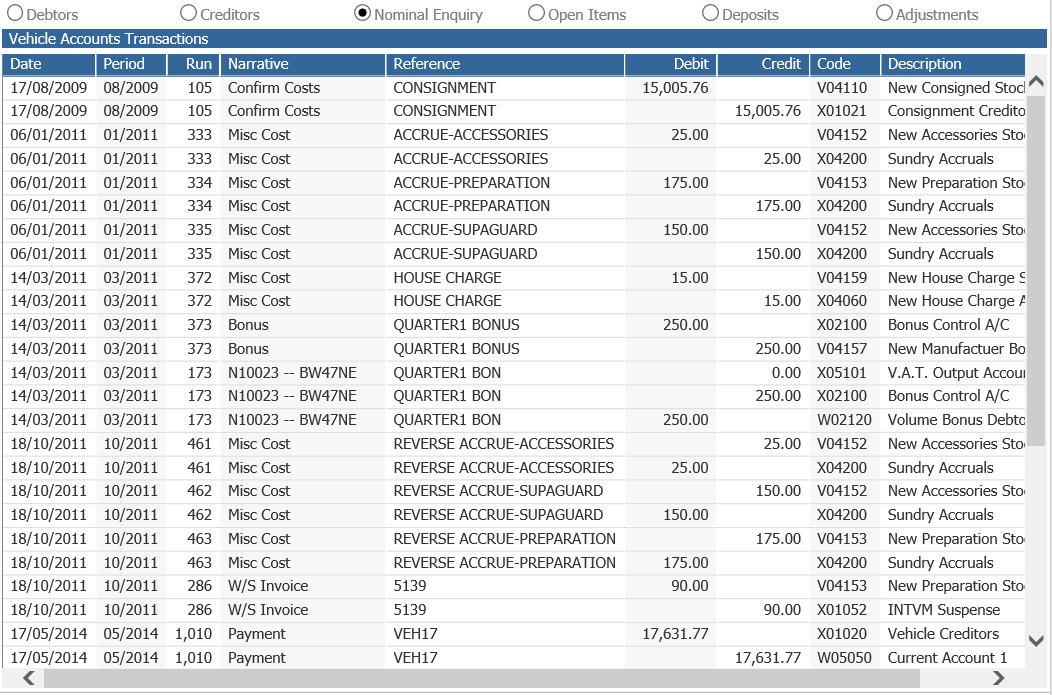
With the ability to have open item nominal codes set as control codes within Vehicle Miscellaneous Costs and Bonus there is the ability to view these transactions through an Open Item radio button within the stock card accounts tab. This also provides the option to drill into the open item transaction line to view all the associated transactions.
The buttons at the bottom of the screen can be used to add narrative to the debt, print out the
particular section selected (Debtors, Creditors, etc.) or the export feature can be used to export
the data displayed into a spreadsheet.
Documents Tab
This tab is used to upload documents relating to the stock vehicle for storage on the system –
in this way, copies of important vehicle documents can be retained on the system easy retrieval
via either viewing on screen or download if required.
Upon selecting the vehicle documents tab, the screen below is displayed:
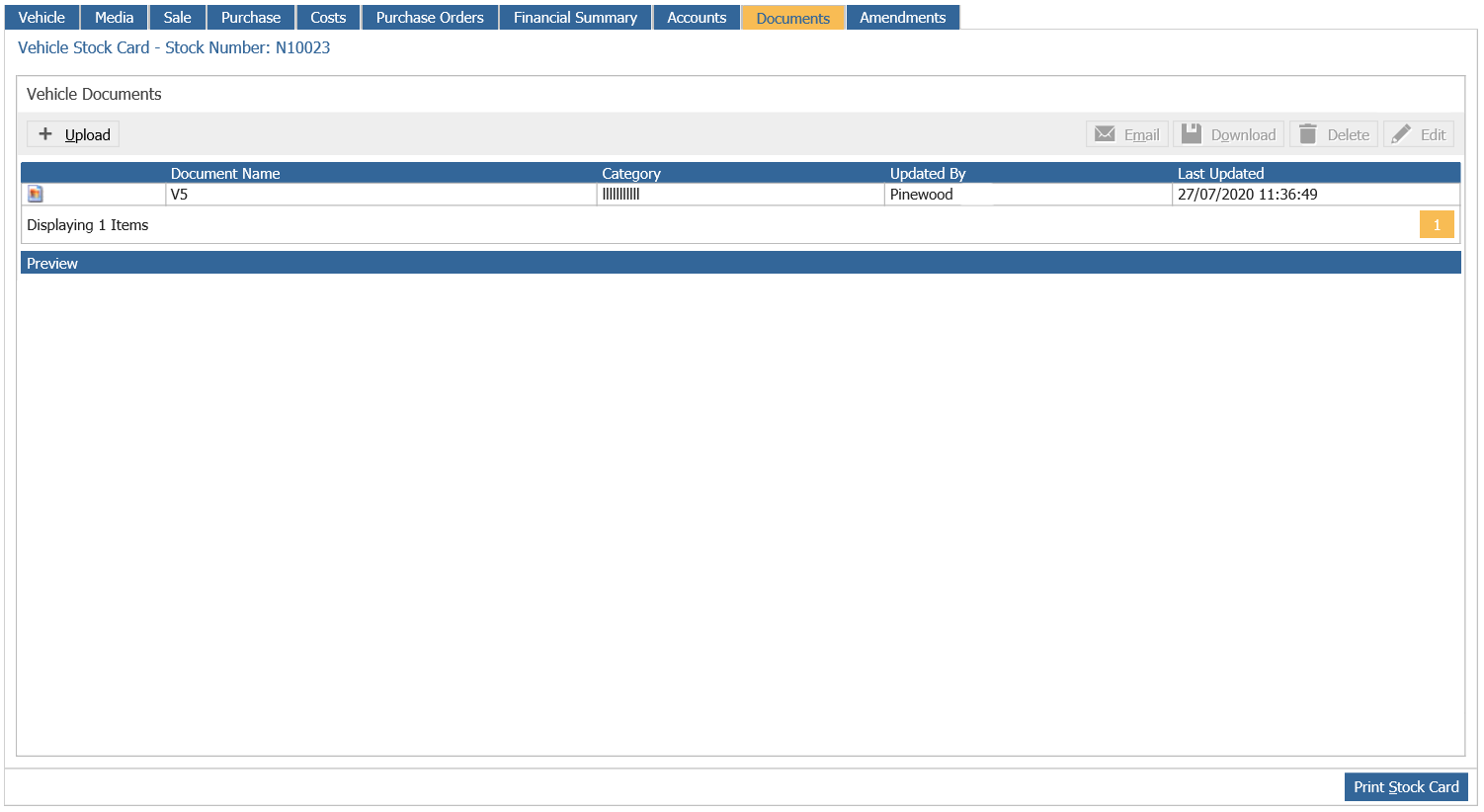
The section at the top of the screen displays the documents that have been uploaded against
the vehicle stock record, whilst the lower section of the screen displays an image preview of
the document selected. Double click on one of the documents at the top of the screen to open
the document. It is worth noting that documents such as Microsoft Word or Excel files will need
to be opened to be viewed; most image files or PDF files can be previewed prior to the file being
opened.
To upload a new document to the stock card, select ‘Upload’ from the bottom right hand
side of the screen.
Complete the Document Name, Category, Description and any notes required, and then use
the File Name field to locate the image file on your PC.
Once selected, use the ‘Upload’ button to upload the document to Pinewood DMS and save it.
Documents being uploaded must not exceed a file size of 2mb.
When creating a used supplier order, or adding a part exchange to a customer order, if an
existing CRM Vehicle is selected then the document uploaded against the last appraisal
record will be copied to the documents for the stock card that is created.
Documents, once uploaded, can only be deleted from the system by users with an access level
greater than the parameter set within the General tab of the vehicle parameters.
Amendments Tab
The Amendments tab will detail any amendments that have been made to the VIN,
Registration Number, Profile, Location, Retail Price, MID flag and Vehicle Images on the
Vehicle tab of the stock card.
The page will default to show all amendments made within the past week, however the filters
at the top of the screen allow for the amendments displayed to be refined by Group and Field,
the user who made the change and a date range within which the amendment was made.
Amendments can be exported or printed.