
Vehicles appear on the debtors report once a vehicle invoice has been raised. Once this option
has been selected, there are numerous options available at the top of the screen which a user
can select to narrow down the report:
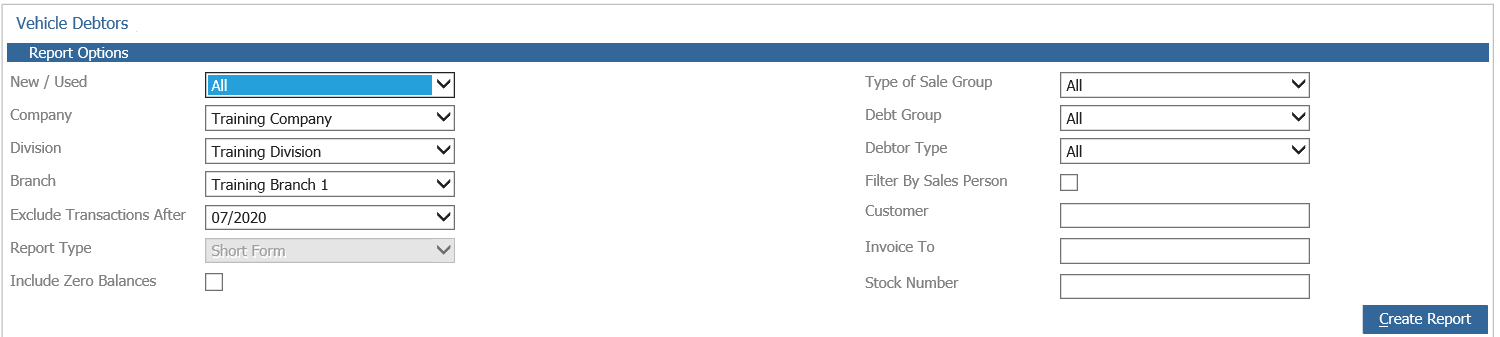
The report can be set to display New or Used vehicles – for a total vehicle debtor report, ‘All’
can be selected. The report can also be run at a number of different levels within the company
structure (subject to user access) allowing for consolidated reporting.
A Type of Sale Group can be specified, along with a Debt Group (driven by Debtor Groups
created within Vehicle Data). The report can also be filtered by Sales Person (individual or
multiple) or narrowed to display a particular vehicle using the fields for Customer, Invoice To or
Stock Number.
Once these fields have been completed, select ‘Create Report’ to display the results as below:
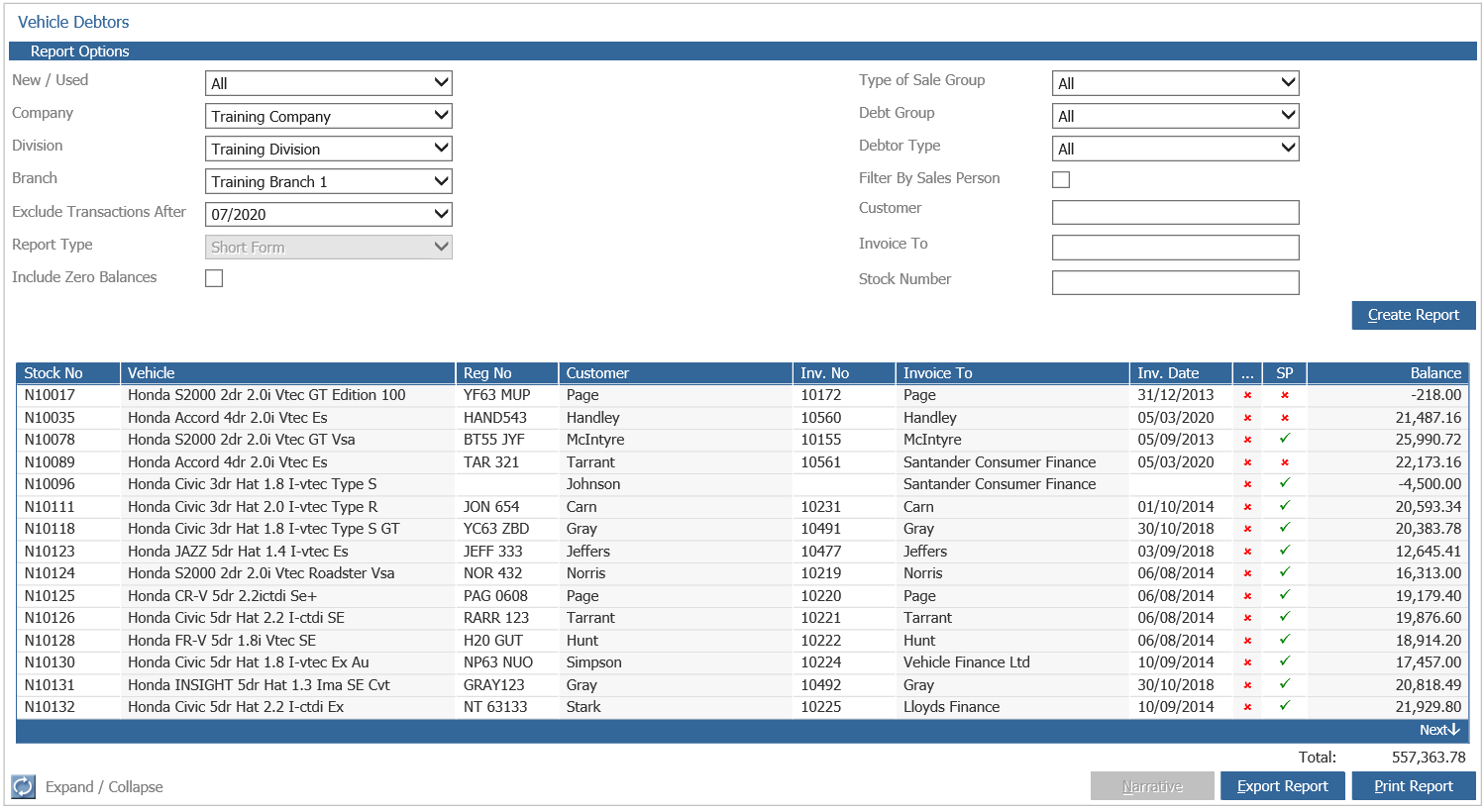
The report displays the stock number, vehicle details and registration number of the vehicle.
Customer details, invoice number, invoice date, whether there is any narrative posted and the
outstanding balances are also displayed. The ‘SP’ heading denotes whether the supplier of the
vehicle has been paid or not.
Double click on any of these lines to access the vehicle stock card – alternatively narrative can
be added to or updated on any of the transactions shown by highlighting the line with a single
click and the clicking on the ‘Narrative’ button.
When this option is selected, the following window is displayed:
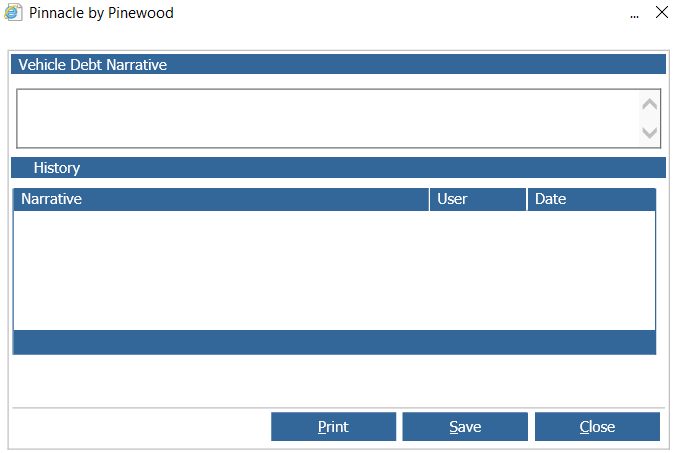
Narrative can be added and saved for individual transactions. Any previous narrative entered
is also displayed.
The Debtor report can be exported into Excel by selecting the ‘Export Report’ button, or printed
using the ‘Print Report’ option.
Vehicles will continue to display on the Debtor report until a receipt to clear the outstanding
debtor balance has been posted through the cashbook within the Accounts module. Vehicles
with a debtor balance of zero no longer appear on the report unless the ‘Include Zero Balances’
filter is selected.