
When within Showroom > Showroom > My Work - Walk in tile
Search the name of the customer, click enter and double click into the customer
Now either create a new opportunity or continue with another
Once this has been done you will be presented with the following screen
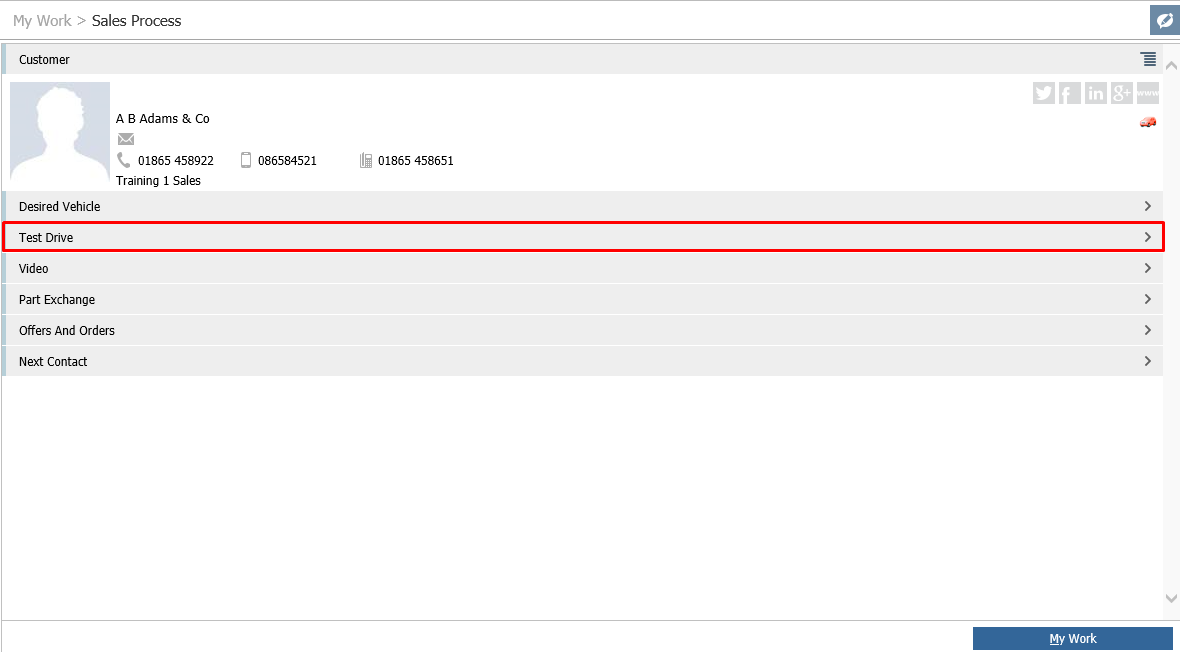
Click into the Test Drive section, enter the registration number
Once this is done you can see the print button is greyed out.

When you click on the print icon nothing happens.
To solve this you must go to CRM > Parameters > Dealer Parameters
To the Test Drive tab:
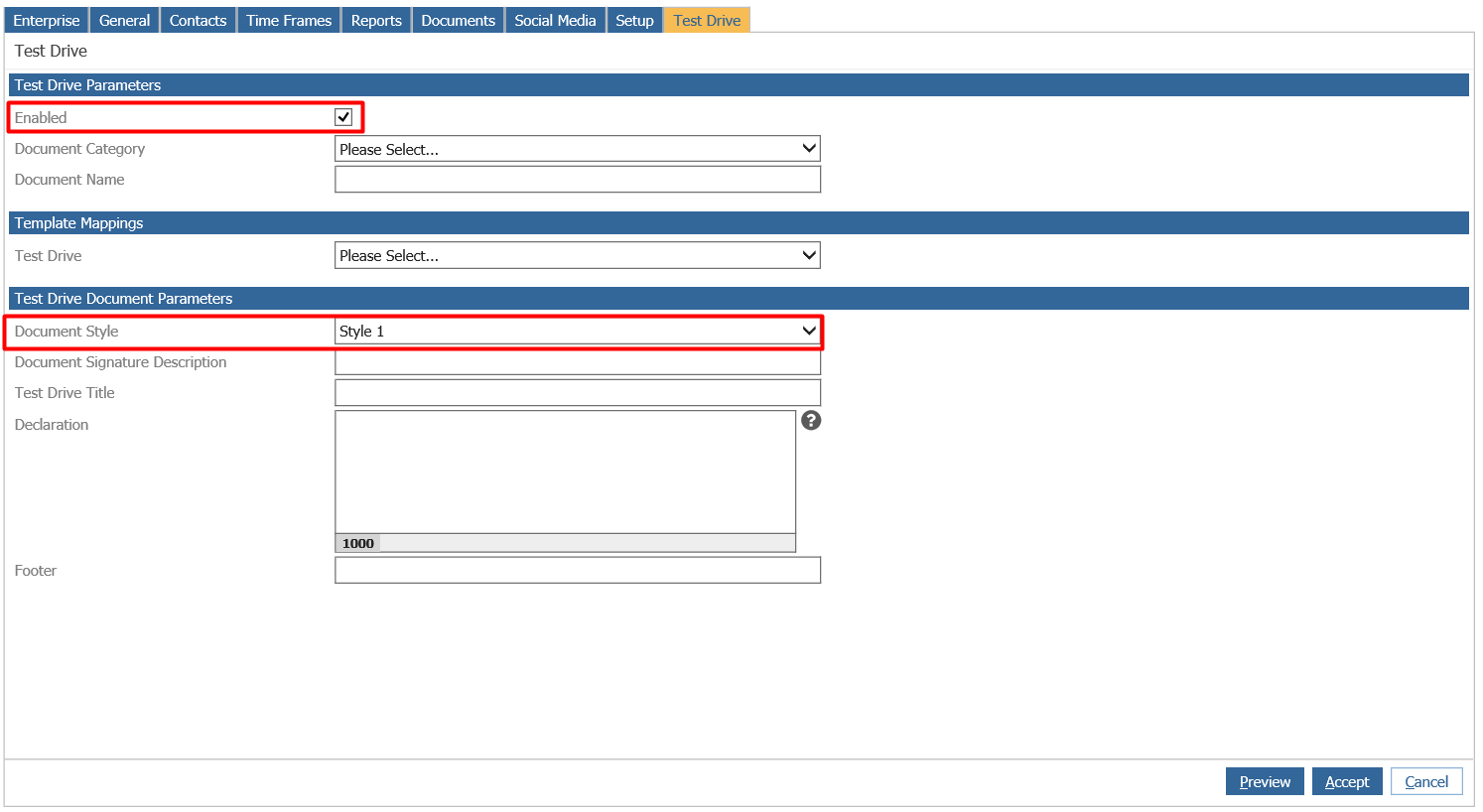
See this is enabled.
However, the document style is set as ‘no print required’ this needs to be set to a different option e.g Style 1’ in order for the declaration to be printed.
Once this is done the declaration will be available to print.