
The Vehicles module imports routine allows for bonus income values, depreciation values, miscellaneous costs, used vehicle retail prices and vehicle payments and receipts to be imported en masse against vehicle stock records.
Sample formats for the imports are attached below.
Before the import routine can be undertaken, the values to be imported must be used to complete an Excel spreadsheet containing three columns as below (this format is only applicable to the Bonus Income, Depreciation and Miscellaneous Costs imports):
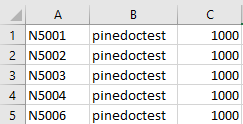
The first column contains the system stock card number for the vehicle, the second column contains the reference number that will be retained by the system on both the stock card and the nominal postings, and the final column contains the value of the bonus, depreciation or miscellaneous costs to be imported.
Once the excel spreadsheet has been completed with the information required, save the file as a .csv file.
To import the data into the system, go to Vehicles > Stock Management > Imports and select the desired import type required to be imported.
Depreciation
In the case of depreciation for used vehicles, the screen displays as below:
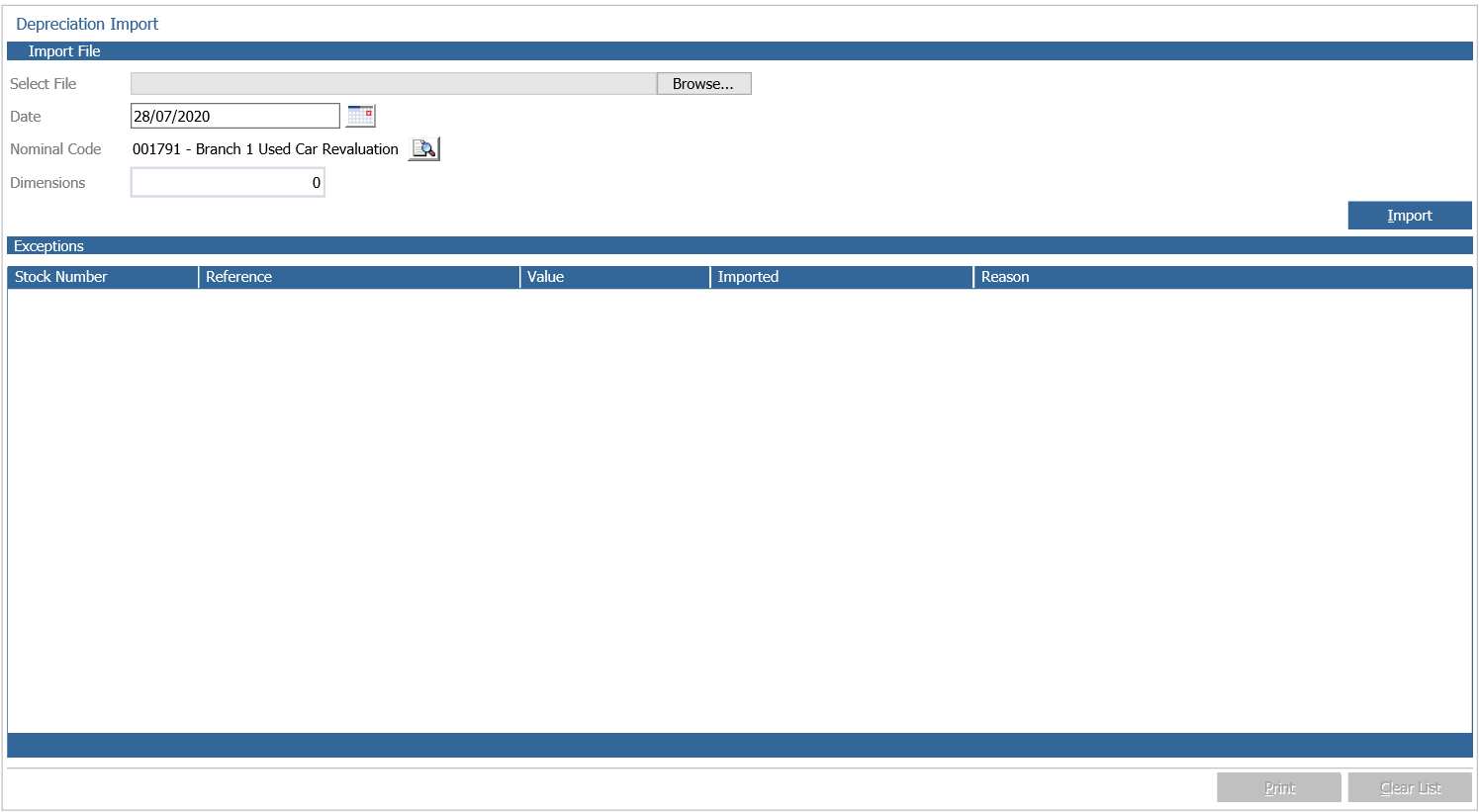
Use the 'Browse' option to search the PC for the .csv file containing the details of the depreciation, and use the date field to provide a system date for the postings (this date cannot be in the future). Finally, select a nominal code that would normally be the same one specified within the vehicle parameters.
Select the 'Import' option to complete the process. Once the import is complete, the system displays the details of each stock record updated.
Each stock card can be accessed by double-clicking on the line representing it. The list can be printed by selecting the 'Print' option from the bottom of the screen- alternatively select 'Clear List' to empty the display.
Bonus Income
To import Bonus Income, the process is the same however, Bonus Type must be selected instead of a nominal code as shown below:
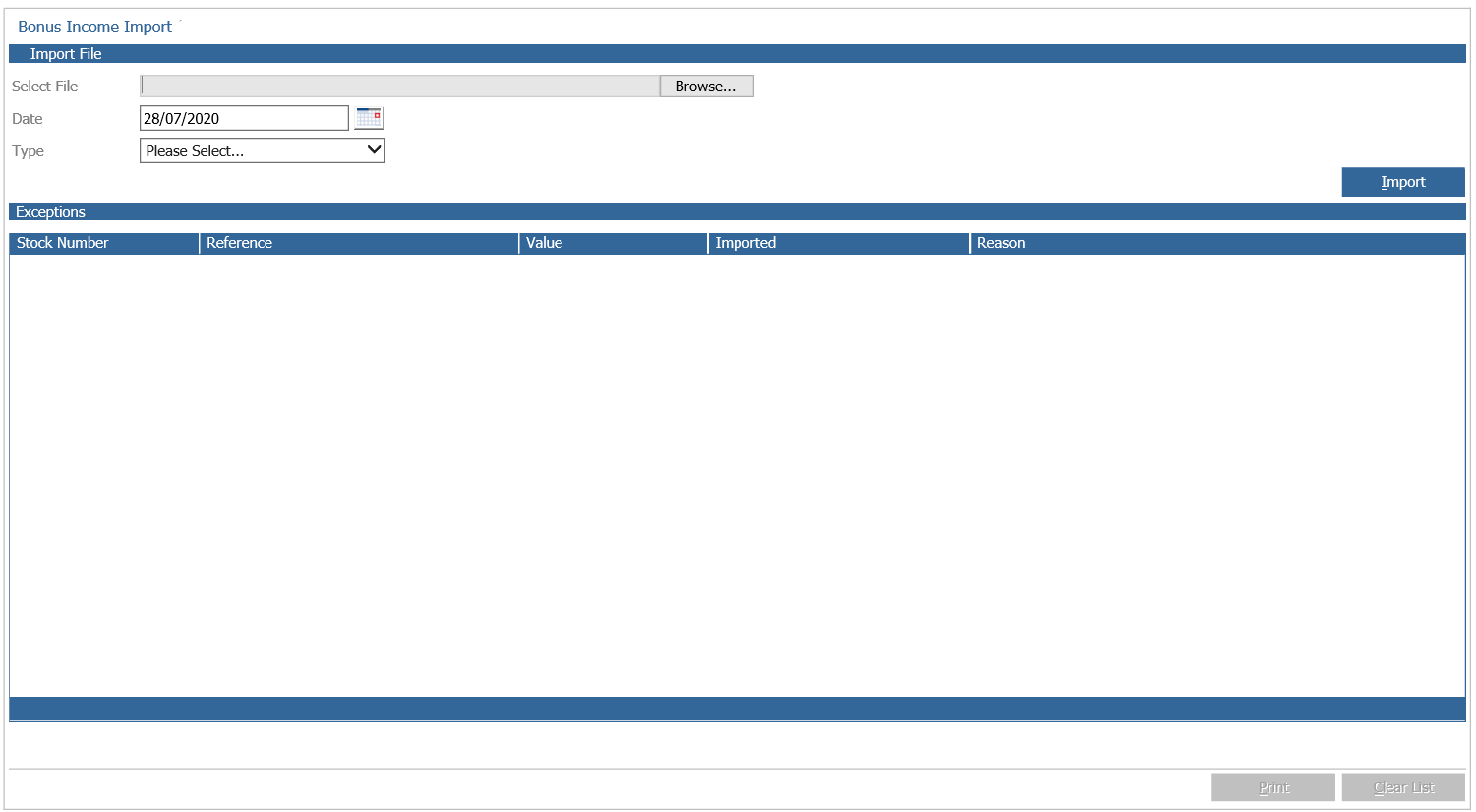
If the Bonus Type has been attached to a Sales Ledger account, the transactions generated by this routine can now be viewed.
Miscellaneous Costs
To import Miscellaneous Costs to new or used vehicles, again the process is the same. This will update the SIV of the vehicle once the import has been successful and can be viewed by looking at the costs tab on the vehicle stock card.
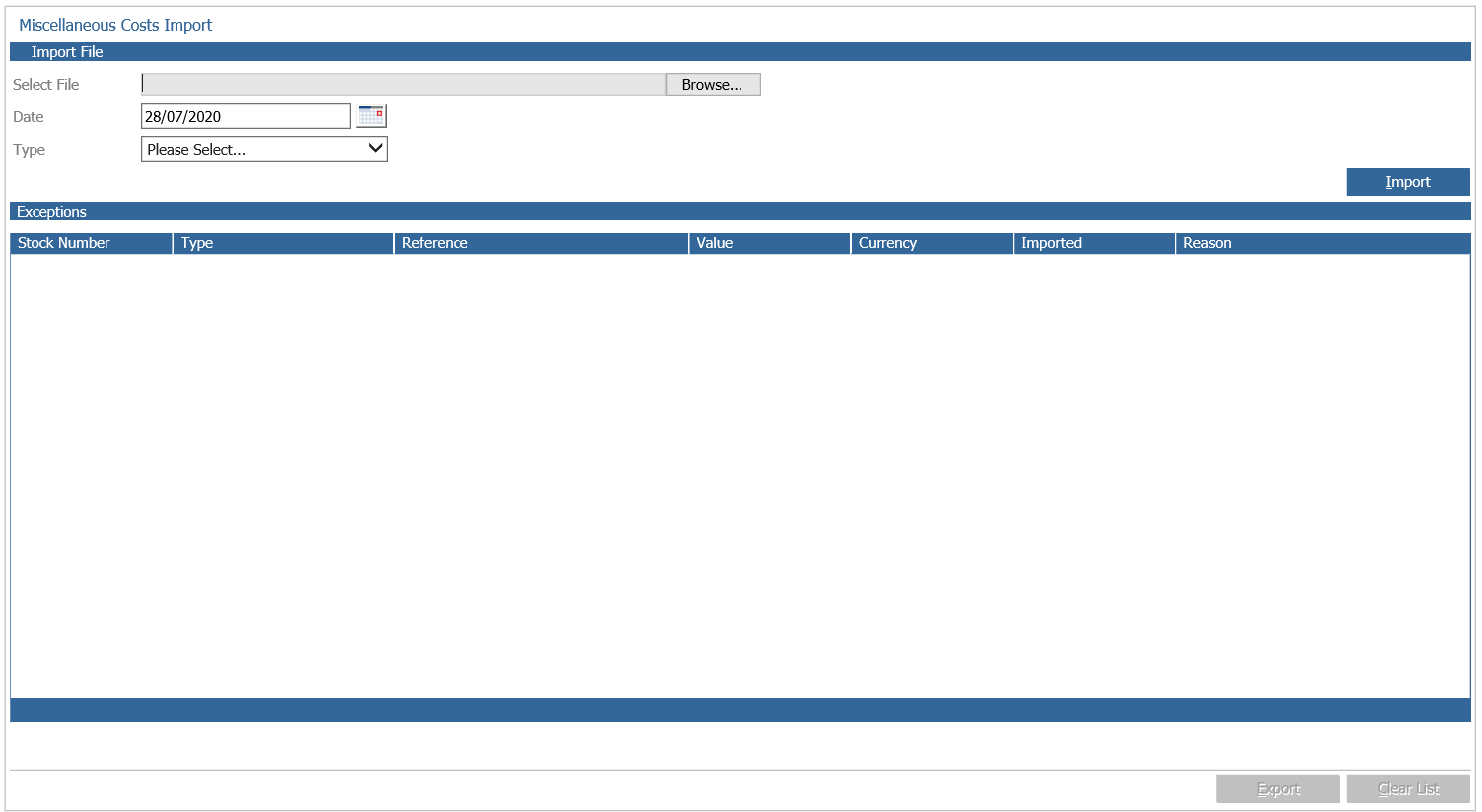
A separate file must be imported for each miscellaneous cost type, for example, Preparation and Accessories. Negative values can be posted.
Postings to vehicles that have been finalised, deleted or archived will not be processed and the system will report that the vehicle status is not valid.
Vehicle Receipts
The system allows users to import vehicle receipts against outstanding vehicle debtors en masse against vehicle stock records via the import routine.
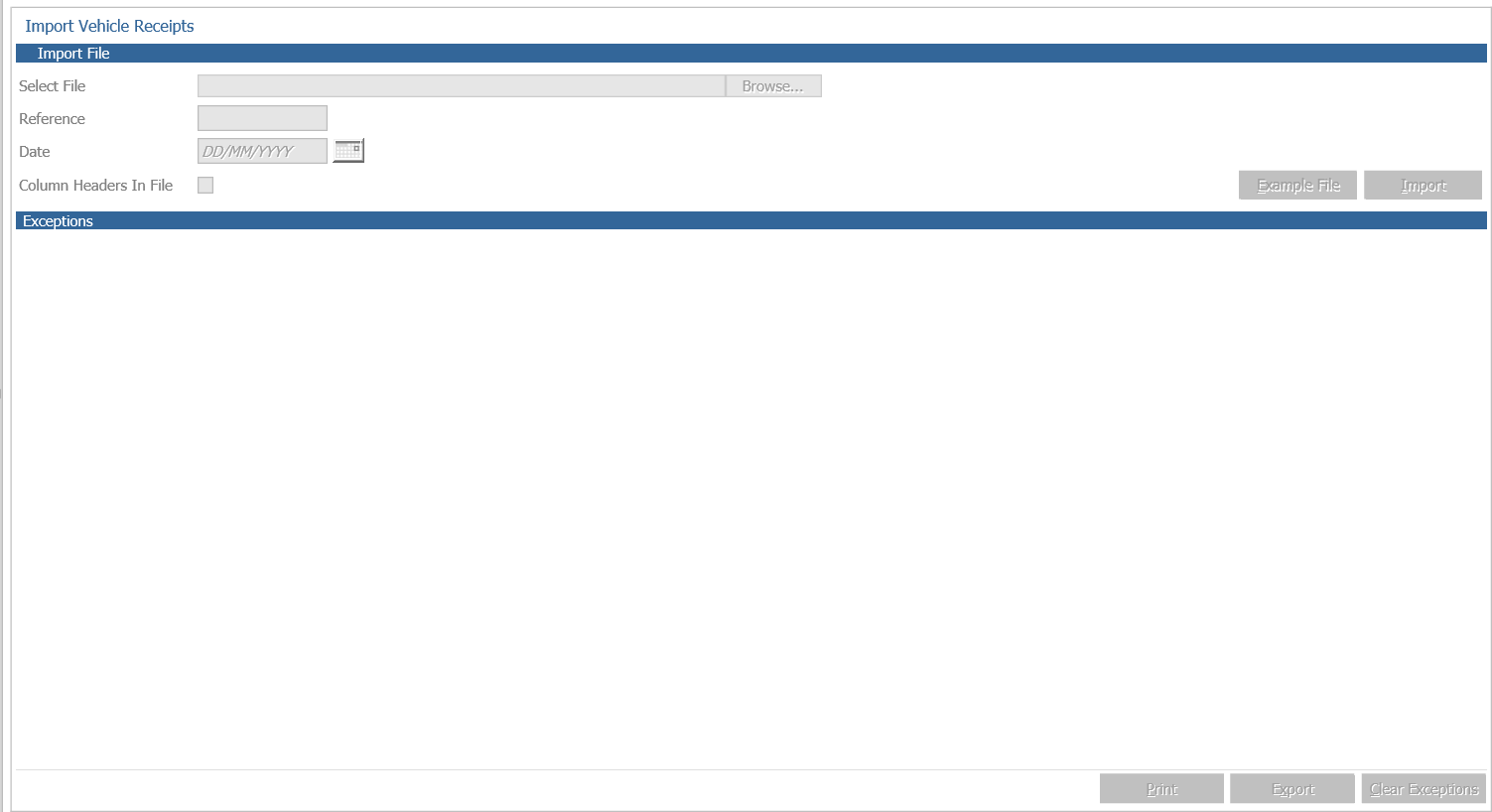
Before this routine can be undertaken, the values to be imported must be used to complete an excel spreadsheet.
By clicking the 'Example File' button, the system will produce an excel file containing the file format required:
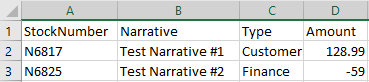
The first column contains the stock card number for the vehicle, the second column contains the reference number that will be retained by the system on both the stock card and the nominal postings, and the third column contains the type of vehicle receipt. The receipt types as within cashbook; Customer, Finance or Refund, with the final column being the amounts.
Once the spreadsheet has been completed with the information required, save the file as a .csv file.
Use the 'Browse' option to search the PC for the .csv file containing the details of the vehicle receipts to be posted against the outstanding debtors, and use the date field to provide a system date for the postings (this date cannot be in future) and input a reference for the posting.
Select the 'Import' option to complete the process. Once the import is complete, a pop up giving the option to print the vehicle daybook is displayed.
Once the vehicle daybook has been printed, confirmation that the import file was successful is displayed. Click OK to complete the process.
Vehicle Payments
The system allows users to import vehicle payments against outstanding vehicle creditors against vehicle stock records via the import routine.
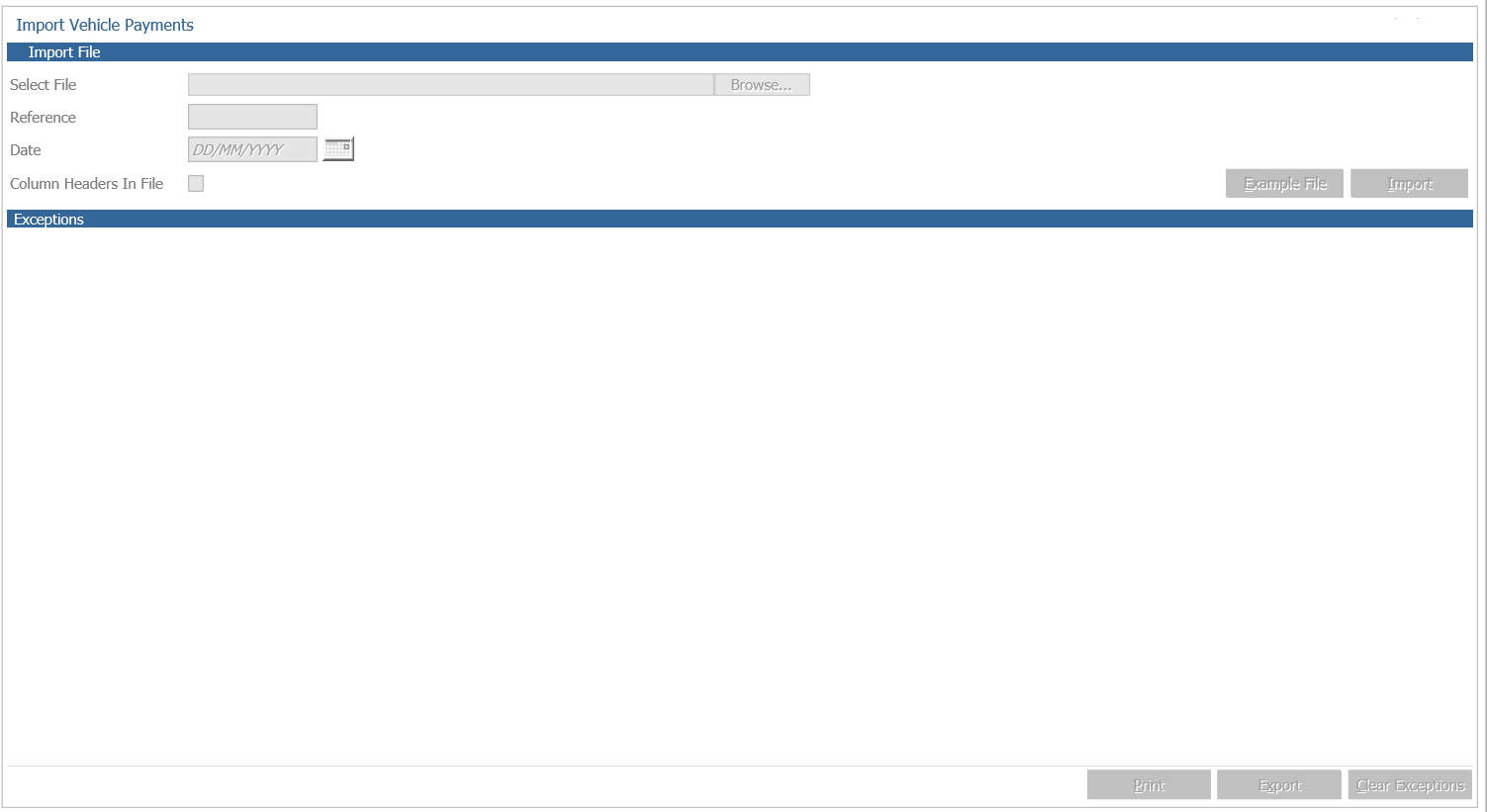
Before this routine can be undertaken, the values to be imported must be used to complete an excel spreadsheet.
By clicking the 'Example File' button, the system will produce an excel file containing the file format required:
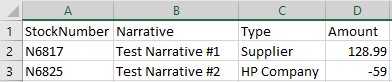
The first column contains the stock card number for the vehicle, the second column contains the reference number that will be retained by the system on both the stock card and the nominal postings, and the third column contains the type of vehicle payment. The payment types are as within cashbook; Supplier, HP Company, Licence (cash book) and Customer Refund, with the final column being the amount.
Once the spreadsheet has been completed with the information required, save the file as a .csv file.
Use the 'Browse' option to search the PC for the file containing the details of the vehicle payments to be posted against the outstanding creditors, and use the date field to provide a system date for the postings (this date cannot be in the future) and input a reference for the posting.
Select the 'Import' option to complete the process. Once the import is complete a pop up giving the option to print the vehicle daybook is displayed.
Once the vehicle daybook has been printed, confirmation that the import file was successful is displayed. Click OK to complete the process.
Retail Price Update
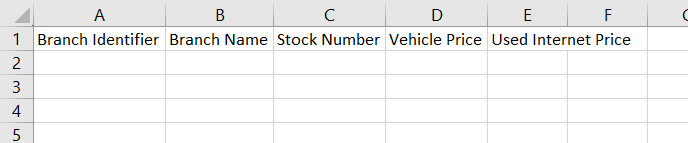
To perform the import to update used vehicle retail prices a .csv file needs to be prepared as shown below:
Please note the following:
- The Branch Identifier can be found in Accounts > Nominal Ledger > Ledger Parameters and selecting the Company Structure tab. Double click on the branch level and the identifier field is located on the right hand side of the screen
- Population of the Branch Name column is not mandatory
- Only vehicles with a status of Supplier Order or In Stock will be updated- vehicles on customer order will not
- The user importing the file must have access to the branch where the vehicle is located
- New Retail Price is the price including VAT
To process the file, browse the .csv file and click import. The results of the import will be displayed.
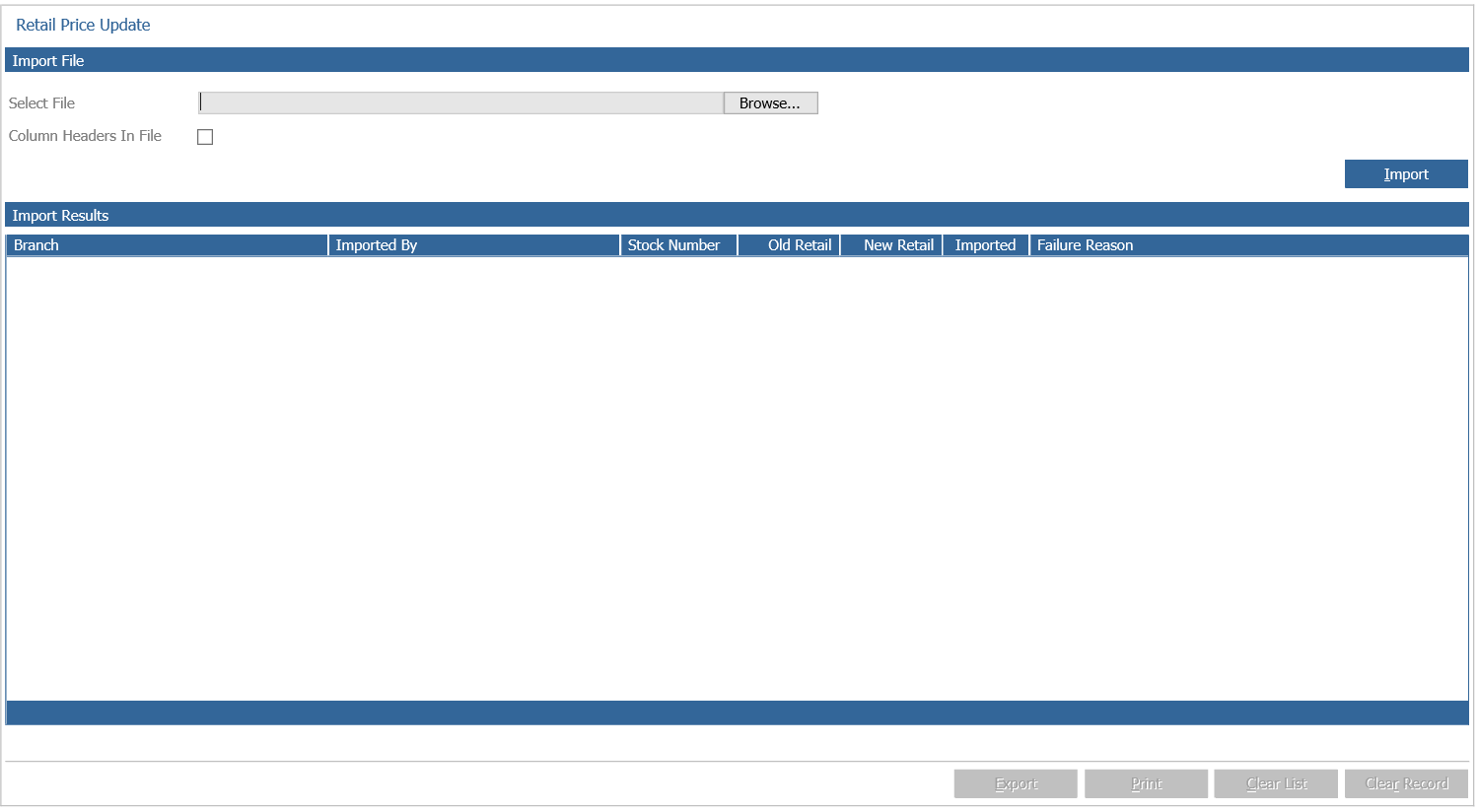
The process will then update the retail price and create an amendment audit history record for all updated stock vehicles included in the import file.