
Due to the volume of potential dealer transfer, the system contains a routine for transferring new vehicles out of stock with a much simplified process.
Outside Group
This process often involves a vehicle being de-consigned from one dealership by a manufacturer or supplier and re-consigned to another. On this occasion, the creditor balance for the vehicle will need to be set to zero, and the dealership must have the opportunity to invoice preparation or dealer fitted accessories to the receiving dealer.
The conventional method used to deal with the dealer transfer of a new vehicle in stock would be to reconfirm the costs of the vehicle by selecting 'Set to Zero'. If being re-consigned to another dealer raise a customer order and produce a new vehicle invoice to the receiving dealer.
By following the above route, the system retains all of the stock card information, including days in stock, location history, photographs and most importantly all of the nominal and creditor postings in the vehicles module. If the vehicle were to be deleted, the nominal postings would remain in the nominal ledger, but no stock card would exist for audit trail purposes.
The dealer transfer option is held within Vehicles > Customer Orders > Dealer Transfer.
When the Dealer Transfer option is selected, the user must navigate the company structure to the branch holding the vehicle stock to be transferred. The conventional search options display enabling the user to search and select the vehicle required:

If the vehicle has had a VAT invoice posted against it, this will need to be reversed before the dealer transfer routine can be completed.
Once the vehicle to be transferred has been confirmed, the system prompts with the following screen:
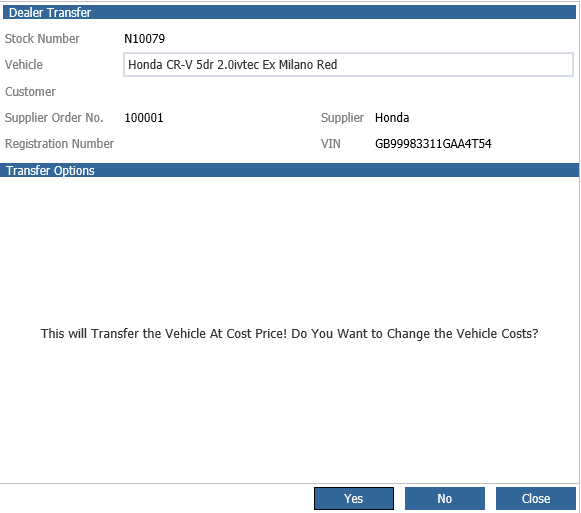
This is to increase the speed of the processing time so that vehicle costs do not have to be amended as a separate process as with conventional vehicle purchases.
The cost figures can either be amended to a correct value or simply checked by selecting 'Yes'.
If the vehicle is being re-consigned to another dealer the 'Set to Zero' option can be used to reconfirm all purchase costs to zero therefore, clearing the creditor held against the vehicle.
If the vehicle costs have been confirmed prior to this routine, the following statement will be made and the user must confirm whether to reconfirm the costs or not:
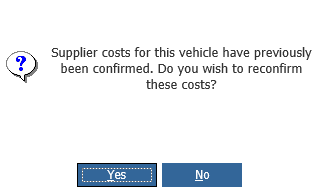
The system then prompts the user to confirm whether the vehicle is on consignment or not, as with the conventional cost confirmation routine.
The conventional customer order detail populates the screen enabling the user to select the CRM record of the dealer the vehicle is being transferred to. This allows the system to keep a long term reference for the vehicle and also provides the user with the ability to sell any preparation, accessories or delivery charges which it may be selling on to the transferring dealer. These can be added to the customer order in the normal way:
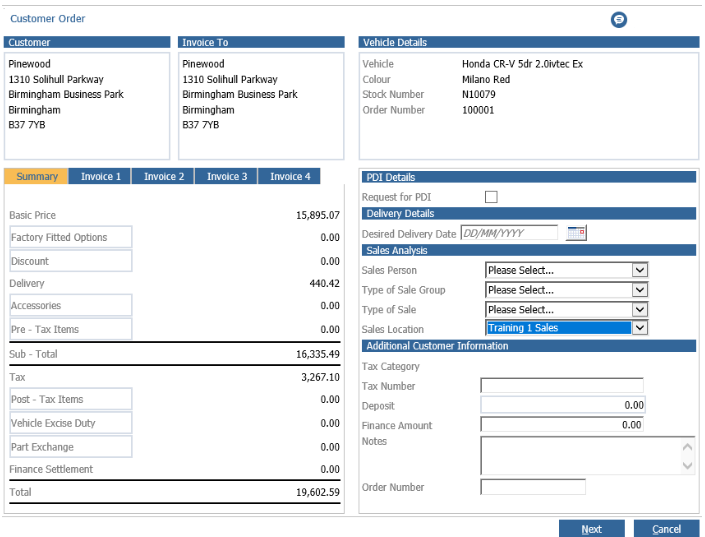
As with conventional orders, the Invoice 2,3 and 4 tabs can be used to raise supplementary invoices to the receiving dealer. This process is then concluded by producing a vehicle invoice in the normal manner.
Internal:
If the company structure within the system has been set to allow vehicle stocks to be held at branch level, the system functionality has been enhanced to allow transfers of new and used vehicles to take place between branches, removing the need to invoice a vehicle from a transferring branch and then purchase it into stock at the receiving branch. This routine can be carried out to allow for the movement of used vehicles. Prior to the use of this process, it is advisable for a number of areas of set up to be completed, including a Type of Sale Group and a Type of Sale for internal transfer, an internal sales Debtor Group and a CRM record for each branch within the business.
Vehicles > Customer Order > Inter Group Transfer
Once these requirements have been met, select the vehicle following the same process described above and complete the customer field with the detail of the receiving branch and the financial detail of the transfer completed. The sale value should be adjusted to reflect the current SIV of the vehicle.
Complete the Sale Analysis details with the internal type of sale group and type of sale created previously:
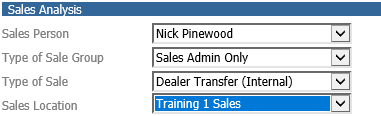
Once these have been selected, click 'Next' to search for the branch that the vehicle is being transferred to (the receipting branch):
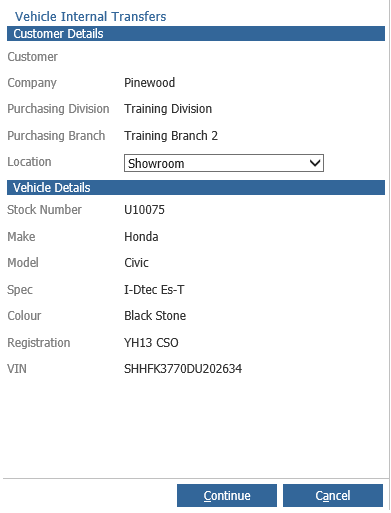
Once you have selected the branch the following window will display:
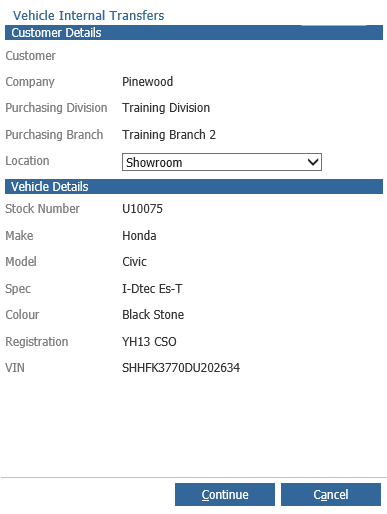
At this point the system creates a supplier order for the vehicle at the receiving branch. The order number for this vehicle will be constructed automatically, utilising either the stock number or the registration number of the vehicle as a prefix and the transfer date as a suffix.
The Dealer Transfer report now displays for each branch. The transferring branch contains an entry for the vehicle being transferred out, whilst the report for the receiving branch displays a supplier order for the vehicle.
The receiving branch should now bring the transferred vehicle into stock via the Vehicles > Bring Into Stock routine. Bringing the vehicle into stock at the receipting branch automatically moves the vehicle to a status of invoiced at the transferring branch.
The process of raising the invoice creates a vehicle debtor at the transferring branch, whilst the confirming of costs creates a vehicle creditor at the receipting branch. A contra journal will need to be processed to clear these entries.