
During a Vehicle’s visit to a Workshop, if there is work identified on the Vehicle that the customer decides to defer, this can now be followed up by the dealer through the use of the Aftersales Diary and the automatic Contact Plan functionality.
This adds additional revenue opportunity for the Workshop and is a vital stream of work into the Dealer.
This feature provides greater follow-up capability to capture more of the deferred revenue generated from the Health Check on the original visit.
As part of the Vehicle Health Check (VHC) process, users have the option to select that the customer has chosen to defer the work required to a later date.
This date for the Deferred Work will need to be arranged and agreed upon with the customer as part of the Approval stage within Workshop > Jobs > Additional Work - Awaiting Approval tab:
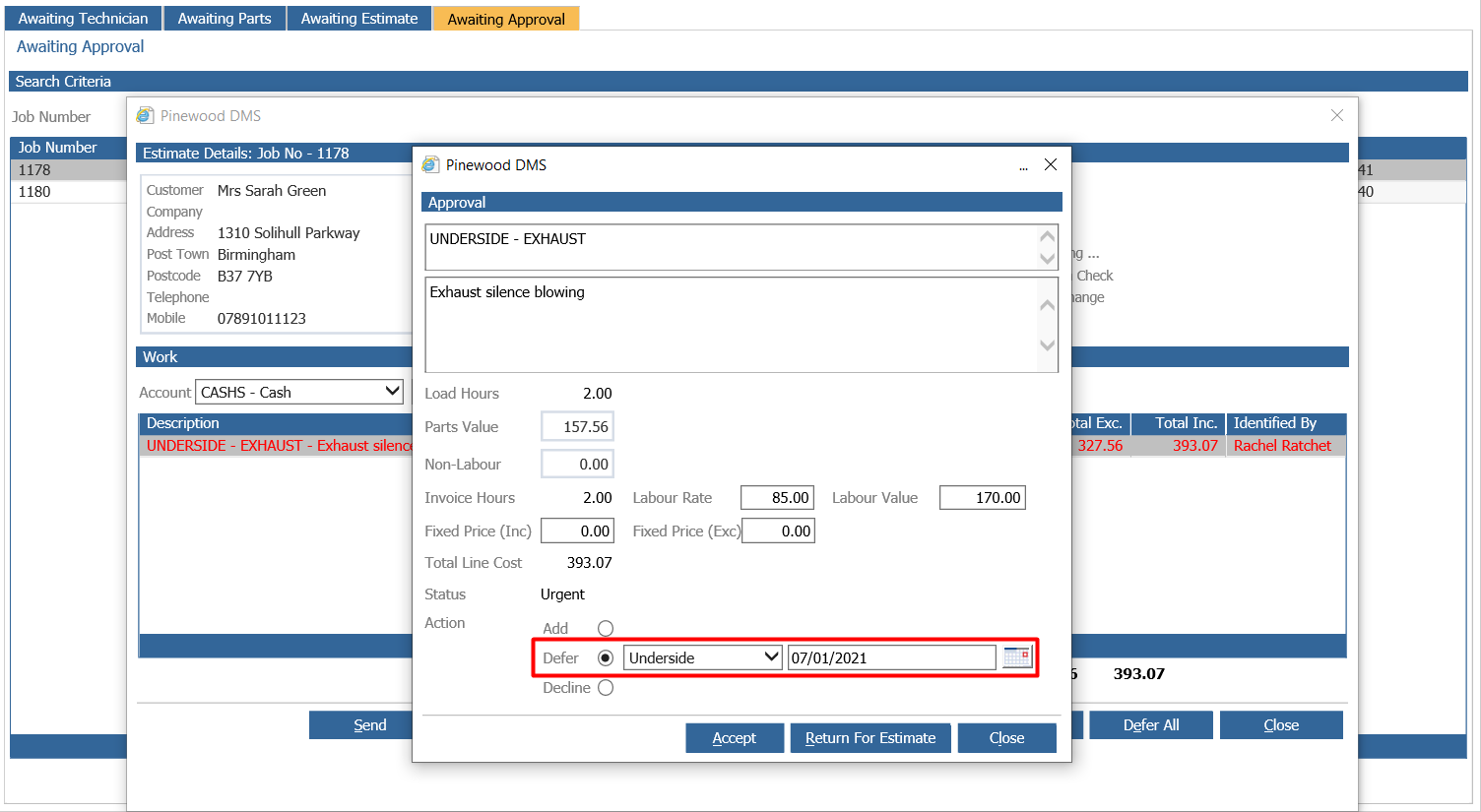
Once this has been accepted, the date will now show as a Work Required entry on the Vehicle's CRM Record within the Reminders tab:
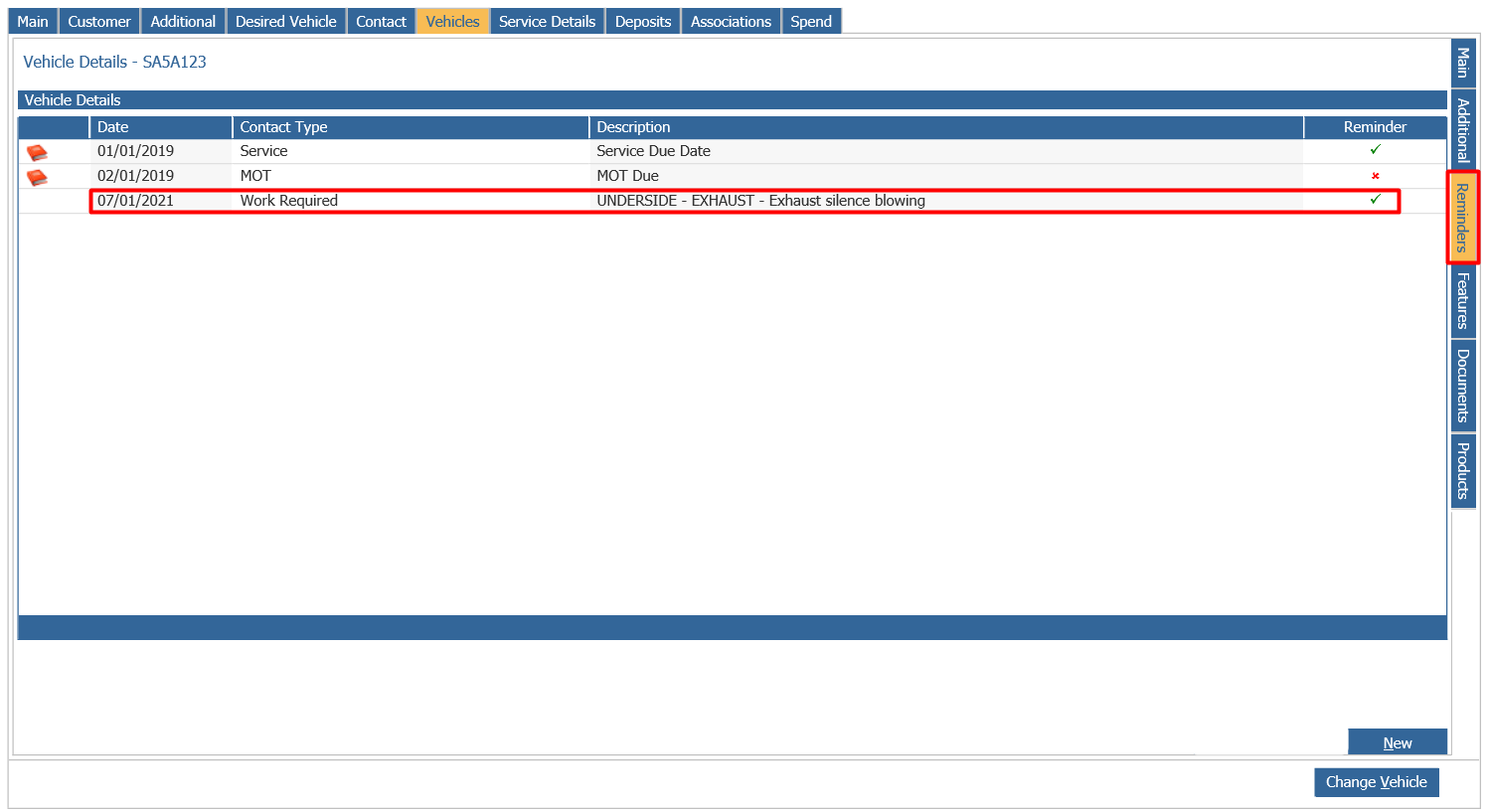
Please Note: once the date has been set this cannot be amended and can only be deleted by a Pinewood User. To request the deletion of a Work Required Event from a Vehicle, please raise a chat with our Support team.
Users can now create a Contact Plan that will allow automatic reminders to be sent to the customer for this Deferred Work event, as well as automatically placing the event into the Aftersales Diary for processing at a given time before the event is due.
To set up Contact Plans for this event type, go to CRM > Parameters > Aftersales Parameters - Contact Plans tab:
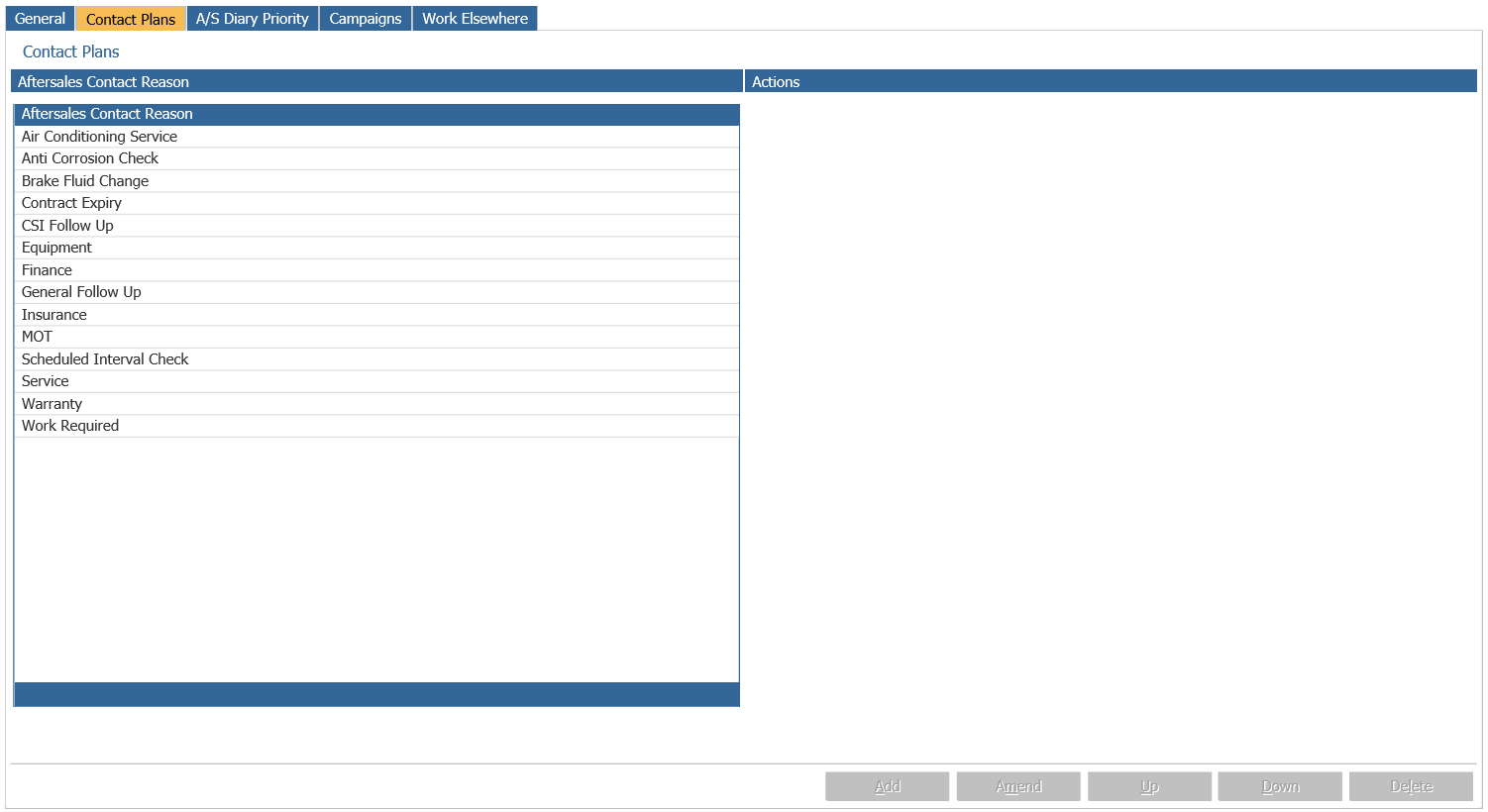
Within here, double click the Work Required Aftersales Contact Reason from the left hand side:
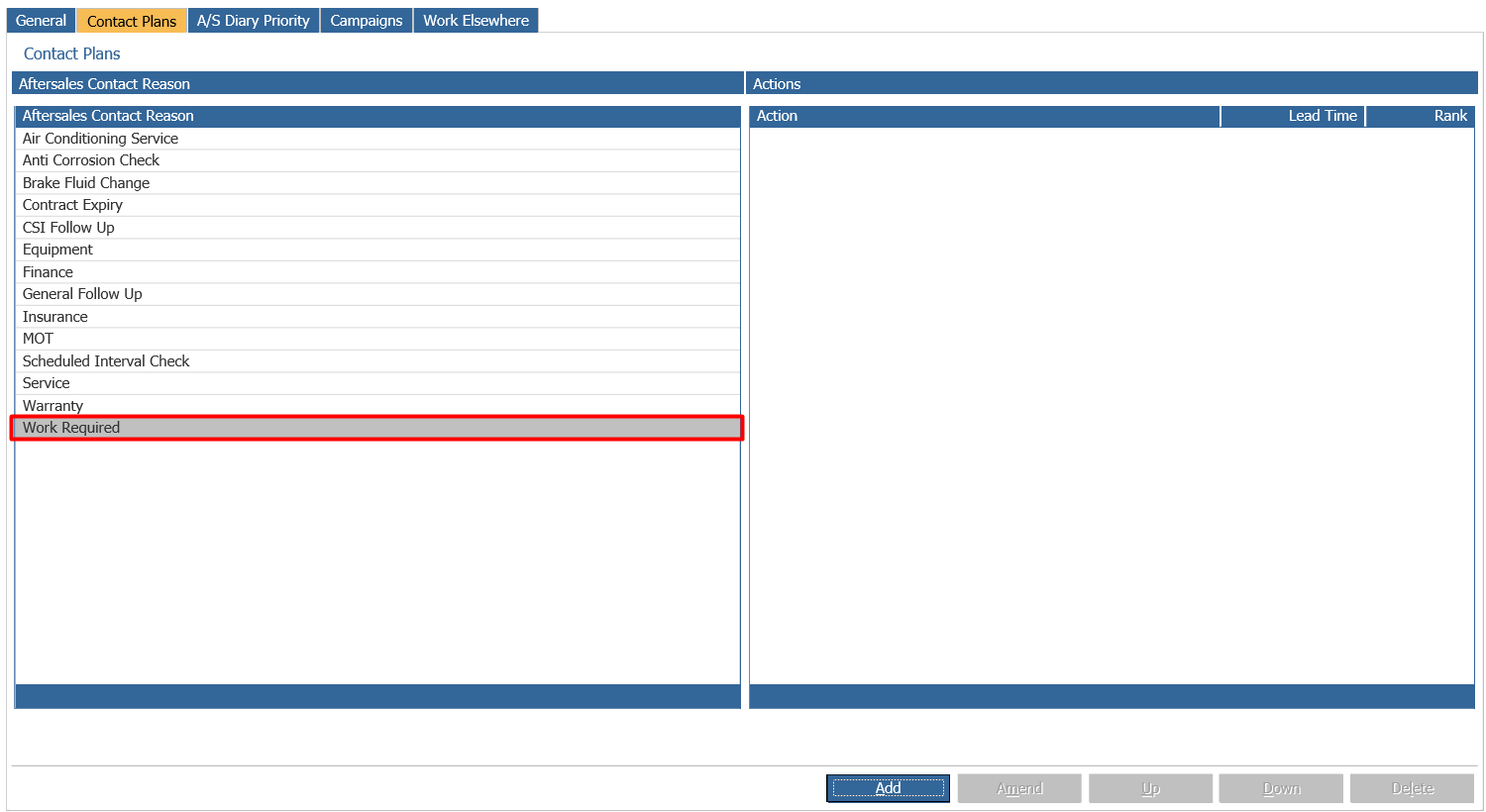
Now click Add to add an Action to the Contact Plan and a popup window will display as below:
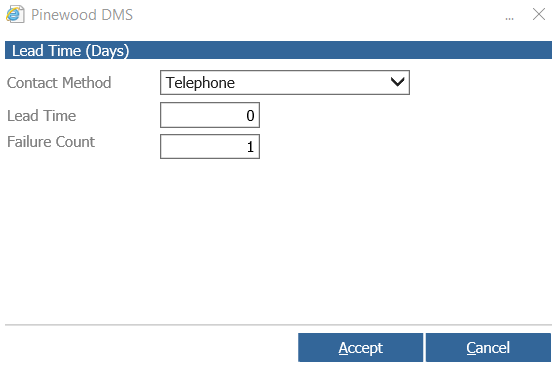
A Contact Method will need to be selected from the options of Email, Letter, SMS or Telephone.
A Lead Time for this action will then need to be entered. Click Accept to add the Action to the Contact Plan.
The Contact Plan will now look as below:

The Lead Time for the First Contact Action will be how many days this will generate before the due date held against the Work Required event.
Any lead times on actions after the first action will be the days after the first contact action.
For example, if the First Contact Action of an Email is set to 30 days before the event is due, if the second action has a lead time of 10 days, this will generate 10 days after the email is sent.
The Final Contact Action will always be a Telephone Action and will appear for processing in the Aftersales Diary.
To read further information on Contact Plan set up, please click here.
The Email for the Contact Plan will need to be set up within CRM > Parameters > Communications > Emails - Content tab. In here select the 'Aftersales Diary Contact Plan Email' from the Category Drop Down:
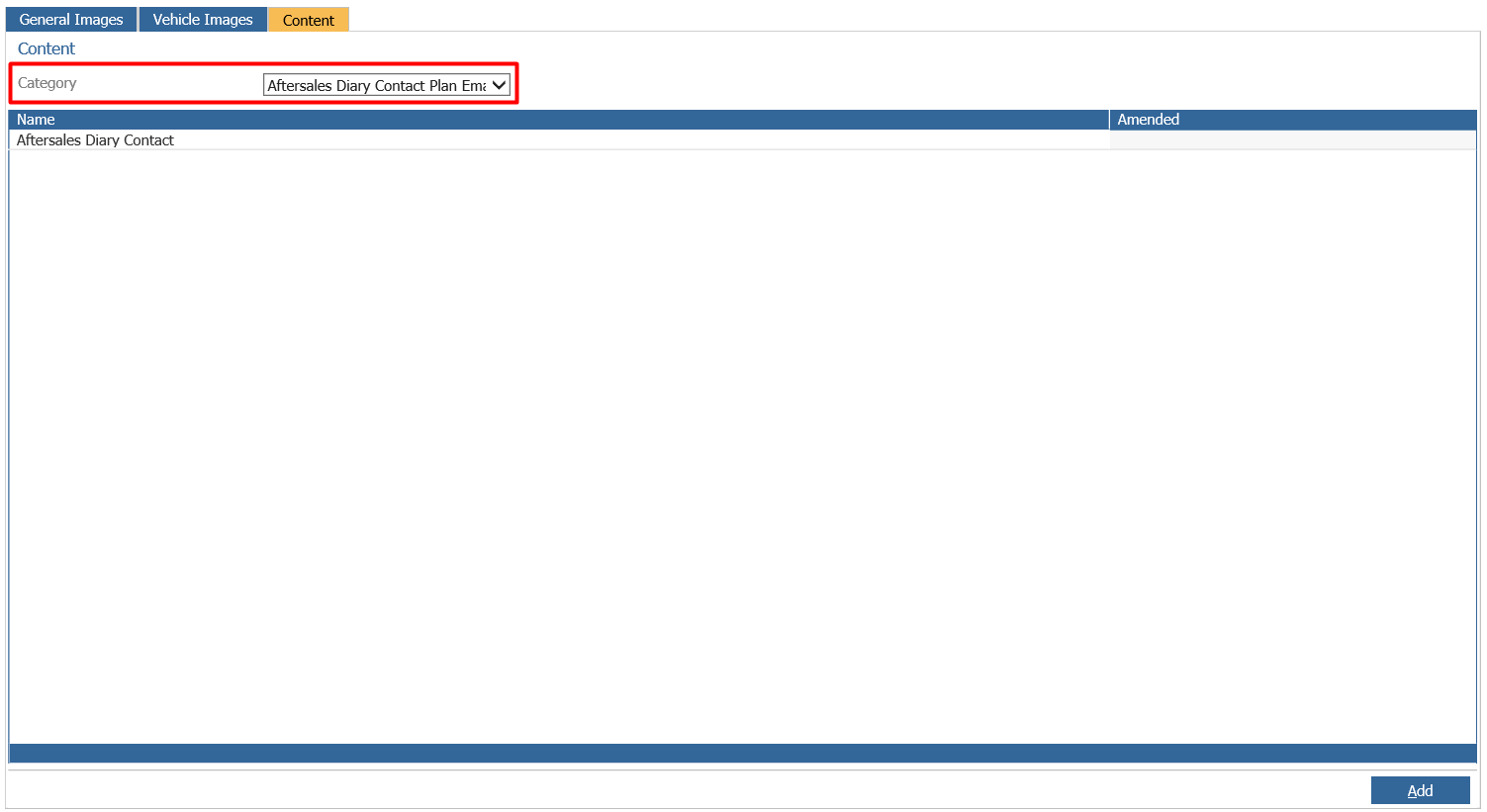
Please Note: this email is used within all Aftersales Contact Plans so the HTML will need to be kept generic if you are using this for other events, such as an MOT event.
A placeholder for the HTML has been added to accommodate the Work Required events. Double click into the HTML and along the bottom the placeholder of 'Contact Inc Date' can now be inserted to the HTML:
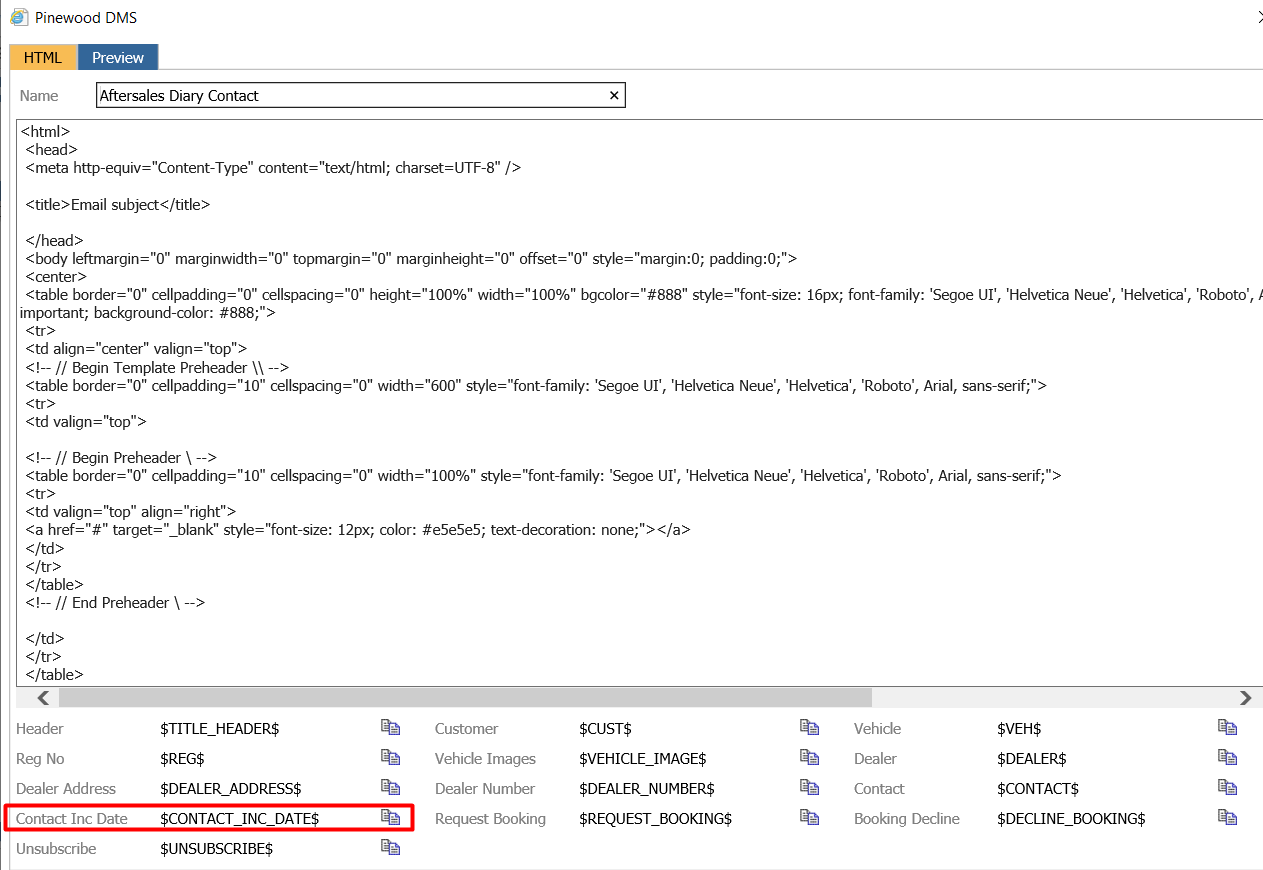
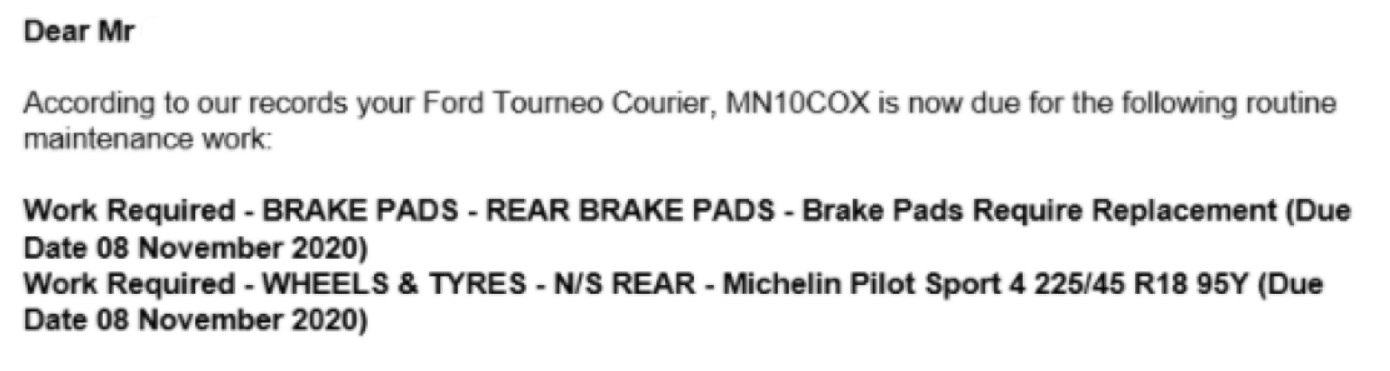
When used, the Work Required event will then be included on the email and will have the VHC Category, Check and Description recorded against the Deferred Work on the email:
Once a Workshop Booking is made against the Work Required Event, the Contact Plan will no longer run on this event as it is no longer necessary.
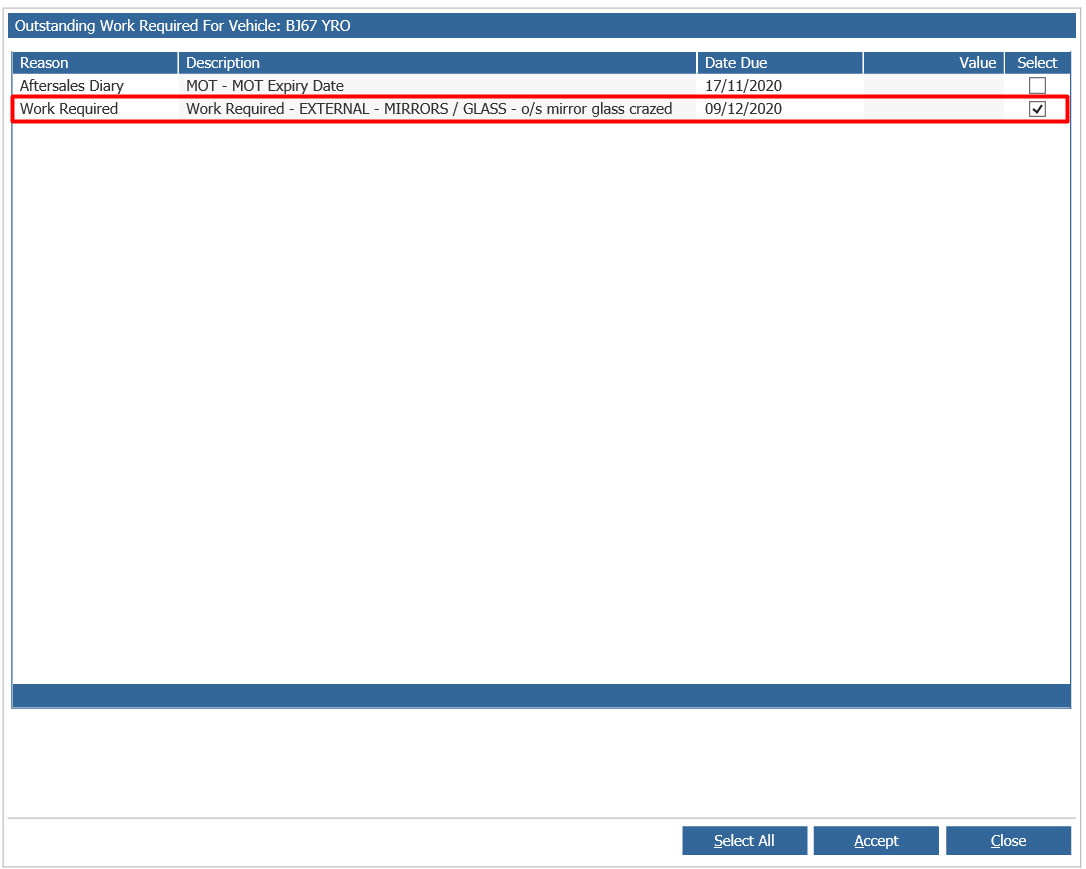
Therefore, when creating the Workshop Booking the Work Required event must be selected within the Outstanding Work Required pop up:
To check the booking has been made against the Work Required event, users will be able to see the 'Red Book' flag against the event in the Reminders tab on the Vehicle CRM Record:
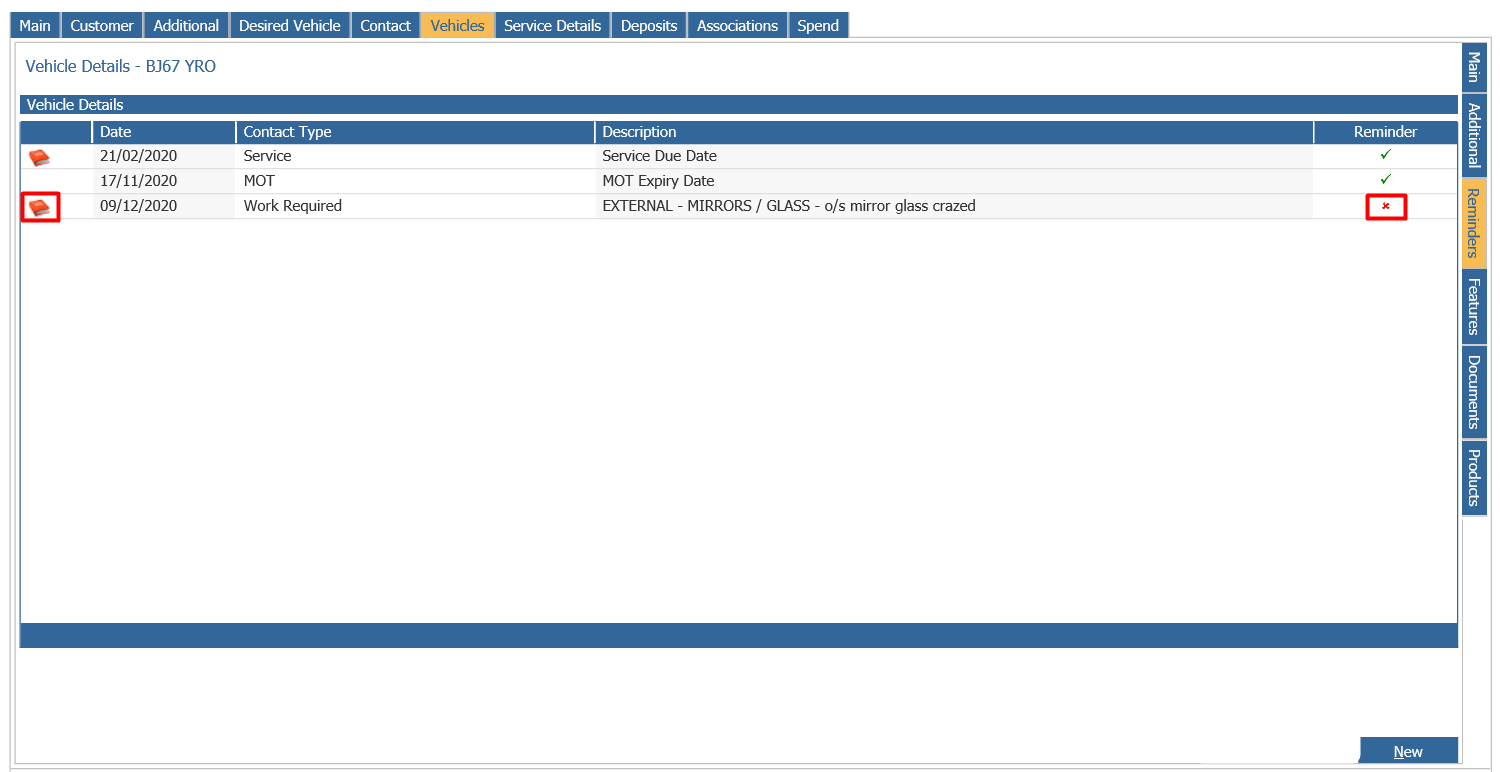
Users will also notice that the Reminder column is now disabled as Reminders are no longer needed for this event.