Question
How do I upload a personalised video?
Answer
To send a personalised video to a customer, firstly record your video on whichever device you want to use.
Then log into the Pinewood DMS Host+ App.
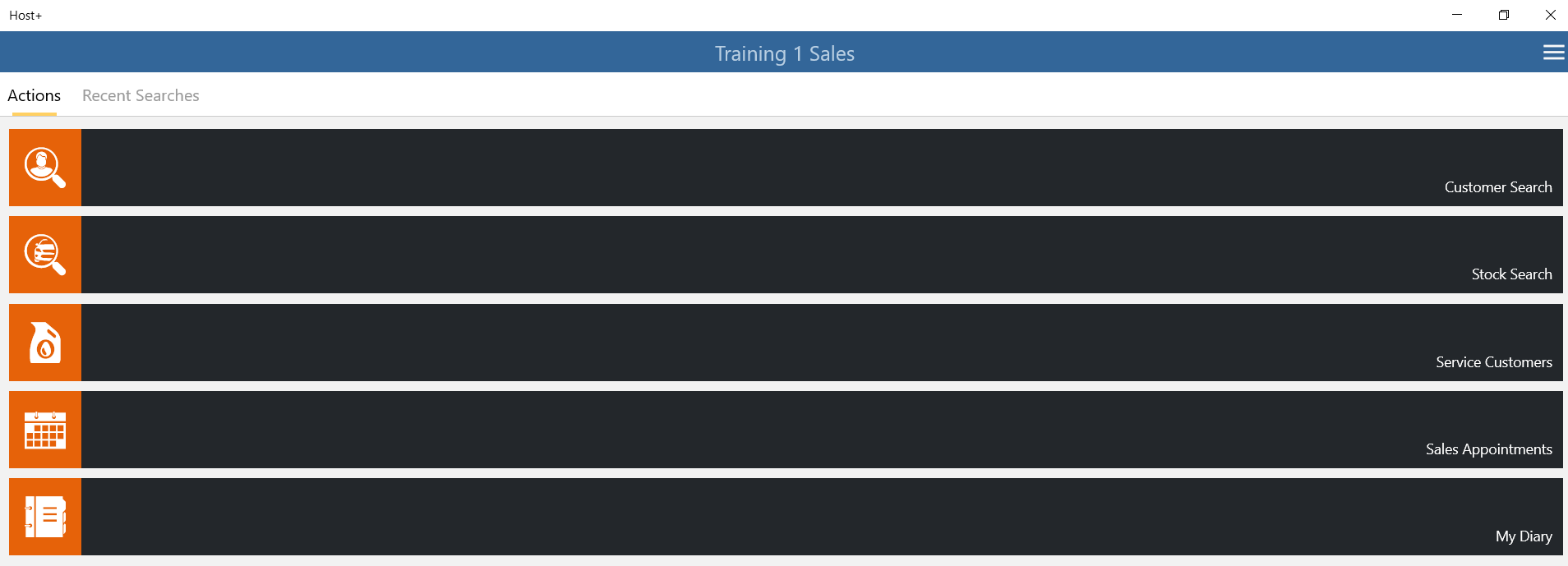
Within here, select the Customer Search option and search and select the relevant customer.
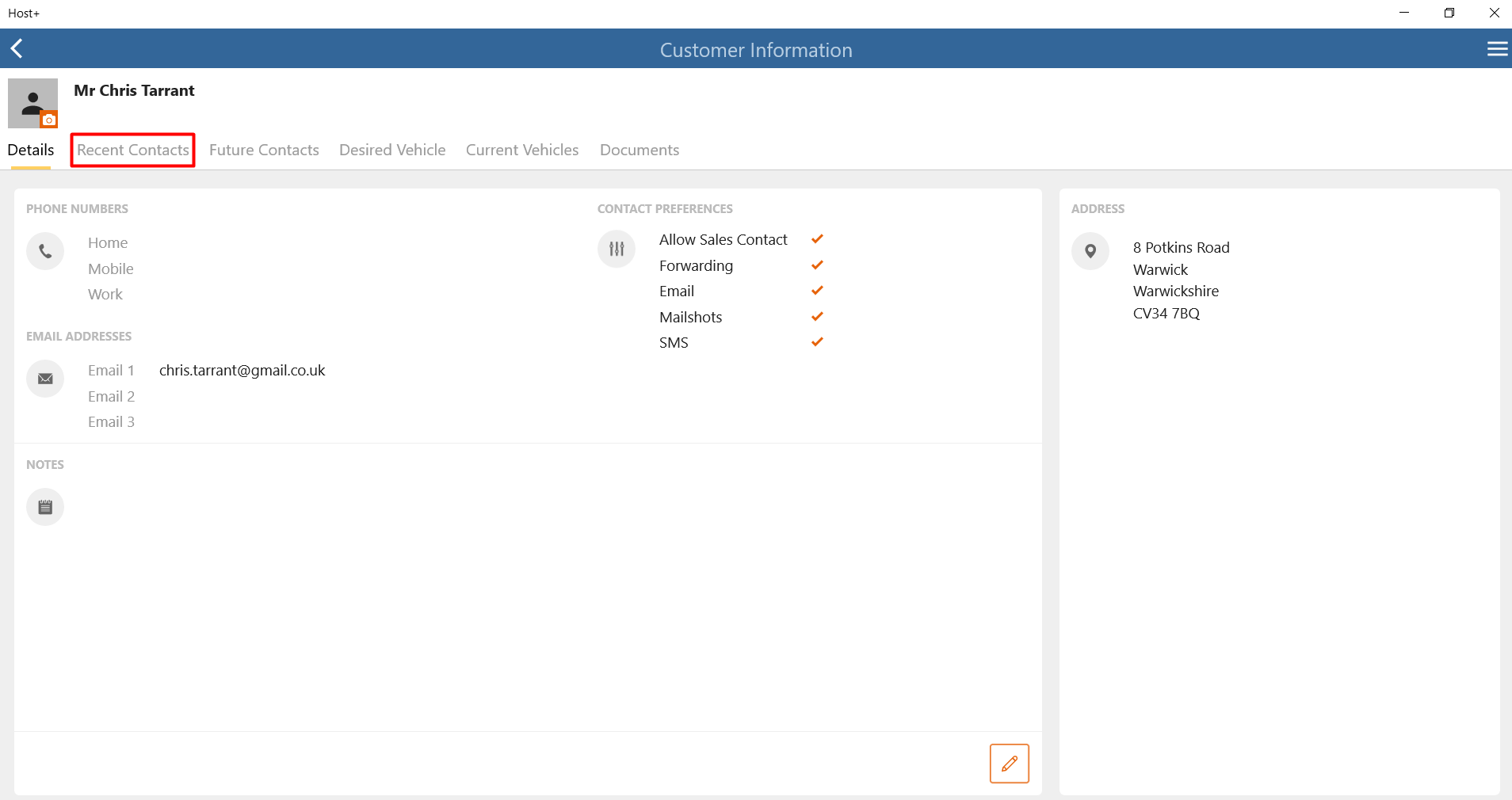
Once on the customer record, select Recent Contacts. In here, select the Video Icon 
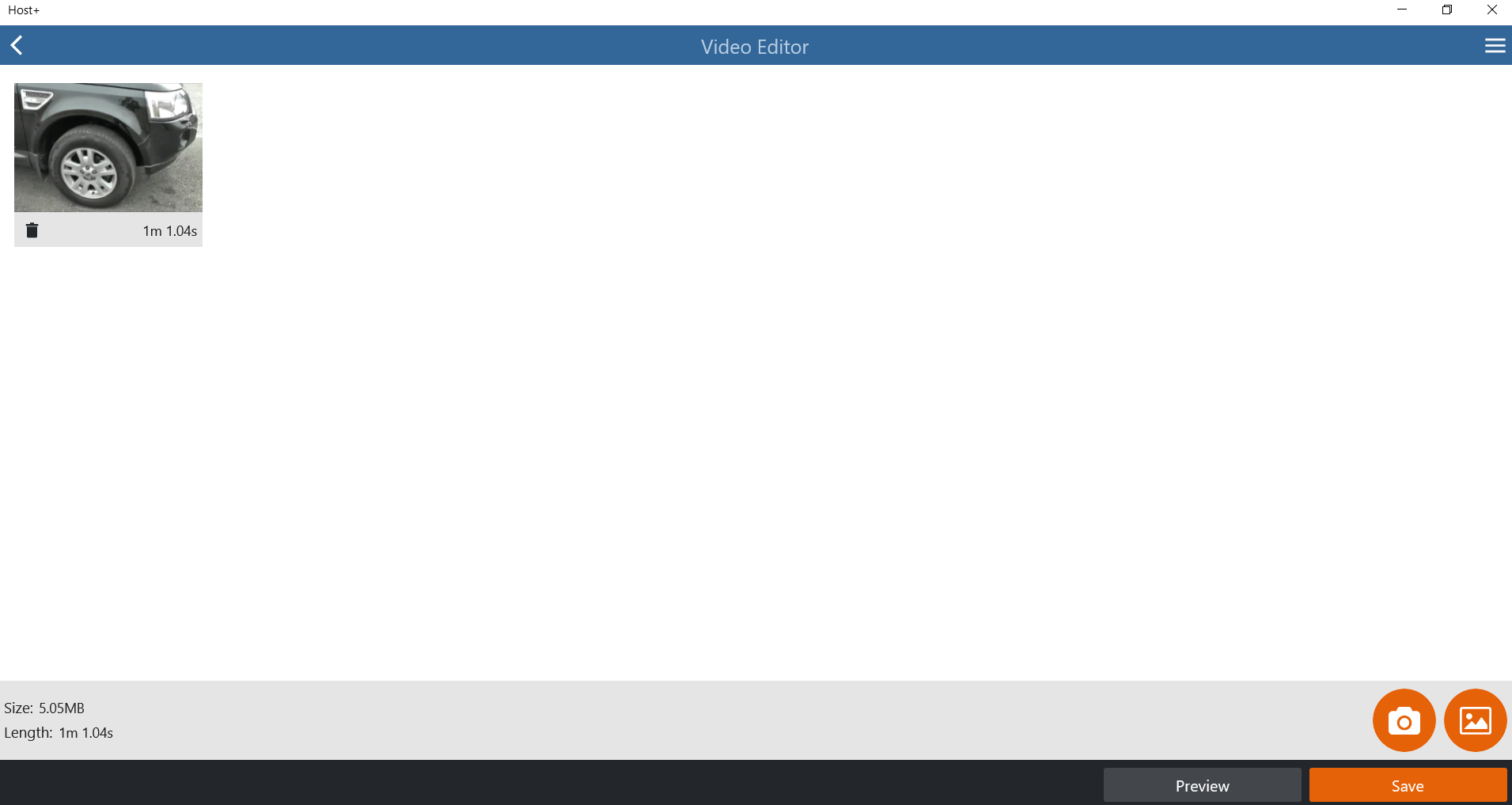
This will then prompt you to either record a new video, or upload from the gallery.
Once uploaded, click Preview to see the video before sending it to the customer, or click Save.
You will then need to enter a Description of the Video and select how you wish to send this:
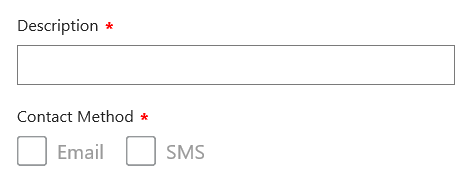
Once this is done, click Save.
This will then show against the customer's most recent contacts, within Host+ and the DMS.
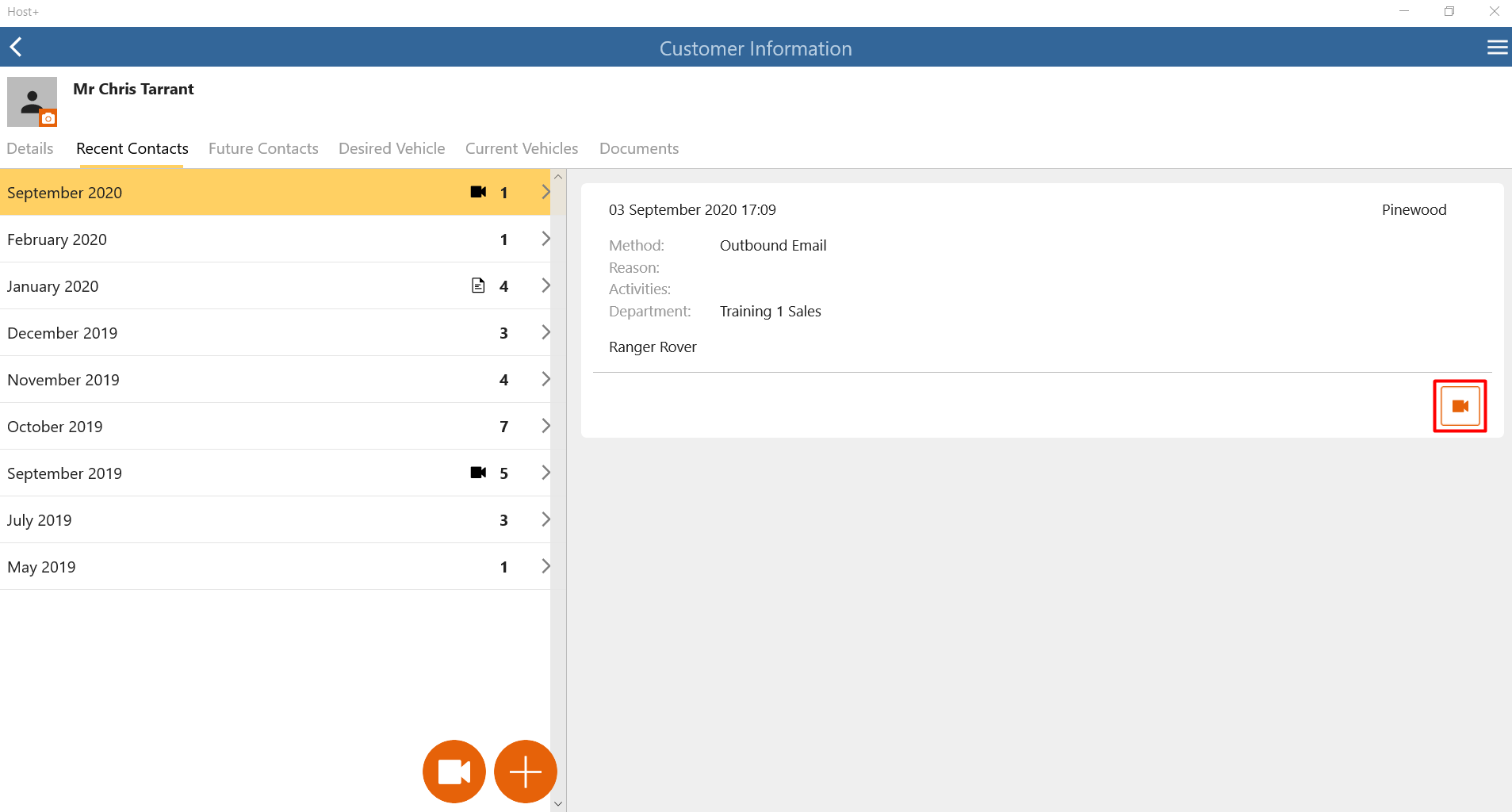
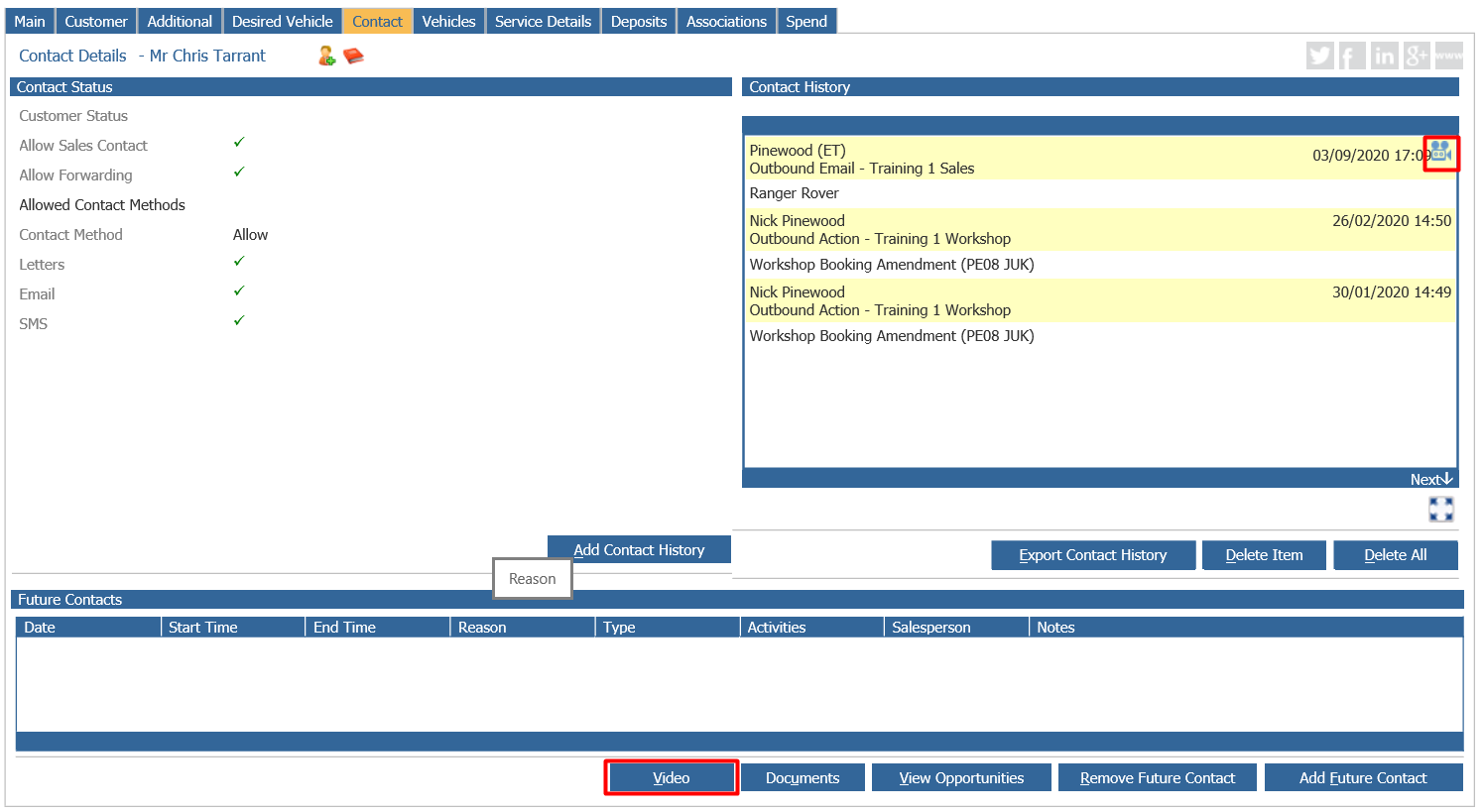
Users have the option of viewing the video again by selecting the Contact History entry and selecting the video icon against it. Or if viewing the Customer within the DMS, the Video button on the Recent Contact tab will display any video uploaded in Host+: