
Question
How to add a write up in the Tech+ app?
Answer
A technician can add a write-up when they have clocked on to a job.
When clocked on, a write-up tab will show at the top.
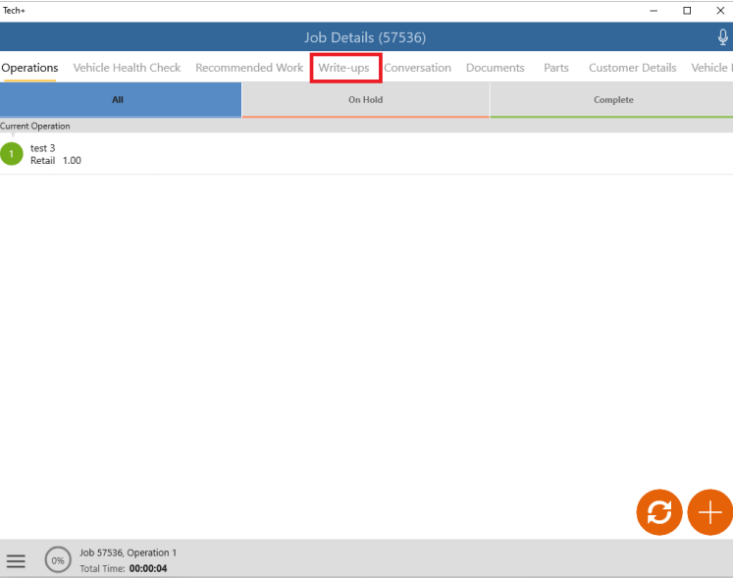
Click the  icon to add a note, and you can edit any previously written notes using the
  icon.
icon.
Once all necessary notes for each write-up reason on the operation have been added, the + icon will no longer show.
Please note: once a write up has been added and saved, it cannot be deleted, only amended.
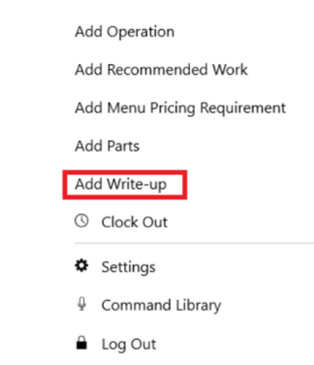
A write up can also be added from the Context Menu in the bottom left corner
The operation that is clocked-in will be the default in the dropdown when adding notes.
Select the appropriate heading, and then up to 5000 characters can be added in the write-up text box.
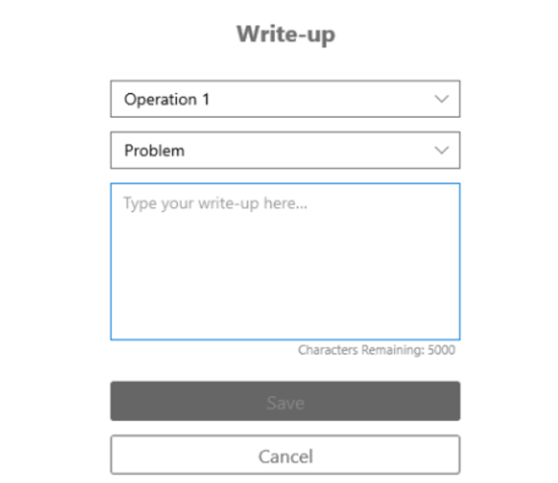
Select ‘Save’ when done. All fields must be completed to be able to save.
Please note: Only one write up can be saved against each write-up reason for the selected operation. Once added, the notes cannot be deleted, only amended.