Question
How do I add Additional Names/Company Names onto a Customer Record?
Answer
You can now add Additional Names and Company Names onto a customer record on both the Host+ & Tech+ apps.
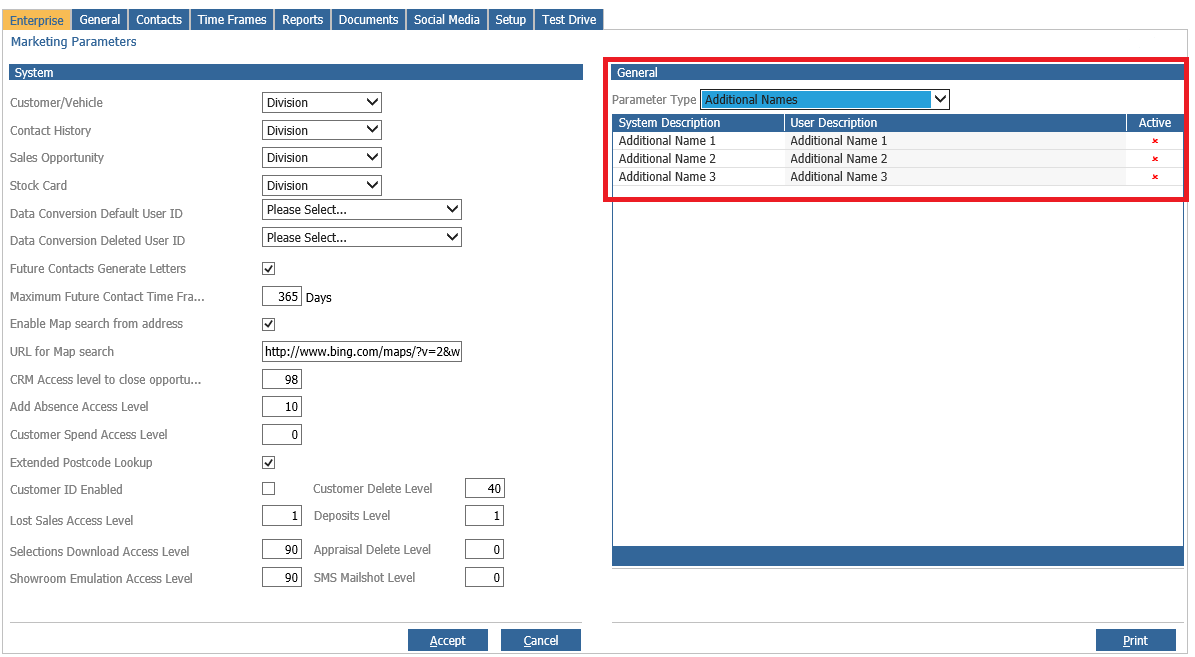
This function will need to be enabled first within the relevant parameters in Pinewood DMS which can be found by going to CRM > Parameters > Dealer Parameters - Enterprise Tab
The Parameter Type will need to be selected to 'Additional Names' from the drop-down menu, and here we can double click on the lines.
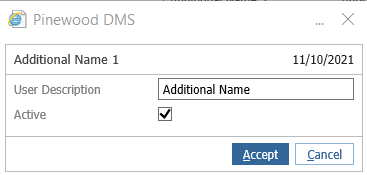
For each Additional Name, the user description can be changed accordingly and it is necessary to tick the 'Active' checkbox - if this is not ticked and made active the option to add Additional Names and Company Names will not appear on the apps.
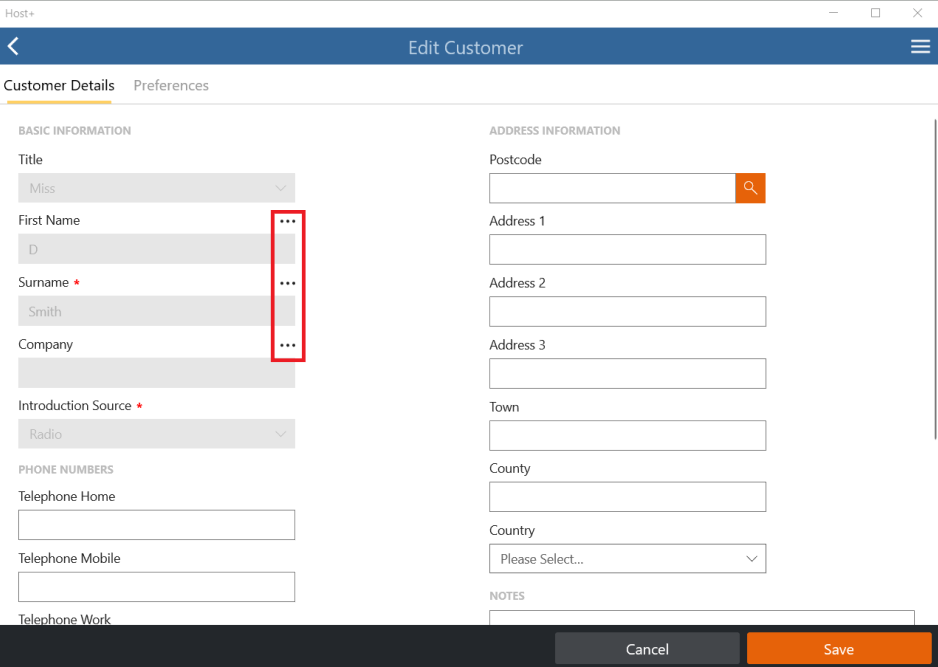
Once these changes have been accepted, we can then access the Customer Record on Host+/Tech+ and within the Customer Details screen, you will find the icons as shown below next to the fields First Name, Surname and Company.
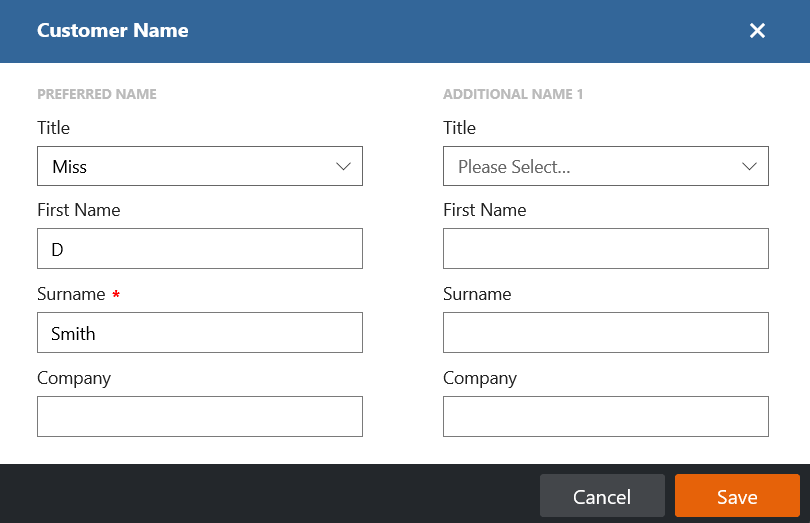
Clicking on this will bring up the following screen which will then allow you to input an additional name and company name onto the same customer record after this has been saved.