
The GRNI – Goods Received Not Invoiced report is used to identify parts advice notes that have been received into stock using the Parts module, but where the supplier invoice has not been matched against them. The ‘Other Goods and Services Receipts’ button can be selected to display goods or services received in via the Purchase Ordering routines, where those goods or services have not yet been invoiced to the dealership.
A date range can be selected and the report can be filtered for parts suppliers, by advice note type (receipt or return), parts department if multiple departments have been set up and by supplier name. Purchase Ledger account numbers can be selected for other goods and services receipted via purchase ordering.
Leaving the criteria blank and just choosing Parts or Other Goods & Services will display all advice notes awaiting invoices. Click on ‘Create Report’ to display the report.
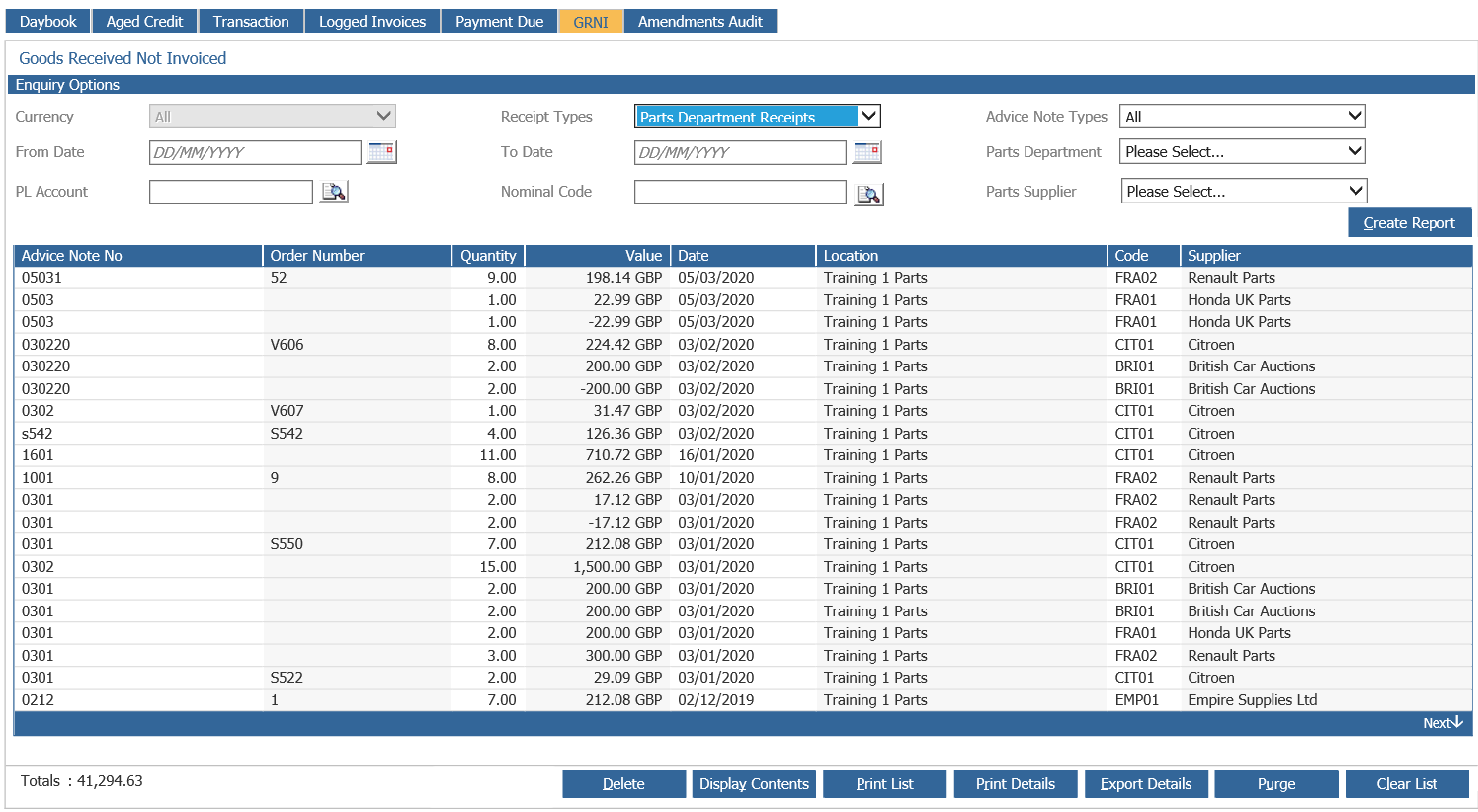
The advice notes are reported in date order.
The buttons across the bottom of the screen are used as follows:-
Display Contents
Highlight an entry and click ‘Display Contents to view the parts receipted in against the selected advice note.
Print List
Prints the report screen as displayed.
Print Details
Prints the report showing all part numbers on the advice notes.
Export Details
Click on this button to display a prompt to download the report into Excel. This export will include the GRNI nominal code which was used. This will be included when the report is run by Parts Department Receipts or Other Goods and Services Receipts. This should improve the speed of month end reconciliation.
Click on ‘Download the File’ and a further pop up box appears to choose to open or save the file in Excel format as required.
Click ‘Open’ to view the report in Excel format.
Click ‘Save’ to save the file to the PC.
Click ‘Cancel’ to return back to the previous screen.
Purge
Will remove all GRNI entries with a zero value and also gives an option to clear all GRNI matching sessions that have not been accessed for 3 hours. Therefore any processing of the invoices that match those advice notes will need to be done again from scratch.
Clear List
Will clear the report and criteria on the screen allowing new criteria to be selected.
