Question
How can I add an offer on a vehicle in Showroom, and generate orders?
Answer
Offers and orders can be created and monitored for customers using the Offers and Orders
panel. An offer can be created by clicking on the green plus icon or the context menu and
selecting Add Used Offer or Add New Offer.

Adding a New Offer
If you select 'Add New Offer', you will be displayed with the following screen.
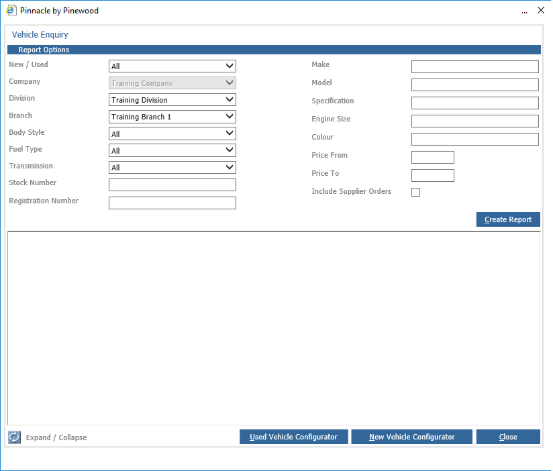
This will allow you to search for any 'New' vehicle stock in the form of creating a report.
Adding a Used Offer
If you select 'Add Used Offer', you will be displayed with the following screen.
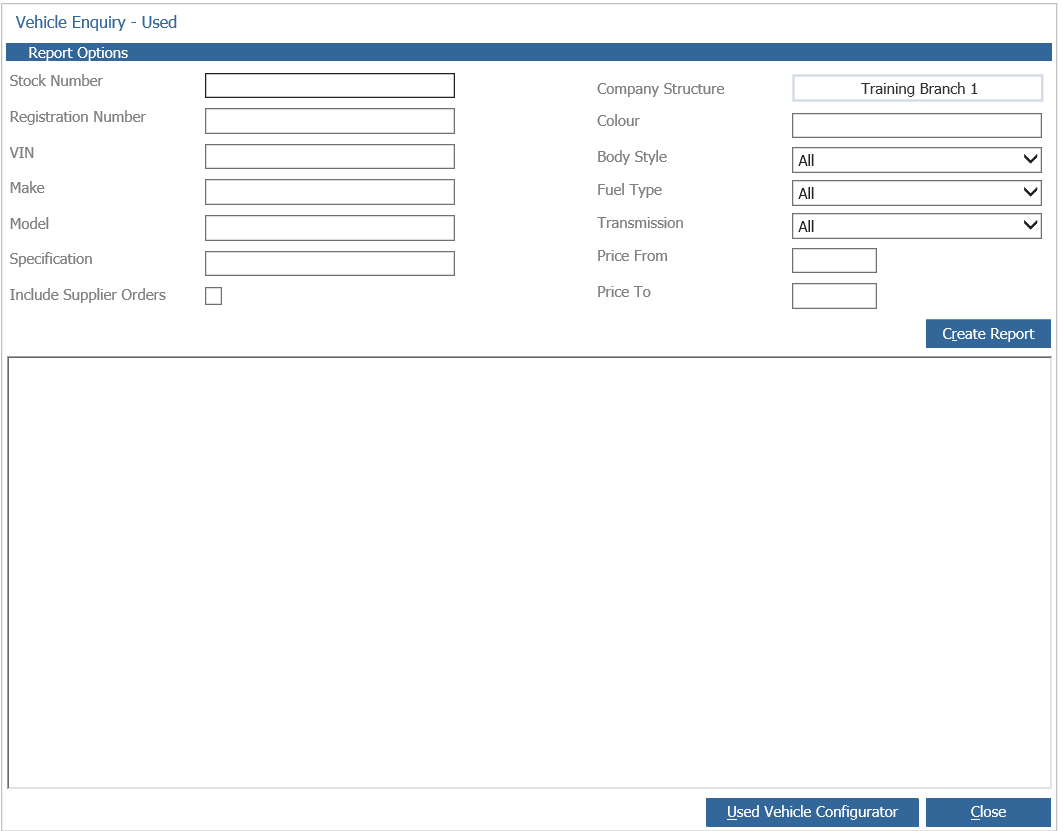
This allows a search of the 'Used' vehicle stock in the form of creating a report.
Where there is no vehicle in stock or on supplier order on the system, a quote and order can be created using the New or Used Vehicle Configurator options. This process involves configuring a vehicle on the system, and upon converting the quote to customer order, creating a supplier order for the vehicle.
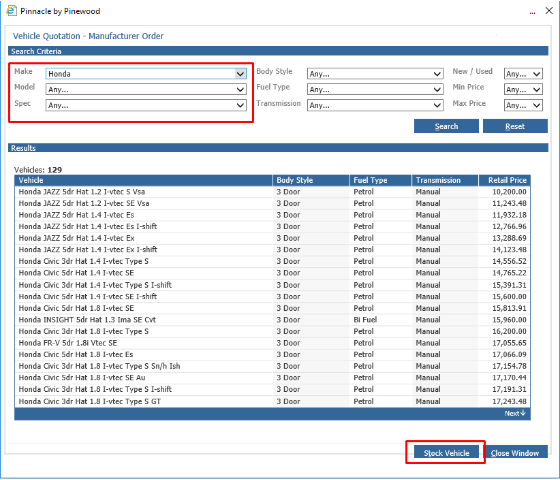
When creating a 'New Offer', select the 'New Vehicle Configurator'. You will be displayed with another screen, where you can search for Make/Model/Spec as well as other details. Select the Vehicle you wish, and then hit 'Stock Vehicle'. This will then use that Vehicle on the Quote.
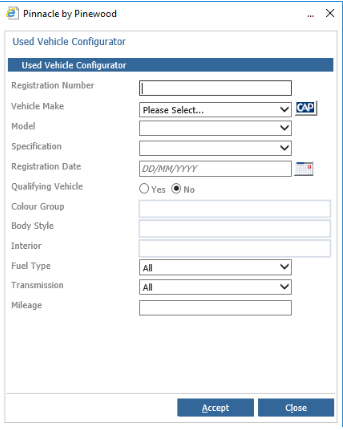
When Creating a 'Used Offer', select the 'Used Vehicle Configurator' button. This will bring up a slightly different screen to the New Vehicle Configurator, where you can input the details you wish.
Once satisfied, hit Accept, and it will use these details on the Vehicle Quote.