
Question
I have a user in the system whose access levels need changing - how do I check which access level is required and how do I then amend this accordingly?
Answer
Every menu item within the system has it's own access level which is represented by a numeric value from 0-99.
Each user is then given an access level to different sections which then dictates what they do and do not have access to. The users access must be equal to or greater than the specified access level to access that item.
You can check and change the system access levels by going to Administration - User Admin then going onto the Side Menu Access tab.
Each level of the System Menu has it's own access level. For example if you wanted to access the letters option in CRM you would need to make sure your user had enough access to get into CRM > Processing > Letters:
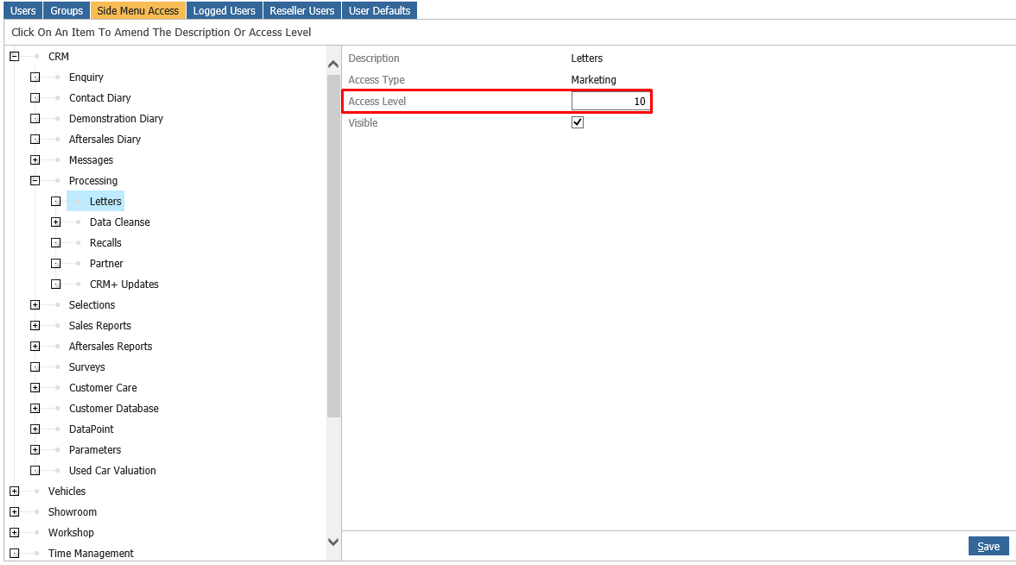
You can see from above that each item has an access type of Marketing and an access level of 10. In order for a user to access this they would need 10 or above for their CRM level.
If you go to the Users tab and search for the user you want to have access to this you can then amend what level they have for CRM.
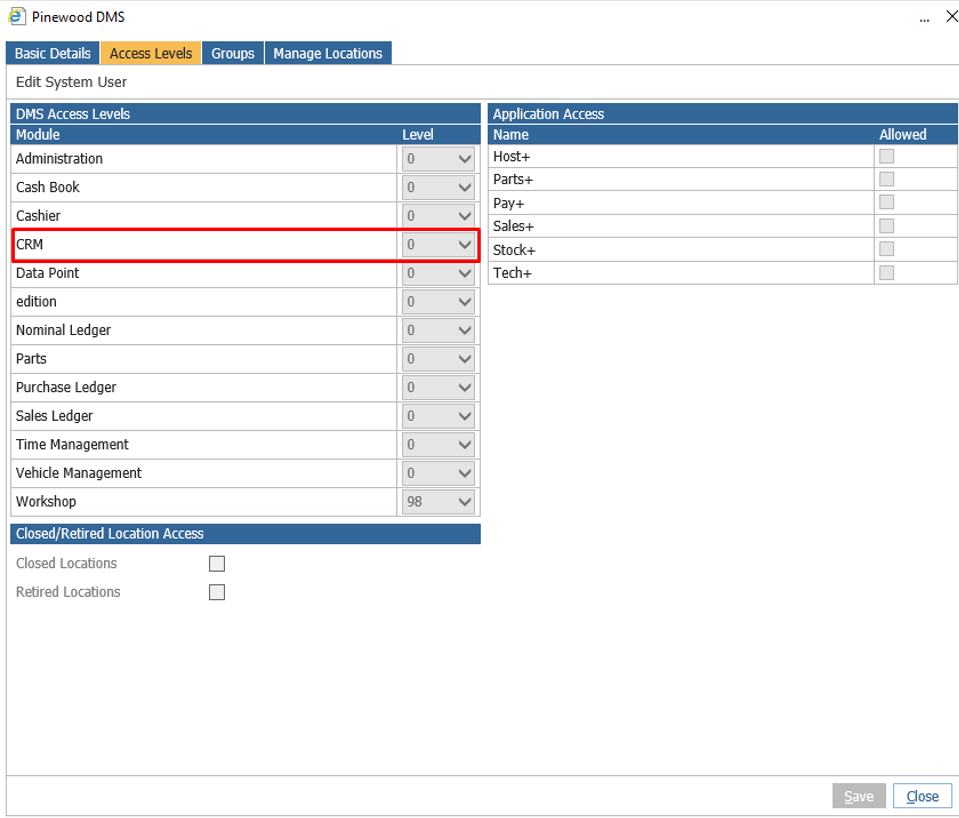
Please Note: the 'Max' column shows access levels assigned using the Groups access level function - whichever number is higher in each column will dictate the user's access.
There are different access types and each access type corresponds to a different access level.
Marketing = CRM
Vehicle Management = Vehicle Management
Workshop = Workshop
Time Management = Time Management
Parts = Parts
General = Administration
Cash Book = Cash Book
Sales Ledger = Sales Ledger
Purchase Ledger = Purchase Ledger
Nominal Ledger = Nominal Ledger
Cashier = Cashier
Edition = Edition
If you do not have access to the Administration area then please contact your System Administrator who will be able to adjust your access levels for you.