Pinewood Technologies PLC Help Centre home page
Sign in
  1. Pinewood Technologies PLC
  2. Quick Answers
  3. CRM

Search

📝 Change Service Interval Miles and Weeks

Ellie
Ellie
  • Updated 26 July 2024 15:50

Question

How to change the Service Interval Miles and Weeks on a vehicle record?

Answer

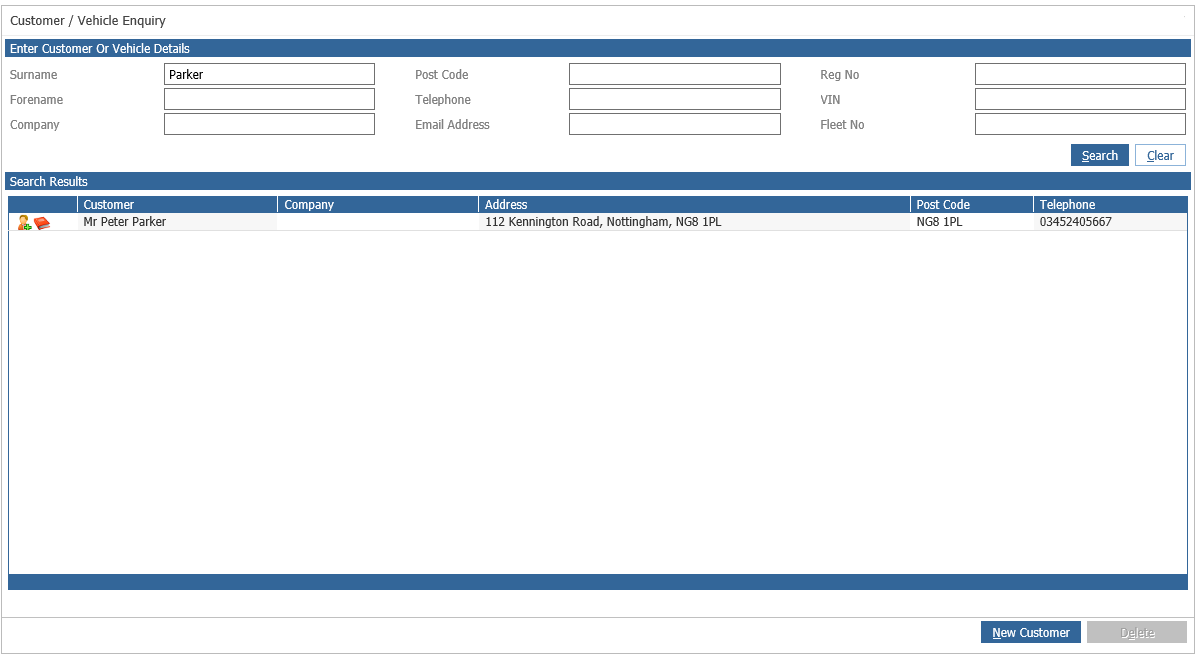
Go to CRM > Enquiry > Select branch in the company structure > Find the customer using one of the search criteria > Double click on the customer record (see image below)
 

mceclip0.png


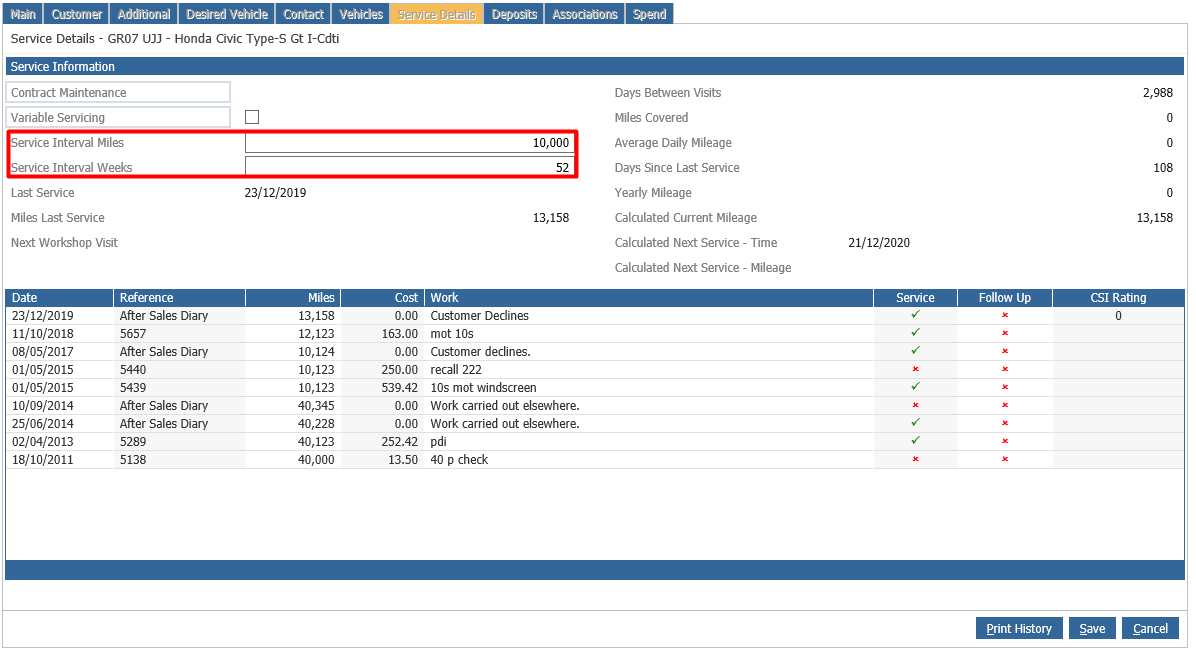
Select Service Details tab on the top of the screen. 

Press Amend button at the right bottom corner and change settings in the highlighted red box according your needs and save it. 
 mceclip1.png


Related articles

  • 📝 How Service Interval Defaults are Applied
  • 🎥 How to Manually Update the Service History of a Vehicle?
  • 📝 Aftersales Diary No Further Reminders
  • 📝 MOT Date Changes
  • 📝 Parts Parameters Price Uplift

Articles in this section

  • 📝 The email address entered may be invalid error message
  • 📝 I've created a New Letter but this is not updated in the Aftersales Contact Plan
  • 📝 How to run a selection to return Account Codes associated to a Customer record?
  • 📝 Users are able to search for Customer Records from Branches they do not have access to - Why is this?
  • When I click 'Start Contacts' in the Aftersales Diary, there are no contacts to process?
  • 📝 How do I search for Additional Names of customers?
  • 📝 How to change the Department on a CRM Record?
  • 🎥 How to amend the Vehicle Health Check format?
  • 🎥 How to set up the Demonstration Diary in CRM?
  • 🎥 How to Add an Additional Name to a CRM Record?

See all 143 articles

© 2025 All rights reserved. by Pinewood Technologies PLC