
To go about refunding for a customer order parts deposit, refunding of a deposit can be done in multiple different places within Customer Orders and Distribution, depending at what stage the customer order has been processed to and if you have distribution enabled.
Allocate Orders
A deposit refund can be generated from the allocate orders page.
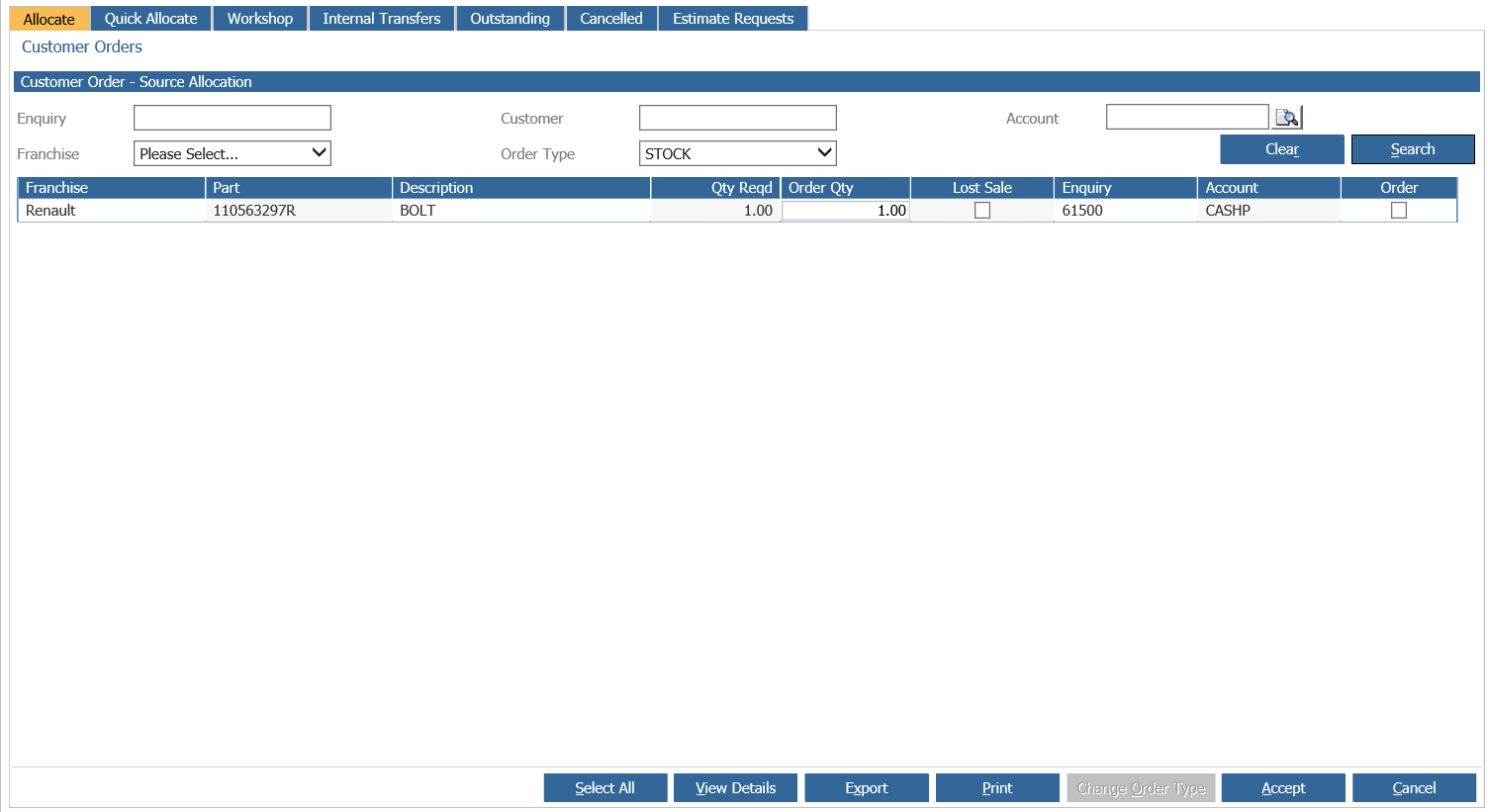
From within the allocate order screen against individual parts, a lost sale can be generated.
Selecting a part for lost sale will prompt with the window below.
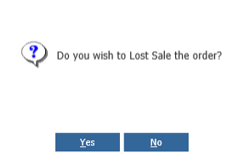
Selecting ‘Yes’ will progress to the next window.
Selecting ‘No’ will return to the allocate orders screen.
If more than one part was on the enquiry the window below will be shown
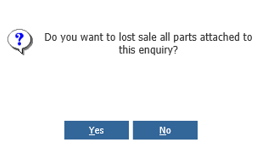
Selecting ‘Yes’ will produce a refund for ALL parts on the enquiry, deleting the customer order in full.
Selecting ‘No’ will return to the allocate orders screen, the order for the part selected will have been deleted.
When ‘No’ has been selected the other parts on the enquiry can progress through the rest of customer orders. When the final invoice is generated the refund will be processed.
If ‘Yes’ has been selected the window below will be shown.
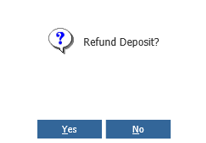
If ‘No’ is selected the deposit value will be retained and no refund generated.
If ‘Yes’ is selected the credit is raised.
Outstanding Orders
If the order has progressed past the allocate orders stage it will be in outstanding orders.
A deposit order can also be refunded from the outstanding customer orders screen.
Orders can be deleted by single clicking the order and selecting ‘Delete’.
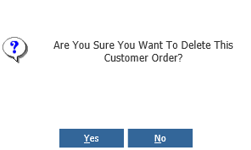
If ‘Yes’ is selected the window below is displayed.
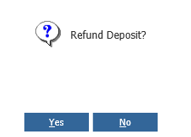
If ‘No’ is selected the deposit value will be retained and no refund generated.
If ‘Yes’ is selected the credit is raised.
Customer Order Exceptions
If you have distribution switched on you can also refund from Customer Order Exceptions, from in here, you follow the same process as above for the allocate order screen.
Selecting a part for lost sale will prompt with the window below.
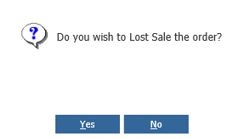
Selecting ‘Yes’ will progress to the next window.
Selecting ‘No’ will return to the Customer Orders Exception screen.
If more than one part was on the enquiry the window below will be shown
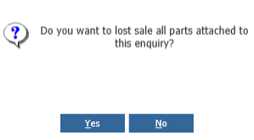
Selecting ‘Yes’ will produce a refund for ALL parts on the enquiry, deleting the customer order in full.
Selecting ‘No’ will return to the Customer Orders Exception, the order for the part selected will have been deleted.
When ‘No’ has been selected the other parts on the enquiry can progress through the rest of customer orders. When the final invoice is generated the refund will be processed.
If ‘Yes’ has been selected the window below will be shown.
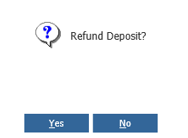
If ‘No’ is selected the deposit value will be retained and no refund generated.
If ‘Yes’ is selected the credit is raised.
Receipt Exceptions
If you have distribution switched on you can also refund from Receipt Exceptions, from in here, you follow the same process as above for the allocate order screen.
Selecting a part for lost sale will prompt with the window below.
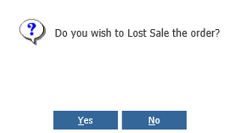
Selecting ‘Yes’ will progress to the next window.
Selecting ‘No’ will return to the Receipt Exceptions screen.
If more than one part was on the enquiry the window below will be shown
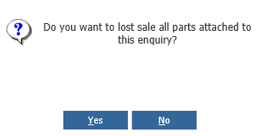
Selecting ‘Yes’ will produce a refund for ALL parts on the enquiry, deleting the customer order in full.
Selecting ‘No’ will return to the Receipt Exceptions, the order for the part selected will have been deleted.
When ‘No’ has been selected the other parts on the enquiry can progress through the rest of customer orders. When the final invoice is generated the refund will be processed.
If ‘Yes’ has been selected the window below will be shown.
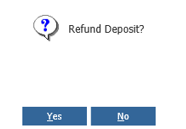
If ‘No’ is selected the deposit value will be retained and no refund generated.
If ‘Yes’ is selected the credit is raised.
Pick Exceptions
If you have distribution switched on you can also refund from Pick Exceptions, you can click into the enquiry lines and then process a lost sale.

Double Clicking the line will bring up the lost sale pop-up where you can enter the amounts to lost sale, once this has been entered then you can click accept to process the Lost Sale.
Once this is pressed the below pop-up will display:
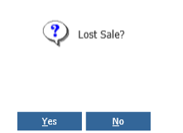
Selecting ‘Yes’ will progress to the next window.
Selecting ‘No’ will return to the Pick Exception screen.
If ‘Yes’ has been selected the window below will be shown.
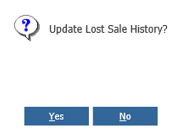
If there is a deposit on the order, then you will be presented with:
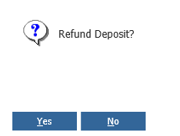
If ‘No’ is selected the deposit value will be retained and no refund generated.
If ‘Yes’ is selected the credit is raised.