
This guide will show you how to take a parts deposit invoice for a customer order on parts with zero availability.
In order to take a Parts Deposit Invoice, go to Parts > Sales > Invoice
Search the customer information and press Accept
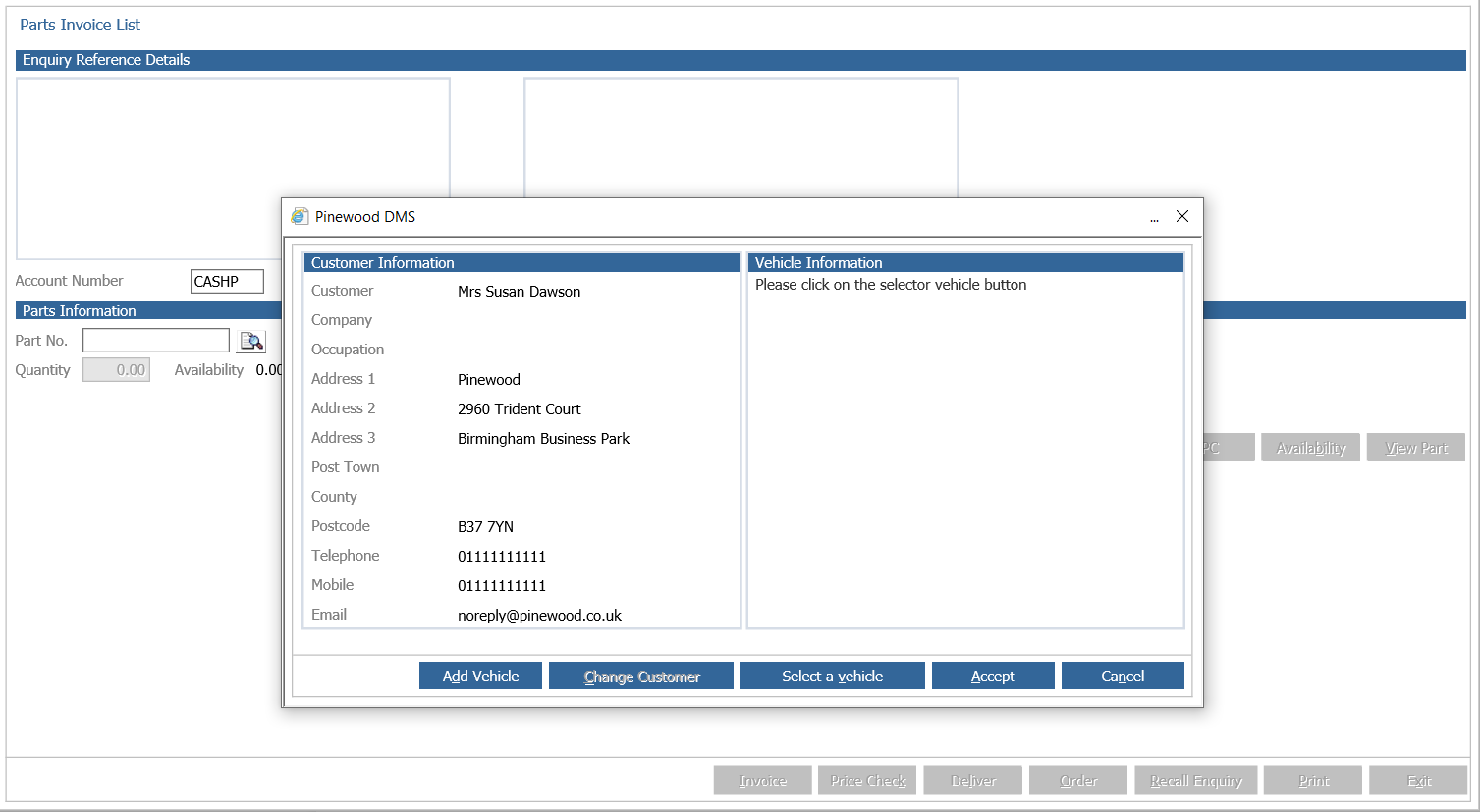
Search for the relevant part number using the spyglass and double click on the part
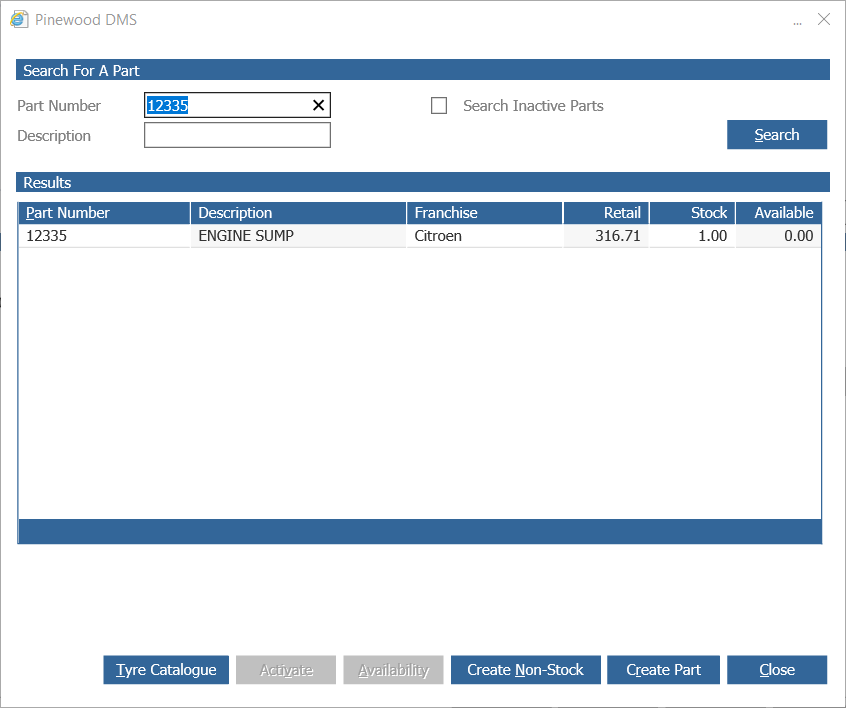
See the availability is zero
Press Accept
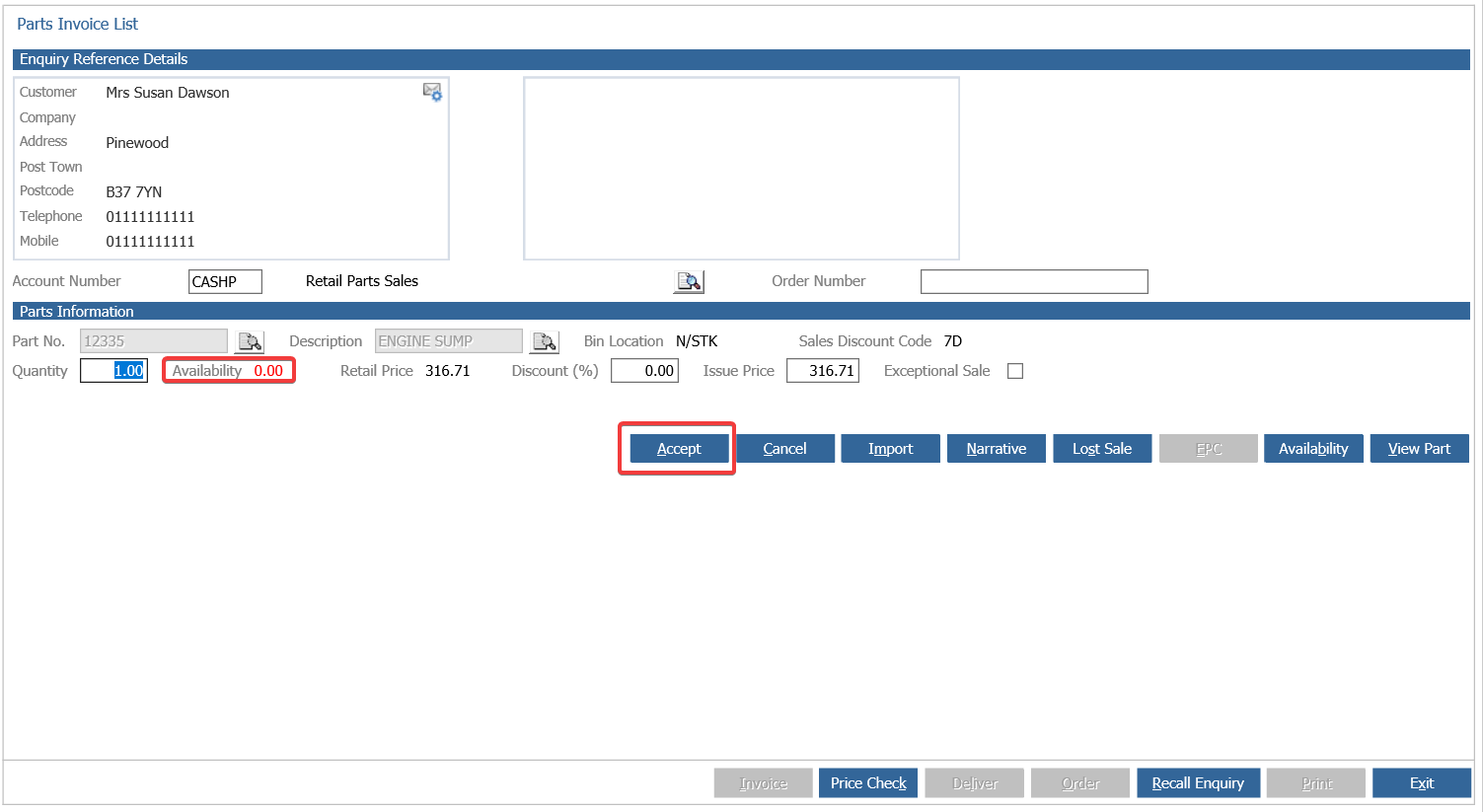
Press invoice at the bottom of the screen, and see the order information defaults to 1 Stock
Press Accept
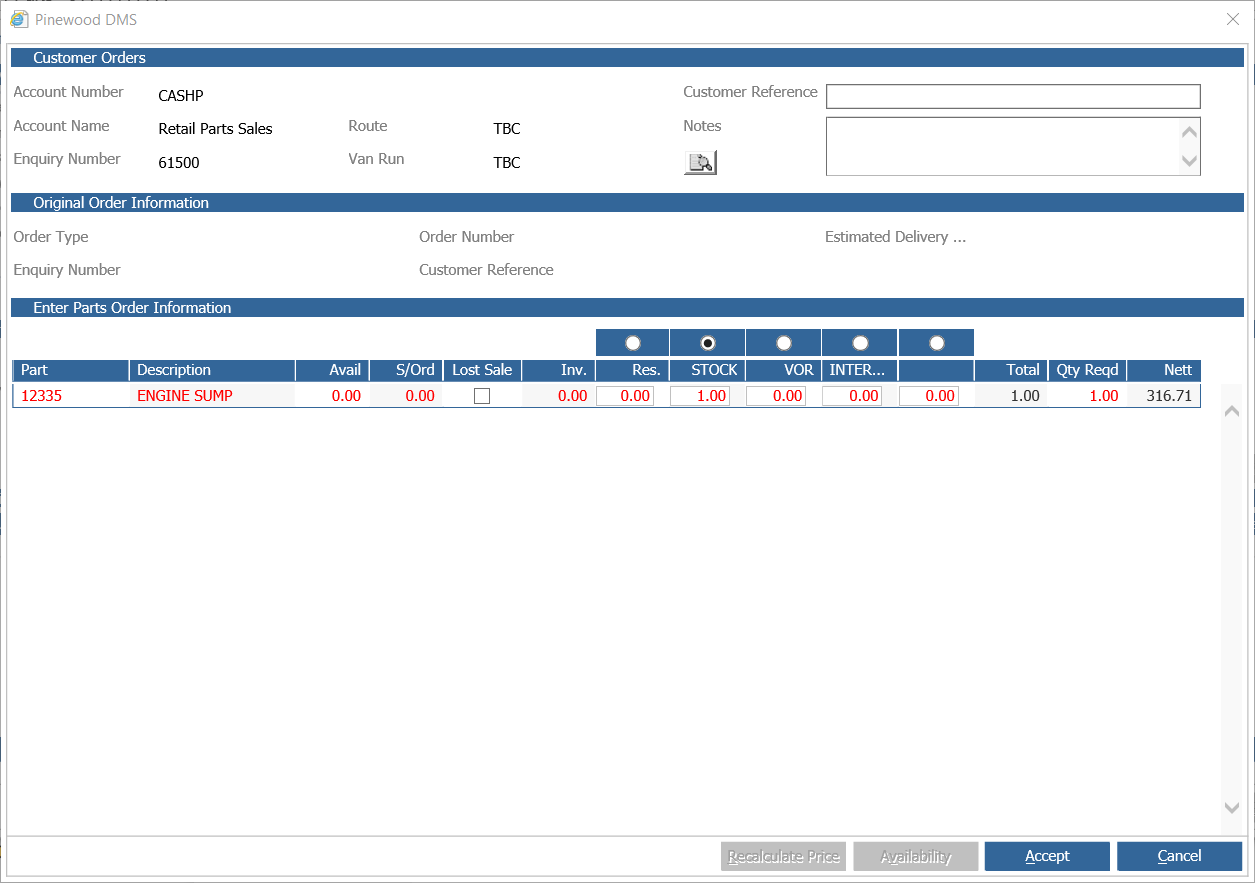
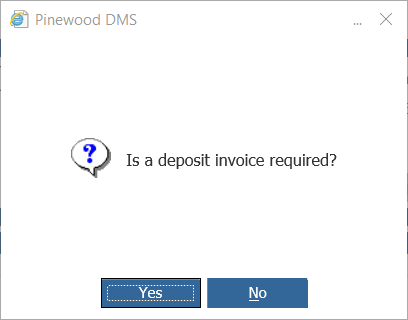
You will then receive a pop up asking if a Deposit Invoice is Required, press yes
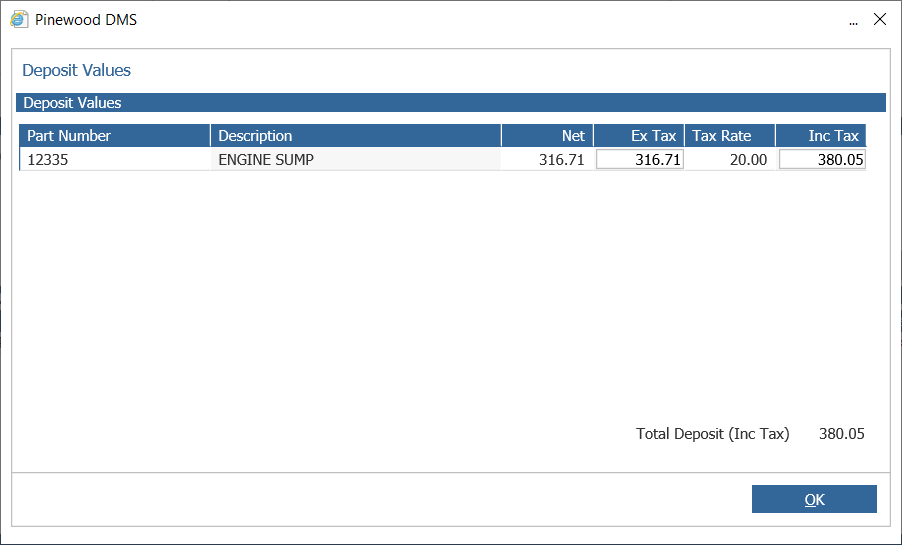
See the Deposit Values appear on the screen, including the tax rate
Press OK
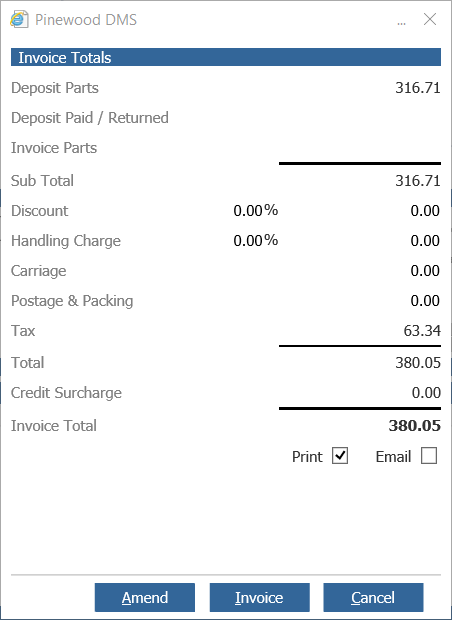
At this point, you will receive the Invoice Totals and are able to either Amend, Invoice or Cancel.
The Amend function will allow you to add Carriage and Postage & Packaging
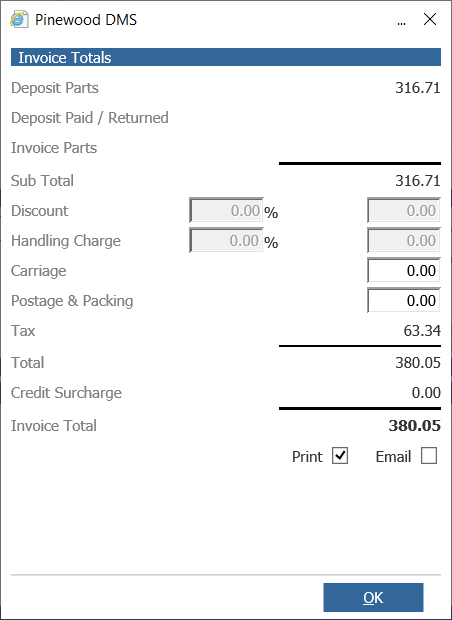
Once you have made any amendments and chosen whether to Print or Email the invoice, press the invoice button
From here you are able to add payments (Card, Cash, Cheque or Other)
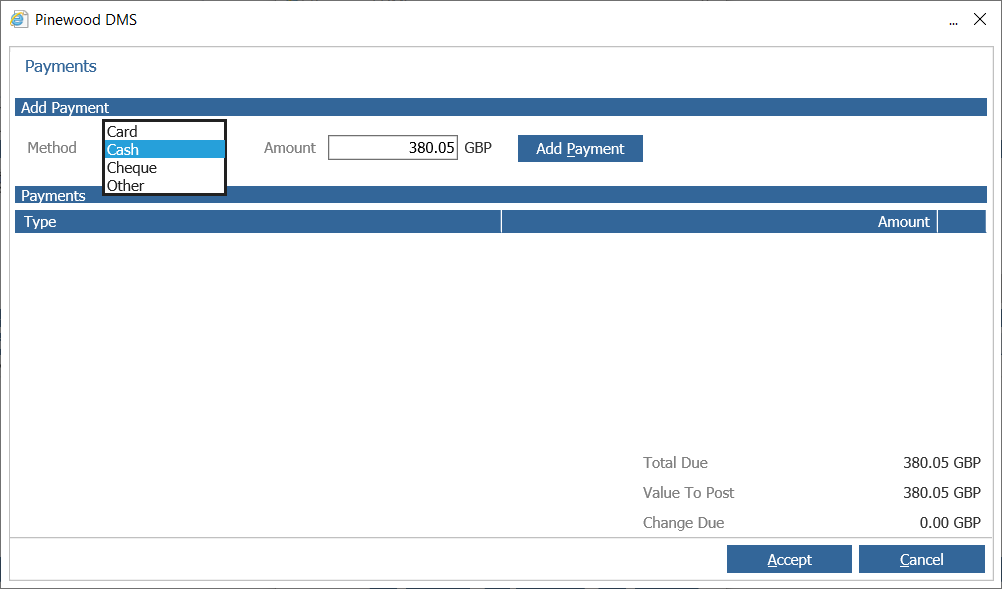
Once you have done this, click Add Payment and Accept.
The invoice will then generate.
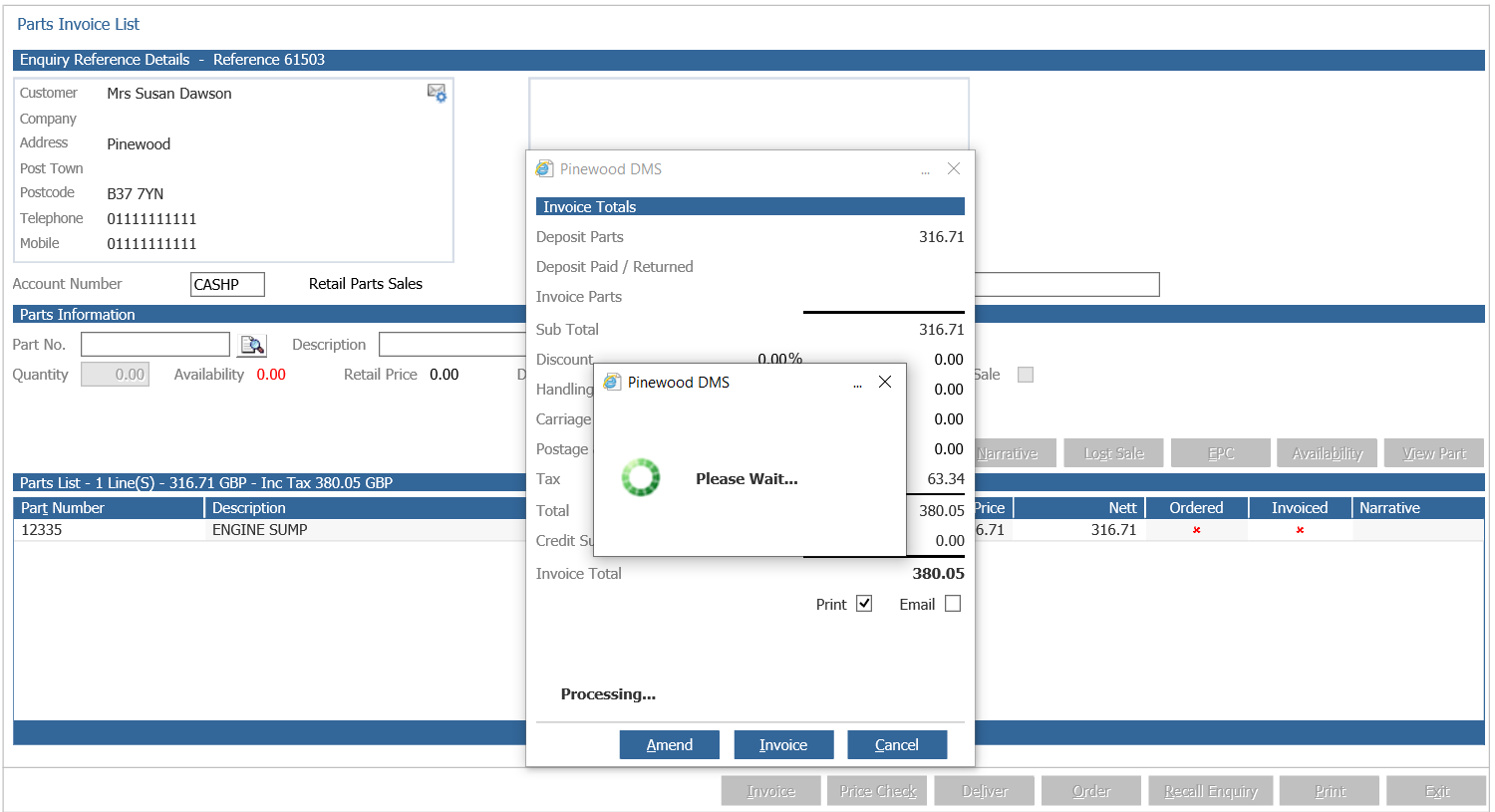
The Invoice is now complete and you will be given the option to reprint.