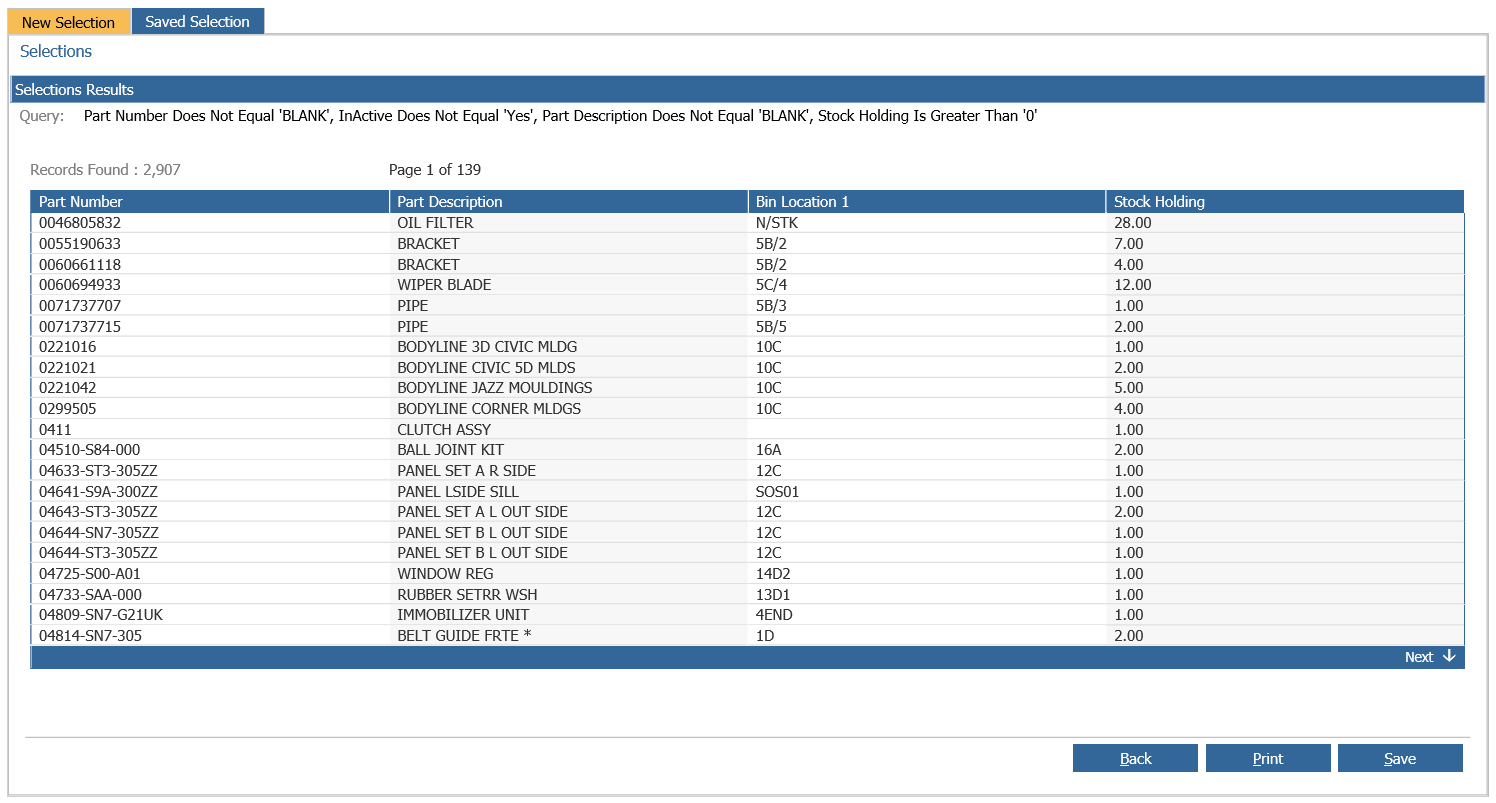
Creating a selection for Parts Stock Holding is beneficial as you can see how much stock you currently have in the parts department for a specific part or a number of parts. This could reduce the amount of ordering from suppliers as you can clearly see what parts need to be ordered and what you already have within the parts department.
To begin the process of creating a selection within the Pinewood DMS, select the following options from the left hand menu.
Parts > Selections > Search
Once this option has been selected the system will display a screen in which you need to build your parts report. The screen will show 2 tabs, one of which is ‘New Selection and the other is ‘Saved selection’ the saved selection tab is to view reports that have previously been made. The following screen will look as below;
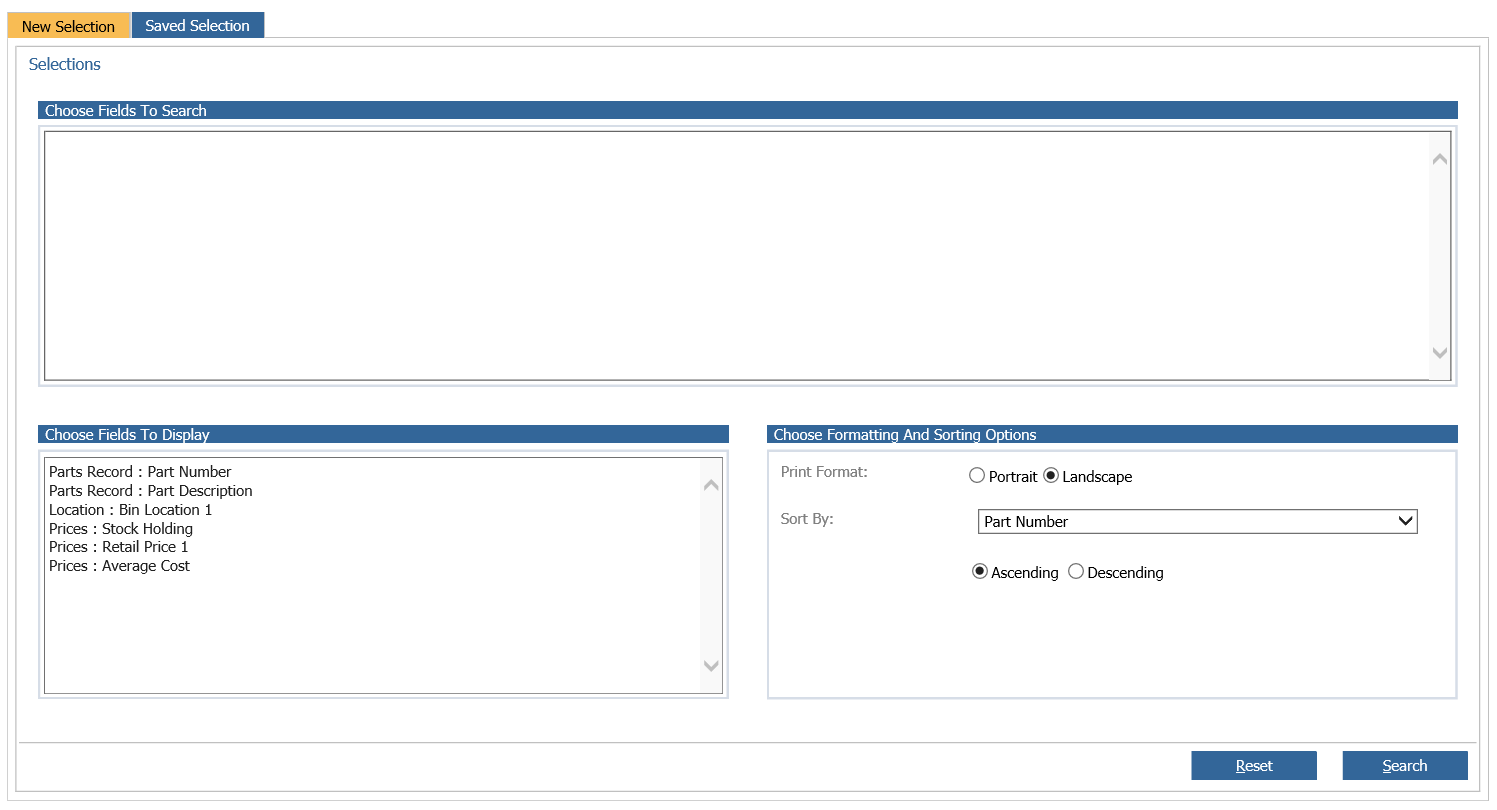
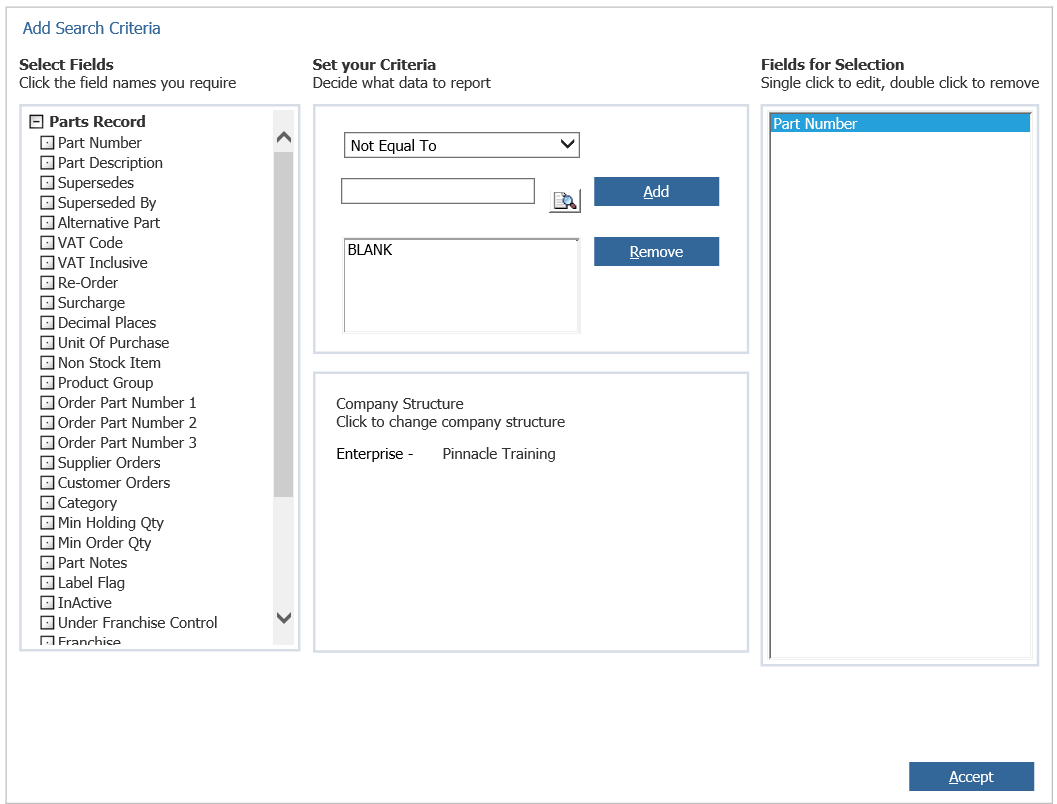
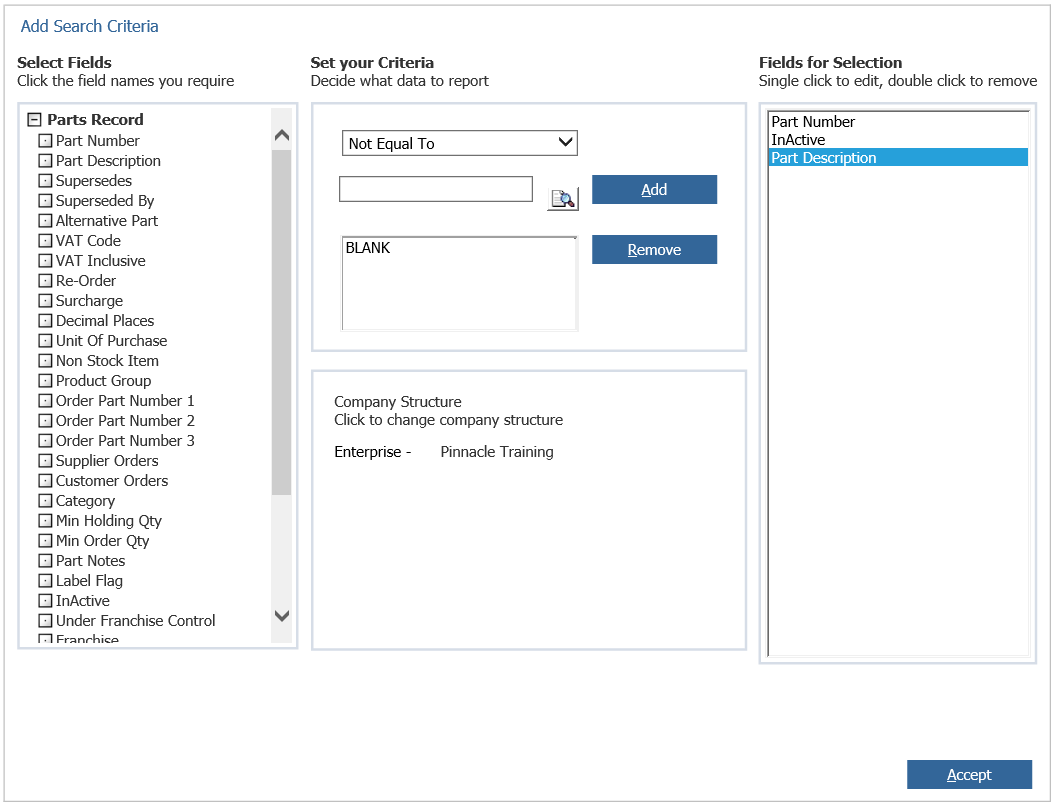
Click in to the ‘Choose fields to search’ box, this is what will need to be completed first. Go to Parts Record > Part number within the drop down tab select ‘Not Equal To’ and in the bellow box type ‘BLANK’. This will then display all parts that have a part number associated with it.
Click ‘Add’ and the screen will show as below;
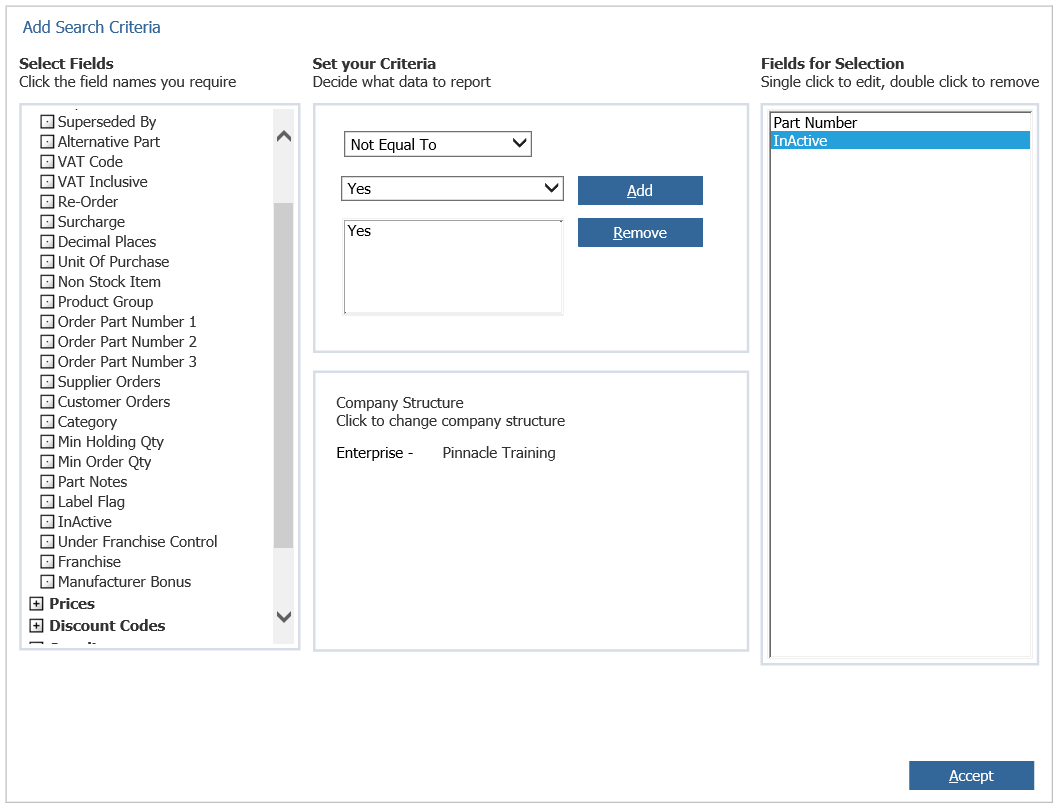
Then go to Part Record > InActive within the drop down select ‘Not Equal To’ and within the second drop down click ‘Yes’.
Click ‘Add’
This will then display all parts that are currently active, eliminating InActive parts will give a more accurate report for stock holding as the InActive parts not being used in the dealership will not be displayed in the report.
The screen will show as below;
Go to Parts Record > Part Description select ‘Not Equal To’ within the drop down and type ‘Blank’ within the box bellow the drop down. Click ‘Add’, this will again only display tyres that have a product description set against the part card.
The screen will show as below;
Go to Prices > Stock holding and within the drop down select ‘Greater than’ in the box bellow enter ‘0’ then click ‘Add’. This will then show all parts that are active with a part number, description, and with a stock holding greater than 0.
The screen will look as below;
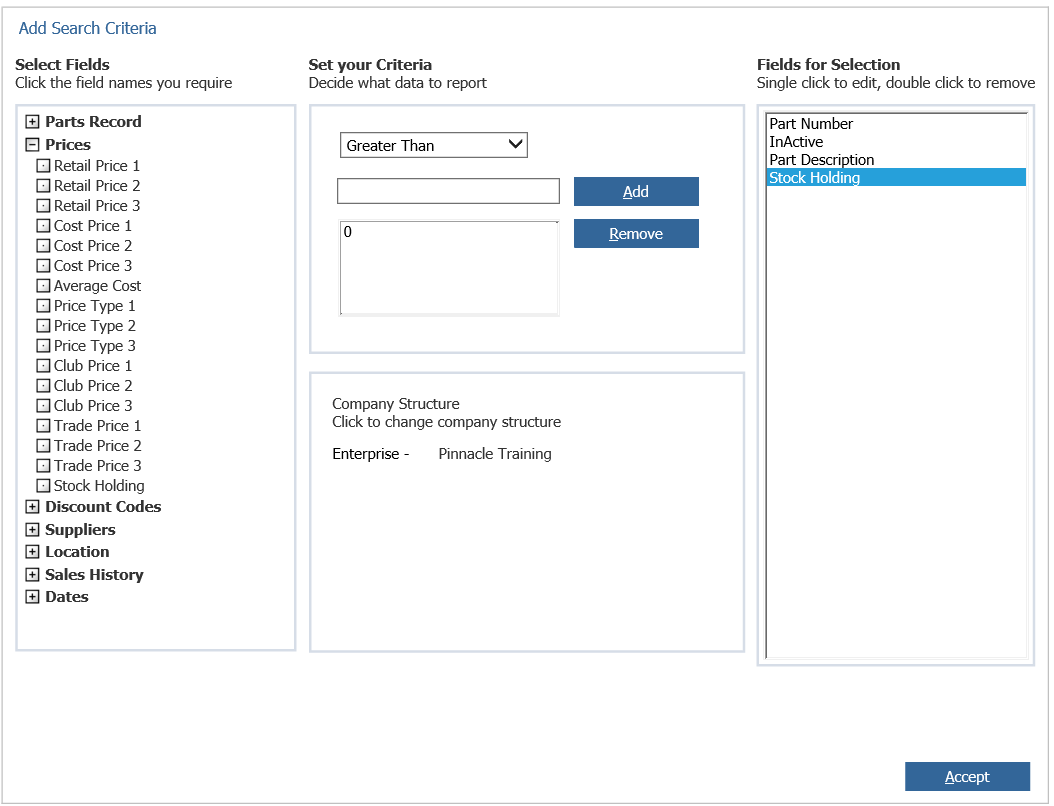
If you would like to display all parts that you currently don’t have in stock, go to Prices > Stock Holding, in the drop down select ‘Equal To’ and in the box bellow type ‘0’. Then click ‘Add’.
Click ‘Accept’.
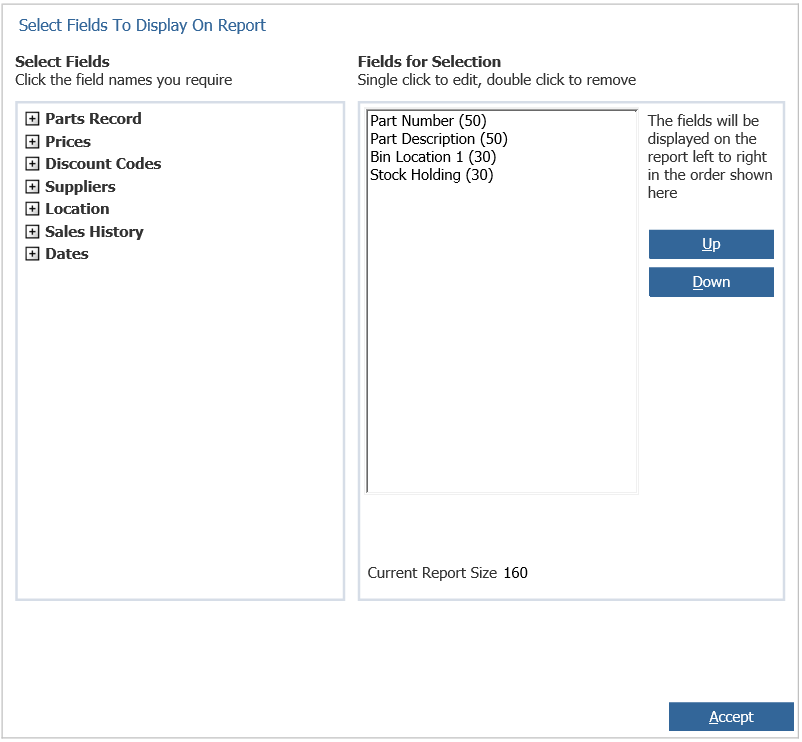
Within the ‘Choose Fields To Display’ box you will be able to add what fields you would like to show on the report. For example, the stock holding report you could select Part Number, Part Description, the Bin Location of the Part, the Stock holding etc… the screen will look as below;
Once this has been done you can choose how you would like your report to look by either selecting Landscape or Portrait, which category you would like the report to be sorted by and whether this is ascending or descending.
The screen will look as below;
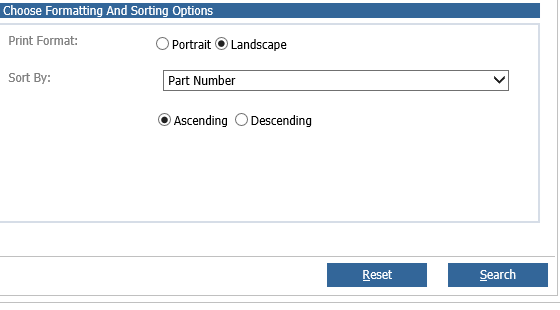
Click search and your report will be made. You can also save your selection by clicking ‘Save’ this will then appear in the Saved Selections tab or you can print the report by clicking ‘Print’.