
Parts > Sales > Workshop Issues
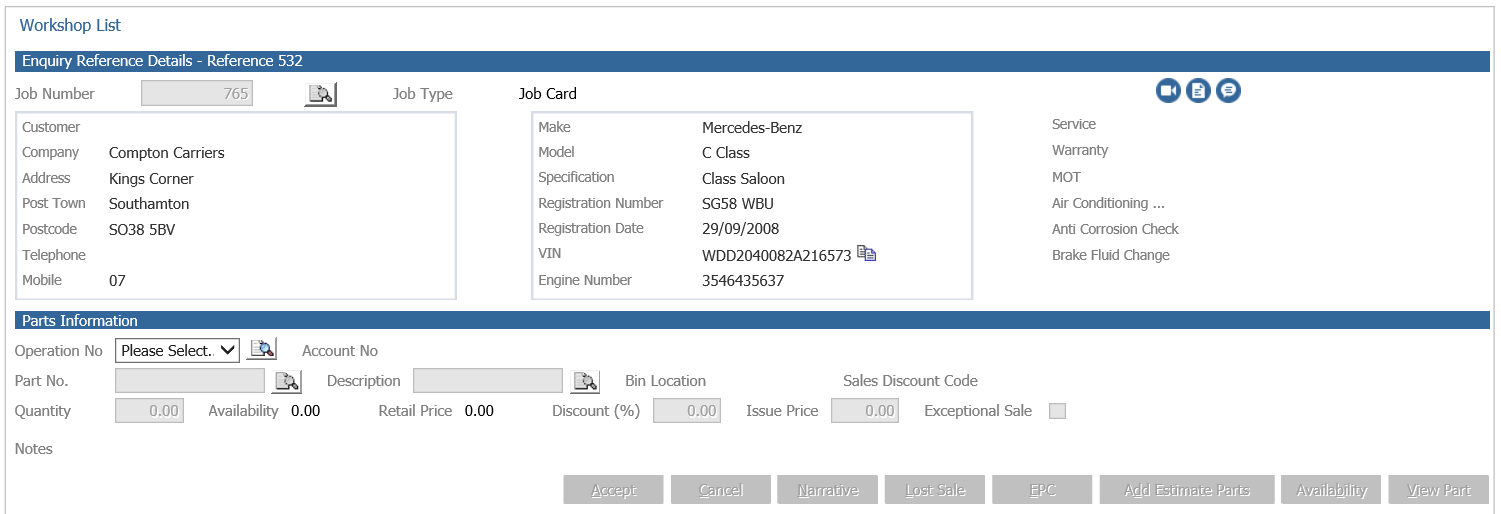
After entering an open workshop job card number, the workshop issues screen is displayed.
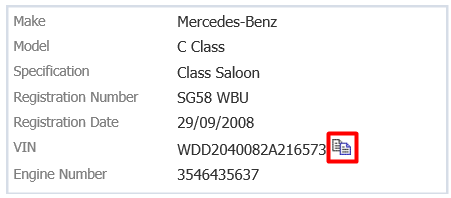
Within the vehicle information box there is a  icon, selecting this will copy the VIN onto the windows clipboard allowing the VIN to be pasted into a parts catalogue.
Parts are issued to the relevant workshop operation on the job card, the operation can be chosen using the Operation No dropdown.
Selecting the ‘Search’ icon next to the operation number dropdown will show the operations numbers and requirements. To select an operation double click the relevant line. This will then be loaded into the issues screen.
Using the ‘Search’ icon, the operations and requirements can be recalled at any time.
Enter a part number into the part number field and press enter or use the search  icon to search for parts. Once the desired part has been selected the information will be displayed for that part.
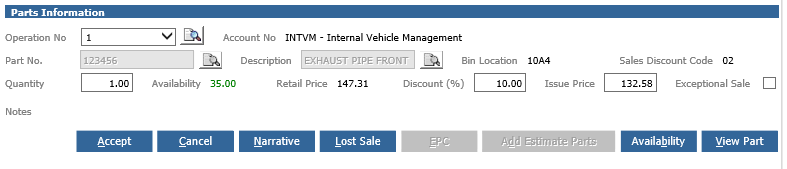
The part number the Description, Bin Location 1, Sales Discount, Availability, Retail Price Discount % and issue price are displayed.

For parts that need to be created, use the Create Part Button.
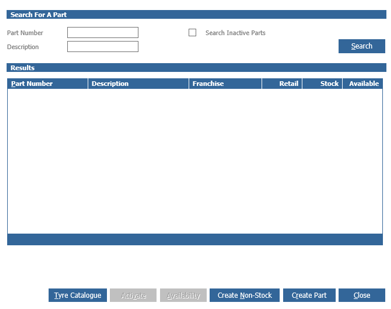
You are then able to select the franchise for the part if applicable and create the part required.
Discount values will automatically populate from the sales table in parameters if the sales ledger code being used is within a table.
The Discount (%) and Issue Price fields can be amended at this stage. If a new percentage value is entered the issue price is automatically recalculated. Alternatively, the issue price can be over keyed.
*This is subject to a users access levels and the parameter set-up for your system

Pressing ‘Accept’ will add the part to the parts list in the lower half of the screen where more parts can then be added.
To amend a part on the list, double-clicking the part will move it back into the parts information area of the screen where an amendment can be made.
After the quantity, discount value, or issue price has been amended, the parts list needs to be updated by pressing ‘Accept’.
To remove a part on the list, double-clicking the part will move it back into the parts information area of the screen where the quantity can be amended to zero. Pressing ‘Accept’ will remove the part.
The option to print a parts list is available by selecting ‘Print Part List’
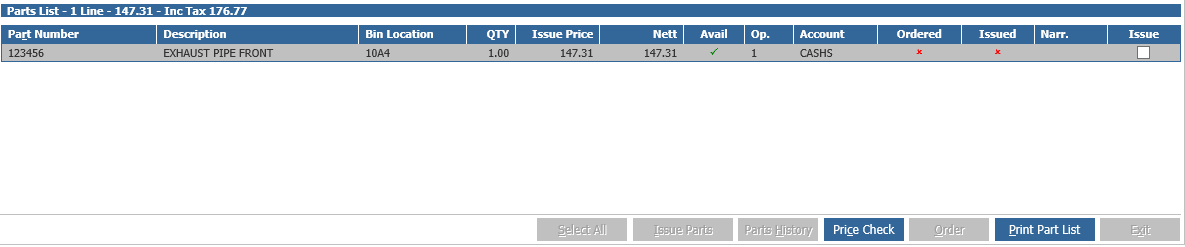
Note: Parts will not be issued until the ‘Issue Parts’ button has been selected. You can select individual Parts to issue using the boxes within the Issue column.
Selecting ‘Exit’ will exit the workshop jobcard. Upon exiting with un-issued parts the window below is shown.
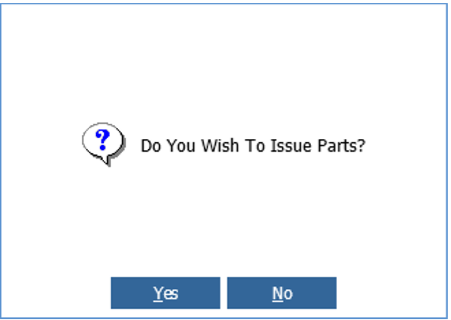
Selecting ‘Yes’ will automatically issue the parts.
Selecting ‘No’ will exit the job card without issuing the parts added this time.
Any previously issued parts will remain an issue.
With parts being un-issued to the job card, the workshop invoice cannot be produced. Parts must either be removed or issued.